Systems Unable to Burn CD/DVD with File Explorer
Summary: The following article provides information about dealing with multiple systems unable to burn CDs or DVDs with Windows integrated tool in File Explorer.
Instructions
If you have updated/reinstalled Windows, and it is no longer able to burn CDs or DVDs with their ODD - Optical Disk Driver with the Windows integrated tool in File Explorer. Uninstalling recent updates does not resolve the issue. This issue is seen primarily in systems on domains.
The option to burn disks is missing from the context menu in file explorer. If a blank disk is inserted into the drive bay, it indicates that a disk has been inserted but attempting to left-click or right-click. The CD drive in the system locks up for a short period of time and then gives a Cyclic redundancy error. Upper and lower filters do not resolve the issue.
Systems that have been identified with this issue:
- OptiPlex 5050
- OptiPlex 7060
- Precision 3430
- Precision 7820 Tower
Microsoft has reviewed and stated that the root cause is a Group Policy Object (GPO) that has been changed.
Below are the steps to resolve. However, if the GPO setting changes back again or the setting cannot be changed, contact the Network Administrator.
Steps:
-
Open a run prompt (Windows key + R) and type Regedit. Press enter. Locate and delete the NoCDBurning keys under HKEY_LOCAL_MACHINE (HKLM) (Figure 1).
The keys should be located at the following locations:- HKLM\Software\WOW6432Node\Microsoft\Windows\CurrentVersion\Policies\Explorer
- HKLM\Software\Microsoft\Windows\CurrentVersion\Policies\Explorer
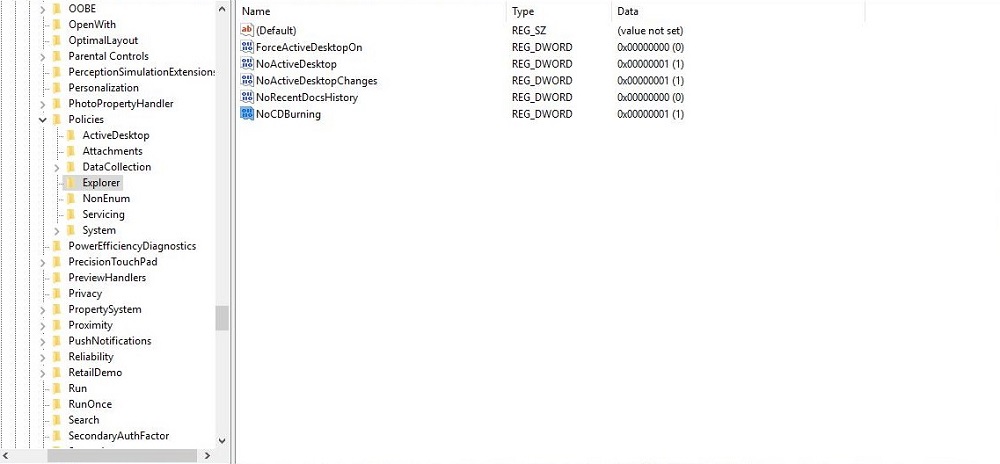
(Figure 1. Registry Editor)
- Restart the computer.
- Enable and then disable the Group Policy for Locally Blocking the Burning Features.
- Open a run prompt (Windows key + R).
- Type gpedit.msc and press Enter.
- Navigate to User Configuration > Administrative Templates > Windows Components > File Explorer > Remove CD Burning features."
- Enable the local policy and then disable it.
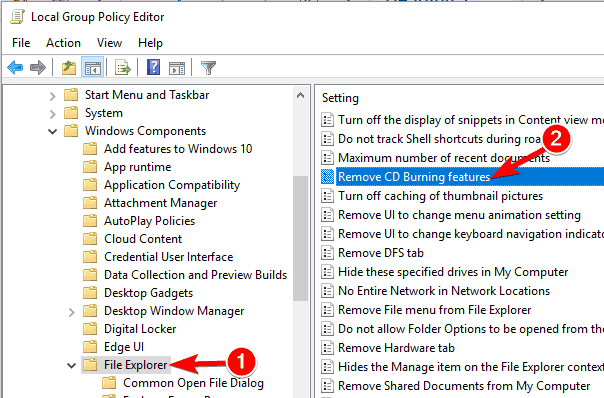
(Figure 2. Local Group Policy Editor)
Restart the computer. According to Microsoft, this should reset the permissions. Once the customer is logged back in test the burning capabilities.
Optional Workaround
Install a third-party tool to burn CD's/DVD’s if the registry or GPO cannot be modified for security reasons.