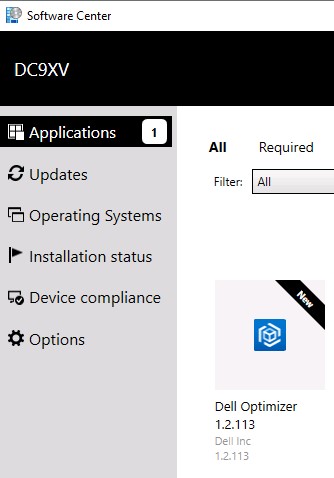
Install Dell Optimizer Through System Center Configuration Manager (SCCM)
Summary: Learn how to configure Dell Optimizer installed from System Center Configuration Manager (SCCM).
Symptoms
Computer does not automatically switch audio to wired headphones or speakers when you plug-in any 3.5" audio jack.
Cause
Dell Optimizer is required for audio switching when using 3.5" audio jack.
Resolution
Follow these instructions to configure the Dell Optimizer installer through SCCM.
- Browse to the Dell Drivers & Downloads website.
- Identify your Dell product.
- Enter the Service Tag, Express Service Code, or the Serial number of the Dell product and click Search.
- Or, click Browse all products to manually select your Dell product from the catalog.
-
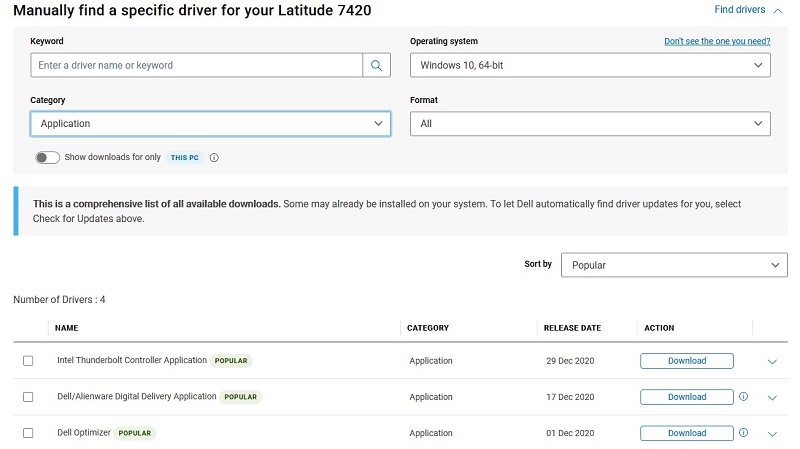
Download Dell Optimizer. Click the Download button next to the driver of your choice and save the file.
-
Extract Dell-Optimizer_03WMV_WIN_1.2.113.0_A00.exe to your SCCM Share directory.
-
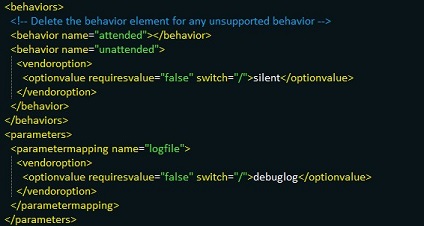
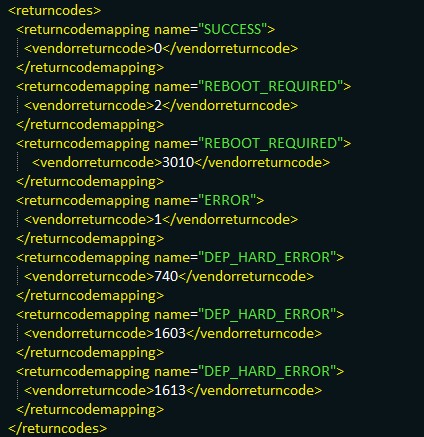
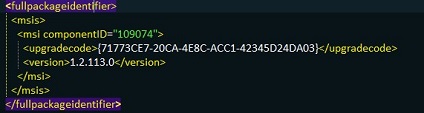
Review the Mup.xml for silent installation switches, Return Codes, and the MSI GUID of Dell Optimizer:
-
Go to ConfigMGR Console > Application Management > Applications and Choose Create Application.
-
Choose Manually specify the application information.
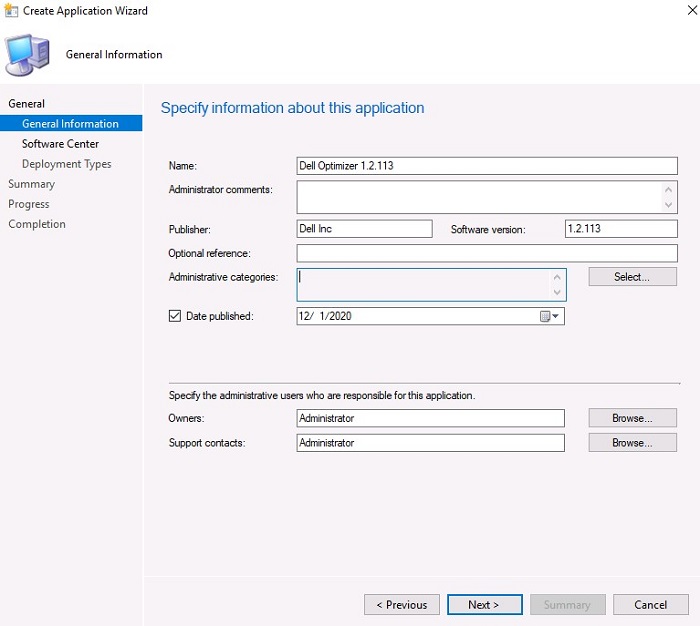
-
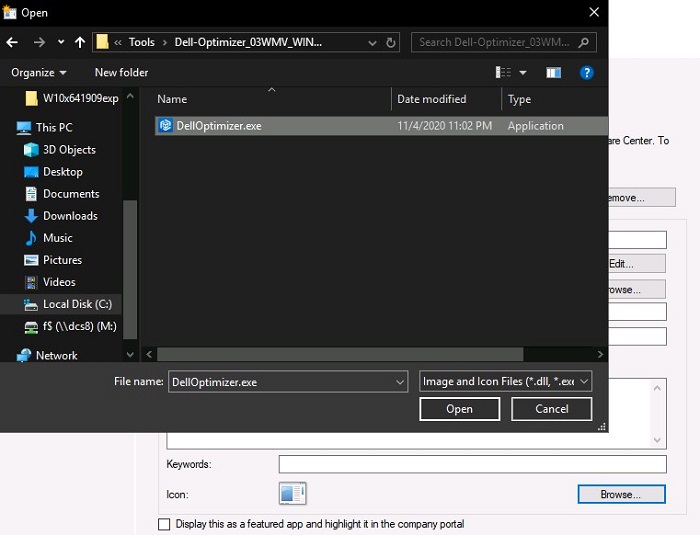
Click Browse under the Icon heading.
-
Browse to the Share directory of Dell Optimizer.
-
Select DellOptimizer.exe for the icon.
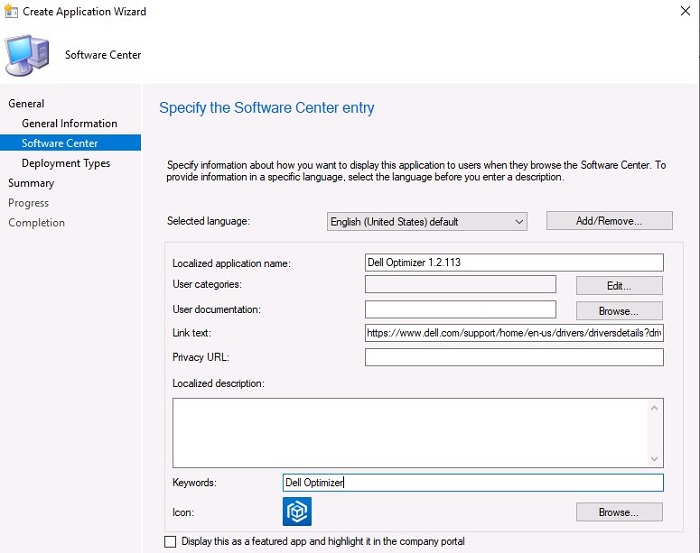
-
Click Add under Deployment Types.
- Select Script Installer, and then click Next.
- Enter the name Dell Optimizer 1.2.113, and then click Next.
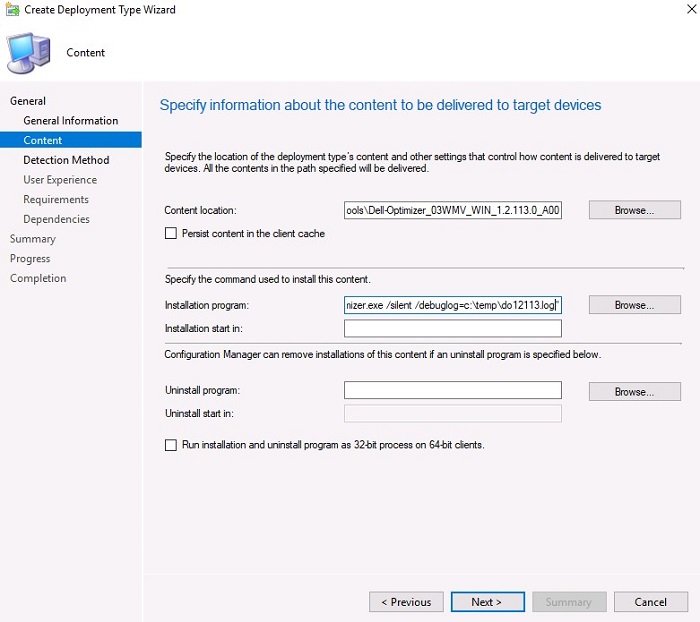
- Browse to the Content location.
- Browse to the Installation program.
- Click DellOptimizer.exe
-
Change the Command line to "DellOptimizer.exe /silent /debuglog=c:\temp\do12113.log", and then click Next.
-
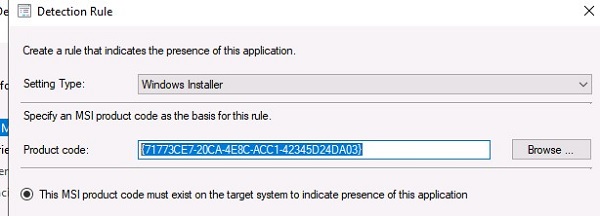
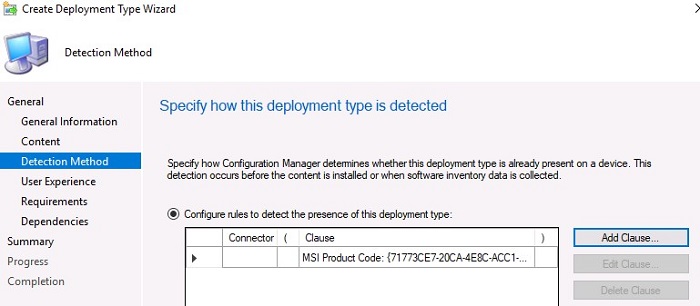
Change Detection Rule to Windows Installer
-
Enter Product Code {71773CE7-20CA-4E8C-ACC1-42345D24DA03}.
-
Click OK.
-
Click Next
-
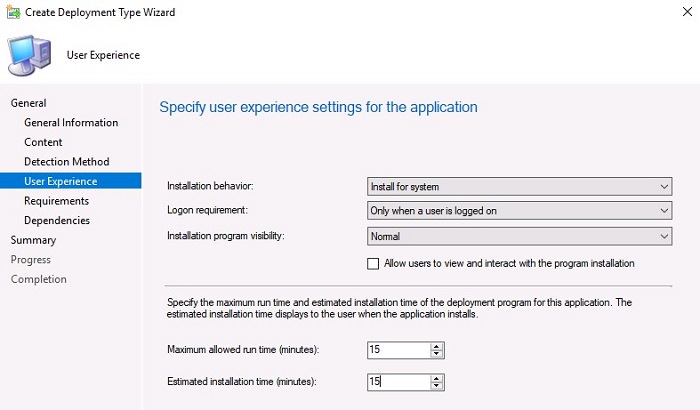
Select Install for system only when a user is logged on.
-
Click Next.
- Click Next on Requirements.
- Click Next on Dependencies.
- Click Next on Summary.
- Click Close.
- Click Next on Deployment Types.
- Click Next on Summary.
- Click Close.
- Right click Dell Optimizer 1.2.113.
- Choose Dell Optimizer 1.2.113.
- Select the correct collection.
-
Select Automatically distribute content for dependencies.
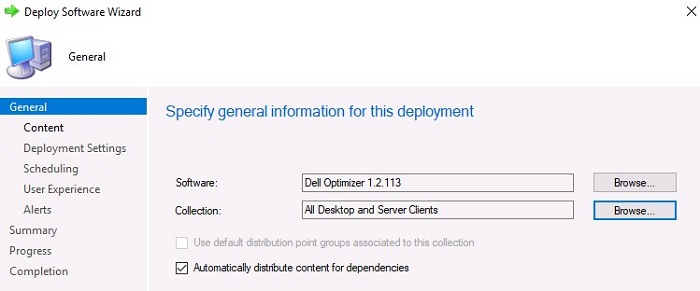
-
Add the correct Distribution point or group.
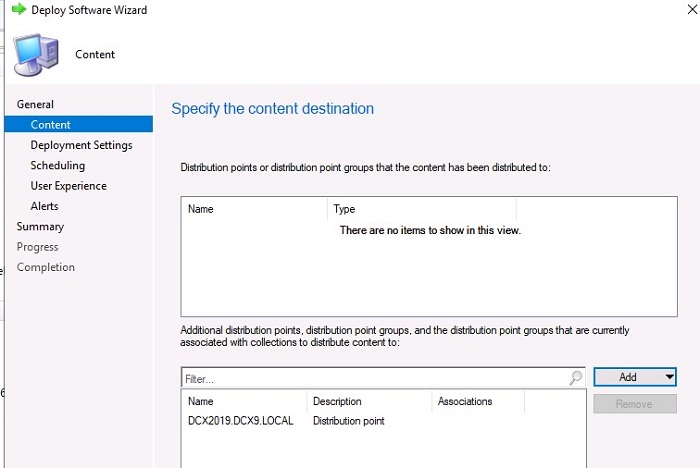
-
Click Next.
- Select Action Install.
- Select Purpose Required.
- Click Next.
- Select As soon as possible.
- Select user notifications: Display in Software Center and show all notifications.
- Click Next.
- Click Next on Alerts.
- Click Next on Summary.
-
Click Close.