Add Users One by One in the Microsoft Setup Wizard
Summary: You will have the option to add a user/s during the Microsoft Setup Wizard.
Acest articol se aplică pentru
Acest articol nu se aplică pentru
Acest articol nu este legat de un produs specific.
Acest articol nu acoperă toate versiunile de produs existente.
Instructions
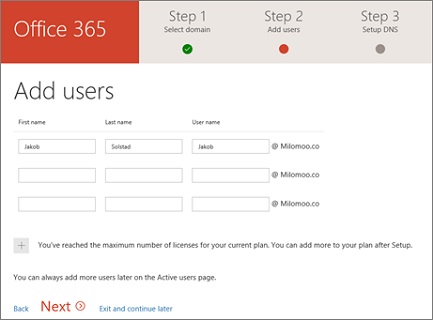
To do this, enter the new user's first and last name and username of choice to generate an account for them.
 Get Started
To add a user using the Microsoft Setup Wizard, follow these steps:
-
Log in to Microsoft Online Portal
 .
. -
Select Go to setup from the landing page and follow the prompts to the Add User step.
-
Enter the new users first and last name and desired username. As you have previously added your domain details the email address will automatically reference your domain.
-
Select Next to continue.
 |
After a user has been added, you will be presented with their new user information. This includes their display name, username, and password. You can choose to:
|
Produse afectate
Microsoft 365 from DellProprietăți articol
Article Number: 000184379
Article Type: How To
Ultima modificare: 08 mai 2026
Version: 7
Găsiți răspunsuri la întrebările dvs. de la alți utilizatori Dell
Servicii de asistență
Verificați dacă dispozitivul dvs. este acoperit de serviciile de asistență.