De uitlijning van de taakbalk van Windows 11 wijzigen
Summary: Informatie over het wijzigen van de standaard in het midden uitgelijnde taakbalk in Windows 11 zodat deze links wordt uitgelijnd. Volg deze handleiding om de plaatsing van de taakbalk van Windows 11 aan te passen. ...
Acest articol se aplică pentru
Acest articol nu se aplică pentru
Acest articol nu este legat de un produs specific.
Acest articol nu acoperă toate versiunile de produs existente.
Instructions
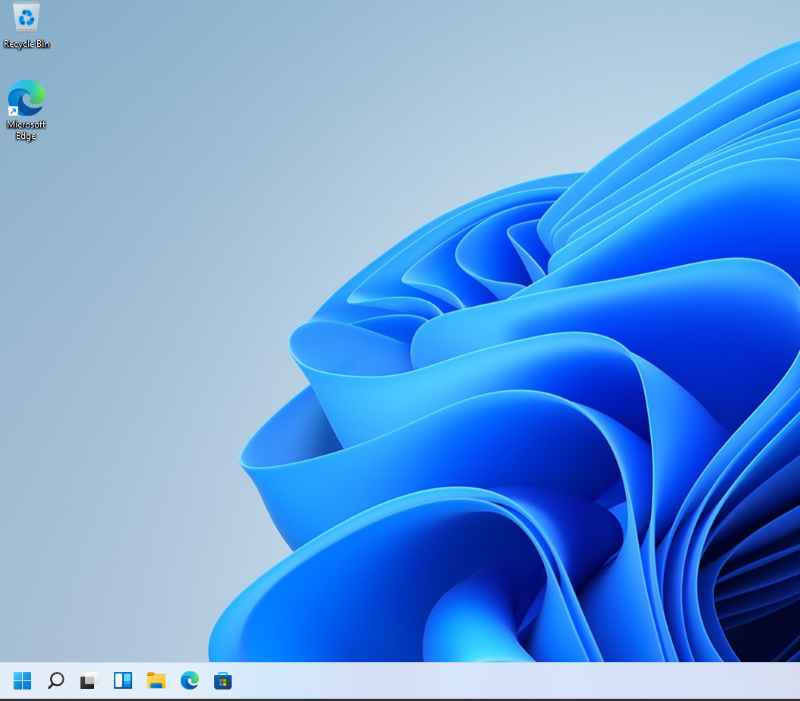
De taakbalk van Windows 11 is standaard in het midden uitgelijnd, maar u kunt de plaatsing van de taakbalk wijzigen. In dit artikel worden de stappen beschreven om de taakbalk van Windows 11 links uit te lijnen.
Betreffend besturingssysteem:
- Windows 11
- Klik op het bureaublad van Windows 11 met de rechtermuisknop op een lege ruimte op de taakbalk en selecteer vervolgens Taakbalkinstellingen.

- Klik in het rechterdeelvenster op Gedrag taakbalk.

- Selecteer de vervolgkeuzelijst Taakbalkuitlijning en wijzig deze van Midden naar Links.

- De taakbalk is nu links uitgelijnd.
Produse afectate
Alienware, Dell All-in-One, Dell Pro All-in-One, Dell Pro Max Micro, Dell Pro Max Slim, Dell Pro Max Tower, Dell Pro Micro, Dell Pro Slim, Dell Pro Tower, Dell Slim, Dell Tower, Inspiron, OptiPlex, Vostro, XPS, G Series, G Series, Alienware
, Dell Plus, Dell Pro, Dell Pro Max, Dell Pro Plus, Dell Pro Premium, Inspiron, Latitude, Dell Pro Rugged, Vostro, XPS, Fixed Workstations, Mobile Workstations, Dell Pro Max Micro XE FCM2250, Dell Pro Max Slim XE FCS1250, Dell Pro Max Tower T2 XE FCT2250, Dell Pro Max 16 XE MC16250, Dell Pro Micro Plus XE QBM1250, Dell Pro Slim Plus XE5 QBS1250, Dell Pro Tower Plus XE5 QBT1250
...
Proprietăți articol
Article Number: 000192071
Article Type: How To
Ultima modificare: 12 mai 2026
Version: 8
Găsiți răspunsuri la întrebările dvs. de la alți utilizatori Dell
Servicii de asistență
Verificați dacă dispozitivul dvs. este acoperit de serviciile de asistență.