Enabling RDS Cal with MPSA license
Summary: This article provides guidance for enabling RDS Cal with Microsoft MPSA licensing. purchased from Dell.
Acest articol se aplică pentru
Acest articol nu se aplică pentru
Acest articol nu este legat de un produs specific.
Acest articol nu acoperă toate versiunile de produs existente.
Instructions
The Microsoft Product and Services Agreement (MPSA) is a transactional licensing agreement for commercial, government, and academic organizations with a minimum of 250 users/devices. MPSA works best for organizations that want to license on-premises software and cloud services from Microsoft, or both, as needed, without the commitment of the entire organization to a single contract with no end date. Software Assurance is optional.
When the customer purchases the license from Dell, they are granted access to the Business Center (BA) portal, which must be accessed via the following link: https://businessaccount.microsoft.com/
The email account used in the portal must be the same as the one used in the purchase of the licenses.
After accessing the BA portal, it is necessary to populate the information contained in the portal and place it in the RDS server.
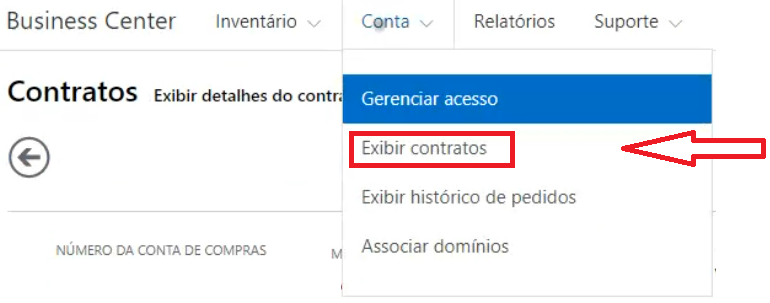
Navigate to the "Account" tab -> "View Contracts"
Now open the license manager in windows server and right-click on the server name and select the "Properties"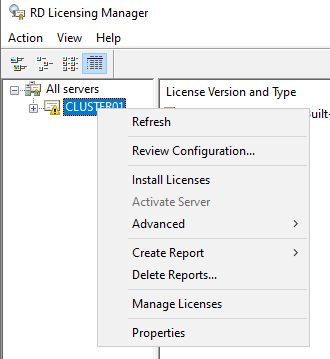
option Select the "Required Information" tab and correctly populate the information in the selected fields, using the BA portal data:
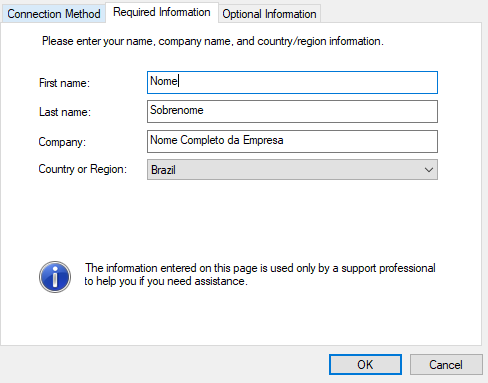
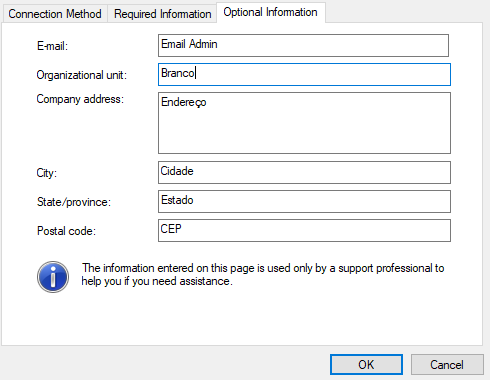
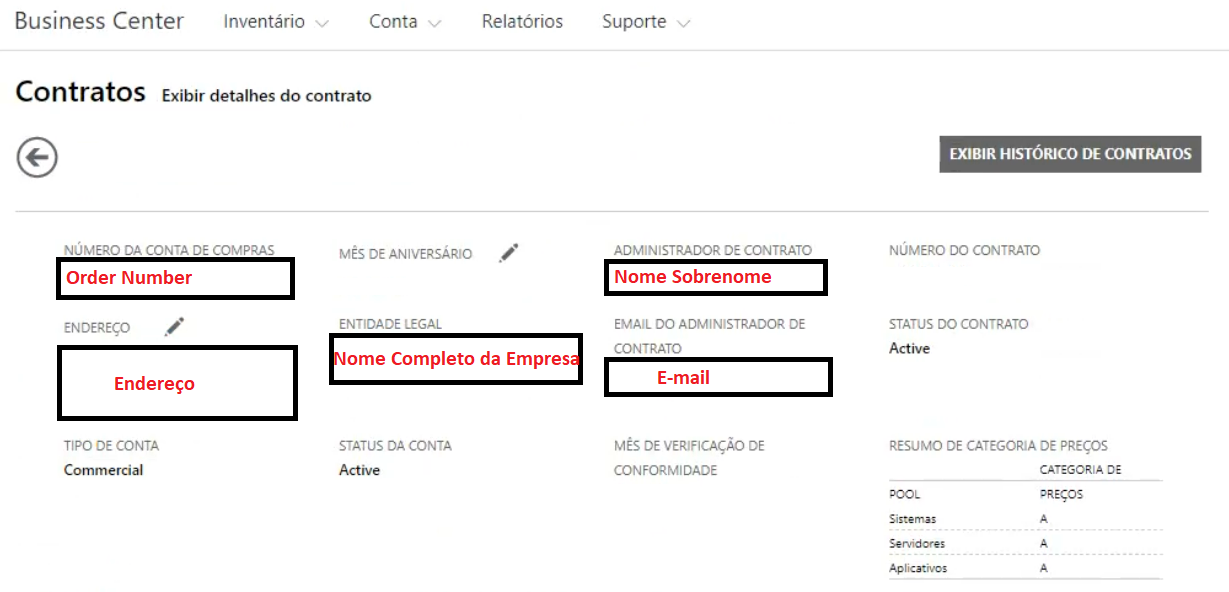
From OK to save the information to the RDS Server.
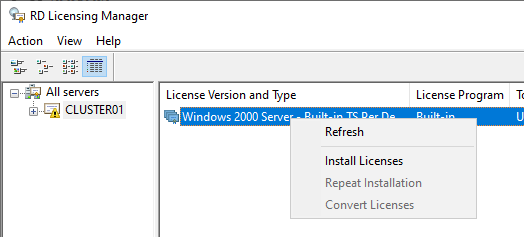
Right-click to Install a New License (Cal RDS)
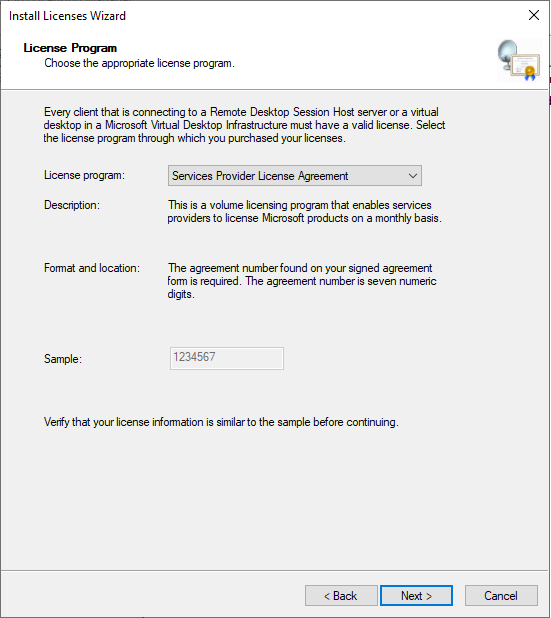
Proceed to the next screen and then select the option called "Services Provider License Agreement"
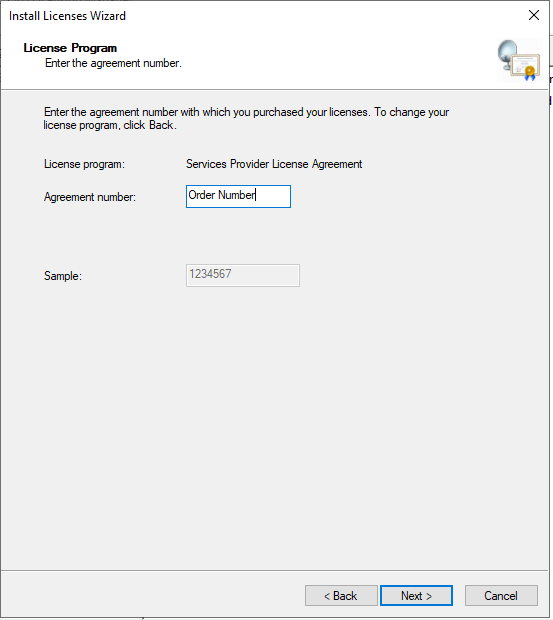
Fill out the order number. This number is available on the BA portal.
Now go back to the BA portal and change to the Account tab -> View order
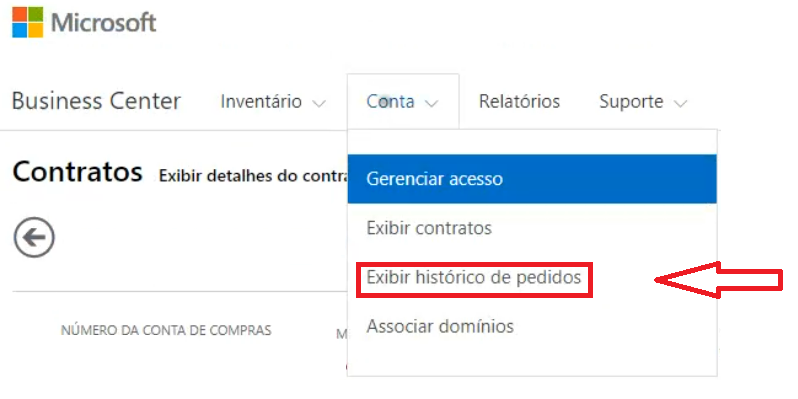 history Click on the order number to see the details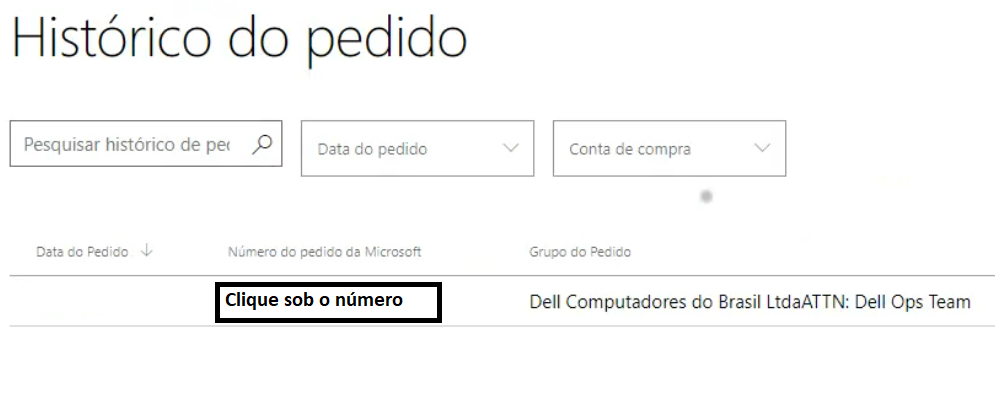
Check now the cal type purchased by the customer (User or Device) and cal number.
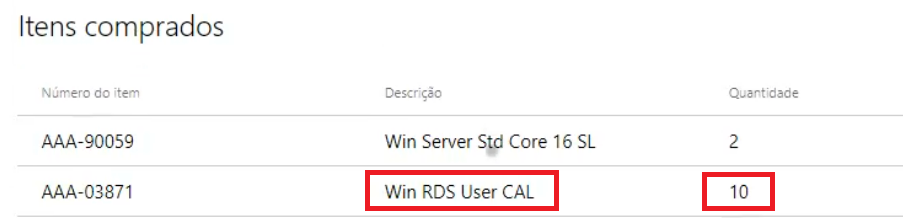
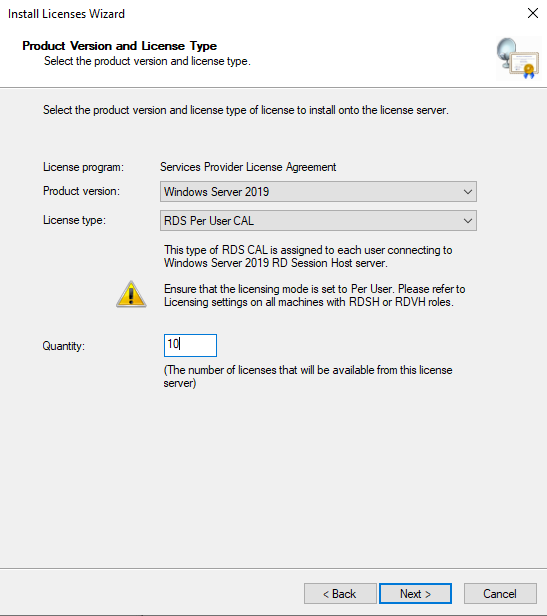
With this information go back to the RDS manager on the windows server and add the information and activate the licenses.
When the customer purchases the license from Dell, they are granted access to the Business Center (BA) portal, which must be accessed via the following link: https://businessaccount.microsoft.com/
The email account used in the portal must be the same as the one used in the purchase of the licenses.
After accessing the BA portal, it is necessary to populate the information contained in the portal and place it in the RDS server.
Navigate to the "Account" tab -> "View Contracts"
Now open the license manager in windows server and right-click on the server name and select the "Properties"
option Select the "Required Information" tab and correctly populate the information in the selected fields, using the BA portal data:
From OK to save the information to the RDS Server.
Right-click to Install a New License (Cal RDS)
Proceed to the next screen and then select the option called "Services Provider License Agreement"
Fill out the order number. This number is available on the BA portal.
Now go back to the BA portal and change to the Account tab -> View order
history Click on the order number to see the details
Check now the cal type purchased by the customer (User or Device) and cal number.
With this information go back to the RDS manager on the windows server and add the information and activate the licenses.
Produse afectate
Microsoft Windows Server 2016, Microsoft Windows Server 2019, Microsoft Windows Server 2022, Microsoft 365 from DellProprietăți articol
Article Number: 000208285
Article Type: How To
Ultima modificare: 28 ian. 2025
Version: 2
Găsiți răspunsuri la întrebările dvs. de la alți utilizatori Dell
Servicii de asistență
Verificați dacă dispozitivul dvs. este acoperit de serviciile de asistență.