How to Attach Files to Your Service Request Through the Dell Support Portal
Summary: In some situations Dell Technical Support may request evidence to perform a more assertive diagnosis. This article illustrates how to attach files to your service request through the Dell Support portal. ...
Acest articol se aplică pentru
Acest articol nu se aplică pentru
Acest articol nu este legat de un produs specific.
Acest articol nu acoperă toate versiunile de produs existente.
Instructions

- Go to Dell Support Service Request Search
- Enter a service request number and click the 'Search' button.
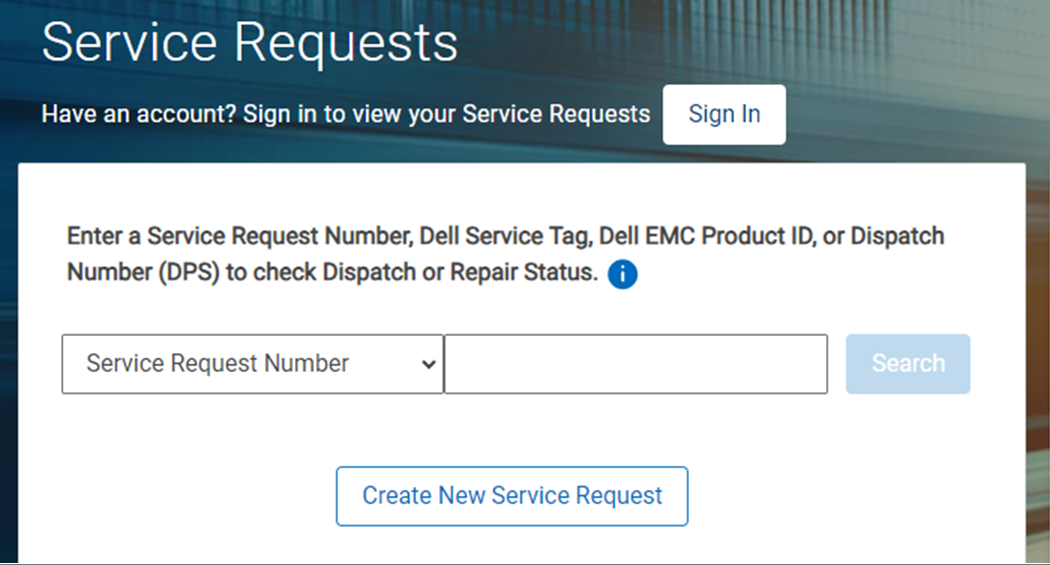
Figure 1: Search Service Request number
- Enter the email that was used to create the service request and click the 'Submit' button.

Figure 2: Validate email address
- Under ACTIVITY CENTER note the Attachments area, select the 'Add more attachments' button.
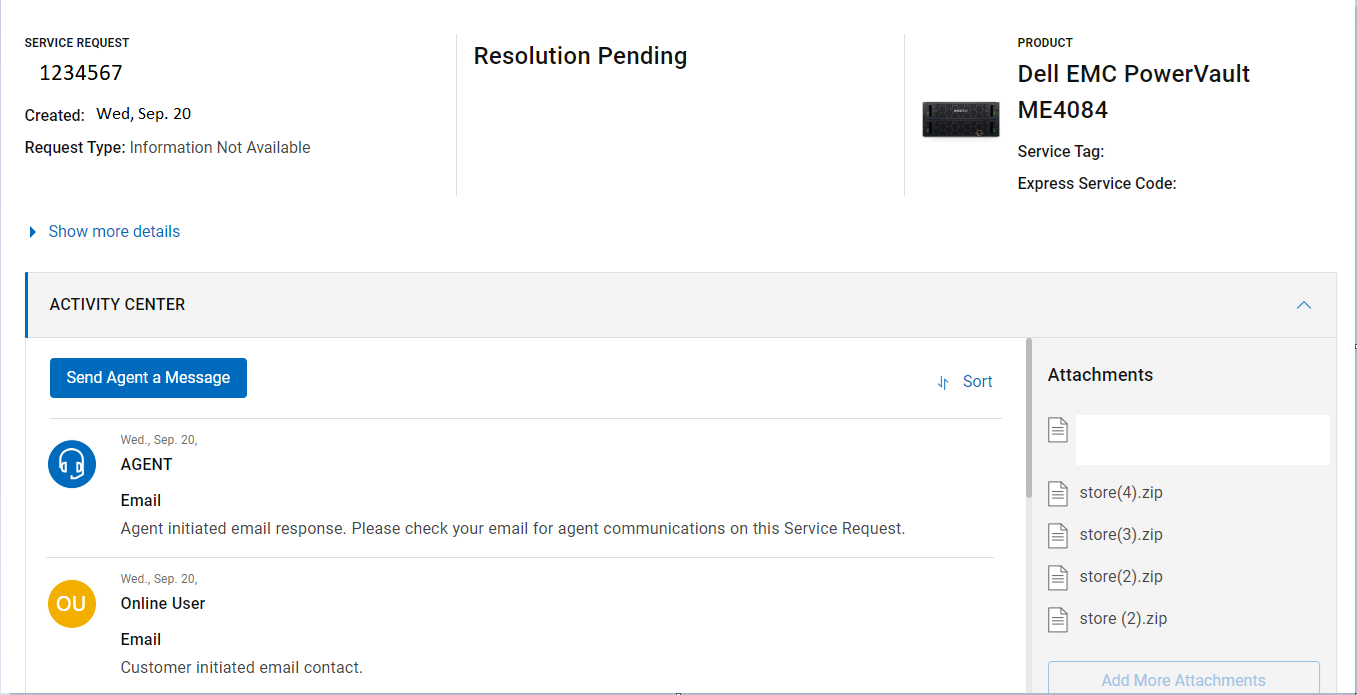
Figure 3: Service Request Summary page
- Click 'Select Files'.
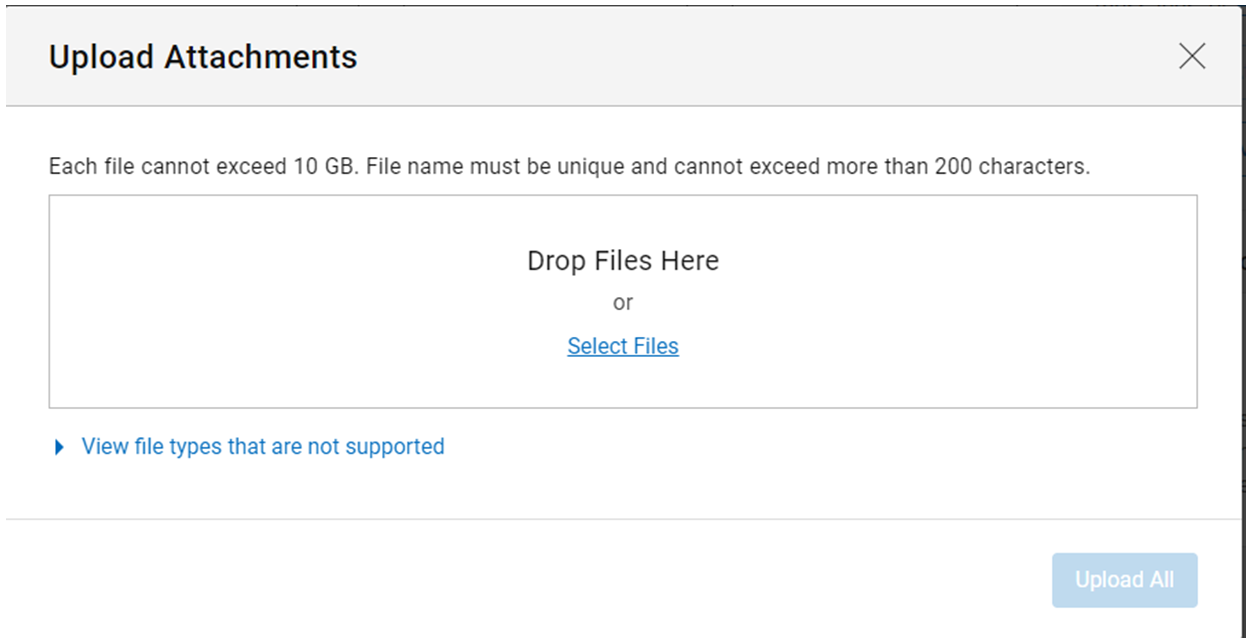
Figure 4: Select Files
- Select the files that you want to attach and click the 'Open/Open' button.
- Confirm that all files are in the list, if not, click the 'Add another file' button and select the missing file, when complete click the 'Upload All' button.

Figure 5: Upload attachments
- Wait until all files have completed loading.
NOTE: The following file types are not supported:
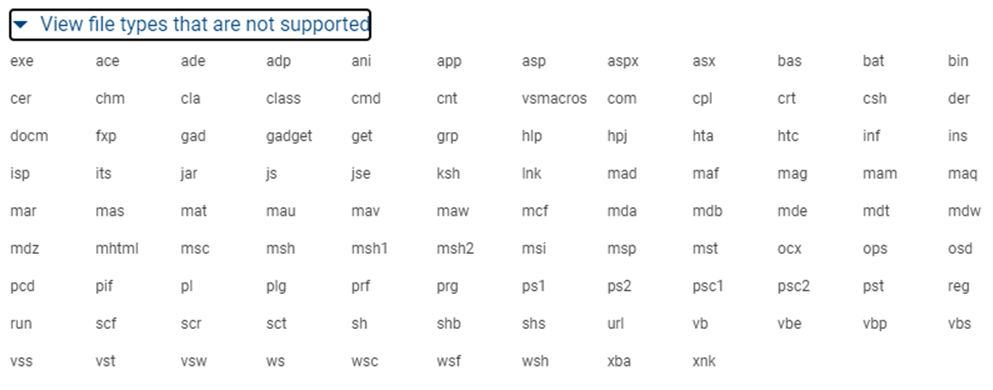
Figure 6: Unsupported file types
Produse afectate
SupportAssist, SupportAssist Enterprise, Legacy ToolsProprietăți articol
Article Number: 000217882
Article Type: How To
Ultima modificare: 29 sept. 2023
Version: 2
Găsiți răspunsuri la întrebările dvs. de la alți utilizatori Dell
Servicii de asistență
Verificați dacă dispozitivul dvs. este acoperit de serviciile de asistență.