NetWorker: How to Perform a VMware FLR from the NetWorker Web User Interface
Summary: This article provides an overview of how to use the NetWorker Web User Interface (NWUI) to perform a NetWorker VMware Protection (NVP) vProxy File Level Recovery (FLR).
Instructions
Pre-Requisites:
- The virtual machine (VM) file system is supported for File Level Recovery (FLR) operations. See the NetWorker VMware Integration Guide for details on FLR limitations. These limitations may vary depending on the NetWorker version in use. The VMware Integration Guides are available through the Dell Support NetWorker Product Page.
- The Data Domain Systems in NetWorker has a Management User and password specified:
- Expand the Devices and Media drop down in the left menu.
- Go to Data Domain Systems.
- Select the Data Domain system.
- Click Edit.
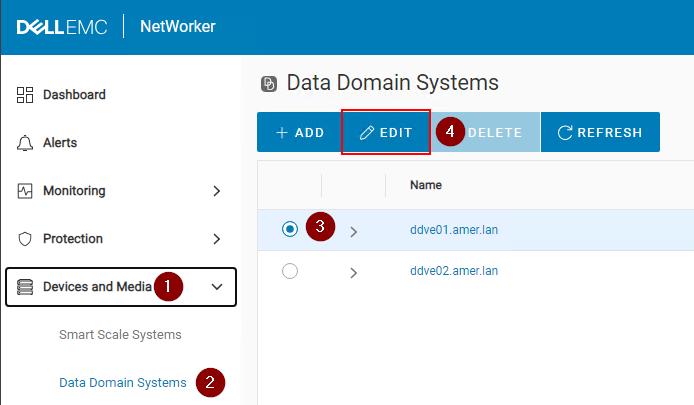
Figure 1: Edit the Data Domain system.
- Enter a Data Domain "admin" user and password for the "management user":
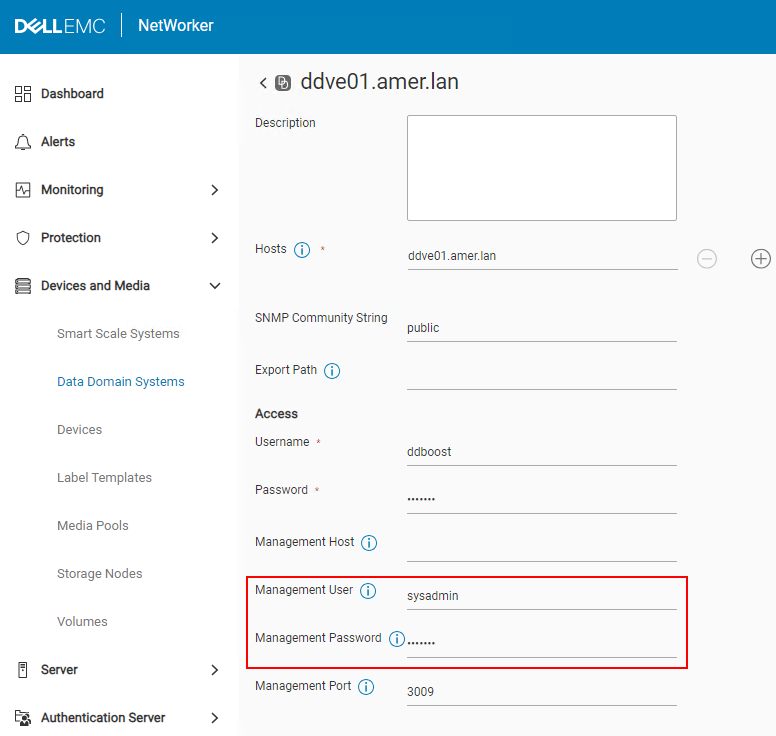
Figure 2: Add the Data Domain user and password.
- Port requirements for FLR are met. See Dell article 203350: NVP vProxy: Troubleshooting Network Connectivity For Backup and Restore Operations
- vProxies are registered and enabled in NetWorker. See Dell article 10494: NetWorker Management Web UI (NWUI): How to Use
- For FLR on Linux VMs using a nonroot user account, the user account must have the required
sudoand OS settings: NVP: How to perform FLR using nonroot user on Linux VMs
Process:
- Click Recover and Savesets in the left menu.
- Select or specify a Time Range.
- Select the VMware client type.
- Select the source vCenter.
- Select the Virtual Machine needed for restore. Click Refresh if Virtual Machine pane does not populate.
- Click Refresh over the right pane to populate a list of backups and clones within the time range specified.
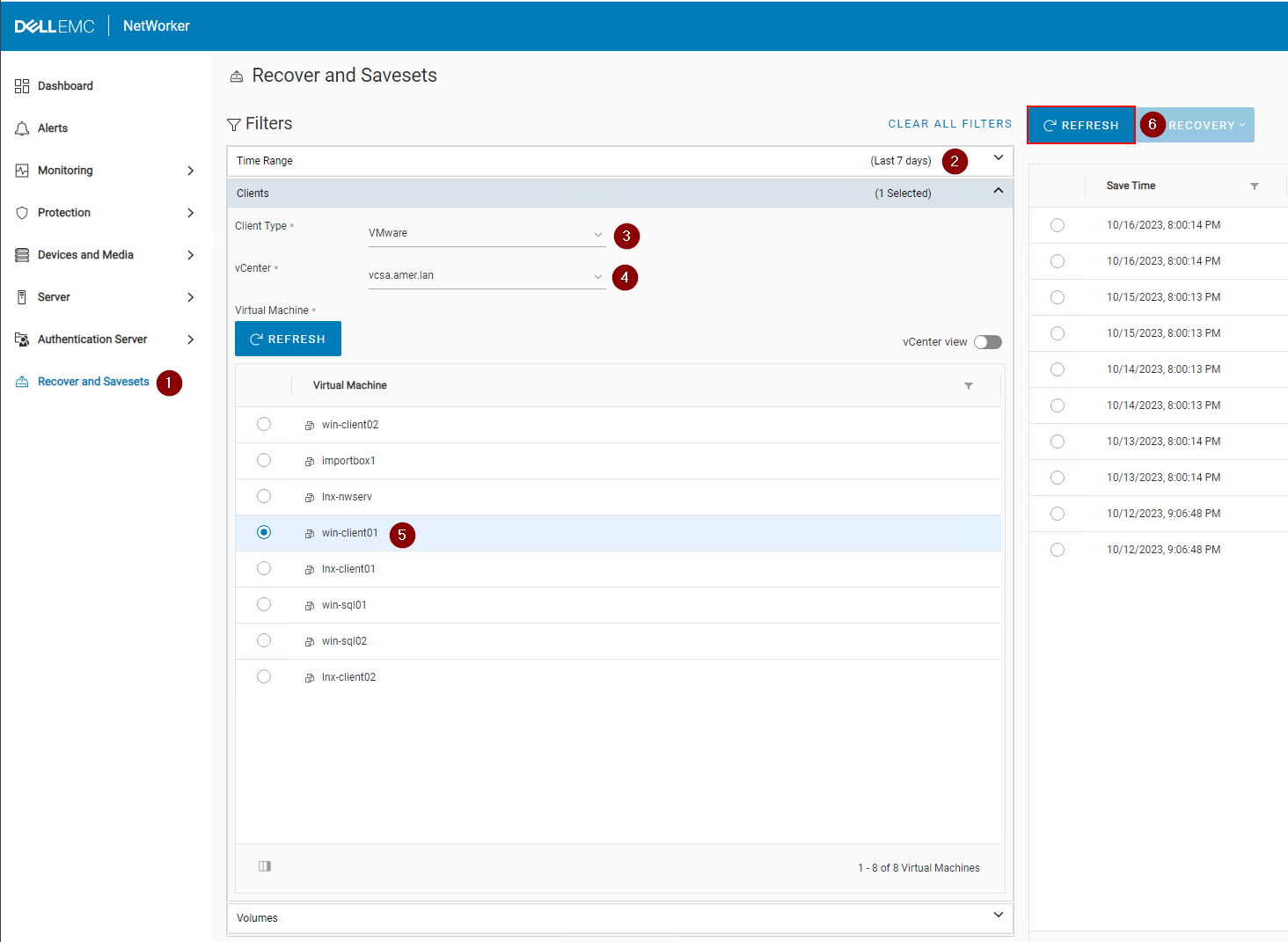
Figure 3: Click Refresh to populate a list of backups and clones.
- Click the Recovery drop down over the right pane and select File Level:
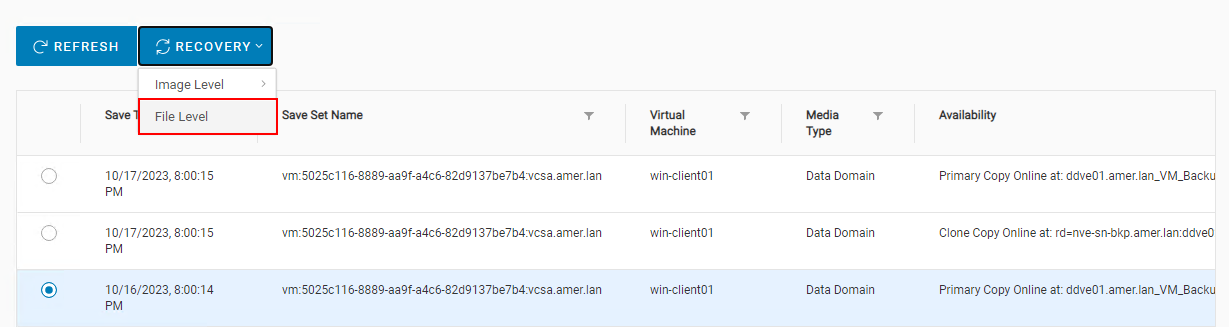
Figure 4: Select File Level.
- By default the source vCenter is set. You can FLR the save to a VM in another vCenter if the target VM is the same operating system type (Linux or Windows). By default vProxy selection is set to automatic, however, you can manually pick a vProxy to use.
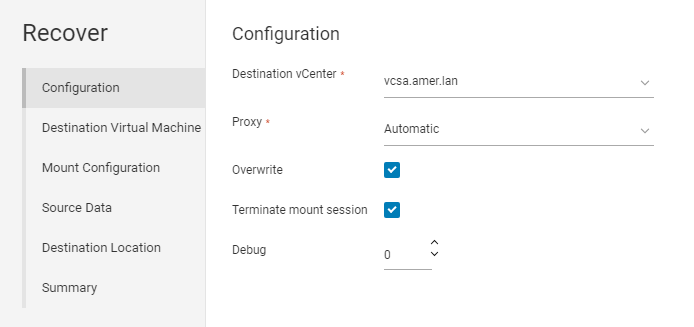
Figure 5: Manually picking a vProxy to use
- Click Next.
- By default the source VM is selected as the target. However, you can select another VM if it is the same operating system type (Linux or Windows):
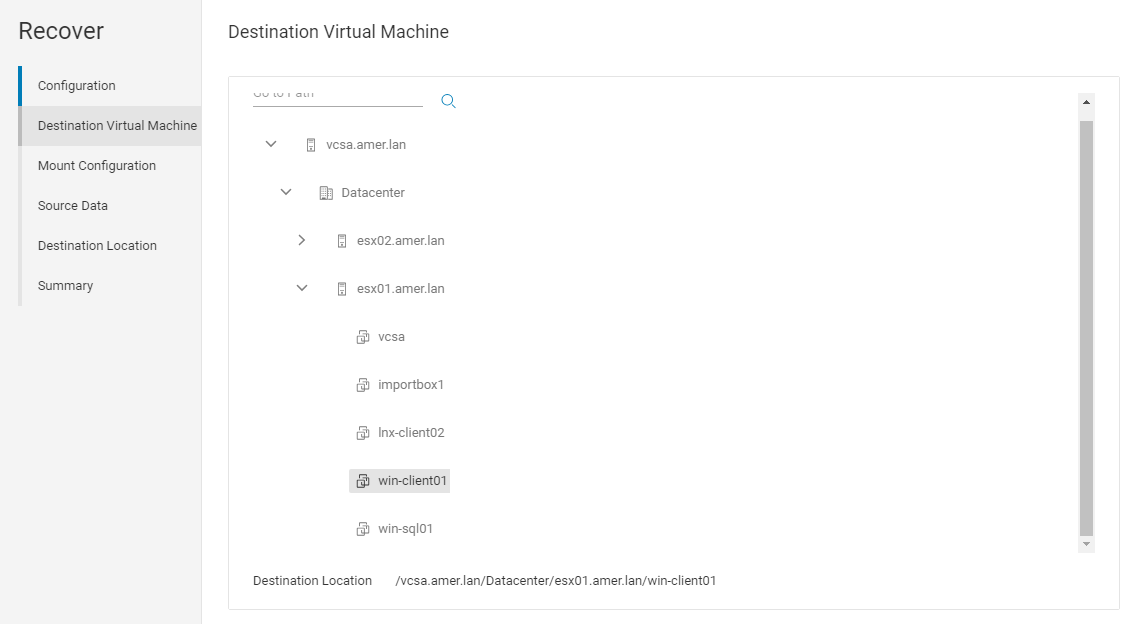
Figure 6: Manually picking a VM as target
- Click Next.
- Specify an FLR user account and password. It is recommended to use the Run with Elevated Privileges account when using a user account which may require User Account Control (UAC) elevation (Windows), or is a nonroot
sudouser account (Linux).
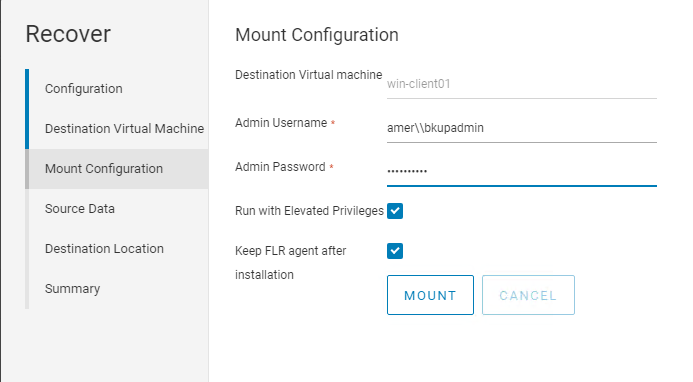
Figure 7: Specify an FLR user account to use with Run with Elevated Privileges.
- Click Mount, and monitor for mount completion status.
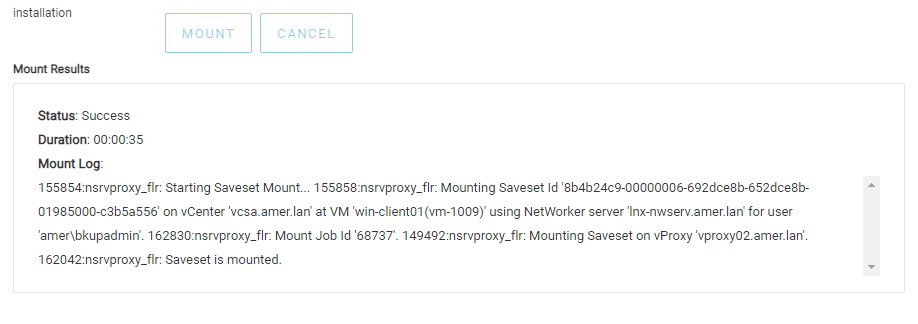
Figure 8: Monitor Mount status.
- Click Next.
- Select the source data that you must recover.
- Click Next.
- Choose a destination location to recover the data to
- Click Next.
- To start the recovery, click Finish.
- To monitor the recovery and check the completion status, go to Monitoring > Recover Jobs:
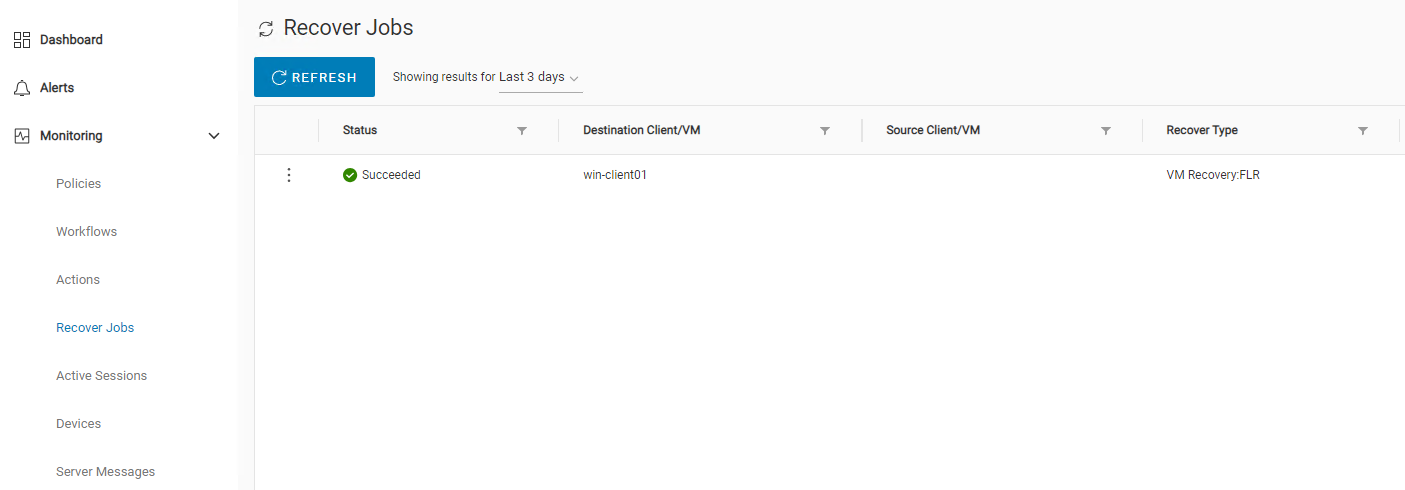
Figure 9: Check status of Recovery job.
Logs:
NetWorker Server:
FLR's performed from the NWUI are logged in the following location on the NetWorker server:
- Linux:
/nsr/logs/adhoc/ - Windows (Default):
C:\Program Files\EMC NetWorker\nsr\logs\adhoc\
During an active FLR you will see a file called adhoc-job-XXXXX in the adhoc folder.
Once the FLR job has finished (Successfully or failed), the log is moved to adhoc/nsrvproxy_flr/jobid.log
NetWorker VMware Protection (NVP) vProxy Appliance:
The vProxy that performs the FLR mount, browse, and recover logs in the following location on the vProxy used during the recovery:
- Active FLR:
/opt/emc/vproxy/runtime/logs/vflrd/ - Completed FLR:
/opt/emc/vproxy/runtime/logs/recycle/vflrd/DATE/
Target VM:
The VM used to as the target FLR VM:
- Linux:
/opt/emc/vproxyra/logs/vflragentd/vflragentd-agent.log - Windows:
C:\Program Files (x86)\EMC\vProxy FLR Agent\logs\vflragentd\vflragentd-agent.log
Additional Information
- NVP: How To Perform a VM FLR Using the 'EMC Data Protection Restore Client' Web user interface
- NVP vProxy: How To Perform A File Level Recovery When FLR Is Failing or Not Supported By the VM
- NetWorker: NVP vProxy FLR user account with sudo access is unable to browse /root directory
- NVP vProxy: FLR LVM Limitations
- NetWorker Management Web UI (NWUI): How to Use