How to Get a BitLocker Recovery Key from Your Microsoft Account
Сводка: Learn how to locate and use your BitLocker recovery key to unlock a Windows device encrypted with BitLocker Drive Encryption.
Инструкции
What is a BitLocker recovery key?
BitLocker is a security tool built into Windows. It scrambles (encrypts) everything on your hard drive so that no one can read your files without permission.
- Why does it exist? It keeps your data safe if your computer is ever lost, stolen, or tampered with.
- How does it get turned on? Most new Windows 11 computers (and many Windows 10 computers) turn on BitLocker automatically. The computer just needs a security chip called a Trusted Platform Module (TPM) and a few other modern hardware features.
- Where is the recovery key saved? The first time you sign in to a computer with a Microsoft Account, Windows creates a 48-digit backup code called a recovery key and saves it to that Micrsosoft Account.
When do you need a BitLocker recovery key?
Windows asks for this key when something about your computer changes, like a hardware swap, a system update, or a settings change:
- After a BIOS or firmware update
- If you replace hardware (such as the motherboard or hard drive)
- When Windows detects suspicious activity
- If you forget your BitLocker password
- After enabling BitLocker manually
- If your device is managed by your school or workplace
- When an external drive is connected during startup
- If your device enters recovery mode unexpectedly
Where is the recovery key saved?
Your BitLocker recovery key may be stored in one of the following locations:
- Your Microsoft account
- A USB flash drive
- A printed copy
- A file saved on another device or network
- Your Azure Active Directory account (for work or school devices)
This guide walks you through getting a recovery key in your Microsoft Account. If you have a key stored in one of the other locations, use the key from that location.
How to find your BitLocker recovery key in your Microsoft account
Follow these steps to locate your recovery key:
- Visit account.microsoft.com.
- Sign in with the Microsoft account linked to your device.
- Select Devices.
- Choose the device that needs the recovery key and select View details.
- Select Manage recovery keys.
- If prompted, sign in again to verify your identity.
- Find the first 8 digits of the Key ID displayed on your locked device screen.
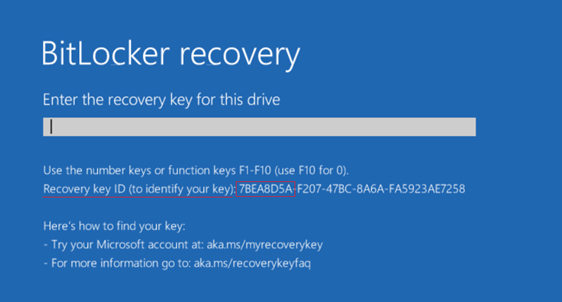
- Match the first 8 digits of the Key ID with the recovery key with the same ID listed in your Microsoft Account.
Note: Depending on the drive configuration, a computer can show multiple drives if you choose to encrypt additional drives.- OSV = Operating System Volume
- FDV = Fixed Disk Volume (secondary disk drive)
- RDV = Removable Disk Volume (USB Key)
- Enter the recovery key on your device.
- Select Enter to unlock your device.
Visit the Microsoft Find your BitLocker recovery key page for more information and visual guidance.
If you cannot locate your BitLocker recovery key using your Microsoft Account(s), and do not have a key saved in another manner mentioned above, you will need to reinstall Windows. See our guide Repair and Restore your Computer Using SupportAssist OS Recovery for more information>
Дополнительная информация
These articles can help with BitLocker and other related issues:
- Bypass BitLocker When Recovery Key Loop Fails in Windows
- BitLocker is Prompting for a Recovery Key, and You Cannot Locate the Key
- Automatic Windows Device Encryption or BitLocker on Dell Computers
- How to Enable and Disable BitLocker with TPM in Windows
- How to Update BIOS: Install and Upgrade BIOS on Windows
- How to Successfully Update the TPM Firmware on your Dell Computer
Check these resources on Microsoft's support website.
