How to Manage Multi-Factor Authentication in the Dell Security Management Server Administration Console
Сводка: Dell Security Management Server can be configured to require two-factor authentication (2FA) to log in to the administration console.
Данная статья применяется к
Данная статья не применяется к
Эта статья не привязана к какому-либо конкретному продукту.
В этой статье указаны не все версии продуктов.
Инструкции
Multi-factor authentication can be managed for Dell Security Management Server or Dell Security Management Server Virtual.
Affected Products:
- Dell Security Management Server
- Dell Security Management Server Virtual
Affected Versions:
- 11.4.0 and Later
Multi-factor authentication can be managed at either a User Group or Individual User level. Choose the appropriate section below for more information.
User Group
- Log in to the Dell Data Security Administration Console with an account that has the account administrator role. For more information, reference How to Access the Dell Data Security Server Administration Console.
Note: For more information about administrator roles, reference the Administrator Roles section of the AdminHelp - Security Management Server PDF in Support for Dell Encryption Manuals & Documents.
- From the left menu pane, expand the Populations tab and then click User Groups.

- Select a User Group from the list to edit.
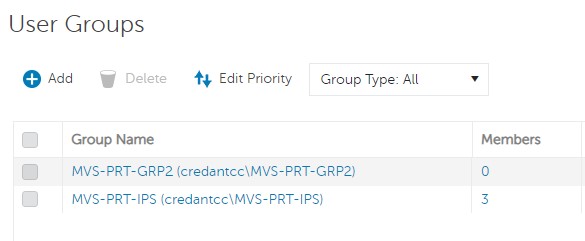 Note: The group’s position in this list is what determines Group Priority. For more information, reference the Edit User Group Priority section of the AdminHelp - Security Management Server PDF in Support for Dell Encryption Manuals & Documents.
 - Select the Admin tab.

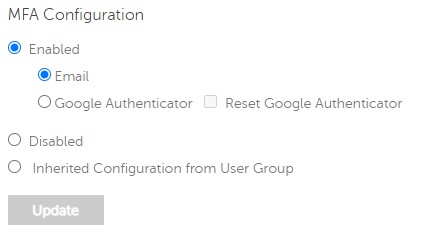
- From MFA Configuration:
- Select Enabled.
- Select either Email or Google Authenticator.
- Click the Update button.

Individual User
- Log in to the Dell Data Security Administration Console with an account that has the account administrator role. For more information, reference How to Access the Dell Data Security Server Administration Console.
Note: For more information about administrator roles, reference the Administrator Roles section of the AdminHelp - Security Management Server PDF in Support for Dell Encryption Manuals & Documents.
- From the left menu pane, expand the Populations tab and then click Users.

- Select a User from the list to edit.
- Select the Admin tab.

- From MFA Configuration:
- Select Enabled.
- Select either Email, Google Authenticator, or Inherited Configuration from User Group.
- Click the Update button.
Затронутые продукты
Dell EncryptionСвойства статьи
Номер статьи: 000200440
Тип статьи: How To
Последнее изменение: 21 Jul 2026
Версия: 7
Получите ответы на свои вопросы от других пользователей Dell
Услуги технической поддержки
Проверьте, распространяются ли на ваше устройство услуги технической поддержки.