如何备份和还原 Dell Security Management Server Virtual
Сводка: 了解如何使用这些说明备份和还原 Dell Security Management Server Virtual 及 Dell Data Protection Virtual Edition。
Данная статья применяется к
Данная статья не применяется к
Эта статья не привязана к какому-либо конкретному продукту.
В этой статье указаны не все версии продуктов.
Инструкции
本指南将介绍如何备份和还原 Dell Security Management Server Virtual(前身为 Dell Data Protection Virtual Edition)。
受影响的产品:
- Dell Security Management Server Virtual
- Dell Data Protection Virtual Edition
受影响的操作系统:
- Linux
Dell Security Management Server Virtual 的备份和还原功能因版本而异。单击 9.11.0 及更高版本或 8.2.0 到 9.10.1 以获取更多信息。有关版本信息,请参阅如何确定 Dell Data Security 服务器的版本。
提醒:如果正在使用 Dell Endpoint Security Suite Enterprise(前身为 Dell Data Protection Endpoint Security Suite Enterprise),则必须单独备份和还原 Advanced Threat Prevention 证书。有关更多信息,请参阅如何为 Dell Data Security 服务器备份和还原 Advanced Threat Prevention 证书。
9.11.0 及更高版本
有关更多信息,请单击创建备份、卸载备份、加载备份或还原备份。
创建备份
- 登录 Dell Security Management Server Virtual 管理控制台。
 注:
注:- Dell Security Management Server Virtual 的默认凭据为:
- 用户名:
delluser - 密码:
delluser
- 用户名:
- 管理员可以更改产品的虚拟设备菜单中的默认密码。
- Dell Security Management Server Virtual 的默认凭据为:
- 从主菜单中,选择 Advanced Configuration,然后按 Enter 键。
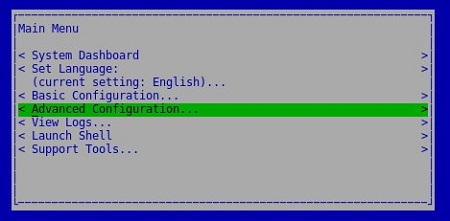
- 选择 Backup and Restore,然后按 Enter 键。
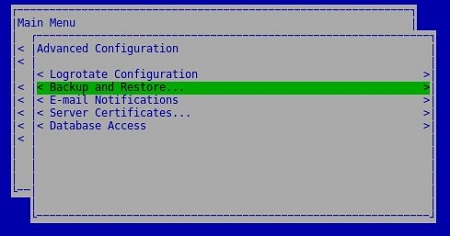
- 选择 Backup Now,然后按 Enter 键。
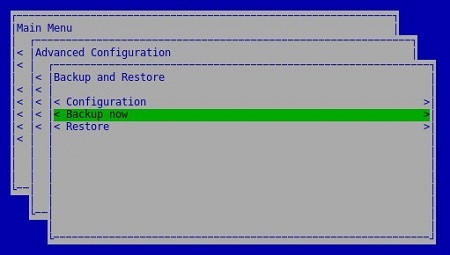
- 在出现 OK 时按 Enter 键,确认
dsmsv_<VERSION>_backup_<TIMESTAMP>.tgz的备份完成。
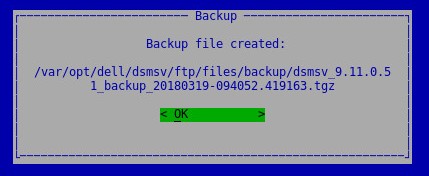 注:
注:<VERSION>= Dell Security Management Server Virtual 的版本<TIMESTAMP>= 执行备份的时间
卸载备份
要成功卸载备份,Dell Security Management Server Virtual 需要:
- 已完成的备份
- 第三方 FTP(文件传输协议)客户端
- FTP 客户端的示例包括(但不限于):
- Filezilla
- WinSCP
- CuteFTP
- FTP 客户端的示例包括(但不限于):
- 存储设备(除 Dell Security Management Server Virtual 之外)
注:
- 戴尔既不认可也不支持任何列出的第三方产品。列出的客户端是客户可以使用的潜在产品的示例。有关设置、配置和管理的信息,请与产品的制造商联系。
- 您的 FTP 客户端 UI 可能与以下屏幕截图示例不同。
- 启动 FTP 客户端。
- 在 FTP 客户端中,使用 FTP 用户登录 Dell Security Management Server Virtual。
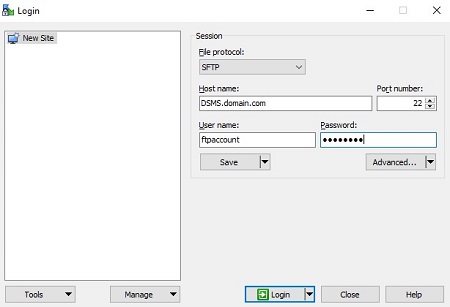 提醒:必须在 Dell Security Management Server Virtual 中创建 FTP 用户。有关详细信息,请参阅如何在 Dell Security Management Server Virtual 中创建 FTP 用户。
 - 转至
/backup/。
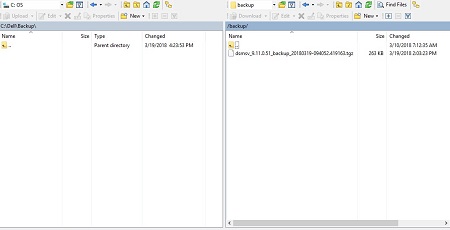
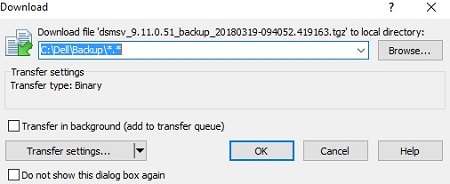
- 选择并传输相应的
dsmsv_<VERSION>_backup_<TIMESTAMP>.tgz文件到辅助存储设备。
 注:
注:<VERSION>= Dell Security Management Server Virtual 的版本<TIMESTAMP>= 执行备份的时间
- 关闭 FTP 客户端。
加载备份
要成功加载备份,Dell Security Management Server Virtual 需要:
- 已卸载的 Dell Security Management Server Virtual 备份
- 第三方 FTP(文件传输协议)客户端
- FTP 客户端的示例包括(但不限于):
- Filezilla
- WinSCP
- CuteFTP
- FTP 客户端的示例包括(但不限于):
- 存储设备(除 Dell Security Management Server Virtual 之外)
注:
- 戴尔既不认可也不支持任何列出的第三方产品。列出的客户端是客户可以使用的潜在产品的示例。有关设置、配置和管理的信息,请与产品的制造商联系。
- 您的 FTP 客户端 UI 可能与以下屏幕截图示例不同。
- 启动 FTP 客户端。
- 在 FTP 客户端中,使用 FTP 用户登录 Dell Security Management Server Virtual。
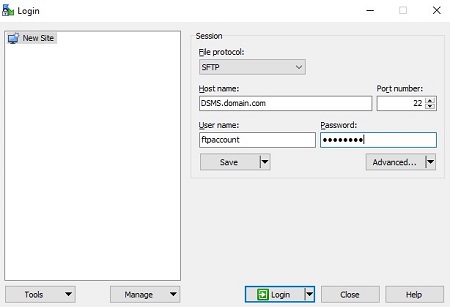 提醒:必须在 Dell Security Management Server Virtual 中创建 FTP 用户。有关更多信息,请参阅如何在 Dell Security Management Server Virtual 中创建 FTP 用户。
 - 转至
/backup/。
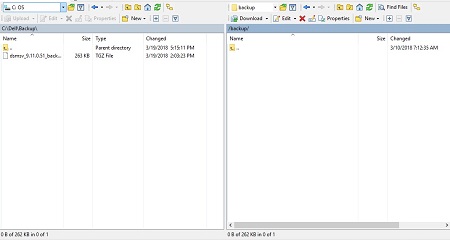
- 将
dsmsv_<VERSION>_backup_<TIMESTAMP>.tgz从存储设备移动到/backup/。
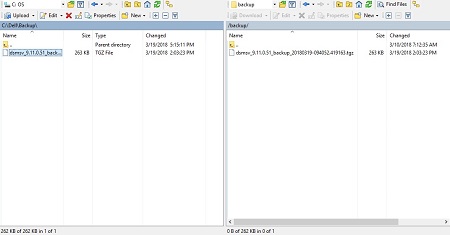 注:
注:<VERSION>= Dell Security Management Server Virtual 的版本<TIMESTAMP>= 执行备份的时间
- 关闭 FTP 客户端。
还原备份
- 登录到 Dell Enterprise Server Virtual 管理控制台。
 注:
注:- Dell Security Management Server Virtual 的默认凭据为:
- 用户名:
delluser - 密码:
delluser
- 用户名:
- 管理员可以更改产品的虚拟设备菜单中的默认密码。
- Dell Security Management Server Virtual 的默认凭据为:
- 从主菜单中,选择 Advanced Configuration,然后按 Enter 键。
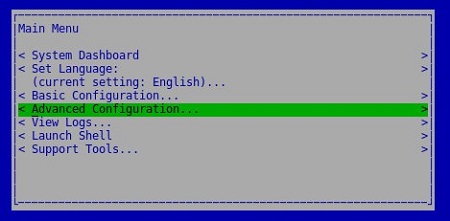
- 选择 Backup and Restore,然后按 Enter 键。
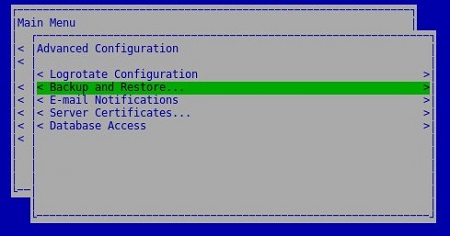
- 选择 Restore,然后按 Enter 键。
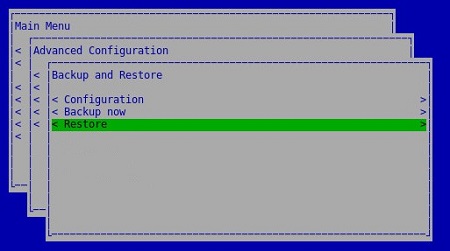
- 选择 Yes 以确认用于创建备份的实例已关闭,然后按 Enter 键。

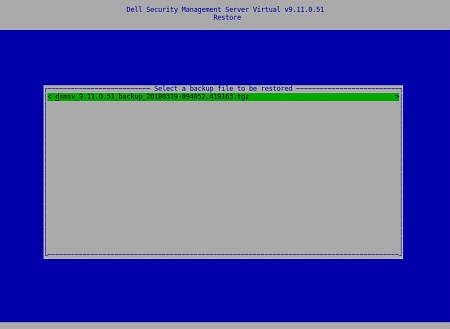
- 选择合适的
dsmsv_<VERSION>_backup_<TIMESTAMP>.tgz然后按 Enter。
 注:
注:<VERSION>= Dell Security Management Server Virtual 的版本<TIMESTAMP>= 执行备份的时间
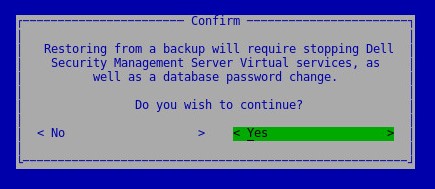
- 选择 Yes 以确认将关闭服务且必须更改数据库密码,然后按 Enter 键。
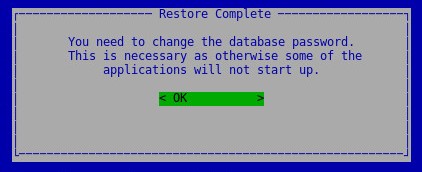
- 在出现 OK 时按 Enter 键。
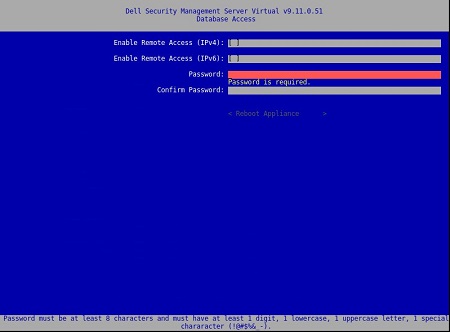
- 在 Database Access 菜单中:
- (可选)选中 Enable Remote Access (IPv4) 或 Enable Remote Access (IPv6),以允许来自外部来源(例如:pgAdmin)的访问。
- 输入然后确认新数据库密码。
- 选择 Reboot Appliance,然后按 Enter 键。
8.2.0 至 9.10.1
有关更多信息,请单击创建备份、卸载备份、加载备份或还原备份。
创建备份
- 登录到 Dell Enterprise Server Virtual 管理控制台。
 注:
注:- Dell Security Management Server Virtual 的默认凭据为:
- 用户名:
ddpuser - 密码:
ddpuser
- 用户名:
- 管理员可以更改产品的虚拟设备菜单中的默认密码。
- Dell Security Management Server Virtual 的默认凭据为:
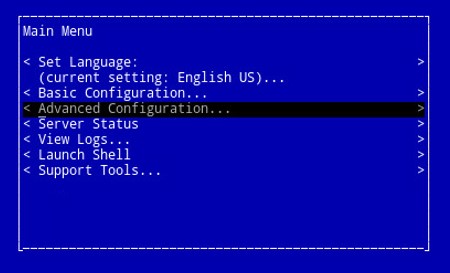
- 从主菜单中,选择 Advanced Configuration,然后按 Enter 键。
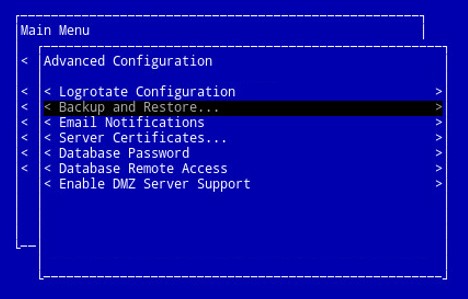
- 选择 Backup and Restore,然后按 Enter 键。
- 选择 Backup now,然后按 Enter 键。
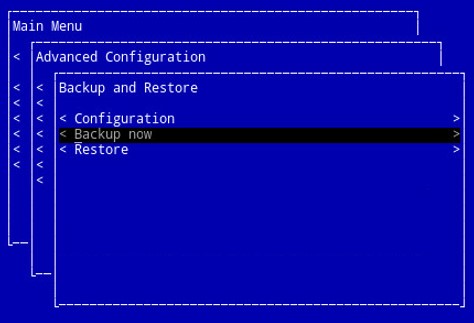
- 备份将运行。转到步骤 6。

- 在出现 OK 时按 Enter 键,确认
ddp_<VERSION>_fullback_<TIMESTAMP>.tar.gz。
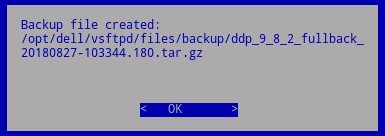 注:
注:<VERSION>= Dell Data Protection Virtual Edition 的版本<TIMESTAMP>= 执行备份的时间
卸载备份
要成功卸载备份,Dell Security Management Server Virtual 需要:
- 已完成的备份
- 第三方 FTP(文件传输协议)客户端
- FTP 客户端的示例包括(但不限于):
- Filezilla
- WinSCP
- CuteFTP
- FTP 客户端的示例包括(但不限于):
- 存储设备(除 Dell Security Management Server Virtual 之外)
注:
- 戴尔既不认可也不支持任何列出的第三方产品。列出的客户端是客户可以使用的潜在产品的示例。有关设置、配置和管理的信息,请与产品的制造商联系。
- 您的 FTP 客户端 UI 可能与以下屏幕截图示例不同。
- 启动 FTP 客户端。
- 在 FTP 客户端中,使用 FTP 用户登录 Dell Security Management Server Virtual。
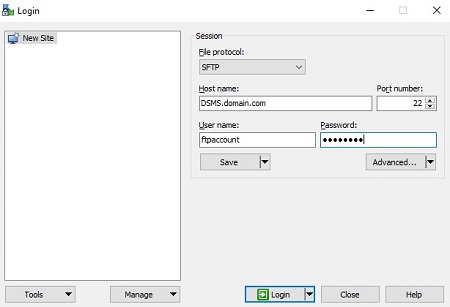 提醒:必须在 Dell Security Management Server 中创建 FTP 用户。有关更多信息,请参阅如何在 Dell Security Management Server Virtual 中创建 FTP 用户。
 - 转至
/backup/。
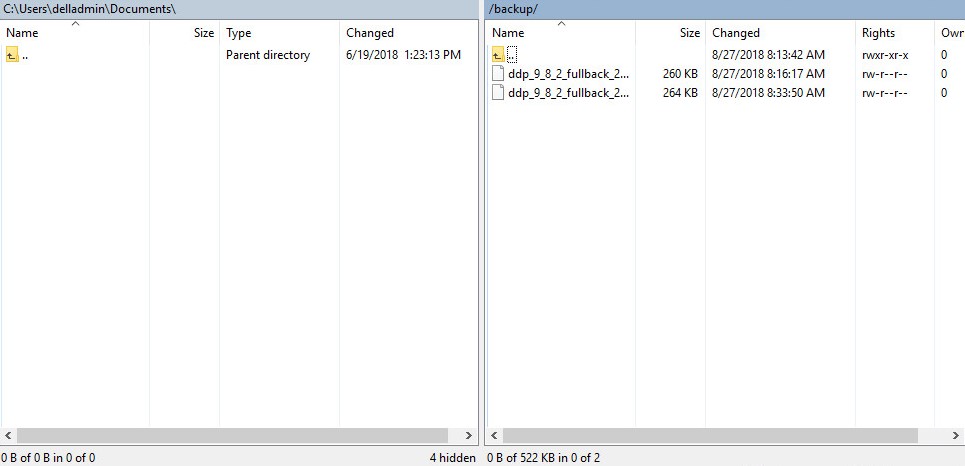
- 选择并传输相应的
ddp_<VERSION>_fullback_<TIMESTAMP>.tar.gz文件到辅助存储设备。
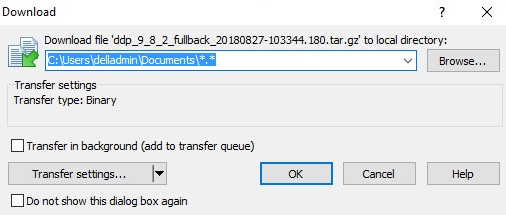 注:
注:<VERSION>= Dell Data Protection Virtual Edition 的版本<TIMESTAMP>= 执行备份的时间
- 关闭 FTP 客户端。
加载备份
要成功加载备份,Dell Security Management Server Virtual 需要:
- 已卸载的 Dell Security Management Server Virtual 备份
- 第三方 FTP(文件传输协议)客户端
- FTP 客户端的示例包括(但不限于):
- Filezilla
- WinSCP
- CuteFTP
- FTP 客户端的示例包括(但不限于):
- 存储设备(除 Dell Security Management Server Virtual 之外)
注:
- 戴尔既不认可也不支持任何列出的第三方产品。列出的客户端是客户可以使用的潜在产品的示例。有关设置、配置和管理的信息,请与产品的制造商联系。
- 您的 FTP 客户端 UI 可能与以下屏幕截图示例不同。
- 启动 FTP 客户端。
- 在 FTP 客户端中,使用 FTP 用户登录 Dell Security Management Server Virtual。
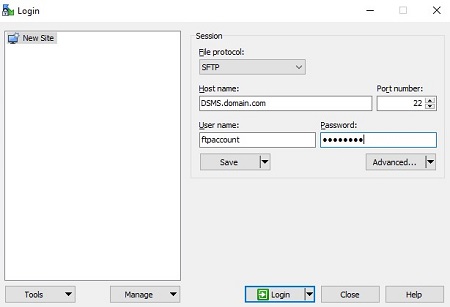 提醒:必须在 Dell Security Management Server 中创建 FTP 用户。有关更多信息,请参阅如何在 Dell Security Management Server Virtual 中创建 FTP 用户。
 - 转至
/backup/。
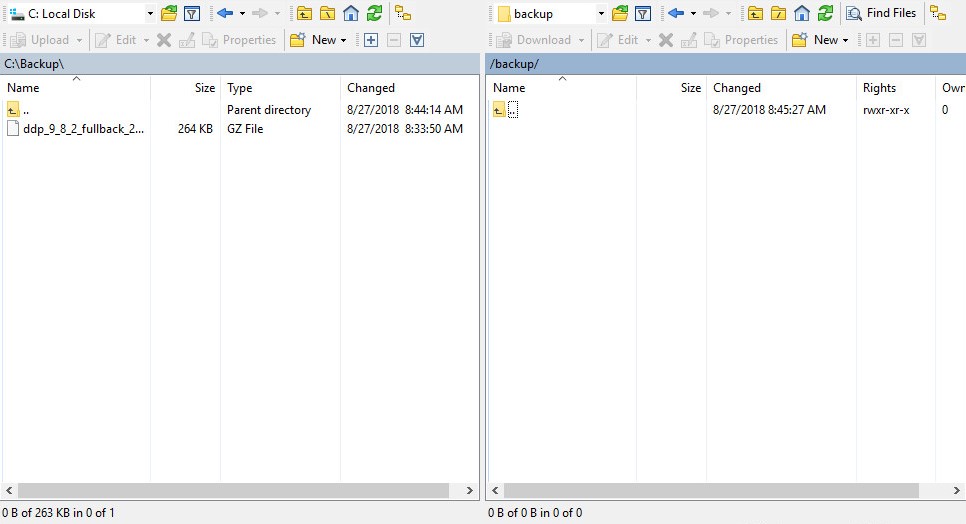
- 移动
ddp_<VERSION>_fullback_<TIMESTAMP>.tar.gz从存储设备移动到/backup/。
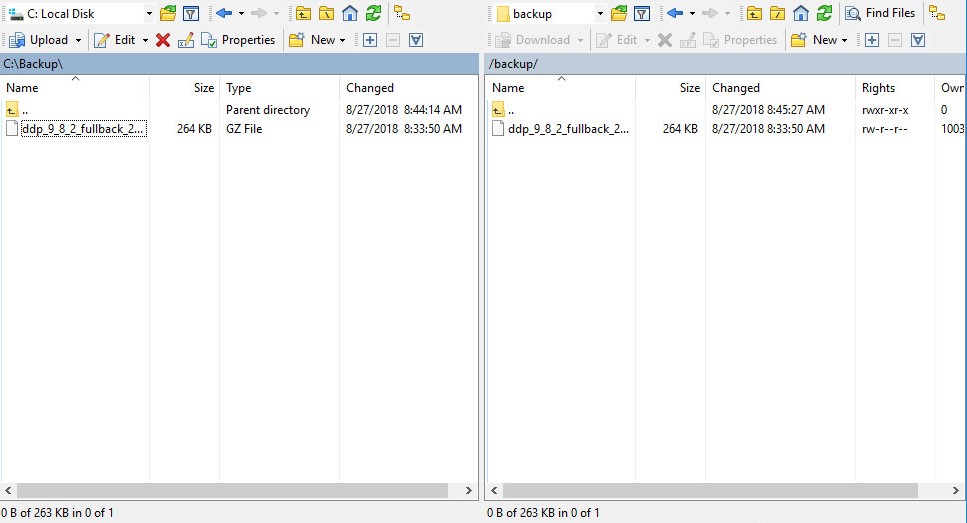 注:
注:<VERSION>= Dell Data Protection Virtual Edition 的版本<TIMESTAMP>= 执行备份的时间
- 关闭 FTP 客户端。
还原备份
- 登录到 Dell Enterprise Server Virtual 管理控制台。
 注:
注:- Dell Security Management Server Virtual 的默认凭据为:
- 用户名:
ddpuser - 密码:
ddpuser
- 用户名:
- 管理员可以更改产品的虚拟设备菜单中的默认密码。
- Dell Security Management Server Virtual 的默认凭据为:
- 从主菜单中,选择 Advanced Configuration,然后按 Enter 键。
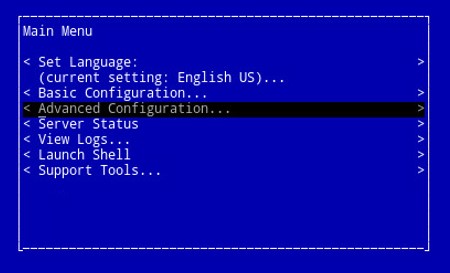
- 选择 Backup and Restore,然后按 Enter 键。
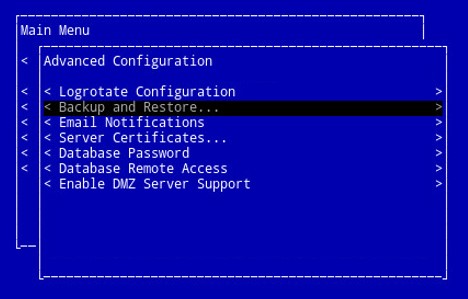
- 选择 Restore,然后按 Enter 键。
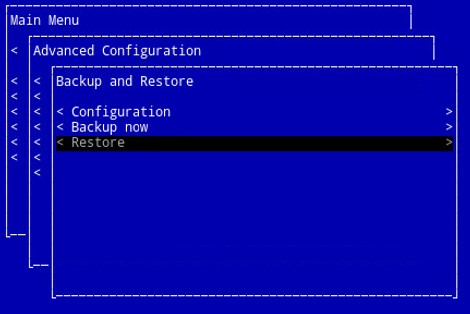
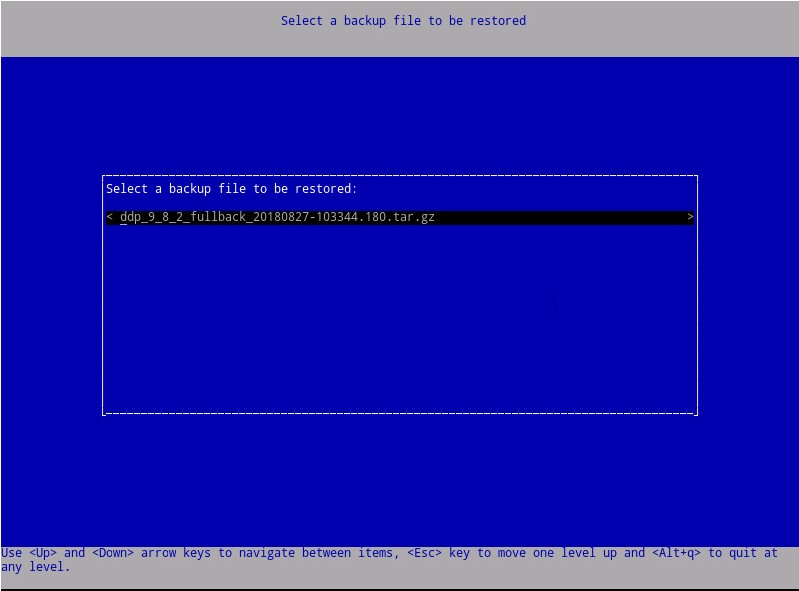
- 选择合适的
ddp_<VERSION>_fullback_<TIMESTAMP>.tar.gz然后按 Enter。
 注:
注:<VERSION>= Dell Data Protection Virtual Edition 的版本<TIMESTAMP>= 执行备份的时间
- 选择 Yes 以在还原完成时重新启动虚拟设备,然后按 Enter 键。
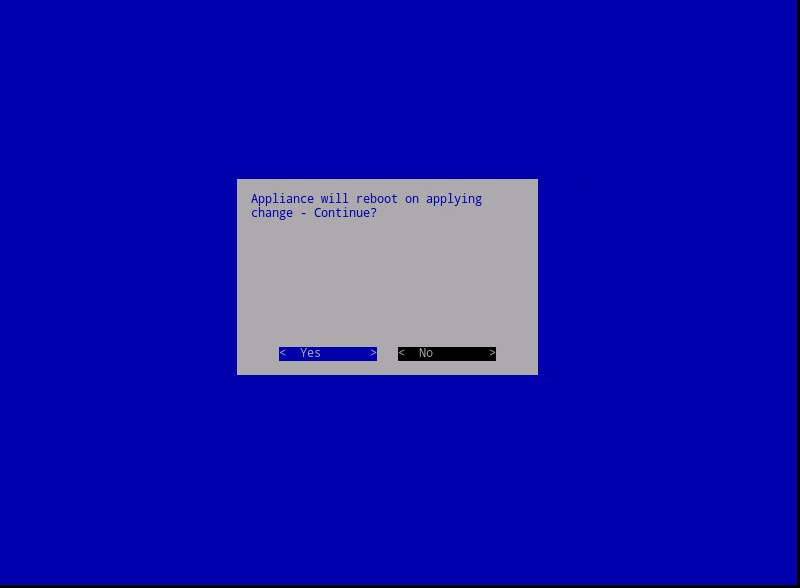
- 在出现 OK 时按 Enter 键。
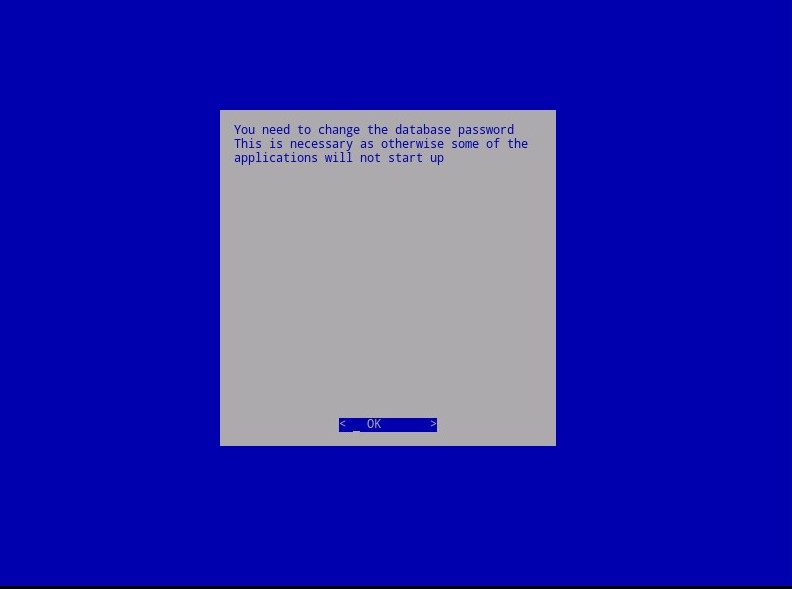
- 备份开始进行还原。转到步骤 9。

- 还原时,在出现 OK 时按 Enter 键。
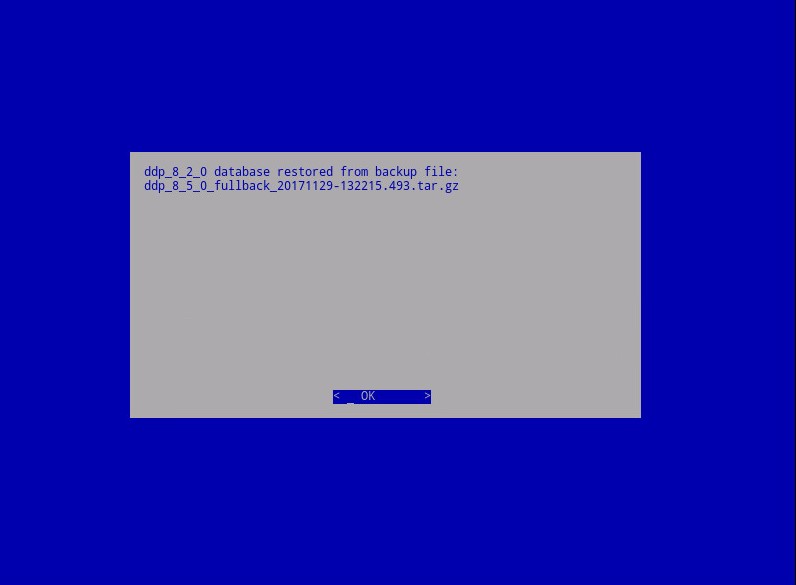
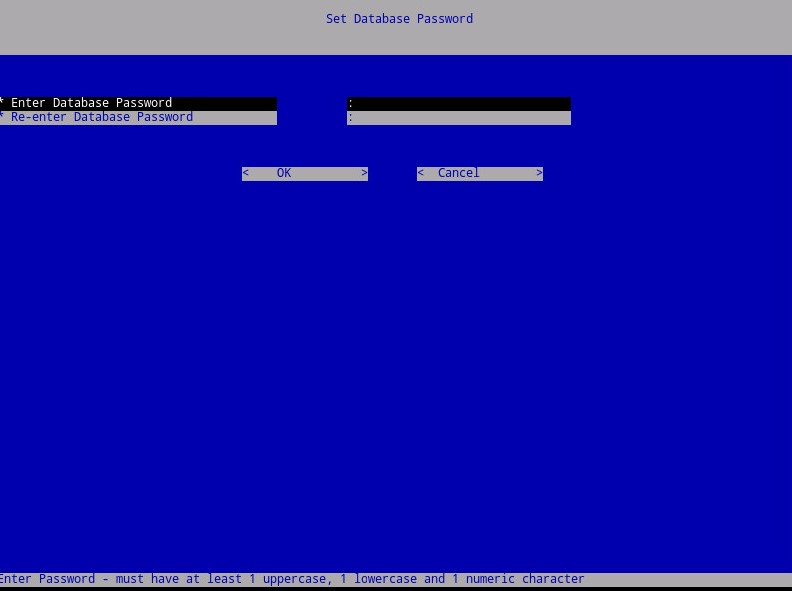
- 输入并重新输入新数据库密码。完成后,在出现 OK 时按 Enter 键,以重新启动虚拟设备。
Дополнительная информация
Видео
Затронутые продукты
Dell EncryptionСвойства статьи
Номер статьи: 000124658
Тип статьи: How To
Последнее изменение: 14 Jul 2026
Версия: 15
Получите ответы на свои вопросы от других пользователей Dell
Услуги технической поддержки
Проверьте, распространяются ли на ваше устройство услуги технической поддержки.