How to Capture a HAR file for Dell Device Management Console
Сводка: Learn how to capture HAR files for troubleshooting Dell Device Management Console by following these instructions.
Данная статья применяется к
Данная статья не применяется к
Эта статья не привязана к какому-либо конкретному продукту.
В этой статье указаны не все версии продуктов.
Инструкции
How to capture a HAR file for Dell Device Management Console.
Affected Product:
- Dell Device Management Console
The process to capture a HAR file for Dell Device Management Console differs between Chromium Browsers (Google Chrome or Microsoft Edge) and Mozilla Firefox. Select the appropriate browser for more information.
Chromium Browsers (Google Chrome or Microsoft Edge)
- Go to Dell Device Management Console.
- Sign in with your account.
Note: To avoid capturing authentication information, do not start logging of the HAR file prior to authentication. Credentials may be in the log if HAR file logging is started first.
- Once authenticated into Dell Device Management Console, press F12 and then click Network
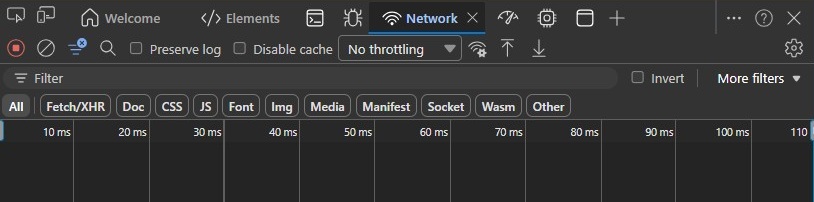
- Clear the log by clicking the Clear Network Log button or by pressing CTRL + L.

- Reproduce the issue. Once complete, click the Export HAR button.

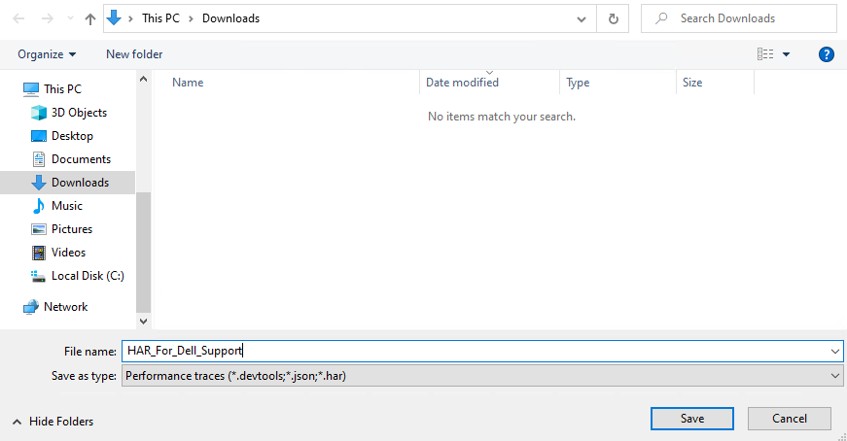
- Name and save the HAR file.
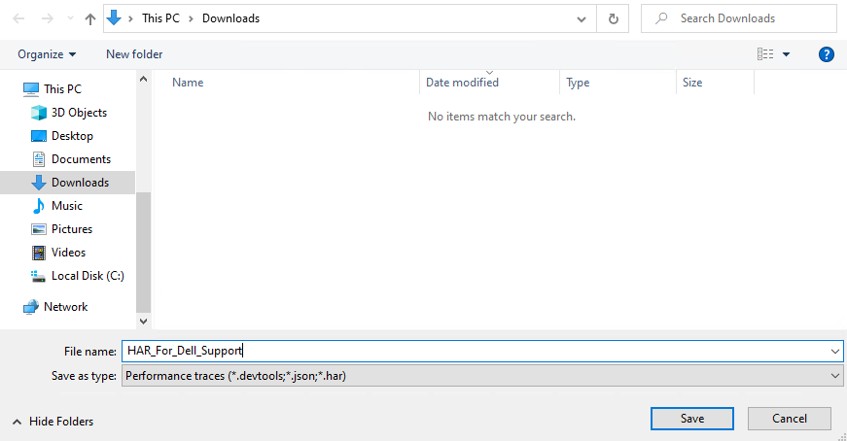
- Provide the Dell Support representative with access to the HAR file.
Mozilla Firefox
- Go to Dell Device Management Console.
- Sign in with your account.
Note: To avoid capturing authentication information, do not start logging of the HAR file prior to authentication. Credentials may be in the log if HAR file logging is started first.
- Once authenticated into Dell Device Management Console, press F12 and then click Network
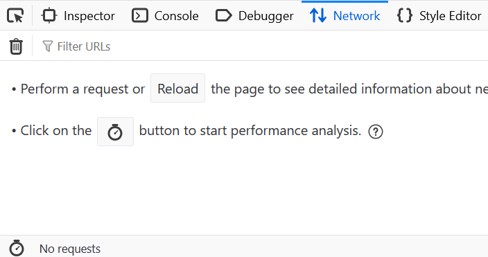
- Click the log by clicking the Clear button.

- Reproduce the issue. Once complete, click the gear icon and select Save All As HAR.
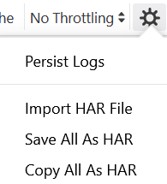
- Name and Save the HAR file.
Затронутые продукты
Dell Device Management ConsoleСвойства статьи
Номер статьи: 000489533
Тип статьи: How To
Последнее изменение: 15 Jul 2026
Версия: 1
Получите ответы на свои вопросы от других пользователей Dell
Услуги технической поддержки
Проверьте, распространяются ли на ваше устройство услуги технической поддержки.