NVP-vProxy: How to update or change vProxy admin or root password
Zhrnutie: This KB provides instructions for how to reset the NetWorker VMware Protection (NVP) vProxy appliance credentials.
Pokyny
The Linux passwd command can be used to change the NetWorker VMware Protection (NVP) vProxy appliances user credentials. The information in this KB is also available in the NetWorker VMware Integration Guide, available through: https://www.dell.com/support/product-details/product/networker/docs
admin and root passwords are set during vProxy deployment. If the passwords are not set, the password for root account is "changeme" and for admin account is "a3dp@m8n."
Perform the following steps to unlock the admin account and reset the password.
- From the vSphere Client application, open a console window on the vProxy appliance.
- Log in to the appliance with the
rootaccount. - Use the
pam_tally2command to unlock the admin account.
pam_tally2 --user admin --reset
- Use the
passwdcommand to reset the admin password:
passwd admin
- If the vProxy is already registered to a NetWorker server, you must update the admin password in the vProxy properties. Delete the vProxy from the NetWorker Management Console (NMC) or NetWorker Web User Interface (NWUI) and add it back with the new password.
NWUI: Protection->VMware Proxies
admin password ensures that it is registered with the correct credentials. An alternative process is outlined in: NVP vProxy: How To Unregister/Re-Register a vProxy Appliance?
Reset the root user credentials.
The following process details how to change the root user password when the current root password is known.
- From the vSphere Client application, open a console window on the vProxy appliance. Alternatively, open an SSH session to the vProxy appliance.
- Log in using the
adminuser account. - Switch to the
rootuser:
sudo su -
- Use the
passwdcommand to reset therootpassword:
passwd root
The following process details how to change the root password when the current root password is not known; however, this process is only supported for 4.4.0.x vProxies.
root password is not known, the vProxy must be redeployed. 4.3.0.x vProxy (SUSE 12) does not support single-user mode.
- Log in to vSphere using an administrative user account. For example:
administrator@vsphere.local. - Open a Web console to the vProxy appliance.
- Reboot the vProxy appliance. Right-click the vProxy and select Power->Reset.
- During the vProxy
GNU GRUBboot up menu, select the OS and press 'e' on your keyboard:
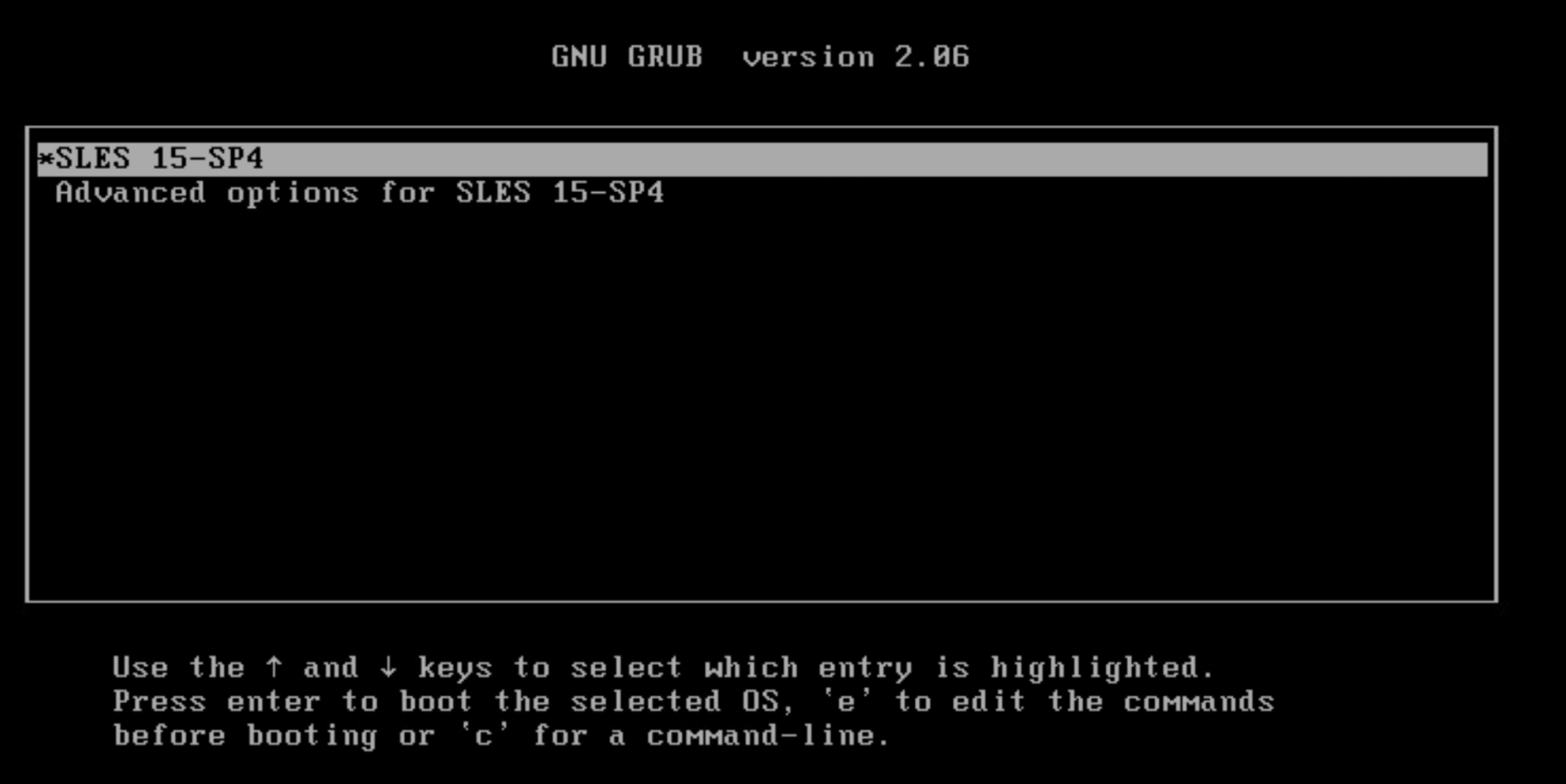
- Scroll down to the line that starts with
linuxand appendinit=/bin/bash, then pressCTRLandXor pressF10.
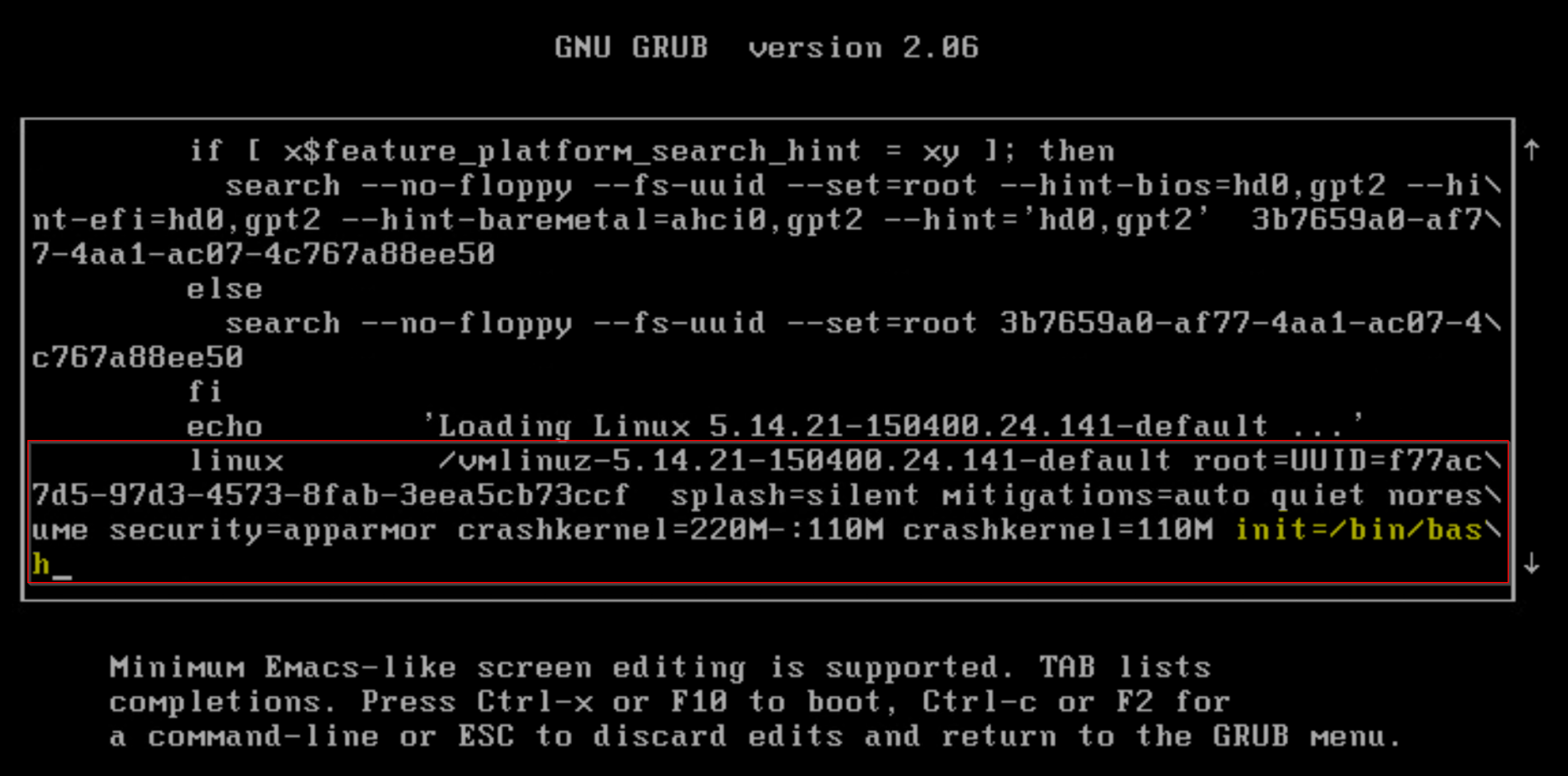
- The vProxy boots into single-user mode, enter the following command at the prompt to remount the root file system:
mount -o remount,rw /
- Use the
passwdcommand to reset therootpassword:
passwd
- From vSphere, reboot the vProxy again. When the vProxy reboots, it boots back to the normal login prompt.
- Validate that you can log in using the new
rootpassword.
Ďalšie informácie
If the admin password account keeps getting locked due to failed login attempts, you must check where the login requests are coming from. For example, using:
sudo journalctl | grep 'Failed password'
Example:
Feb 03 18:19:41 nsr-vproxy01.amer.lan sshd[32597]: Failed password for admin from 192.168.9.100 port 59660 ssh2
Feb 03 18:19:47 nsr-vproxy01.amer.lan sshd[32597]: Failed password for admin from 192.168.9.100 port 59660 ssh2
Feb 03 18:19:51 nsr-vproxy01.amer.lan sshd[32597]: Failed password for admin from 192.168.9.100 port 59660 ssh2
Feb 03 18:19:59 nsr-vproxy01.amer.lan sshd[32640]: Failed password for admin from 192.168.9.100 port 59661 ssh2
Feb 03 18:20:04 nsr-vproxy01.amer.lan sshd[32640]: Failed password for admin from 192.168.9.100 port 59661 ssh2
Feb 03 18:20:10 nsr-vproxy01.amer.lan sshd[32640]: Failed password for admin from 192.168.9.100 port 59661 ssh2
In the above example, we can see that someone attempted to log in as admin using SSH from host 192.168.9.100. The following conditions may apply:
- The host is a NetWorker server with the incorrect vProxy password set in the vProxy properties
- There is an automated tool or script that is configured with the incorrect credentials (This would be outside of NetWorker).
- A user keeps attempting to access the vProxy using the incorrect credentials and locking the account.
journalctl output shows the NAT target address as the source, not where the SSH session originated from.
Additional articles for changing vProxy settings: