Live Optics | Upload an SIOKIT File using the Live Optics Collector
Zhrnutie: How to upload an SIOKIT file using the Live Optics collector.
Tento článok sa vzťahuje na
Tento článok sa nevzťahuje na
Tento článok nie je viazaný na žiadny konkrétny produkt.
V tomto článku nie sú uvedené všetky verzie produktov.
Pokyny
The Live Optics collector sends data to the Live Optics web portal for analysis in two ways:
- Automatically, while a Live Optics collector run is in progress
- Manually, by uploading an encrypted SIOKIT file which is created and saved locally to the machine on which it is run.
This article describes how to manually upload an SIOKIT file using the Live Optics collector.
- Open the Live Optics collector and select Upload SIOKIT.
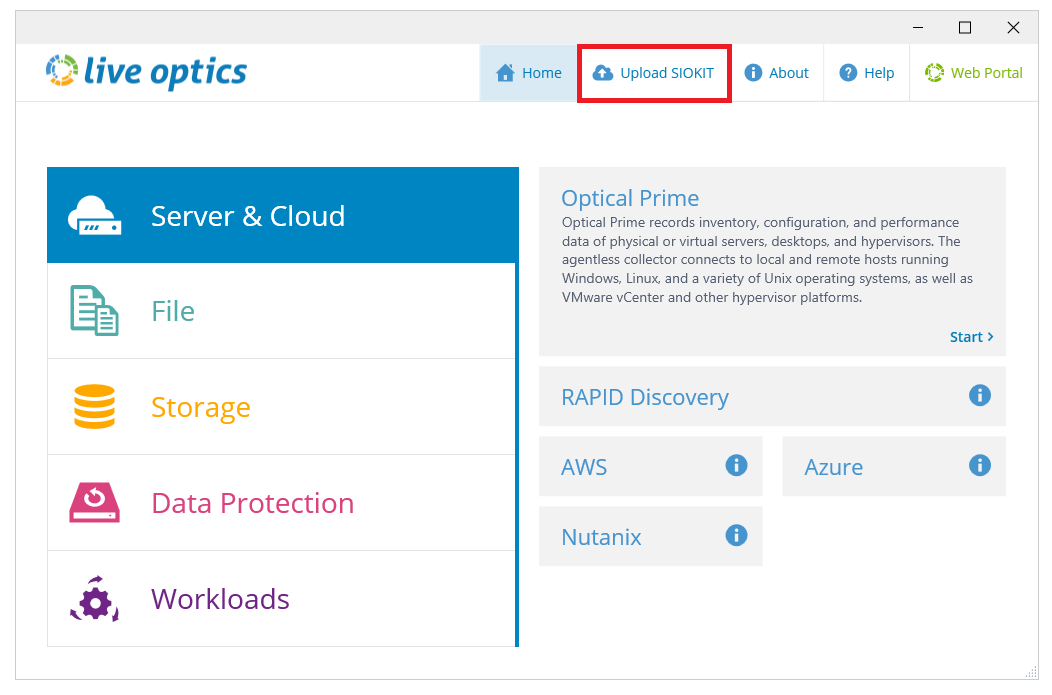
- Click Browse for File and choose the SIOKIT file you want to upload. Enter a project name and click Upload to continue.
- The file is uploaded to the Live Optics web portal. During the upload, a status bar indicates the progress. The upload may take some time to complete depending on the speed of your Internet connection and size of the file. When the upload is complete, the following screen displays. A confirmation email follows, when your project is ready to view on the Live Optics web portal.
- Click Quit to close the Collector.
Ďalšie informácie
If you have any questions, reach out to Live Optics Support at liveoptics.support@dell.com.
Dotknuté produkty
AnalyticsVlastnosti článku
Číslo článku: 000228710
Typ článku: How To
Dátum poslednej úpravy: 21 okt 2025
Verzia: 3
Nájdite odpovede na svoje otázky od ostatných používateľov spoločnosti Dell
Služby podpory
Skontrolujte, či sa na vaše zariadenie vzťahujú služby podpory.