How to Move the SQL Database for Dell Security Management Server to a Different SQL Server
摘要: This article covers how to move the Dell Security Management Server (formerly Dell Data Protection | Enterprise Edition Server) structured query language (SQL) database to another SQL Server. ...
本文适用于
本文不适用于
本文并非针对某种特定的产品。
本文并非包含所有产品版本。
说明
Affected Products:
- Dell Security Management Server
- Dell Data Protection | Enterprise Edition Server
Affected Versions:
- v8.0.X and Later
Click the appropriate Dell Security Management Server version. For versioning information, reference How to Identify the Dell Data Security Server Version.
Warning: When moving your SQL Server database to a new version of SQL Server, confirm the SQL Server version is supported with your version of Dell Security Management Server before proceeding. For more information about compatible versions, reference Dell Security Management Server System Requirements.
v8.0.0 and Later
- Stop all [Product] services.
Note:
- [Product] =
- v8.15 and later = Dell
- v8.14.1 and earlier = Dell Data Protection
- For more information, reference How to Stop and Start Services in Dell Security Management Server.
- [Product] =
- From the existing SQL Server, create a full SQL database backup.
Note: For more information, reference Create a Full Database Backup (SQL Server)
.
- From the new SQL Server, restore the SQL database.
Note: For more information, reference Restore a Database to a New Location (SQL Server)
- Confirm that all expected access rights are applied to the SQL Server and database.
Note: For more information, reference How to Configure SQL for Dell Security Management Server.
- From the Dell Security Management Server, go to
%ENV:SYSTEMDRIVE%\Program Files\Dell\Enterprise Edition\Server Configuration Tool\Credant.Configuration.exe.

- Optionally, search for Server Configuration Tool within the Start Menu, or it can be manually found under the Dell folder, titled Run Server Configuration Tool.
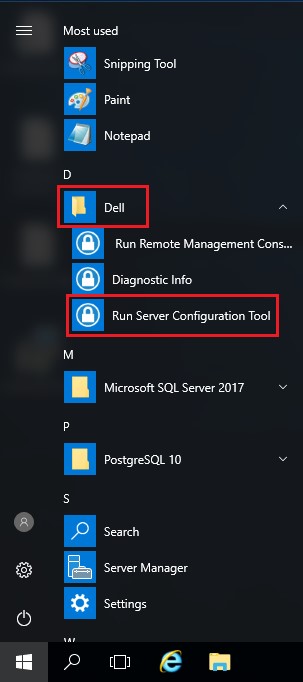
- Optionally, search for Server Configuration Tool within the Start Menu, or it can be manually found under the Dell folder, titled Run Server Configuration Tool.
- Click the Database tab.

- From the Database tab:
- Populate the new SQL Server Name.
- Populate the SQL Server Port.
- Populate the SQL Database name.
- Select a method of Authentication.
- If SQL Authentication is chosen:
- Populate the User Name.
- Populate the User Name Password.
- Go to step 8.
- If Windows Authentication is chosen, go to step 8.
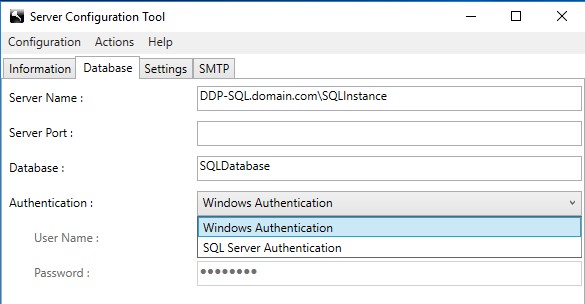 Note:
Note:- Server Name gets populated by a fully qualified domain name (FQDN) or IP address.
- If an instance is in use, it may be populated beginning with a \ following the Server Name.
- If the Server Port is left blank, it defaults to 1433, or it attempts to communicate to the SQL Server Browser (if available and enabled), which can define a custom or dynamic SQL port.
- If Windows authentication is selected, the active Windows account is used to connect to the Dell Data Protection database.
- The examples used for Server Name, Server Port, Database, Authentication, User Name, and Password may differ in your environment.
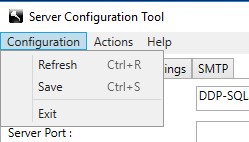
- Select Configuration and then click Save.
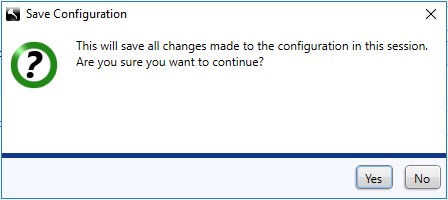
- Click Yes.
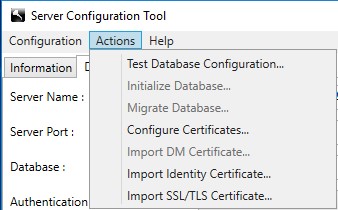
- Select the Actions menu and then click Test Database Configuration.
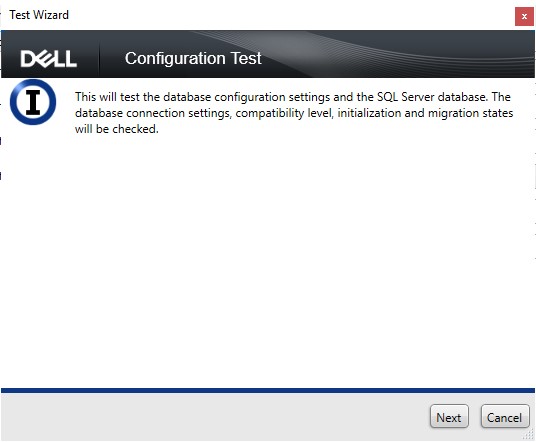
- Click Next.
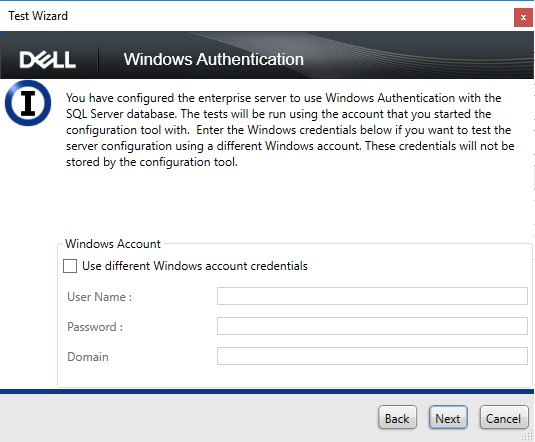
- If using Windows Authentication, optionally:
- Check Use different Windows account credentials.
- Populate User Name.
- Populate Password.
- Populate Domain.
- Click Next.
If using SQL Authentication, click Next and then go to step 13.
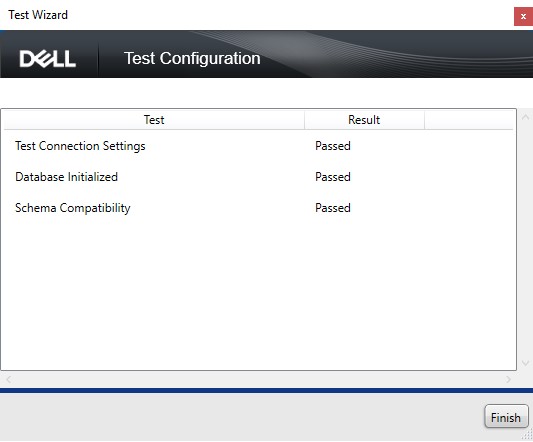
- Test Connection Settings must show Passed to proceed. If it does not, return to step 7 or use different Windows account credentials (Step 12). Click Finish.
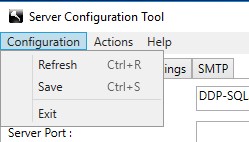
- Select the Configuration menu and then click Save.
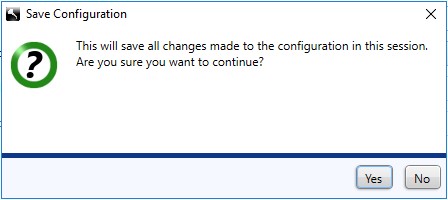
- Click Yes.
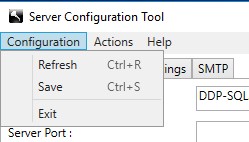
- Select the Configuration menu and then click Exit.
- Start all [Product] services.
Note:
- [Product] =
- v8.15 and later = Dell
- v8.14.1 and earlier = Dell Data Protection
- For more information, reference How to Stop and Start Services in Dell Security Management Server.
- [Product] =
受影响的产品
Dell Encryption文章属性
文章编号: 000126174
文章类型: How To
上次修改时间: 16 7月 2026
版本: 10
从其他戴尔用户那里查找问题的答案
支持服务
检查您的设备是否在支持服务涵盖的范围内。