如何为 Dell Endpoint Security Suite Enterprise Web 控制和客户端防火墙功能启用调试日志记录
摘要: 了解如何使用以下说明为 Dell Endpoint Security Suite Enterprise Web Control 和 Client Firewall 启用调试日志记录。
本文适用于
本文不适用于
本文并非针对某种特定的产品。
本文并非包含所有产品版本。
说明
注:
- 从 2022 年 5 月起,Dell Endpoint Security Suite Enterprise 停止维护。戴尔不再更新本产品及其文章。
- 从 2019 年 1 月起,Dell Endpoint Security Suite Pro 停止维护。戴尔不再更新本产品及其文章。
- 有关详细信息,请参阅 Dell Data Security 产品生命周期(结束支持和停售)政策。如果您对备用文章有任何疑问,请联系您的销售团队或联系 endpointsecurity@dell.com。
- 请参阅端点安全性,了解有关当前产品的其他信息。
本文讨论如何启用调试日志记录以对 Dell Endpoint Security Enterprise Web 控制和客户端防火墙功能进行故障处理。
受影响的产品:
- Dell Endpoint Security Suite Enterprise
- Dell Endpoint Security Suite Pro
为了帮助戴尔更快地识别问题,Dell Technologies 建议您启用详细模式(调试日志记录),然后在收集日志之前重现问题。
警告: 只有在对问题进行故障处理时,才应启用详细模式。Dell Technologies 建议在解决问题后禁用详细模式。在启用详细模式时,端点可能会遇到性能下降的问题。
- 从网页浏览器转到 Dell Data Security 管理控制台,网址为 https://< servername.company.com>:8443/webui。
注:
- 示例 <servername.company.com> 可能与您环境中的服务器 DNS 不同。
- 端口 8443 可能与环境中的远程管理控制台端口不同。
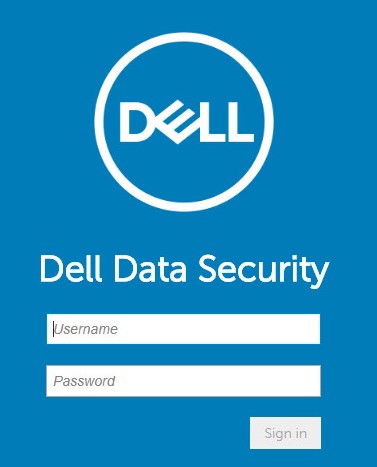
- 登录到 Dell Data Security 管理控制台。
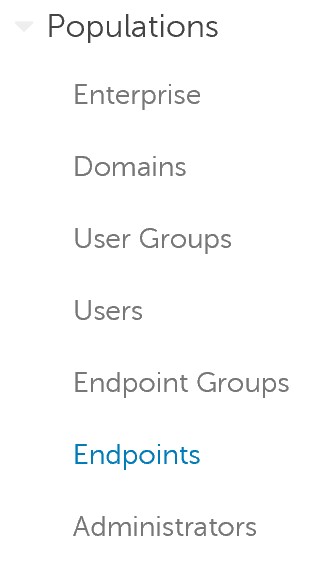
- 在左侧菜单中,展开 Populations,然后单击 Endpoints。
- 单击受影响的主机名。
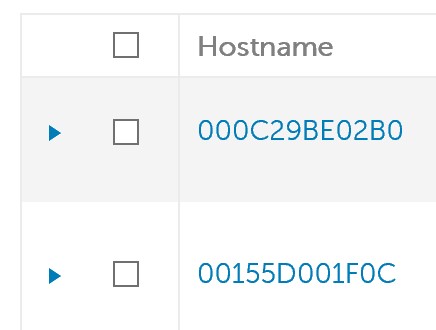 注意: 您环境中的 主机名 示例会有所不同。
 - 在 “Threat Prevention”下,单击 Protection Settings。
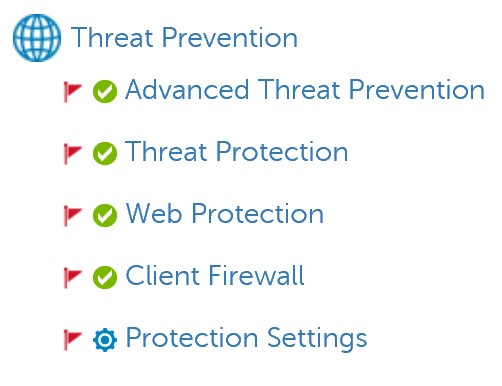
- 选中 Debug Logging for Web Protection 和 Debug Logging for Client Firewall。

- 在右上角,单击 Save。

- 提交策略更改。
注:
- 有关更多信息,请参阅如何 为 Dell Data Security 服务器提交策略。
- 主机名在下次签入时收到更新的策略。
- 在受影响的主机名(步骤 4)上重现问题。
其他信息
视频
受影响的产品
Dell Endpoint Security Suite Pro, Dell Endpoint Security Suite Enterprise文章属性
文章编号: 000130129
文章类型: How To
上次修改时间: 20 7月 2026
版本: 11
从其他戴尔用户那里查找问题的答案
支持服务
检查您的设备是否在支持服务涵盖的范围内。