DSA-2021-309: Dell Technologies Data Protection Advisor Security Update for Apache Log4j Remote Code Execution Vulnerability
摘要: Dell Technologies Data Protection Advisor (DPA) remediation is available for the Apache Log4j Remote Code Execution Vulnerability that may be exploited by malicious users to compromise the affected system. Dell recommends implementing this remediation as soon as possible in light of the critical severity of the vulnerability. ...
本文适用于
本文不适用于
本文并非针对某种特定的产品。
本文并非包含所有产品版本。
影响
Critical
详情
| Third-party Component | CVEs | More information |
| Apache Log4j | CVE-2021-44228 , CVE-2021-45046, CVE-2021-45105 | Apache Log4j Remote Code Execution |
| Third-party Component | CVEs | More information |
| Apache Log4j | CVE-2021-44228 , CVE-2021-45046, CVE-2021-45105 | Apache Log4j Remote Code Execution |
受影响的产品和补救措施
| Product and Component | Versions | Updated Versions | Link to Update |
|
Data Protection Advisor |
19.6.0 | DPA 19.6 Build B24 | Support for Data Protection Advisor | Drivers & Downloads | Dell India |
| 19.5.x | DPA 19.5 Build 74 | Support for Data Protection Advisor | Drivers & Downloads | Dell India
|
|
| 19.4.x | DPA 19.4 Build B104 | Support for Data Protection Advisor | Drivers & Downloads | Dell India | |
| 19.3.x,
19.2.x, 19.1.X, 18.2.x (IDPA), 18.x (or earlier) -standalone DPA is EOSL |
Dell Technologies recommends customers apply the resolution detailed in the Workaround and Mitigation section of this DSA. | ||
Note: Only the DPA Agent is impacted, but a complete upgrade of DPA (DPA Server, DPA Agent, and DPA Datastore) is required, see updated version in the above table.
| Product and Component | Versions | Updated Versions | Link to Update |
|
Data Protection Advisor |
19.6.0 | DPA 19.6 Build B24 | Support for Data Protection Advisor | Drivers & Downloads | Dell India |
| 19.5.x | DPA 19.5 Build 74 | Support for Data Protection Advisor | Drivers & Downloads | Dell India
|
|
| 19.4.x | DPA 19.4 Build B104 | Support for Data Protection Advisor | Drivers & Downloads | Dell India | |
| 19.3.x,
19.2.x, 19.1.X, 18.2.x (IDPA), 18.x (or earlier) -standalone DPA is EOSL |
Dell Technologies recommends customers apply the resolution detailed in the Workaround and Mitigation section of this DSA. | ||
Note: Only the DPA Agent is impacted, but a complete upgrade of DPA (DPA Server, DPA Agent, and DPA Datastore) is required, see updated version in the above table.
解决方法和缓解措施
The workaround steps mentioned in this document are a measure to limit the exposure and does not fully mitigate the vulnerability.
The alternative is to apply any of the latest builds which has the remediation. Support for Data Protection Advisor | Drivers & Downloads | Dell India
Note:
- The workaround fixes persist across system reboots.
- After applying the workaround steps mentioned in this document, if DPA is upgraded to a later version, which does not have the permanent fix provided by Dell, then follow the same instructions and re-apply it.
DPA Agents on Windows hosts or platforms:
Option 1: Using Logpresso tool.
- Download the latest version of the logpresso tool from the following location:
Choose the latest logscanner tool for Windows x64, zip.
Note: It is recommended to use the latest version of the logpresso tool, but be aware that the DPA testing was done with the logpresso version 2.3.2 and 2.3.3.
- Extract the zip (for example, logpresso-log4j2-scan-XXX-win64).
- Copy the log4j2-scan.exe to C:\temp directory of the affected DPA Servers (DPA Application Server / Datastore / Standalone Agent).
- Stop the Agent services (The below instructions are an example for a default location. If a non default location, substitute the appropriate DPA installation path.)
Example:
C:\Program Files\EMC\DPA\services\bin\dpa agent stop
C:\Program Files\EMC\DPA\services\bin\dpa agent stop
- After the DPA Agent services are stopped, run the following command on all the DPA servers (The below instructions are an example for a default location. If a non default location, substitute the appropriate DPA installation path.)
Example:
C:\temp\log4j2-scan.exe --fix "C:\Program Files\EMC\DPA"
- Start the DPA Agent services.
Example:
C:\Program Files\EMC\DPA\services\bin\dpa agent start
C:\Program Files\EMC\DPA\services\bin\dpa agent start
- In order to verify the above fix, run the following command on all the DPA Servers.
C:\temp\log4j2-scan.exe "C:\Program Files\EMC\DPA"
This command lists if any vulnerable files are present.
This command lists if any vulnerable files are present.
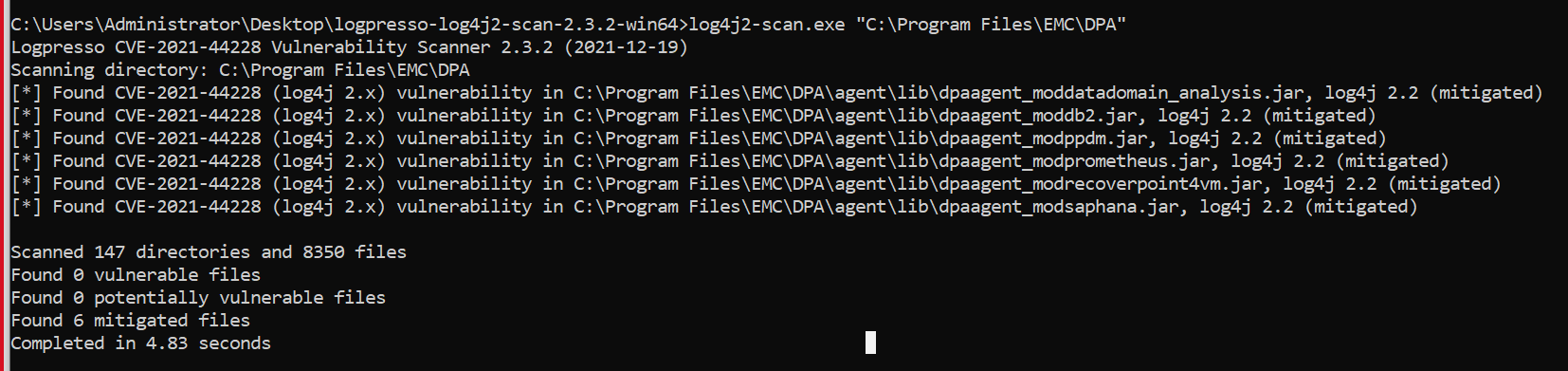
Find the following screenshots for reference (before and after):
- As shown below, after the command is run the files should be shown as mitigated and the number of vulnerable files must be zero.
Option 2: Using PowerShell Script and the steps followed.
This is recommended ONLY if you are unable to download the logpresso tool due to security reasons.
This remediation involves utilizing a Windows PowerShell script which is using native Windows scripting commands.
See the below Knowledge Base article 194869 for the steps to follow:
This remediation involves utilizing a Windows PowerShell script which is using native Windows scripting commands.
See the below Knowledge Base article 194869 for the steps to follow:
Option 3: Using Windows Commands only and the steps followed.
This is recommended ONLY if you are unable to download the logpresso tool due to security reasons.
These instructions require only Windows native commands, access to the server (for example, Remote Desktop), and Windows Explorer.
These instructions can be applied to any type of Windows DPA installation including the DPA Application, DPA Datastore, and Standalone DPA Agent (installed alone on a server or on another type of application server).
See the below Knowledge Base article 194903 for the steps to follow:
These instructions require only Windows native commands, access to the server (for example, Remote Desktop), and Windows Explorer.
These instructions can be applied to any type of Windows DPA installation including the DPA Application, DPA Datastore, and Standalone DPA Agent (installed alone on a server or on another type of application server).
See the below Knowledge Base article 194903 for the steps to follow:
DPA Agent on Linux hosts or platforms:
Option 1: Using Logpresso tool.
- Download the latest version of the logpresso tool from the following location:
Choose the latest logscanner tool for Linux x64.
Note: It is recommended to use the latest version of the logpresso tool, but be aware that the DPA testing was done with the logpresso version 2.3.2 and 2.3.3.
-
Copy the logpresso-log4j2-scan-x.x.x-linux.tar.gz to /tmp directory of the affected DPA Servers (DPA Application Server / Datastore / Standalone Agent).
-
Open SSH to DPA Application, Agent, and Datastore server and login as root user.
- Go to /tmp directory by running the following command:
cd /tmp
- Extract the logpresso-log4j2-scan-x.x.x-linux.tar.gz file by running the following command:
tar -xvf logpresso-log4j2-scan-x.x.x-linux.tar.gz
- Provide execute permissions to log4j2-scan by running the following command:
chmod 755 log4j2-scan
- Stop the DPA Agent services by running the following command on the affected DPA Server:
/opt/emc/dpa/agent/etc/dpa stop
- After the DPA Agent services are stopped, run the following command on the affected DPA server:
/tmp/log4j2-scan --fix /opt/emc/dpa
- Start the DPA Agent service by executing the following command on the affected DPA Server:
/opt/emc/dpa/agent/etc/dpa start
- In order to verify the above fix, run the following command on the affected DPA Server:
/tmp/log4j2-scan /opt/emc/dpa
This command lists if any vulnerable files are present.
This command lists if any vulnerable files are present.
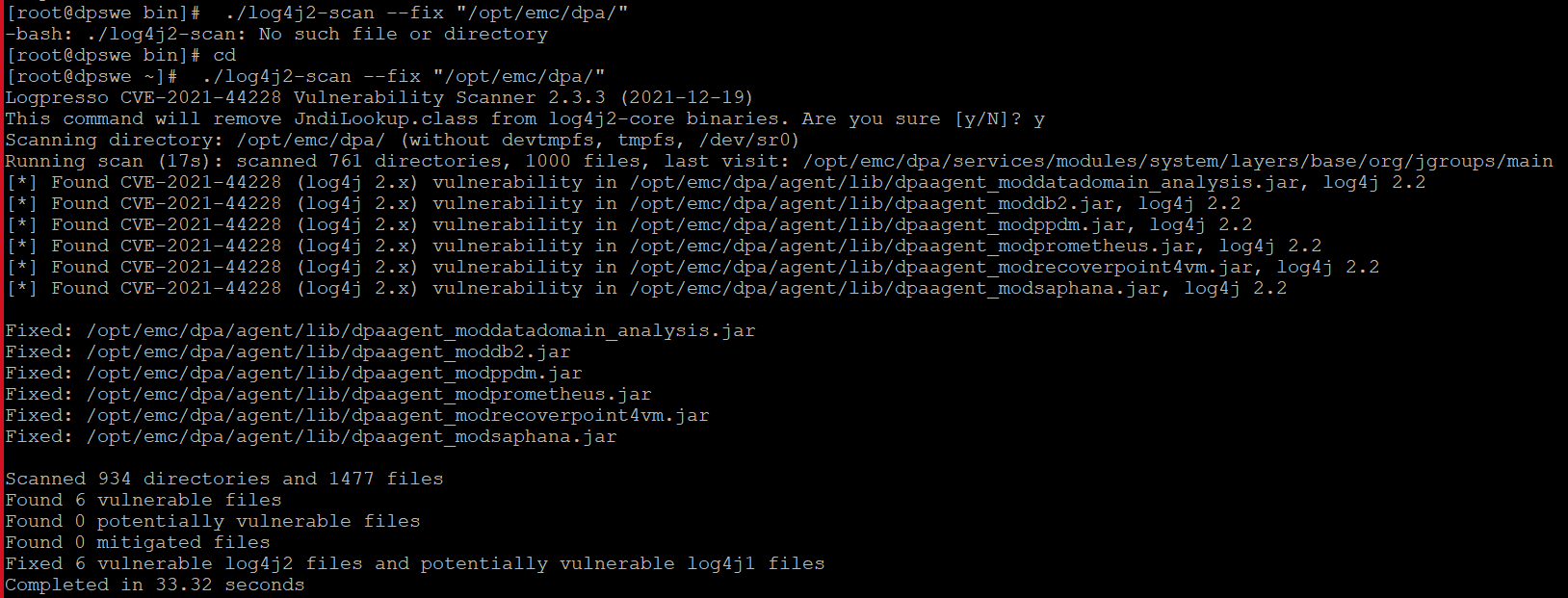
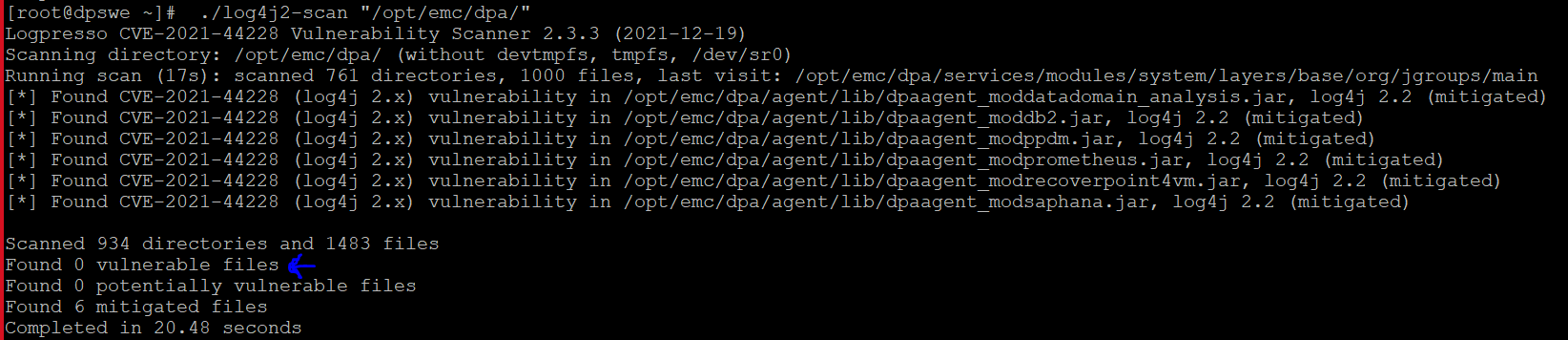
Find the following screenshots for reference (before and after):
- As shown below, after the command is run the files should be shown as mitigated and the number of vulnerable files must be zero.
Option 2: Using workaround from Apache site (Linux ONLY):
Due to security reasons, ONLY if you are unable to download logpresso tool, below are the manual steps you may follow from Apache site:
On each affected DPA Server, follow the below steps:
site:
On each affected DPA Server, follow the below steps:
-
Open SSH to the affected DPA Server and log in as root.
-
Stop the DPA Agent services by running the following command on the affected DPA Server:
/opt/emc/dpa/agent/etc/dpa stop
-
Run the following command on the affected DPA server:
find /opt/emc/dpa/agent/lib/ -xdev -type f -name "dpa*.jar" -exec zip -q -d {} org/apache/logging/log4j/core/lookup/JndiLookup.class \;
-
Start the DPA Agent services by running the following command on the affected DPA Server:
/opt/emc/dpa/agent/etc/dpa start
-
To confirm if the JndiLookup class was removed, run the following command:
grep -R 'JndiLookup.class' /opt/emc/dpa/agent/lib
Find the following screenshots for reference:
- As shown below, the output of grep for JndiLookup.class does not show any results, confirming that JndiLookup.class is removed.

修订历史记录
| Revision | Date | Description | |
| 1.0 | 2021-12-20 | Initial Release | |
| 2.0 | 2021-12-21 | Workaround and Mitigation Revision | |
| 3.0 | 2021-12-22 | Added CVE-2021-45046 | |
| 4.0 | 2022-01-06 | Updated table to improve readability | |
| 5.0 | 2022-01-10 | Added additional patches |
相关信息
法律免责声明
受影响的产品
Data Protection Advisor产品
Product Security Information文章属性
文章编号: 000194651
文章类型: Dell Security Advisory
上次修改时间: 12 5月 2026
从其他戴尔用户那里查找问题的答案
支持服务
检查您的设备是否在支持服务涵盖的范围内。