Windows Server:如何使用 PowerShell 安裝更新服務
摘要: 本文旨在解決使用 Windows PowerShell 安裝 Windows Server Update Services (WSUS) 角色的問題。本指南詳細介紹了使用 PowerShell 添加 WSUS 角色,包括用於更新控制和同步設置的安裝和管理 cmdlet,例如 Get-WsusUpdate。
本文章適用於
本文章不適用於
本文無關於任何特定產品。
本文未識別所有產品版本。
說明
- 在命令前頭輸入
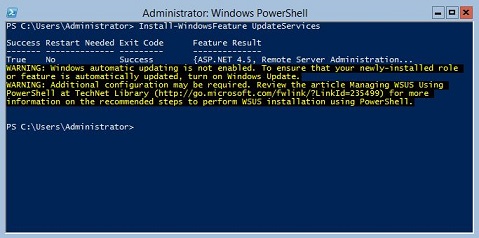
Start PowerShell以啟動 Windows PowerShell。 - 若要安裝 WSUS 角色,請執行以下命令
Install-WindowsFeature UpdateServices
其他資訊:
可使用 Windows PowerShell 安裝下列 WSUS 角色服務。
- Windows 內部資料庫 (WID)
- WSUS 服務
- 資料庫
WID 資料庫和 WSUS 服務角色服務會在執行 Install-WindowsFeature UpdateSevices cmdlet 後安裝。
下列 Windows PowerShell cmdlet 可用於在執行 Windows Server Core 的伺服器上管理 WSUS 角色。
將指定的用戶端電腦添加到指定的目標組。
Add-WsusComputer
核准要套用至用戶端的更新。
Approve-WsusUpdate
拒絕部署更新。
Deny-WsusUpdate
獲取系統中可用的所有 WSUS 分類的清單。
Get-WsusClassification
獲取表示客戶端電腦的 WSUS 電腦物件。
Get-WsusComputer
按類別獲取 WSUS 上可用的所有產品的清單。
Get-WsusProduct
獲取 WSUS 更新伺服器物件的值。
Get-WsusServer
獲取包含有關更新的詳細資訊的 WSUS 更新物件。
Get-WsusUpdate
在指定的 WSUS 伺服器上執行清理過程。
Invoke-WsusServerCleanup
設置是啟用還是禁用 WSUS 同步的更新分類。
Set-WsusClassification
設置是啟用還是禁用表示要同步的更新類別的產品。
Set-WsusProduct
設置 WSUS) 伺服器是從Microsoft更新同步,還是從上游伺服器和上游伺服器屬性同步。
Set-WsusServerSynchronization受影響的產品
Microsoft Windows 2012 Server, Microsoft Windows 2012 Server R2產品
C Series, HS Series, Modular Infrastructure, Rack Servers, Tower Servers, XE Servers, XR Servers, OEM Server Solutions, Microsoft Windows Server 2016, Microsoft Windows Server 2019, Microsoft Windows Server 2022, Microsoft Windows Server 2025文章屬性
文章編號: 000121387
文章類型: How To
上次修改時間: 10 4月 2026
版本: 9
向其他 Dell 使用者尋求您問題的答案
支援服務
檢查您的裝置是否在支援服務的涵蓋範圍內。