How to Access the Dell Data Security Server Administration Console
摘要: Learn how to access the Dell Data Security or Dell Data Protection server administration console by following these step-by-step instructions.
本文章適用於
本文章不適用於
本文無關於任何特定產品。
本文未識別所有產品版本。
說明
Dell Data Security (formerly Dell Data Protection) requires an administration console to manage:
- Policies
- Reports
- Encryption keys
Affected Products:
- Dell Security Management Server
- Dell Data Protection Enterprise Edition Server
- Dell Security Management Server Virtual
- Dell Data Protection Virtual Edition
Affected Versions:
- 8.0 and Later
Instructions differ for logging in to the administration console depending on the version of the Dell Data Security server.
Click the appropriate product version for specific steps on accessing the administration console. For versioning information, reference How to Identify the Dell Data Security Server Version.
9.2 and Later
- Open a web browser and go to https://servername.company.com:8443/webui.
 Note:
Note:- The example FQDN (fully qualified domain name) will differ from the server in your environment.
- Port 8443 may differ from the administration console port in your environment.
- Sign in to the Administration Console.
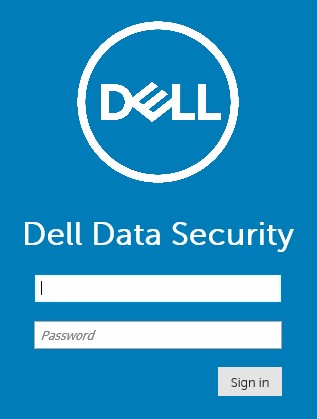 Note:
Note:- In version 11.4 and later, the user is prompted to enter the OTP (one-time password) if either Google Authenticator or email MFA (multi-factor authentication) has been configured for the user.
- For more information about configuring MFA, reference How to Manage Multi-Factor Authentication in the Dell Security Management Server Administration Console.
8.0 to 9.1.5
- In Windows Explorer, go to:
- Dell Data Protection Enterprise Edition server:
C:\Program Files\Dell\Enterprise Edition - Endpoint:
C:\Program Files\Dell\Virtual Edition
Note:- Endpoint access requires installation of the administration console (formerly Remote Management Console) from the Dell Data Protection Virtual Edition media.
- For installation steps, reference How to Install the Dell Data Protection Remote Management Console.
- Dell Data Protection Enterprise Edition server:
- Double-click
Credant.Console.

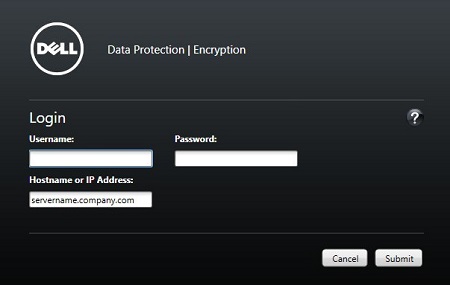
- Submit credentials to sign in to the administration console.
受影響的產品
Dell Encryption文章屬性
文章編號: 000126852
文章類型: How To
上次修改時間: 21 7月 2026
版本: 16
向其他 Dell 使用者尋求您問題的答案
支援服務
檢查您的裝置是否在支援服務的涵蓋範圍內。