Resolve No Bootable Device Found Error in Legacy Mode on Dell Computers
摘要: Resolve "No bootable devices were found" error on laptops and desktops. Learn how to fix no boot device available, detected, or found by switching to UEFI mode and reinstalling Windows 10 or Linux. ...
本文章適用於
本文章不適用於
本文無關於任何特定產品。
本文未識別所有產品版本。
症狀
Follow the guidelines below to resolve the following error message:
The No boot device Found error appears when the Boot Sequence is set to Legacy mode or the operating system is installed under Legacy mode.
No boot device found error
The following error may appear after operating system installation: No boot device found.
This error occurs when the device BIOS boot sequence is set to Legacy mode.
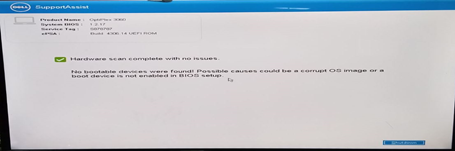
If the operating system is installed in Legacy mode, the error message appears when you reboot the computer. The failure cannot be recovered by changing the BIOS setting back to Unified Extensible Firmware Interface (UEFI). The operating system should be reinstalled.
Note:
- Only Windows 10 and higher and Linux operating systems in UEFI boot mode are supported on these specific Dell computers.
- Ensure that UEFI mode is enabled in the BIOS before trying to reinstall the operating system.
- Using an Optical Drive to install the operating system is not supported in legacy mode as there is no Optical Drive option in the Boot Menu.
- The above Dell computers have a 7th-generation Coffee Lake processor (and above). The computers are designed to boot exclusively in the UEFI; boot environment.
- As a result, the operating system fails to boot if Legacy boot mode is selected on these computers.
原因
Wrong boot mode set in BIOS.
解析度
If the operating system is installed with UEFI before the boot sequence is changed, the computer can be recovered by changing the Boot sequence back to UEFI.
If the operating system is installed with Legacy mode, the computer cannot be recovered by changing the Boot sequence back to UEFI mode.
Operating system reinstallation should be performed.
Follow the steps below to reinstall Windows 10 or higher:
- From a power off state, power on the computer and Press F2 at the Dell logo to boot into the BIOS setup menu.
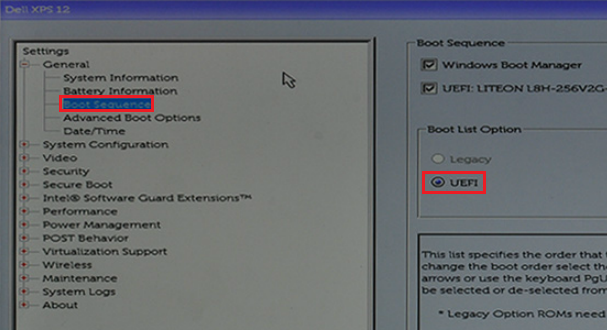
- Choose Boot sequence and change the option from Legacy to UEFI then click Apply in the lower right corner of the screen:
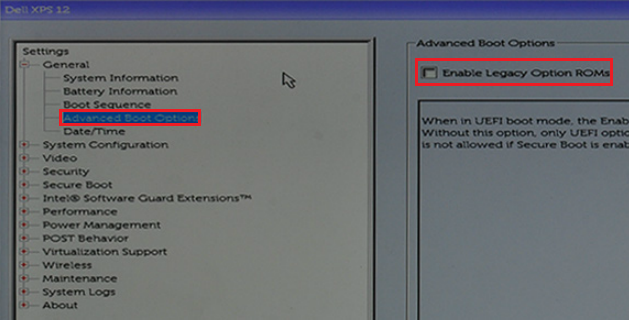
- Choose Advanced Boot Options and disable Enable Legacy Option ROMs then click Apply in the lower right corner of the screen:
- Choose Secure Boot -> Secure Boot Enable and change the option from Disabled to Enabled.
- Then click Apply in the lower right corner of the screen:
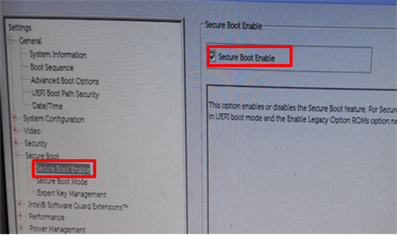
- Click Exit in the lower right corner of the screen and wait for the computer to reboot.
- Reinstall the Windows 10 operating system.
Follow the steps below to install the Linux operating system:
- Follow steps 1 through 3 from the steps above for installing Windows 10 (these steps are the same for a Linux install).
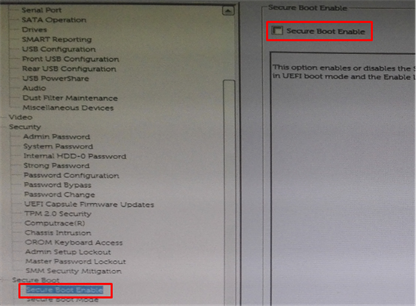
- Verify the Secure Boot > Secure Boot Enable option is Disabled in the BIOS:
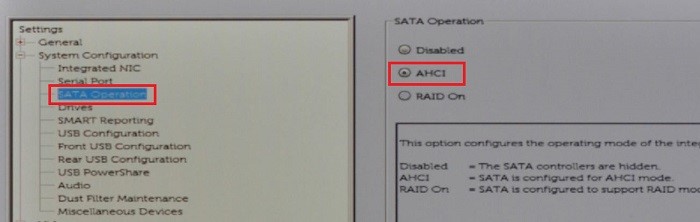
- Choose SATA Operation -> SATA Operation and change to AHCI mode:
- Click Exit in the lower right corner and wait for the computer to reboot.
- Reinstall the Linux operating system.
See Dell Knowledge Base articles for more information:
受影響的產品
Alienware, Dell Pro All-in-One, Dell Pro Max Micro, Dell Pro Max Slim, Dell Pro Max Tower, Dell Pro Micro, Dell Pro Slim, Dell Pro Tower, Dell Tower, Inspiron, OptiPlex, Vostro, XPS, G Series, G Series, Alienware, Dell Pro, Dell Pro Max
, Dell Pro Plus, Dell Pro Premium, Inspiron, Latitude, Dell Pro Rugged, Vostro, XPS, Fixed Workstations, Mobile Workstations, Dell Pro Max Micro XE FCM2250
...
文章屬性
文章編號: 000128655
文章類型: Solution
上次修改時間: 19 4月 2026
版本: 21
向其他 Dell 使用者尋求您問題的答案
支援服務
檢查您的裝置是否在支援服務的涵蓋範圍內。