IDPA:ESXi 主機在 vCenter WebClient 上顯示中斷連線,導致所有 IDPA 元件在 ACM UI 中出現紅色驚嘆號
摘要: 本 KB 文章將引導您解決 ESXi 主機可能與 IDPA vCenter 中斷連線的問題。這會導致連線問題,且 ACM 顯示問題。
本文章適用於
本文章不適用於
本文無關於任何特定產品。
本文未識別所有產品版本。
症狀
登入 vCenter WebClient,並確認顯示連線中斷的 ESXi 主機: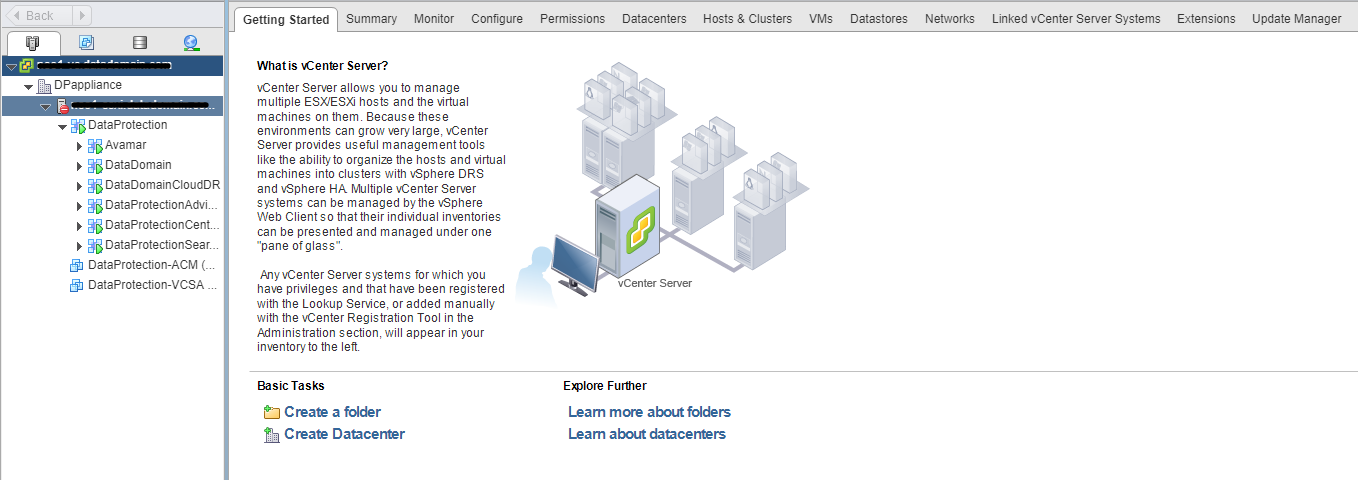
以滑鼠右鍵按一下 ESXi 主機 > 連線 > 連線。
如果 ESXi 主機未自動重新連線,則會出現精靈。
依造精靈指示,在驗證標籤中輸入 ESXi 主機根使用者名稱和密碼,然後按一下連線。
如果出現任何問題,連接操作可能會失敗。
注意:確認根使用者密碼正確無誤。從 vCenter 清查中移除 ESXi 主機,然後嘗試重新新增或重新註冊。
如果出現下列錯誤訊息,請檢閱 vCenter vpxd 記錄:
Unable to add the ESXi Host << Error message: There was an error communicating with the remote host
SSH 至 vCenter,然後前往 /var/log/vmware/vmware-vpxd/vpxd.log並檢閱vpxd.log。可能會看到下列錯誤訊息:
2019-08-13T10:08:41.753-06:00 info vpxd[7F1D96978700] [Originator@6876 sub=Default opID=AddHostWizard-add-45159-ngc:70005260-7a] [VpxLRO] -- ERROR task-2395 -- group-h4
 -- vim.Folder.addStandaloneHost: vmodl.fault.HostCommunication:
--> Result:
--> (vmodl.fault.HostCommunication) {
-->   faultCause = (vmodl.MethodFault) null,
-->   faultMessage = <unset>
-->   msg = ""
--> }
--> Args:
-->
--> Arg spec:
--> (vim.host.ConnectSpec) {
-->   hostName = "x.x.x.x",
-->   port = <unset>,
-->   sslThumbprint = <unset>,
-->   userName = "root",
-->   password = (not shown),
-->   vmFolder = 'vim.Folder:78a59c25-81c3-4169-85a6-61914d3e00c8:group-v3',
-->   force = true,
-->   vimAccountName = "vpxuser",
-->   vimAccountPassword = (not shown),
-->   managementIp = <unset>,
-->   lockdownMode = "lockdownDisabled",
-->   hostGateway = (vim.host.GatewaySpec) null
--> }
--> Arg compResSpec:
-->
--> Arg addConnected:
--> true
--> Arg license:
-->
2019-08-13T10:08:41.753-06:00 error vpxd[7F1D95FE5700] [Originator@6876 sub=licenseClient opID=AddHostWizard-add-45159-ngc:70005260-7a-LicenseClientUnregisterHostAsync-
60e04d00] Swallowing exception 'vim.fault.LicenseEntityNotFound' thrown when unregister entity 'host-106'
原因
vCenter 快取或 vCenter 資料庫中已提供 ESXi 主機 vpxa 密碼。這會導致 ESXi 連線作業失敗,並顯示錯誤訊息:
Error message: There was an error communicating with the remote host
解析度
-
以 root 使用者身分 SSH 至 ESXi 主機,並停止 vpxa 服務:
/etc/init.d/vpxa stop
-
在 vCenter WebClient UI 上,嘗試重新加入 ESXi 主機。
- 在資料中心「DPappliance」上按一下滑鼠右鍵,然後選取「新增主機」
- 完成精靈並提供 ESXi 主機「root」使用者認證以進行連線。
-
ESXi 整合/連線應可正常運作,不會發生問題。
-
在 ESXi 主機 CLI 工作階段中,確認 vpxa 服務在整合後自動啟動。
/etc/init.d/vpxa status
服務狀態應顯示為執行中。
-
ESXi 主機應該會在 vCenter WebClient 中再次開始顯示為連線。
受影響的產品
Integrated Data Protection Appliance Family產品
PowerProtect DP4400, PowerProtect Data Protection Software, Integrated Data Protection Appliance Family, PowerProtect Data Protection Hardware, Integrated Data Protection Appliance Software文章屬性
文章編號: 000171544
文章類型: Solution
上次修改時間: 30 10月 2025
版本: 4
向其他 Dell 使用者尋求您問題的答案
支援服務
檢查您的裝置是否在支援服務的涵蓋範圍內。