NetWorker:NVP vProxy 故障診斷 VM 備份與還原效能與輸送量
摘要: 本文定義在使用 NetWorker VMware Protection (NVP) vProxy 解決方案時,針對虛擬機器 (VM) 備份或還原效能問題進行故障診斷的方法。
本文章適用於
本文章不適用於
本文無關於任何特定產品。
本文未識別所有產品版本。
說明
與性能相關的問題涉及許多元件,了解問題的範圍和環境對於確定任何與性能相關的問題的答案至關重要。
考量:
- 範圍: 問題是特定於一個 VM、一批 VM 還是所有 VM?出現問題的 VM 與未出現問題的 VM 之間是否有區別因素 (例如位置、組態、大小等)?
- vProxy 版本控制: 請務必使用支援的最新 vProxy 版本,以確保使用經過最佳化的 VMware 和 Data Domain 程式庫:
- 相容性要求:
- 工作階段資訊:
- 備份或還原傳輸模式:
- vProxy 裝置支援熱新增和網路封鎖裝置 (NBD) 傳輸模式。
- HotAdd 和 NBD 工作階段組態定義於 vProxy 內容中。NetWorker Management Console (NMC) > 裝置 > VMware Proxy
- HotAdd 會將 vProxy 直接連線至 VMware 資料存放區和 VM 磁碟檔案。
- NBD 在通過 ESXi 管理網路時,速度預計會變慢。這可能會造成 VMware 網路壅塞。
- 使用的預設方法是「熱添加」;但是,在某些組態中,無法執行 HotAdd。NetWorker VMware 整合指南,以取得有關 HotAdd/NBD 的其他資訊。
- VM 備份和還原會話(詳見下文)顯示會話中使用的傳輸模式。
- 備份層級:如果備份執行為層級已滿,請考慮以增量方式排程。所有 VM 備份都會執行至 Data Domain,建立虛擬合成完整資料。這表示在 DD 系統上,所有增量備份都會被視為新的完整備份,支援「永久增量」。除非法規遵循要求,否則 Dell 並不要求排定完整備份層級;如果可能,應謹慎執行此操作。
- 備份或還原工作階段的數量:
- 問題是否僅在高備份或還原負載下觀察到,或者如果只有一個工作階段正在執行,則問題是否可觀察到。
- 平行度:
- 備份最佳化模式:
- VMware 保護群組支援兩個備份 效能 和 容量。您可以在 NMC 的「保護 > 群組」下的群組內容中找到此設定。
- 針對容量模式最佳化 (預設) 使用可變大小分段,由於重複資料刪除率較高,因此會在資料處理中產生更多額外負荷,但會減少 Data Domain 系統上耗用的容量。
- 針對效能最佳化 可在虛擬機器增量備份使用變更區塊追蹤 (CBT) 並將資料複製到 Data Domain 系統時改善效能,並在備份大型 VMware 虛擬機器磁碟 (VMDK) 檔案時有效。雖然「效能最佳化」會導致 Data Domain 裝置使用額外的空間 (約 20%),但此模式可改善立即存取還原的隨機 I/O 效能。
- 備份或還原傳輸模式:
- 裝置資訊
- Data Domain:
- Data Domain 是實體 Data Domain 或 Data Domain Virtual Edition (DDVE)
- 針對 DDVE,採用哪種部署類型:VMware ESXi 託管或雲端託管?
- Data Domain 型號和作業系統版本
- Data Domain 是否接近目標 vCenter?是在同一個資料中心內,還是流量在網際網路/WAN 之間傳輸?
- 如果涉及的主機 (vCenter、vProxy、Data Domain) 之間出現封包遺失或高延遲 (>= 50 ms),備份和還原效能可能會受到影響。
- Data Domain 是實體 Data Domain 或 Data Domain Virtual Edition (DDVE)
- Data Domain:
- 雲:例如,環境中是否使用了任何雲元件;VMware vCenter、Data Domain 等嗎?
- 雲元件位於同一區域中,還是數據跨區域傳輸。
- 是否有任何流量通過不同的基礎設施;例如,實體到雲端、傳統 VMware 到雲端等等。
- 若為 Azure 中的 DDVE,請從 Azure 管理入口網站檢查下列項目:
- 前往 DDVE VM,從 「概觀 」標籤查看 「大小」。這定義了 Azure VM 的計算資源層級。虛擬機大小概述 - Azure 虛擬機 |Microsoft學習
- 從 「概觀 」標籤向下捲動並按一下 磁碟。檢閱儲存裝置類型、大小、最大 IOPS、最大輸送量 (MB/s)。高階固態硬碟的效能預期會優於標準硬碟。
注意: NetWorker 作業輸送量預計無法超過虛擬機 器的最大輸送量 。
- 前往 DDVE VM,從 「概觀 」標籤查看 「大小」。這定義了 Azure VM 的計算資源層級。虛擬機大小概述 - Azure 虛擬機 |Microsoft學習

注意: NetWorker 備份系統管理員必須檢閱雲端提供商儲存裝置和網路輸送量的說明文件。在某些情況下,備份管理員可能需要與雲供應商供應商的支持團隊接洽。
- 位置: Data Domain 和 vCenter 是否位於同一個資料中心,或是透過網際網路進行備份或還原工作階段。
- 連線能力和延遲: 如果涉及的主機 (vCenter、vProxy、Data Domain) 之間出現封包遺失或高延遲 (>= 50 ms),備份和還原效能可能會受到影響。
-
- vProxy:備份失敗,找不到資源代碼 -404“使非活動會話老化”
- 可在 Dell 支援之 NetWorker 產品頁面 中找到的 NetWorker 效能最佳化和規劃指南
注意: 必須考慮其他因素;但是,上面列出的那些至關重要。
VM 備份4
- 在 NetWorker 伺服器上建立輸入檔案 (例如:vmperf)2.
vmperf) - 以下列詳細資料填入輸入檔案:
. type: save job; vm_name: VM_NAME
sh vm_name; job output; start time; end time; job log file
p
將 VM_NAME 替換為受影響的 VM。您可以從以下位置取得此資訊
mminfo -kot 輸出。
- 使用
jobquery使用工作查詢和輸入檔案,我們可以收集有關工作開始與結束時間的詳細資料,以及備份工作階段記錄資訊。
[root@nwserver ~]# jobquery -i vmperf
Current query set
                    end time: 1654567313;
                job log file: \
/nsr/logs/policy/Gold/VMware/353252-winclient01-2022-6-6-19-1-53.log;
                  job output: Backup completed successfully.;
                  start time: 1654567245;
                     vm_name: winclient01;
end time: 1654480913;
                job log file: \
/nsr/logs/policy/Gold/VMware/353027-winclient01-2022-6-5-19-1-53.log;
                  job output: Backup completed successfully.;
                  start time: 1654480845;

                     vm_name: winclient01;
end time: 1654394509;
                job log file: \
/nsr/logs/policy/Gold/VMware/352801-winclient01-2022-6-4-19-1-47.log;
                  job output: Backup completed successfully.;
                  start time: 1654394446;
                     vm_name: winclient01;
- 輸出的時間是 UNIX 時間,但可以使用以下命令轉換:
date -d@UNIX_TIME
範例:
[root@nwserver ~]# date -d@1654394446
Sat Jun  4 19:00:46 PDT 2022
[root@nwserver ~]# date -d@1654394509
Sat Jun  4 19:01:49 PDT 2022
- 對於備份執行較長的備份,請檢閱工作紀錄,以取得輸送量的相關資訊:
[root@nwserver ~]# cat /nsr/logs/policy/Gold/VMware/352801-winclient01-2022-6-4-19-1-47.log | grep "DiskStats"
2022-06-05T02:01:48Z INFO:   [@(#) Build number: 95] DiskStats: Disk Label    |  Mode  | Bytes Moved |  Read Rate   |  Write Rate  |     Overhead  |   VDDK Wait   |   Total Time  | VM MORef  | VM Name
2022-06-05T02:01:48Z INFO:   [@(#) Build number: 95] DiskStats: ------------- | ------ | ----------- | ------------ | ------------ | ------------- | ------------- | ------------- | --------- | ------------------------------
2022-06-05T02:01:48Z INFO:   [@(#) Build number: 95] DiskStats: Hard disk 1   | hotadd |      94 MiB |     17 MiB/s |    103 MiB/s |       0:00:17 |       0:00:16 |       0:00:56 | vm-5001   | winclient01
2022-06-05T02:01:48Z INFO:   [@(#) Build number: 95] DiskStats: Total         |        |      94 MiB |     17 MiB/s |    103 MiB/s |       0:00:17 |       0:00:16 |       0:00:56 | vm-5001   | winclient01
2022-06-05T02:01:48Z INFO:   [@(#) Build number: 95] DiskStats: CSV: Generate stats in CSV format for friendly import to spreadsheet.
2022-06-05T02:01:48Z INFO:   [@(#) Build number: 95] DiskStats: CSV: VM MORef,VM Name,Disk Label,Mode,Bytes Moved,Total Time (sec),Overhead (sec),VDDK Wait (sec),Read Rate (b/s),Write Rate (b/s)
2022-06-05T02:01:48Z INFO:   [@(#) Build number: 95] DiskStats: CSV: vm-5001,winclient01,Hard disk 1,hotadd,98369536,56,17,17,17673109,107196400
在備份時間比平常更長的天數上,總寫入速度會低於其他備份工作階段的平均寫入速度。
- 您可以執行下列作業來檢閱特定 VM 的原則記錄:
cat /nsr/policy/POLICY_NAME/WORKFLOW_NAME/*VM_NAME*.log | grep DiskStats
範例:
[root@nwserver ~]# cat /nsr/logs/policy/Gold/VMware/*winclient01*.log | grep "DiskStats"
2022-06-05T02:01:48Z INFO:   [@(#) Build number: 95] DiskStats: Disk Label    |  Mode  | Bytes Moved |  Read Rate   |  Write Rate  |     Overhead  |   VDDK Wait   |   Total Time  | VM MORef  | VM Name
2022-06-05T02:01:48Z INFO:   [@(#) Build number: 95] DiskStats: ------------- | ------ | ----------- | ------------ | ------------ | ------------- | ------------- | ------------- | --------- | ------------------------------
2022-06-05T02:01:48Z INFO:   [@(#) Build number: 95] DiskStats: Hard disk 1   | hotadd |      94 MiB |     17 MiB/s |    103 MiB/s |       0:00:17 |       0:00:16 |       0:00:56 | vm-5001   | winclient01
2022-06-05T02:01:48Z INFO:   [@(#) Build number: 95] DiskStats: Total         |        |      94 MiB |     17 MiB/s |    103 MiB/s |       0:00:17 |       0:00:16 |       0:00:56 | vm-5001   | winclient01
2022-06-05T02:01:48Z INFO:   [@(#) Build number: 95] DiskStats: CSV: Generate stats in CSV format for friendly import to spreadsheet.
2022-06-05T02:01:48Z INFO:   [@(#) Build number: 95] DiskStats: CSV: VM MORef,VM Name,Disk Label,Mode,Bytes Moved,Total Time (sec),Overhead (sec),VDDK Wait (sec),Read Rate (b/s),Write Rate (b/s)
2022-06-05T02:01:48Z INFO:   [@(#) Build number: 95] DiskStats: CSV: vm-5001,winclient01,Hard disk 1,hotadd,98369536,56,17,17,17673109,107196400
2022-06-06T02:01:48Z INFO:   [@(#) Build number: 95] DiskStats: Disk Label    |  Mode  | Bytes Moved |  Read Rate   |  Write Rate  |     Overhead  |   VDDK Wait   |   Total Time  | VM MORef  | VM Name
2022-06-06T02:01:48Z INFO:   [@(#) Build number: 95] DiskStats: ------------- | ------ | ----------- | ------------ | ------------ | ------------- | ------------- | ------------- | --------- | ------------------------------
2022-06-06T02:01:48Z INFO:   [@(#) Build number: 95] DiskStats: Hard disk 1   | hotadd |      95 MiB |     16 MiB/s |    119 MiB/s |       0:00:17 |       0:00:16 |       0:00:56 | vm-5001   | winclient01
2022-06-06T02:01:48Z INFO:   [@(#) Build number: 95] DiskStats: Total         |        |      95 MiB |     16 MiB/s |    119 MiB/s |       0:00:17 |       0:00:16 |       0:00:56 | vm-5001   | winclient01
2022-06-06T02:01:48Z INFO:   [@(#) Build number: 95] DiskStats: CSV: Generate stats in CSV format for friendly import to spreadsheet.
2022-06-06T02:01:48Z INFO:   [@(#) Build number: 95] DiskStats: CSV: VM MORef,VM Name,Disk Label,Mode,Bytes Moved,Total Time (sec),Overhead (sec),VDDK Wait (sec),Read Rate (b/s),Write Rate (b/s)
2022-06-06T02:01:48Z INFO:   [@(#) Build number: 95] DiskStats: CSV: vm-5001,winclient01,Hard disk 1,hotadd,99221504,57,17,17,16272803,124243462
2022-06-07T02:01:49Z INFO:   [@(#) Build number: 95] DiskStats: Disk Label    |  Mode  | Bytes Moved |  Read Rate   |  Write Rate  |     Overhead  |   VDDK Wait   |   Total Time  | VM MORef  | VM Name
2022-06-07T02:01:49Z INFO:   [@(#) Build number: 95] DiskStats: ------------- | ------ | ----------- | ------------ | ------------ | ------------- | ------------- | ------------- | --------- | ------------------------------
2022-06-07T02:01:49Z INFO:   [@(#) Build number: 95] DiskStats: Hard disk 1   | hotadd |      97 MiB |     15 MiB/s |    110 MiB/s |       0:00:16 |       0:00:16 |       0:00:57 | vm-5001   | winclient01
2022-06-07T02:01:49Z INFO:   [@(#) Build number: 95] DiskStats: Total         |        |      97 MiB |     15 MiB/s |    110 MiB/s |       0:00:16 |       0:00:16 |       0:00:57 | vm-5001   | winclient01
2022-06-07T02:01:49Z INFO:   [@(#) Build number: 95] DiskStats: CSV: Generate stats in CSV format for friendly import to spreadsheet.
2022-06-07T02:01:49Z INFO:   [@(#) Build number: 95] DiskStats: CSV: VM MORef,VM Name,Disk Label,Mode,Bytes Moved,Total Time (sec),Overhead (sec),VDDK Wait (sec),Read Rate (b/s),Write Rate (b/s)
2022-06-07T02:01:49Z INFO:   [@(#) Build number: 95] DiskStats: CSV: vm-5
注意: 原則記錄會遵循
jobsdb 保留 (預設值:72 小時。)之後 jobsdb 視窗已通過關聯的策略日誌和 jobquery 條目被刪除;但是,vProxy 裝置會將 VM 備份工作階段記錄保留在本機 /opt/emc/vproxy/runtime/logs/recycle/vbackupd/。
VM 還原:
對於正在進行的還原,可以在 「恢復 」選項卡的「速率」列中觀察到輸送量:
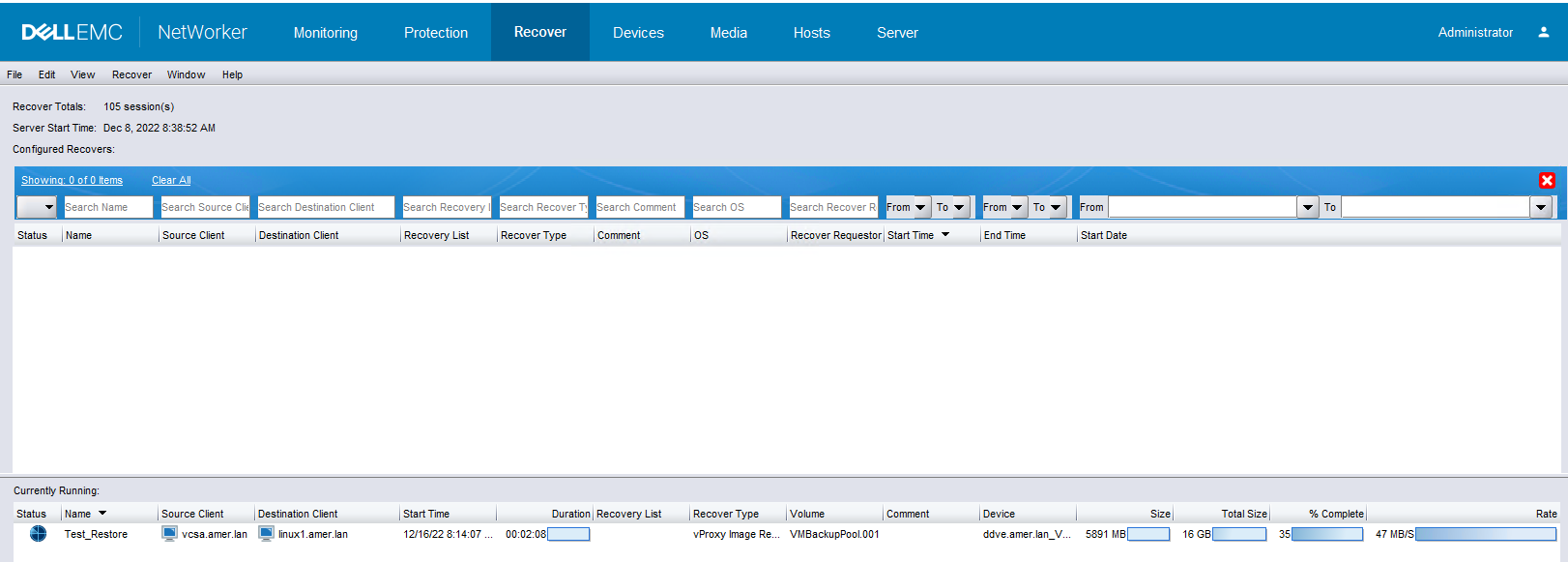
還原工作工作階段完成後,可以從下列位置檢閱還原記錄:
- NetWorker 管理主控台: 開啟儲存的還原工作階段。記錄視窗會詳細說明磁碟上的輸送量。還原記錄會受到
jobsdb保留 (預設為 72 小時) 如果此時間已過,復原工作階段記錄會從 NetWorker 伺服器移除,但會繼續駐留在 vProxy 裝置上。 - NetWorker 伺服器:
- Linux:
/nsr/logs/recover/RecoverName.log - Windows :
C:\Program Files\EMC NetWorker\nsr\logs\recover\RecoverName.log - 還原記錄會受到
jobsdb保留 (預設為 72 小時。)如果此時間已過,復原工作階段記錄會從 NetWorker 伺服器移除,但會繼續駐留在 vProxy 裝置上。
- Linux:
- vProxy 裝置:已完成/失敗的 VM 復原工作階段記錄可在 vProxy 裝置下找到
/opt/emc/vproxy/runtime/logs/recycle/vrecoverd/date/recover_session_id.log
以上所有記錄均包含關於每個磁碟之復原工作階段輸送量的類似輸出:
2022-12-16T16:18:50Z NOTICE: [@(#) Build number: 54] Successfully recovered to a new VM.
2022-12-16T16:18:50Z INFO:   [@(#) Build number: 54] Disk Label    |  Mode  | Bytes Moved |  Read Rate   |  Write Rate  |     Overhead  |   VDDK Wait   |   Total Time  | VM MORef  | VM Name
2022-12-16T16:18:50Z INFO:   [@(#) Build number: 54] ------------- | ------ | ----------- | ------------ | ------------ | ------------- | ------------- | ------------- | --------- | ------------------------------
2022-12-16T16:18:50Z INFO:   [@(#) Build number: 54] Hard disk 1   | hotadd |      10 GiB |     44 MiB/s |     68 MiB/s |       0:00:17 |        1.4 us |       0:04:25 | vm-12226  | linuxclient01_1
2022-12-16T16:18:50Z INFO:   [@(#) Build number: 54] Total         |        |      10 GiB |     44 MiB/s |     68 MiB/s |       0:00:17 |        1.4 us |       0:04:25 | vm-12226  | linuxclient01_1
2022-12-16T16:18:50Z INFO:   [@(#) Build number: 54] CSV: Generate stats in CSV format for friendly import to a spreadsheet.
2022-12-16T16:18:50Z INFO:   [@(#) Build number: 54] CSV: VM MORef,VM Name,Disk Label,Mode,Bytes Moved,Total Time (sec),Overhead (sec),VDDK Wait (sec),Read Rate (b/s),Write Rate (b/s)
2022-12-16T16:18:50Z INFO:   [@(#) Build number: 54] CSV: vm-12226,linuxclient01_1,Hard disk 1,hotadd,10032185344,265,18,0,45138154,71134513
2022-12-16T16:18:50Z NOTICE: [@(#) Build number: 54] Moved 10 GiB at 36 MiB/s. Elapsed Time: 4m31s
故障診斷來自 vProxy 的效能輸送量
可使用 ddpconnchk 工具可用來測試從 vProxy 到 DD 裝置的網路連線能力和輸送量。
收藏 ddpconnchk:
- 下載
ddpconnchkDell NetWorker 工具的公用程式 - 可使用
ddpconnchk.zip包含多個版本的ddpconnchk公用程式:使用ddpconnchk與 Data Domain 裝置的 DD OS 版本相符或緊密一致的公用程式。 - 解壓縮套件,並複製
ddpconnchk_linux_x86_64.tar/home/admindirectory
在 Windows 10 1607 及更舊版本上使用 ddpconnchk:
- 登入 vProxy
ddpconnchk_linux_x86_64.tarwas copied to - 切換至根使用者:
sudo su - - 解壓縮
.tartar xvf /home/admin/ddpconnchk_linux_x86_64.tar - 設定 權限
ddpconnchk: chmod 775 ddpconnchk - 範例測試是從 vProxy 到
ddboost裝置:
/ddpconnchk -s DATADOMAIN_HOSTNAME -u ddboost_username -l storage_unit_name -T writeimage -i 1G -n 1範例:
vproxy01:~ # ls -l | grep ddpconnchk
-rwxrwxr-x 1 59899 59899 3688848 May 16  2022 ddpconnchk
-rw-r--r-- 1 59899 59899   12086 May 16  2022 ddpconnchk_README.txt

vproxy01:~ # ./ddpconnchk -s ddve.amer.lan -u sysadmin -p EmcLegato@01 -l linux1 -T writeimage -i 1G -n 1
DDP CLIENT LIBRARY VERSION 7:9:0:0-1010470

SERVER: ddve.amer.lan
---------------------
*** CONNECT SERVER TEST, ddve.amer.lan

DDP Connect Server Test PASSED

*** LIST SUs TEST, ddve.amer.lan
DDLOG: WARN: [68A0:1FBF0F0] ddcl_ddp_get_su(): Deprecated API ddp_get_storage_units_list is used by client
  3 SUs total
List SUs Test PASSED

*** GET SU INFO TEST, ddve.amer.lan/linux1

  5 images total
Get SU Info Test PASSED

*** EXTENDED TEST: WRITE IMAGE, ddve.amer.lan/linux1/1073741824
DDLOG: INFO: [68A0:1FBF0F0] ddcl_new_client_buffers created private pool with 776 DDCL buffers
DDLOG: INFO: [68A0:1FBF0F0] Cleaning up readahead cache do_ra is 1 ra_init is 0
DDLOG: INFO: [68A0:1FBF0F0] vrapid_nfs_connect: ifgroup disabled
DDLOG: INFO: [68A0:1FBF0F0] JOB END  IMAGE_DELETE ip=192.168.7.105 pid=26784 cd=0 enc=off
DDLOG: INFO: [68A0:1FBF0F0] JOB START  IMAGE_WRITE ip=192.168.7.105 pid=26784 cd=0 enc=off linux1/write_000
DDLOG: INFO: [68A0:1FBF0F0] ddcl_ddcp_ctx_init():358 - idx=3408002, detect_markers=1
DDLOG: INFO: [68A0:1FBF0F0] New fingerprint environment.

DDLOG: INFO: [68A0:1FBF0F0] Segmentation: version [9], min [4096], avg [8192], max [12288], mask = [0x0], skip_first [4096], skip_last [0]
DDLOG: INFO: [68A0:1FBF0F0] ddcl_new_client_buffers created private pool with 776 DDCL buffers
DDLOG: INFO: [68A0:1FBF0F0] Allocated read_ctx_pool of size 223488
DDLOG: INFO: [68A0:1FBF0F0] JOB START  IMAGE_READ ip=192.168.7.105 pid=26784 cd=0 enc=off linux1/write_000
Cumulative Write Throughput: 102.40 MB/s
Cumulative Read Throughput: 102.40 MB/s


WRITE IMAGE PASSED
SUCCESS: All tests completed
-i 1g-n 1- 這些檔案為暫存,測試作業完成後將會刪除。
Data Domain 有多個網路介面卡 (NIC),且 vProxy 使用 1 GB 管理 NIC。
Data Domain 系統上有多個 NIC。管理 NIC 通常是 1GB 介面,Data Domain 也可能有 10GB NIC 用於資料移動。
- 識別 1GB NIC 和 10GB NIC 的 IP 位址。Data Domain 系統管理員必須確認這一點。
- 確認哪個 IP 位址解析成 NetWorker 伺服器和儲存節點使用的 Data Domain/裝置名稱:
nslookup DataDomain_hostname
- 如果 NetWorker 伺服器儲存節點 (若有使用) 或 vProxy 裝置正在解析至 1GB IP 位址,請在解析 1GB IP 位址的系統上建立主機檔案項目,以將 Data Domain 主機名稱解析為 10GB IP 位址。
- 如果對 vProxy 裝置進行變更,請重新載入精靈
systemctl reload-daemon
systemctl restart <service>
services: vrecoverd, vbackupd, vflrd
- 重新啟動備份和還原,並確認輸送量是否已增加。
Data Domain 效能:
Data Domain Boost Precert 記錄:
- 開啟 SSH 工作階段至 NVE,並以系統管理員身分驗證。3.然後切換至 root:
sudo su - - 建立下列資料夾:
vi /ddboost_precert.ini
precert_enabled=true num_log_files=4 log_file_size=512 log_file_name=ddboost_precert.log log_file_dir=/DDLog ddcl_logs_include=true ddcl_logs_sev=3 - 建立新的記錄目錄
mkdir /DDLog ; chmod 777 /DDLog - 在您要進行故障診斷的 vProxy 引擎上啟用偵錯:
vbackupd: /opt/emc/vproxy/bin/vProxy_debug.sh -s -d vbackupd -p ddboost -l debug vflrd: /opt/emc/vproxy/bin/vProxy_debug.sh -s -d vflrd -p ddboost -l debug vrecoverd: /opt/emc/vproxy/bin/vProxy_debug.sh -s -d vrecoverd -p ddboost -l debug - 執行備份或還原操作。
- 如需檢閱預先憑證記錄的詳細資料,請參閱下列文章: NetWorker:如何使用 ddboost_precert.log 分析 IO 效能
註:precert-io-perf.py可以複製到 vProxy 並直接從 vProxy 執行。指令檔直接針對/DDLog/ddboost_precert.log檔案。或者,您可以複製ddboost_precert.log檔案從 vProxy 中移除並執行precert-io-perf.py來自另一個系統。
Data Domain System Manager
- 登入 Data Domain 伺服器。
sysadmin.
net ping VCENTER_NAME/IP
注意: 單個測試執行無法提供足夠的數據來最終確定是否存在數據包丟失或延遲問題。網路效能可能會根據 Data Domain 系統的工作負荷而波動。雖然延遲和數據包丟失在活動最少期間可能看起來正常,但當系統處理大量備份、克隆或恢復流量時,相同的指標可能會降低。若要獲得準確的結果,請多次執行測試,包括 Data Domain 使用率尖峰的時段。
- 檢查 Data Domain 效能概觀:
system show performance
注意: 此輸出會顯示最近的 Data Domain 系統效能統計資料。這些統計資料可能會與相關的備份/還原操作重疊。
- 檢查 DD Boost 統計資料和錯誤:
ddboost show stats
注意: 這提供了 DD Boost 設定和效能的一般概觀。它還為觀察到較高錯誤率的函數提供錯誤計數。任何可疑的錯誤都必須由 Data Domain 支援進行調查。
- 使用
net iperf
net iperf client VPROXY_IP_ADDRESS port 9090 interval 2
範例:
sysadmin@ddve01# net iperf client 192.168.9.131 port 9090 interval 2
------------------------------------------------------------
Client connecting to 192.168.9.131, TCP port 9090
TCP window size:  256 KByte (default)
------------------------------------------------------------
[  3] local 192.168.9.106 port 45132 connected with 192.168.9.131 port 9090
write failed: Connection reset by peer
[ ID] Interval       Transfer     Bandwidth
[  3]  0.0- 0.0 sec   239 KBytes  1.48 Gbits/s
視頻寬而定,無法準確判斷預期值,即使輸出顯示為 1.48 Gbit/秒,備份/還原也能以 MB/s 為單位執行。檢查「本機」IP,並確認是否正在使用管理 NIC 或 10GB 資料連結。
- 使用
net iperf
net iperf client VCENTER_IP_ADDRESS port 443 interval 2
範例:
sysadmin@ddve01# net iperf client 192.168.9.111 port 443 interval 2
------------------------------------------------------------
Client connecting to 192.168.9.111, TCP port 443
TCP window size:  256 KByte (default)
------------------------------------------------------------
[  3] local 192.168.9.106 port 37072 connected with 192.168.9.111 port 443
write failed: Broken pipe
[ ID] Interval       Transfer     Bandwidth
[  3]  0.0- 0.0 sec   239 KBytes   147 Mbits/sec
視頻寬而定,無法準確判斷預期值,即使輸出顯示為 2.27 Gbit/秒,備份/還原也能以 MB/s 為單位執行。檢查「本機」IP,並確認是否正在使用管理 NIC 或 10GB 資料連結。如果資料是從錯誤的介面傳送出去,DD 管理員必須檢閱 Data Domain 組態。也可以為 NetWorker 和 Data Domain 協同合作開立 Data Domain 支援票證。
其他資訊
相關的文章:
- NVP vProxy - 瞭解 NetWorker 中顯示的 VMware VM 備份層級和大小
- NetWorker VMware Protection-vProxy:如何啟用除錯紀錄
- Data Domain:DDPCONNCHK 如何故障診斷 Data Domain DD 提升連線能力和效能 (需要以已註冊的 Dell 支援使用者身分登入才能檢視此文章。)
VM 備份點 5,已擴充:
收集所有 vbackupd 在 vProxy 上使用下列語法的工作階段:
grep -rnw "DiskStats" /opt/emc/vproxy/runtime/logs/recycle/vbackupd/ | grep -v "0 Bytes\|CSV" | awk '!seen["DiskStats: Disk Label"]++ || $0 !~ /DiskStats: Disk Label/'
或者,重定向到您可以從 vProxy 複製的檔案:
grep -rnw "DiskStats" /opt/emc/vproxy/runtime/logs/recycle/vbackupd/ | grep -v "0 Bytes\|CSV" | awk '!seen["DiskStats: Disk Label"]++ || $0 !~ /DiskStats: Disk Label/' > /tmp/$(hostname)-vbackupStats.txt
範例:
nsr-vproxy01:~ # grep -rnw "DiskStats" /opt/emc/vproxy/runtime/logs/recycle/vbackupd/ | grep -v "0 Bytes\|CSV" | awk '!seen["DiskStats: Disk Label"]++ || $0 !~ /DiskStats: Disk Label/'
/opt/emc/vproxy/runtime/logs/recycle/vbackupd/20260513_1/BackupVmSessions-c5300e6c-3da1-42bf-a08b-fe9ec7d9197b.log:644:2026-05-13T01:01:42Z INFO:   [@(#) Build number: 112] DiskStats: Disk Label    |  Mode  | Bytes Moved |  Read Rate   |  Write Rate  |     Overhead  |   VDDK Wait   |   Total Time  | VM MORef  | VM Name
/opt/emc/vproxy/runtime/logs/recycle/vbackupd/20260513_1/BackupVmSessions-c5300e6c-3da1-42bf-a08b-fe9ec7d9197b.log:645:2026-05-13T01:01:42Z INFO:   [@(#) Build number: 112] DiskStats: ------------- | ------ | ----------- | ------------ | ------------ | ------------- | ------------- | ------------- | --------- | ------------------------------
/opt/emc/vproxy/runtime/logs/recycle/vbackupd/20260513_1/BackupVmSessions-de722843-9e1c-4c3c-8628-06ddb08aaafc.log:679:2026-05-13T01:02:30Z INFO:   [@(#) Build number: 112] DiskStats: ------------- | ------ | ----------- | ------------ | ------------ | ------------- | ------------- | ------------- | --------- | ------------------------------
/opt/emc/vproxy/runtime/logs/recycle/vbackupd/20260513_1/BackupVmSessions-de722843-9e1c-4c3c-8628-06ddb08aaafc.log:680:2026-05-13T01:02:30Z INFO:   [@(#) Build number: 112] DiskStats: Hard disk 1   | hotadd |       2 GiB |     28 MiB/s |    223 MiB/s |       0:00:22 |       96.6 ms |       0:01:41 | vm-4002   | win-client01.amer.lan
/opt/emc/vproxy/runtime/logs/recycle/vbackupd/20260513_1/BackupVmSessions-de722843-9e1c-4c3c-8628-06ddb08aaafc.log:681:2026-05-13T01:02:30Z INFO:   [@(#) Build number: 112] DiskStats: Total         |        |       2 GiB |     28 MiB/s |    223 MiB/s |       0:00:22 |       96.6 ms |       0:01:41 | vm-4002   | win-client01.amer.lan
/opt/emc/vproxy/runtime/logs/recycle/vbackupd/20260513_1/BackupVmSessions-7f086276-c673-441d-b3b1-e5a44fa81ab6.log:661:2026-05-13T01:02:06Z INFO:   [@(#) Build number: 112] DiskStats: ------------- | ------ | ----------- | ------------ | ------------ | ------------- | ------------- | ------------- | --------- | ------------------------------
/opt/emc/vproxy/runtime/logs/recycle/vbackupd/20260513_1/BackupVmSessions-7f086276-c673-441d-b3b1-e5a44fa81ab6.log:662:2026-05-13T01:02:06Z INFO:   [@(#) Build number: 112] DiskStats: Hard disk 1   | hotadd |     492 MiB |     23 MiB/s |    234 MiB/s |       0:00:20 |       0:00:22 |       0:01:17 | vm-4007   | rhel-client01.amer.lan
/opt/emc/vproxy/runtime/logs/recycle/vbackupd/20260513_1/BackupVmSessions-7f086276-c673-441d-b3b1-e5a44fa81ab6.log:663:2026-05-13T01:02:06Z INFO:   [@(#) Build number: 112] DiskStats: Total         |        |     492 MiB |     23 MiB/s |    234 MiB/s |       0:00:20 |       0:00:22 |       0:01:18 | vm-4007   | rhel-client01.amer.lan
/opt/emc/vproxy/runtime/logs/recycle/vbackupd/20260513_1/BackupVmSessions-41054224-c9ea-4a59-a17c-62c006e90440.log:659:2026-05-13T01:01:42Z INFO:   [@(#) Build number: 112] DiskStats: ------------- | ------ | ----------- | ------------ | ------------ | ------------- | ------------- | ------------- | --------- | ------------------------------
/opt/emc/vproxy/runtime/logs/recycle/vbackupd/20260513_1/BackupVmSessions-41054224-c9ea-4a59-a17c-62c006e90440.log:660:2026-05-13T01:01:42Z INFO:   [@(#) Build number: 112] DiskStats: Hard disk 1   | hotadd |      20 MiB |      4 MiB/s |     79 MiB/s |       0:00:19 |        1.4 us |       0:01:14 | vm-27052  | rhel-client05.amer.lan
/opt/emc/vproxy/runtime/logs/recycle/vbackupd/20260513_1/BackupVmSessions-41054224-c9ea-4a59-a17c-62c006e90440.log:661:2026-05-13T01:01:42Z INFO:   [@(#) Build number: 112] DiskStats: Total         |        |      20 MiB |      4 MiB/s |     79 MiB/s |       0:00:19 |        1.4 us |       0:01:14 | vm-27052  | rhel-client05.amer.lan
/opt/emc/vproxy/runtime/logs/recycle/vbackupd/20260513_1/BackupVmSessions-56a225c8-986d-41b7-a4b6-afaec20bfa75.log:647:2026-05-13T01:01:42Z INFO:   [@(#) Build number: 112] DiskStats: ------------- | ------ | ----------- | ------------ | ------------ | ------------- | ------------- | ------------- | --------- | ------------------------------
/opt/emc/vproxy/runtime/logs/recycle/vbackupd/20260510_1/BackupVmSessions-84d77435-dd86-4a1a-9c4b-226f7838ca06.log:659:2026-05-10T01:01:56Z INFO:   [@(#) Build number: 112] DiskStats: ------------- | ------ | ----------- | ------------ | ------------ | ------------- | ------------- | ------------- | --------- | ------------------------------
/opt/emc/vproxy/runtime/logs/recycle/vbackupd/20260510_1/BackupVmSessions-84d77435-dd86-4a1a-9c4b-226f7838ca06.log:660:2026-05-10T01:01:56Z INFO:   [@(#) Build number: 112] DiskStats: Hard disk 1   | hotadd |      27 MiB |      4 MiB/s |     82 MiB/s |       0:00:18 |      233.2 ms |       0:01:04 | vm-27052  | rhel-client05.amer.lan
/opt/emc/vproxy/runtime/logs/recycle/vbackupd/20260510_1/BackupVmSessions-84d77435-dd86-4a1a-9c4b-226f7838ca06.log:661:2026-05-10T01:01:56Z INFO:   [@(#) Build number: 112] DiskStats: Total         |        |      27 MiB |      4 MiB/s |     82 MiB/s |       0:00:18 |      233.2 ms |       0:01:04 | vm-27052  | rhel-client05.amer.lan
/opt/emc/vproxy/runtime/logs/recycle/vbackupd/20260510_1/BackupVmSessions-906ac008-32b0-44b9-a5c1-6cda41e99a5e.log:663:2026-05-10T01:01:56Z INFO:   [@(#) Build number: 112] DiskStats: ------------- | ------ | ----------- | ------------ | ------------ | ------------- | ------------- | ------------- | --------- | ------------------------------
/opt/emc/vproxy/runtime/logs/recycle/vbackupd/20260510_1/BackupVmSessions-906ac008-32b0-44b9-a5c1-6cda41e99a5e.log:664:2026-05-10T01:01:56Z INFO:   [@(#) Build number: 112] DiskStats: Hard disk 1   | hotadd |      32 MiB |      4 MiB/s |    101 MiB/s |       0:00:20 |        1.1 us |       0:01:13 | vm-4007   | rhel-client01.amer.lan
/opt/emc/vproxy/runtime/logs/recycle/vbackupd/20260510_1/BackupVmSessions-906ac008-32b0-44b9-a5c1-6cda41e99a5e.log:665:2026-05-10T01:01:56Z INFO:   [@(#) Build number: 112] DiskStats: Total         |        |      32 MiB |      4 MiB/s |    101 MiB/s |       0:00:20 |        1.1 us |       0:01:13 | vm-4007   | rhel-client01.amer.lan
/opt/emc/vproxy/runtime/logs/recycle/vbackupd/20260510_1/BackupVmSessions-05e84c93-a6ca-4608-8497-a022836c79aa.log:646:2026-05-10T01:01:33Z INFO:   [@(#) Build number: 112] DiskStats: ------------- | ------ | ----------- | ------------ | ------------ | ------------- | ------------- | ------------- | --------- | ------------------------------
/opt/emc/vproxy/runtime/logs/recycle/vbackupd/20260510_1/BackupVmSessions-4771c4ce-df71-4f82-b752-08b040787998.log:682:2026-05-10T01:04:21Z INFO:   [@(#) Build number: 112] DiskStats: ------------- | ------ | ----------- | ------------ | ------------ | ------------- | ------------- | ------------- | --------- | ------------------------------
/opt/emc/vproxy/runtime/logs/recycle/vbackupd/20260510_1/BackupVmSessions-4771c4ce-df71-4f82-b752-08b040787998.log:683:2026-05-10T01:04:21Z INFO:   [@(#) Build number: 112] DiskStats: Hard disk 1   | hotadd |       5 GiB |     29 MiB/s |    202 MiB/s |       0:00:22 |       0:00:18 |       0:03:29 | vm-4002   | win-client01.amer.lan
/opt/emc/vproxy/runtime/logs/recycle/vbackupd/20260510_1/BackupVmSessions-4771c4ce-df71-4f82-b752-08b040787998.log:684:2026-05-10T01:04:21Z INFO:   [@(#) Build number: 112] DiskStats: Total         |        |       5 GiB |     29 MiB/s |    202 MiB/s |       0:00:22 |       0:00:18 |       0:03:29 | vm-4002   | win-client01.amer.lan
/opt/emc/vproxy/runtime/logs/recycle/vbackupd/20260510_1/BackupVmSessions-ad74a82c-9496-4372-a1e2-015de1b23b1a.log:645:2026-05-10T01:01:56Z INFO:   [@(#) Build number: 112] DiskStats: ------------- | ------ | ----------- | ------------ | ------------ | ------------- | ------------- | ------------- | --------- | ------------------------------
/opt/emc/vproxy/runtime/logs/recycle/vbackupd/20260512_1/BackupVmSessions-28e4cc86-15e0-4aaf-b3eb-29a38c78ad5d.log:660:2026-05-12T16:20:10Z INFO:   [@(#) Build number: 112] DiskStats: ------------- | ------ | ----------- | ------------ | ------------ | ------------- | ------------- | ------------- | --------- | ------------------------------
/opt/emc/vproxy/runtime/logs/recycle/vbackupd/20260512_1/BackupVmSessions-28e4cc86-15e0-4aaf-b3eb-29a38c78ad5d.log:661:2026-05-12T16:20:10Z INFO:   [@(#) Build number: 112] DiskStats: Hard disk 1   | hotadd |     425 MiB |     15 MiB/s |     74 MiB/s |       0:00:18 |        1.4 us |       0:01:12 | vm-27052  | rhel-client05.amer.lan
/opt/emc/vproxy/runtime/logs/recycle/vbackupd/20260512_1/BackupVmSessions-28e4cc86-15e0-4aaf-b3eb-29a38c78ad5d.log:662:2026-05-12T16:20:10Z INFO:   [@(#) Build number: 112] DiskStats: Total         |        |     425 MiB |     15 MiB/s |     74 MiB/s |       0:00:18 |        1.4 us |       0:01:12 | vm-27052  | rhel-client05.amer.lan
/opt/emc/vproxy/runtime/logs/recycle/vbackupd/20260512_1/BackupVmSessions-4aa7c842-3c5d-4dc5-8c3d-3677546c46e5.log:645:2026-05-12T01:01:44Z INFO:   [@(#) Build number: 112] DiskStats: ------------- | ------ | ----------- | ------------ | ------------ | ------------- | ------------- | ------------- | --------- | ------------------------------
...
...
上述輸出會忽略沒有變更率的磁碟,並會略過 (0 位元組)。此輸出會告訴我們找到資料的紀錄檔的完整路徑,其中包括每個 VM 的磁碟數 vmdk。此類資訊可用於查看每個 VM 或每個磁碟的 VM 備份性能模式。
執行範例 precert-io-perf.py 從 vProxy:
nsr-vproxy01:~ # chmod +x precert-io-perf.py
nsr-vproxy01:~ # ./precert-io-perf.py
Please enter the full path to the log file: /DDLog/ddboost_precert.log
Do you want to include MB/s for each I/O operation? (yes/no): yes

    Write Durations Summary:

    Total number of write operations: 105
    Average write duration: 0.001515 seconds
    Maximum write duration: 0.020000 seconds (6.25 MB/s)
    Minimum write duration: 0.000001 seconds (62500.00 MB/s)
    Total write time: 0.159050 seconds
    Percentage of total time spent on writes: 0.40%
    Average write throughput: 53.977696 MB/s
    Note: High MB/s values for very short durations indicate efficient operations.


    Read Durations Summary:

    Total number of read operations: 104
    Average read duration: 0.383135 seconds
    Maximum read duration: 17.874000 seconds (0.00 MB/s)
    Minimum read duration: 0.000001 seconds (9.54 MB/s)
    Total read time: 39.846015 seconds
    Percentage of total time spent on reads: 99.60%
    Average read throughput: 0.215375 MB/s
    Note: High MB/s values for very short durations indicate efficient operations.


Top 20 Slowest Write I/O Operations:
1. I/O Number: 48, Duration: 0.020000 seconds, MB/s: 6.25
2. I/O Number: 6, Duration: 0.010000 seconds, MB/s: 0.36
3. I/O Number: 56, Duration: 0.007000 seconds, MB/s: 8.93
4. I/O Number: 80, Duration: 0.006000 seconds, MB/s: 20.83
5. I/O Number: 19, Duration: 0.005000 seconds, MB/s: 1.06
6. I/O Number: 4, Duration: 0.004000 seconds, MB/s: 0.01
7. I/O Number: 8, Duration: 0.004000 seconds, MB/s: 64.57
8. I/O Number: 9, Duration: 0.004000 seconds, MB/s: 64.57
9. I/O Number: 10, Duration: 0.004000 seconds, MB/s: 64.57
10. I/O Number: 12, Duration: 0.004000 seconds, MB/s: 0.01
11. I/O Number: 14, Duration: 0.004000 seconds, MB/s: 0.01
12. I/O Number: 16, Duration: 0.004000 seconds, MB/s: 1.47
13. I/O Number: 84, Duration: 0.004000 seconds, MB/s: 0.01
14. I/O Number: 1, Duration: 0.003000 seconds, MB/s: 1.11
15. I/O Number: 2, Duration: 0.003000 seconds, MB/s: 86.10
16. I/O Number: 3, Duration: 0.003000 seconds, MB/s: 0.90
17. I/O Number: 5, Duration: 0.003000 seconds, MB/s: 1.26
18. I/O Number: 7, Duration: 0.003000 seconds, MB/s: 1.13
19. I/O Number: 13, Duration: 0.003000 seconds, MB/s: 0.73
20. I/O Number: 18, Duration: 0.003000 seconds, MB/s: 0.81

Top 20 Slowest Read I/O Operations:
1. I/O Number: 962, Duration: 17.874000 seconds, MB/s: 0.00
2. I/O Number: 1537, Duration: 11.481000 seconds, MB/s: 0.00
3. I/O Number: 1478, Duration: 1.919000 seconds, MB/s: 0.00
4. I/O Number: 727, Duration: 1.316000 seconds, MB/s: 0.00
5. I/O Number: 601, Duration: 1.223000 seconds, MB/s: 0.00
6. I/O Number: 360, Duration: 0.555000 seconds, MB/s: 0.47
7. I/O Number: 375, Duration: 0.304000 seconds, MB/s: 0.01
8. I/O Number: 450, Duration: 0.302000 seconds, MB/s: 0.01
9. I/O Number: 462, Duration: 0.289000 seconds, MB/s: 0.89
10. I/O Number: 506, Duration: 0.273000 seconds, MB/s: 0.05
11. I/O Number: 426, Duration: 0.269000 seconds, MB/s: 0.01
12. I/O Number: 533, Duration: 0.224000 seconds, MB/s: 0.01
13. I/O Number: 474, Duration: 0.222000 seconds, MB/s: 1.16
14. I/O Number: 560, Duration: 0.202000 seconds, MB/s: 0.13
15. I/O Number: 996, Duration: 0.177000 seconds, MB/s: 5.65
16. I/O Number: 1024, Duration: 0.125000 seconds, MB/s: 0.50
17. I/O Number: 672, Duration: 0.097000 seconds, MB/s: 0.05
18. I/O Number: 992, Duration: 0.097000 seconds, MB/s: 1.29
19. I/O Number: 914, Duration: 0.093000 seconds, MB/s: 0.06
20. I/O Number: 1062, Duration: 0.086000 seconds, MB/s: 0.73
Detailed I/O operations have been logged to io-write.log and io-read.log
nsr-vproxy01:~ #
受影響的產品
Data Domain, NetWorker產品
NetWorker Family文章屬性
文章編號: 000200394
文章類型: How To
上次修改時間: 20 8月 2026
版本: 23
向其他 Dell 使用者尋求您問題的答案
支援服務
檢查您的裝置是否在支援服務的涵蓋範圍內。