NMC install fails on Windows Host "Unable to verify Authentication Server's Hostname and/or Port"
摘要: When installing the NetWorker Management Console (NMC) or NetWorker Web User Interface (NWUI) on a Windows host, it fails to connect to the NetWorker authentication server. The NMC/NWUI server is separate from the NetWorker server. Name resolution and port connection tests are successful. The problem occurs when TLS 1.1 and 1.2 are disabled on the standalone NMC server. ...
本文章適用於
本文章不適用於
本文無關於任何特定產品。
本文未識別所有產品版本。
症狀
- The NetWorker Management Console (NMC) or NetWorker Web User Interface (NWUI) software is being installed on a standalone Windows host. The NetWorker server software is installed on another system.
- During the installation it fails to connect to the NetWorker authentication server and returns the following error:
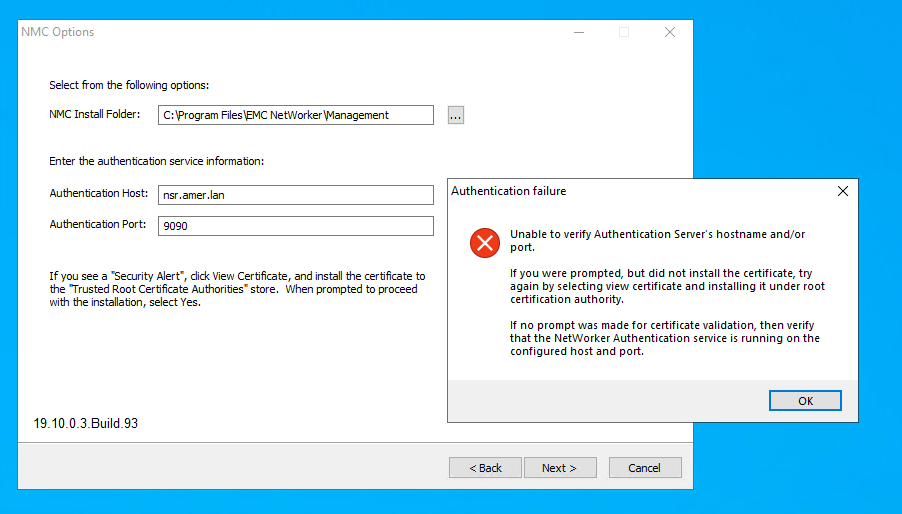
- The NMC/NWUI host can fully resolve the NetWorker server: Shortname, Fully Qualified Domain Name (FQDN), IP address
nslookup ADDRESS
- The NMC/NWUI host can connect to port 9090 on the NetWorker server (authentication host):
- PowerShell command:
tnc AUTHC_SERVER_ADDRESS -p 9090
- PowerShell command:
- The NMC/NWUI server has Internet Explorer installed.
原因
TLS settings have been modified on the NMC/NWUI server's Internet Explorer settings. The setting is restricting communication to the NetWorker authentication (AUTHC) server over its required TLS setting. This Internet test collects and installs the authentication server certificate needed for SSL/TLS communication between the NMC/NWUI server and the AUTHC service.
If the NetWorker server has the NetWorker Web User Interface (NWUI) server package installed. You receive a TLS-related error when trying to connect to it from Internet Explorer on the standalone-NMC server: https://NETWORKER_SERVER_ADDRESS:9090/nwui
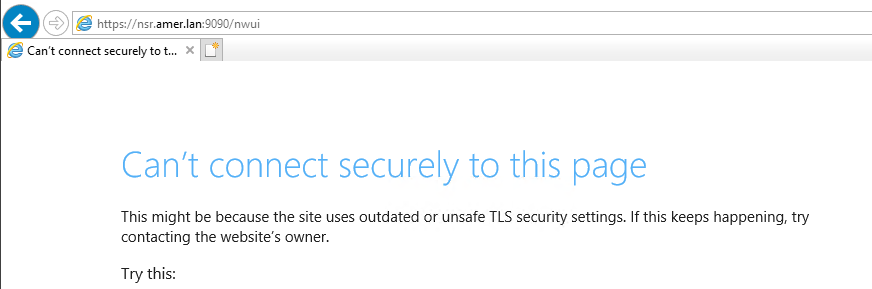
NOTE: The error message may vary based on OS, Internet Explorer version, TLS settings on the NetWorker server, and TLS restrictions on the NMC server. The error illustrates that there is an SSL TLS issue when connecting to the AUTHC service on the NetWorker server.
解析度
On the NetWorker server, perform the following:
1. Check the AUTHC server.xml and confirm what TLS versions are set:
Linux:
Windows (Default Install path):
19.12 (and prior) Example: <
/nsr/authc/conf/server.xml
Windows (Default Install path):
C:\Program Files\EMC NetWorker\nsr\authc-server\tomcat\conf\server.xml
19.12 (and prior) Example: <
root@nsr:~]# cat /nsr/authc/conf/server.xml | grep sslEnabledProtocols
        sslEnabledProtocols="TLSv1.2"
19.13 (and later) Example:
[root@nsr ~]# cat /nsr/authc/conf/server.xml | grep "SSLHostConfig protocols"
        <SSLHostConfig protocols="TLSv1.2" sslProtocol="TLS" ciphers="TLS_ECDHE_RSA_WITH_AES_128_GCM_SHA256, TLS_ECDHE_RSA_WITH_AES_256_GCM_SHA384, TLS_ECDHE_RSA_WITH_CHACHA20_POLY1305_SHA256" >
In this example, AUTHC server communication requires TLSv1.2. In the following steps, use the latest TLS version from the server .xml in the Internet Explorer TLS settings on the NMC/NWUI server.
On the standalone NMC/NWUI server, perform the following:
1. Launch Internet Explorer.
2. Open the Settings menu (Gear icon in upper-right corner).
3. Click Internet Options.
4. In the Internet Options window, click the Advanced tab.
5. In the Advanced tab, scroll down to Security in the Settings window.
6. Select the TLS versions that are defined in the NetWorker server's server.xml file:
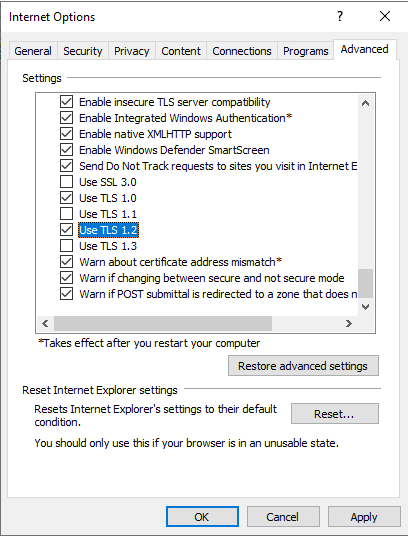
7. Click Apply, then click OK and close Internet Explorer.
8. Return to the NetWorker installation wizard and close out the error if its still open.
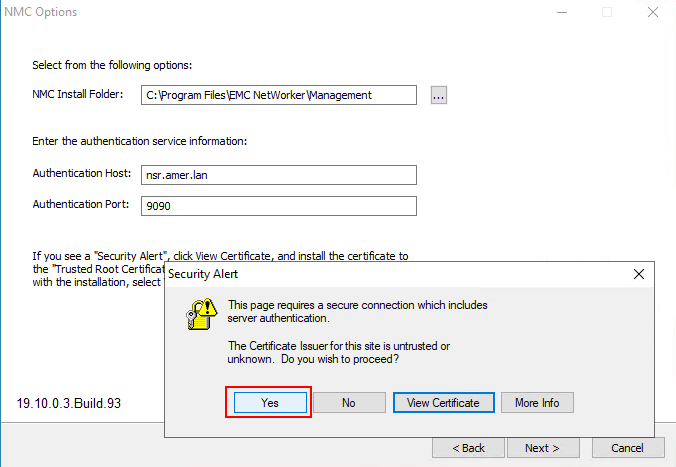
9. In the NMC options window, click Next. This time you should be prompted to install the AUTHC certificate:
8. Return to the NetWorker installation wizard and close out the error if its still open.
9. In the NMC options window, click Next. This time you should be prompted to install the AUTHC certificate:
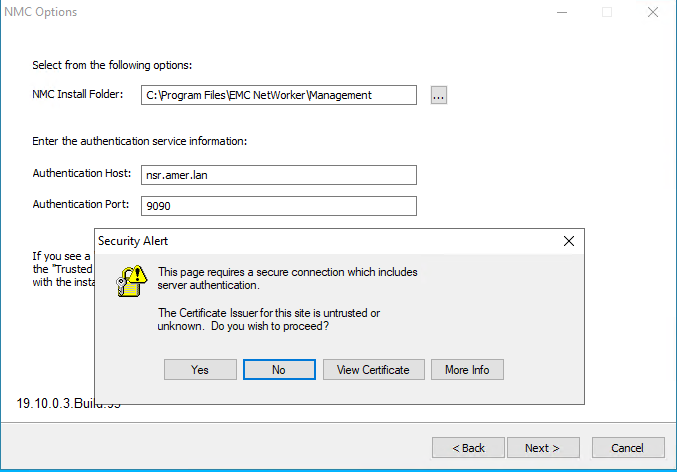
NOTE: If you still do not see option to install the certificate, see article: NetWorker: NMC server install fails on Windows Host "Unable to verify Authentication Server's Hostame and or Port"
10. Install the certificate in the local machine's trusted root certificates:
A. Click View Certificate.
B. From the Certificate, click Install Certificate.
C. Select Local Machine and click Next.
D. Select Place all certificates in the following store, then click Browse.
E. Select Trusted Root Certification Authorities, then click OK.
F. On the Certificate Install Wizard, click Next.
G. Click Finish.
H. You should receive a pop-up stating "The import was successful," click OK.
I. From the Certificate window, click OK.
J. From the Security Alert window, click Yes.
B. From the Certificate, click Install Certificate.
C. Select Local Machine and click Next.
D. Select Place all certificates in the following store, then click Browse.
E. Select Trusted Root Certification Authorities, then click OK.
F. On the Certificate Install Wizard, click Next.
G. Click Finish.
H. You should receive a pop-up stating "The import was successful," click OK.
I. From the Certificate window, click OK.
J. From the Security Alert window, click Yes.
11. Complete the NetWorker installation.
其他資訊
- NetWorker: How To Identify Which Server is the Authentication Server Used By NMC and NWUI
- NMC Installation Fails with Error "Unable to Verify Authentication Server's Hostname or Port"
- NetWorker: NMC server install fails on Windows Host "Unable to verify Authentication Server's Hostame and or Port"
- NetWorker: How to remove NetWorker when uninstall or upgrade failed (Windows)
受影響的產品
NetWorker, NetWorker Management Console產品
NetWorker Family, NetWorker Series文章屬性
文章編號: 000227195
文章類型: Solution
上次修改時間: 16 7月 2026
版本: 6
向其他 Dell 使用者尋求您問題的答案
支援服務
檢查您的裝置是否在支援服務的涵蓋範圍內。