Dell Premier - Order History
摘要: Premier Order History enables you to check the status of your order and view various options relating to current and past Dell purchases.
本文章適用於
本文章不適用於
本文無關於任何特定產品。
本文未識別所有產品版本。
說明

Discover a brand-new order history experience* on your US Premier page. Easily check your latest order status, get detailed shipping information, view service tags and invoices, download packing slips, and more—all in one place. Explore these new features and streamline your experience like never before!
Table of contents
- Access Order Status on Premier
- Available information
- Filter and Export Capability
- Track Orders
- View Electronic Invoices
- View and Download Packing Slips
- Cancel an Order
- Exchange Items
- Manage Shipping Addresses
- Ask our Virtual Assistant
- Contact our experts for post order inquiries (Customer Support)
Access Order Status on Premier
To check your Order Status, perform the following steps:
- Sign in to your Premier Page
- Access the tool by clicking "Order Status" or "Track Order Status" from the Premier Homepage
You have access to all your orders placed since September 1st, 2024, that have a status of Received, Confirmed, In Production, Build complete, Shipped, Delivered, or Cancelled.
Note: If you need to check the status of an order placed before September 1st, 2024, you will be directed to a page where you can access up to 2 years of order history.

Figure 1: Premier Order History Overview page
Using the expanded view, you can access additional details, including item-level tracking information by ship group, delivery specifics, and a variety of useful self-service options.

Figure 2: Premier Order History Overview page - Expanded view
- Premier order history overview with item-level order history
- Exchange eligible items
- Access invoices at Dell Purchase ID (DPID) number level
- View order status at a glance
- Access order details (order level)
- View orders details, packing slips, invoices, manage shipping addresses and get help.
Note: Prior to the “In Production” order status, if the order is eligible for cancellation, you may also get the option to cancel your order online.
In order to help you save time, the Premier Order History tool allows you to filter by:
- PO Number
- Dell Purchase ID (DPID)
- Order Number
- Order Status (Not 'Yet' Shipped, Shipped, and Delivered, Digital Orders, Cancelled)

Figure 3: Available filters and Export Capability
When clicking the "Export Records" button, all the fields can be exported into an Excel report. The first 2,000 records are downloaded instantly; for anything beyond that number of records, the report will be available under “Open Exports Requests” once ready.
"Track Orders" provide the most up-to-date information about your orders, including delivery status, tracking ID (when available) for detailed updates from the carrier, and more.
Click "Track Orders" from the Overview page to access additional information and view the estimated delivery date immediately.

Figure 4: "Track Orders" from Premier History Overview page

Figure 5: Detailed page providing access to tracking details

Figure 6: Tracking details for the selected order
Once the order has shipped and the invoice has been generated, retrieve and download invoices in PDF format at both the Dell Purchase ID and order number levels.
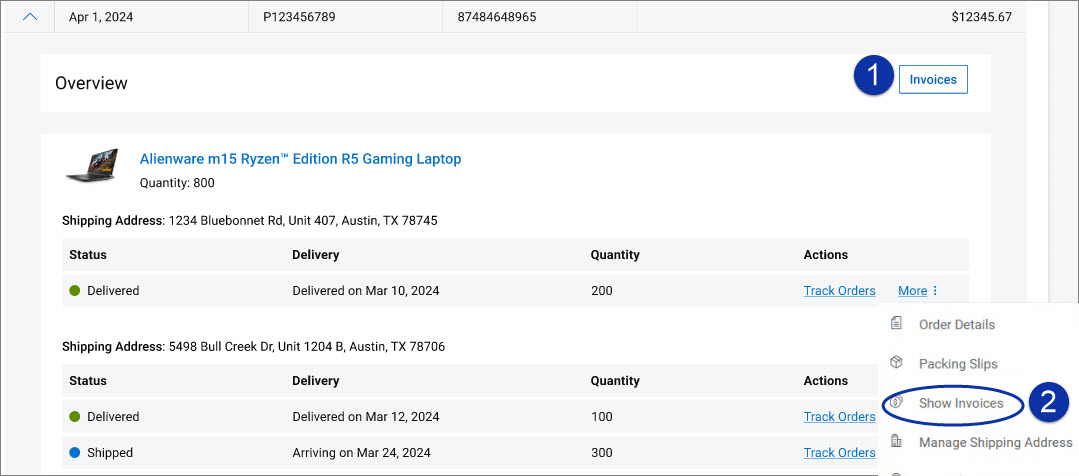
Figure 7: Access invoices
- Access invoices for this Dell Purchase ID number - click "Invoices" to navigate to the "Invoices" report, where you can filter invoices by PO numbers.
- If you want to quickly access and retrieve a specific invoice at order level, click "Show Invoices" available from the "More" drop-down menu. This takes you to the detailed "Invoices" page, where you can select "Open Invoice" to view, download, or print the invoice.
Features and capabilities available to you will depend on your Premier user role and access group.
View and Download Packing Slips
As a user, you can access and download the packing slip in PDF format at the order level.
The packing slip includes a detailed list of item numbers. After shipping, the Services Tags are also visible in the packing slip.
From the "More" dropdown menu (Order History overview page), select "Packing Slips" to open the detailed page. "Open Packing Slip" allows you to view, download, or print the packing slip in a pdf format.

Figure 8: View and download packing slips
Prior to the “In Production” order status, if the order is eligible for cancellation, you may also get the option to cancel your order online.
From the "More" dropdown menu (Order History overview page), select an order and click "Cancel Order" to open the detailed page. Clicking "Cancel Orders" will allow you to proceed if the order is eligible for cancellation.

Figure 9: Cancel an order
If your order qualifies for an exchange, you can start the “Exchange Items” process right from your Premier Order History page. Applicable for invoiced orders and identical replacements.
Excluding US Federal, Channel and pages with a procurement integration.

Figure 10: Exchange eligible items
Once the order has shipped and if the order is eligible for shipping address updates, you may also get the option to request an address change online.
Manage Shipping Addresses allows you to view the current shipping address and request an address change.
If you need to change the address after submitting your order, you can only request an address change once.
From the "More" dropdown menu (Order History overview page), click "Manage Shipping address" to open the detailed page. Clicking "Manage Shipping Address" allows you to initiate your request.
Upon review of your request, you will receive an email confirmation once the request is complete. In some cases, it may not be possible to change the shipping address.
Changing your shipping address may impact delivery dates.

Figure 11: Manage Shipping Address and request an address change
Need help? Our Virtual Assistant is here to assist you. Simply ask for help with tasks such as tracking orders, finding invoices, or getting connected with our support team for further assistance. Learn more.
Contact our experts for post order inquiries (Customer Support)
At any time, you can get help with your order(s). From the “More” dropdown menu (Order History overview page), click “Get Help” to view the best support options (including contact information) for your issue(s).
If you have questions or need assistance with Premier, engage the Premier Support Teams
Notes
*This experience is currently not applicable to US Federal and Channel stores
The features and capabilities available to you will depend on your Premier user role and access group.
Roadmaps and timelines are subject to change.
Screenshots are for demo purposes only and may differ slightly from the tool.
文章屬性
文章編號: 000254458
文章類型: How To
上次修改時間: 18 11月 2025
版本: 4
向其他 Dell 使用者尋求您問題的答案
支援服務
檢查您的裝置是否在支援服務的涵蓋範圍內。