How to Deploy Dell Client Device Manager with Microsoft Configuration Manager
摘要: This article guides IT Admins with a step-by-step procedure to select the wanted modules for the Dell Client Device Manager (DCDM) application and deploy with Microsoft Configuration Manager. ...
本文章適用於
本文章不適用於
本文無關於任何特定產品。
本文未識別所有產品版本。
說明
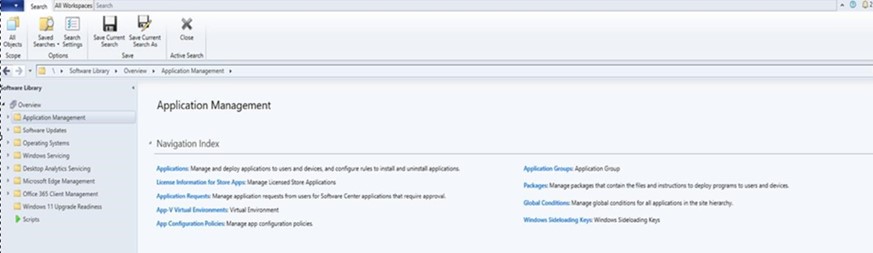
- Open the Microsoft Configuration Manager Console using an account with the necessary permissions to create and deploy applications, and navigate to Software Library → Application Management.
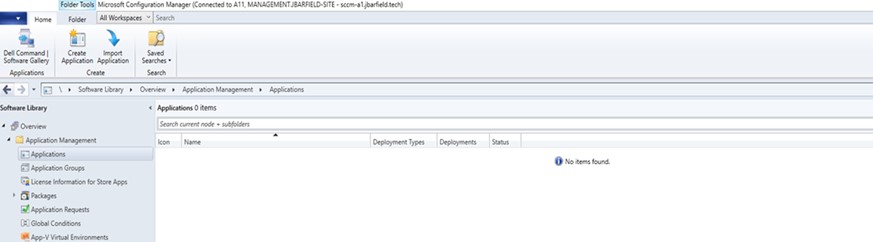
- Expand Application Management, click Applications, and then click Create Application.
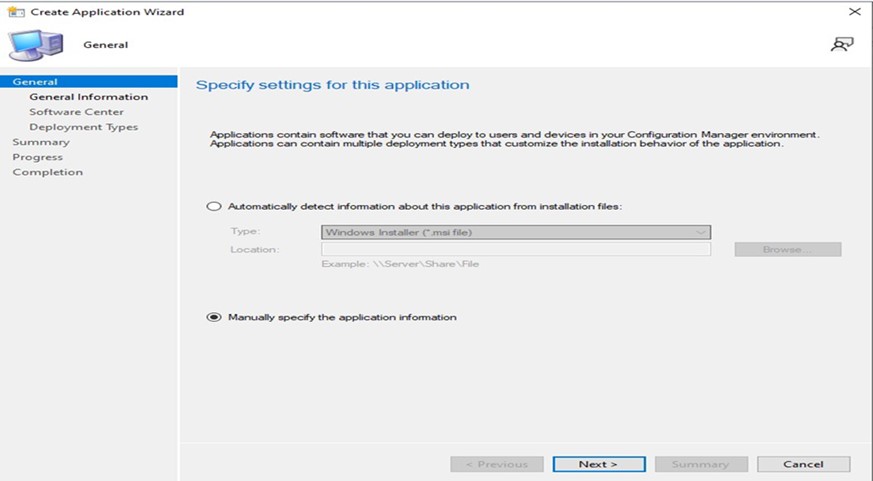
- Select the Radio Button. Manually specify the application information and click NEXT.
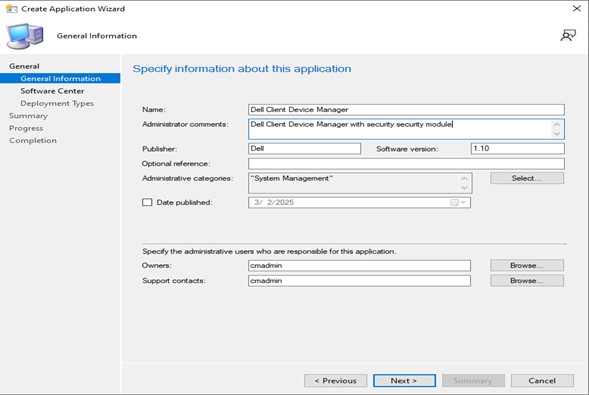
- Populate the required information, and then click NEXT.
- Name: Provide the Name of the Application (For Example, Dell Client Device Manager)
- Administrator comments: Add a description (Dell Client Device Manager with security module installed)
- Publisher: Specifies the Publisher (Dell)
- Software Version: Specifies the version (1.10)
- Owners: Select the appropriate user or group.
- Support Contacts: Select the appropriate user or group.
- Click NEXT.
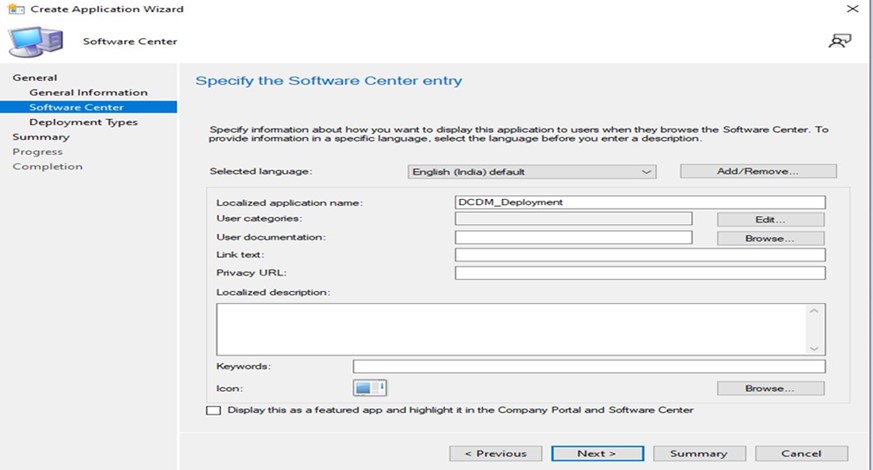
- Click ADD.
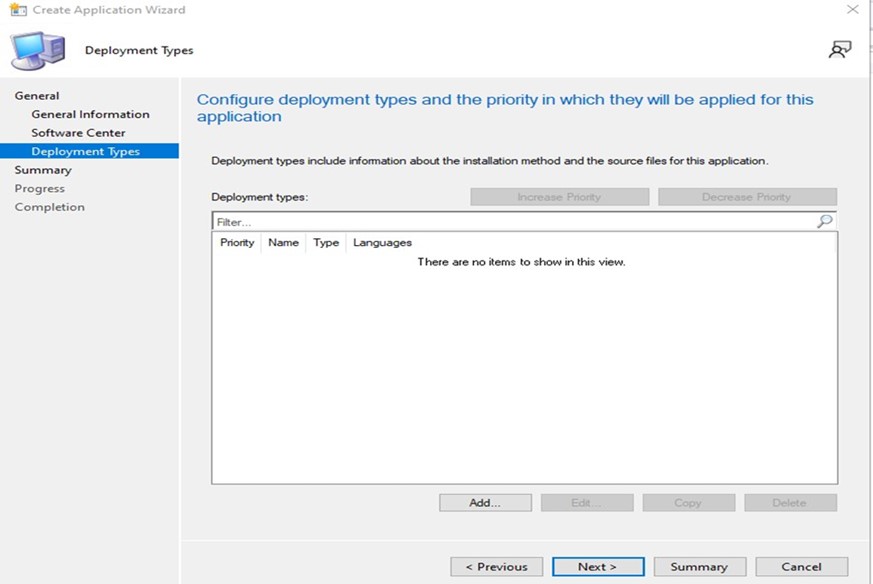
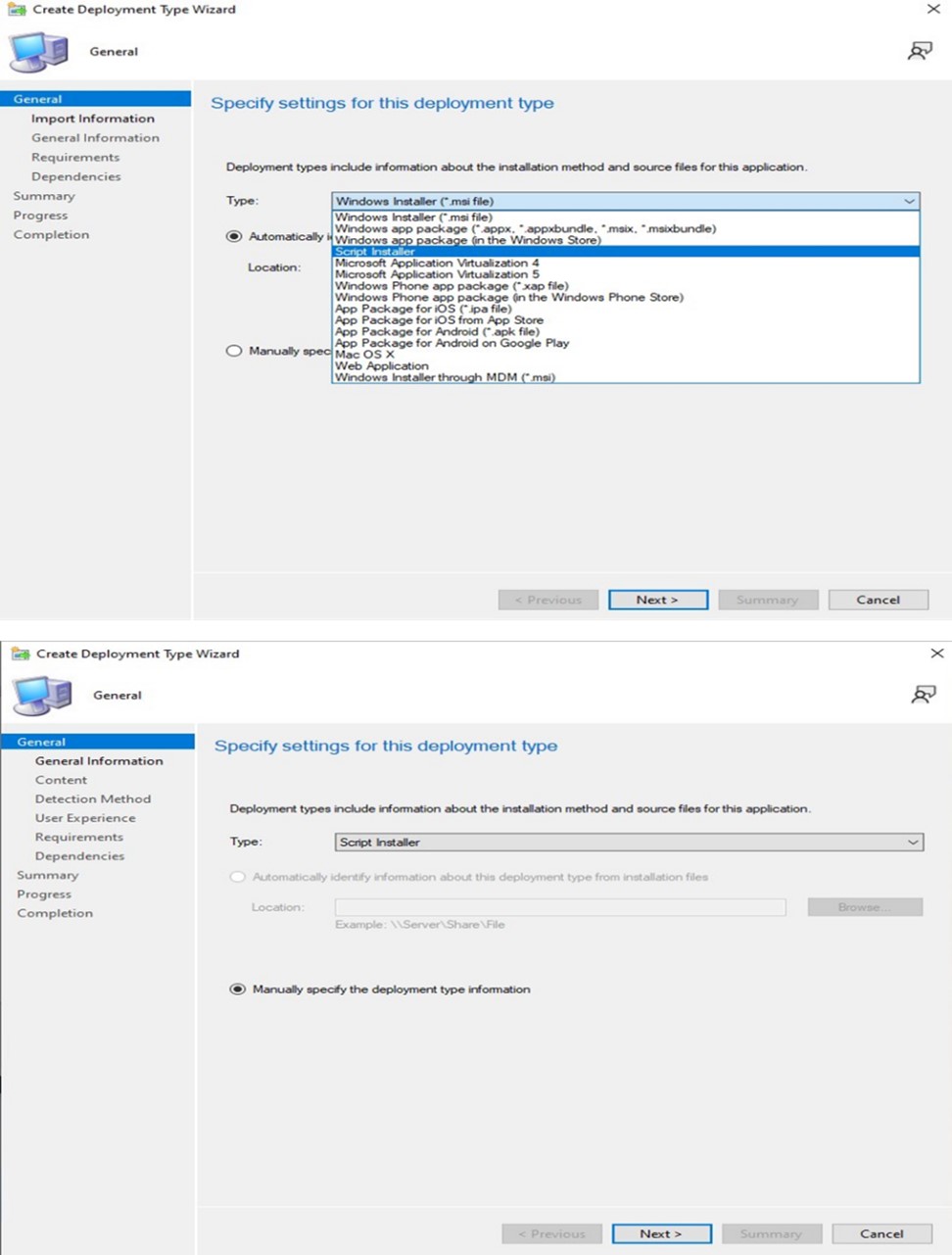
- Select Script Installer from the Type Drop Down and click NEXT.
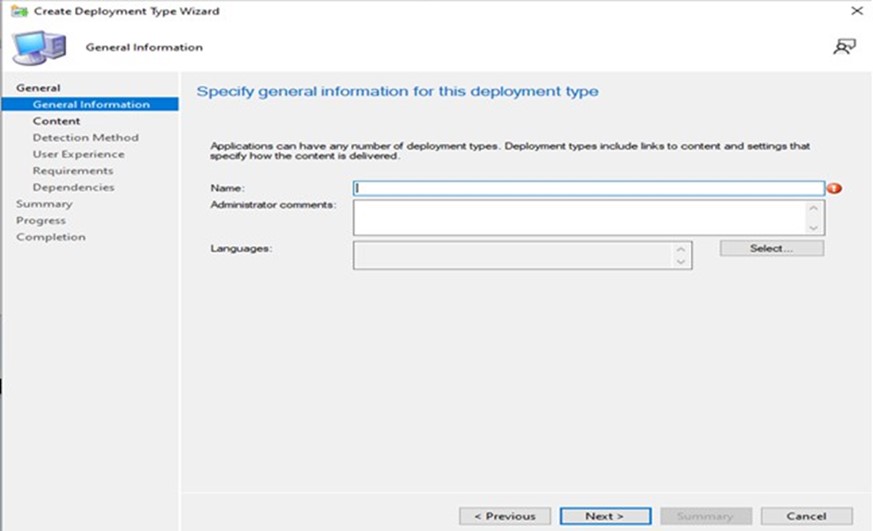
- Specify the required Name and Administrator Comments and click NEXT.
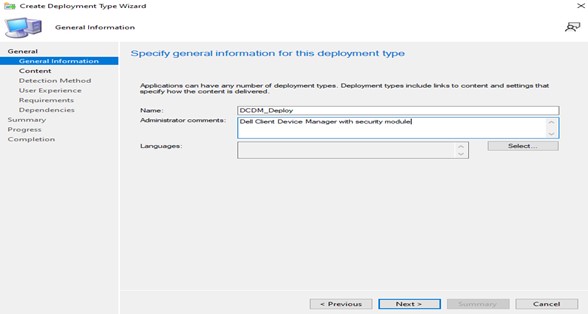
- Add Content location where contents are placed for deployment, and specify the Command used to install the content in the Installation Program, and click the Check box Run installation and uninstall program as a 32-bit process on 64-bit clients and click Next.
Note: A list of install parameters, modules, and examples can be found below.
Install: powershell.exe -executionpolicy Bypass -windowstyle hidden -noninteractive -nologo -file "dcdm_deployment.ps1" -action < install / uninstall > -modules < modules to install >Parameter Description -help Optional Displays a description of parameters -action Mandatory Specifies the action to be performed (install/uninstall) -modules Optional Specifies the modules to be included.Default ("DCDMCS,"DCDMU,"DCDMS") -logpath Optional Default is "C:ProgramData\Dell\ClientDeviceManager." Specifies the path for log files -verboselog Optional Enables log display in the console (True or False) -debuglevel Optional Default is 'all'. Specifies the level of debugging information -telemetryconsent Optional Default is 'true'. Indicates telemetry consent Module Description Module depends on DCDMCS Dell Client Device Manager Core Services (formerly known as Dell Core Service (DCS)) N/A core component required DCDMS Dell Client Device Manager Security (formerly known as Dell Trusted Device (DTD)) DCDMCS DCDMU Dell Client Device Manager Update (formerly known as Dell Command Update (DCU)) DCDMCS, DCDMS Examples:
Install/Update all modules and send telemetry for DCDMU.
powershell.exe -executionpolicy Bypass -windowstyle hidden -noninteractive -nologo -file "dcdm_deployment.ps1" -action "install"Install/Update all modules without telemetry.
powershell.exe -executionpolicy Bypass -windowstyle hidden -noninteractive -nologo -file "dcdm_deployment.ps1" -action "install" -telemetryconsent "false"Install/Update Dell Client Device Manager | Security (DCDMS)
powershell.exe -executionpolicy Bypass -windowstyle hidden -noninteractive -nologo -file "dcdm_deployment.ps1" -action "install" -modules "DCDMS"Uninstall Dell Client Device Manager | Security (DCDMS)
powershell.exe -executionpolicy Bypass -windowstyle hidden -noninteractive -nologo -file "dcdm_deployment.ps1" -action "uninstall" -modules "DCDMS"Uninstall all modules
powershell.exe -executionpolicy Bypass -windowstyle hidden -noninteractive -nologo -file "dcdm_deployment.ps1" -action "uninstall"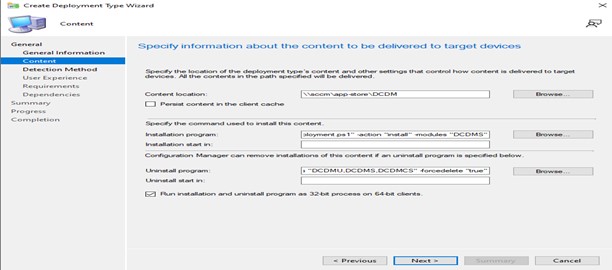
- Click Add Clause.
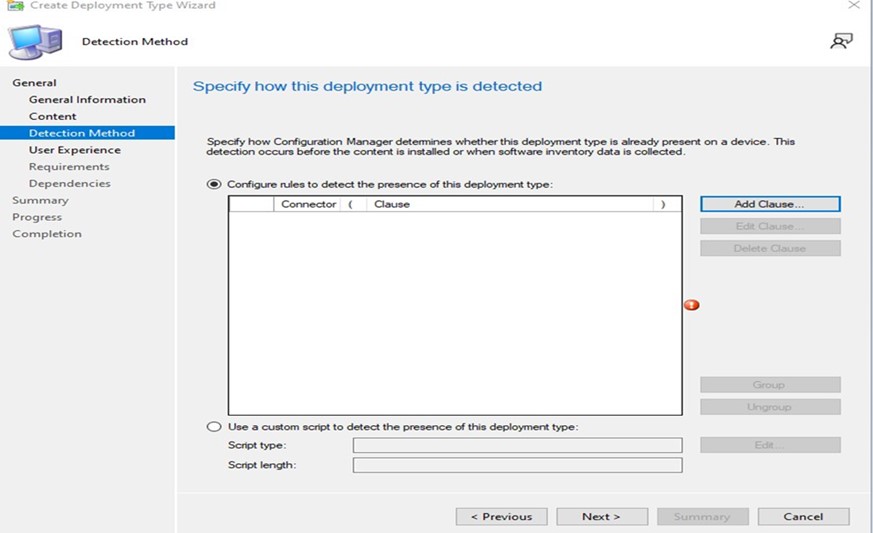
- Select Type as Folder.
- B) Add a Path where the contents are located by clicking the Browse Button, and Once All data is filled, OK.

- Once the Clause has been added, click NEXT.

- Select Install for system from the Installation behavior drop-down, select Whether or not a user is logged on from the log in requirement drop-down, Normal from the Installation program visibility, and click NEXT.
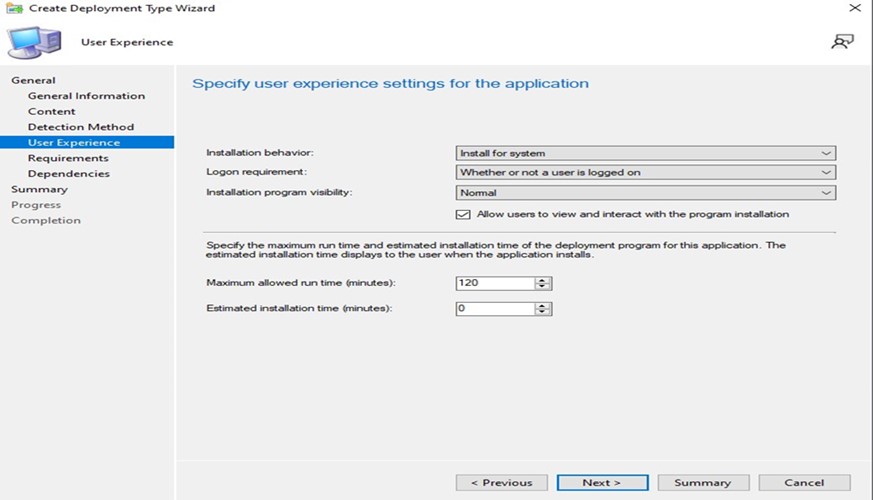
- Specify installation requirements for this deployment type window click NEXT.
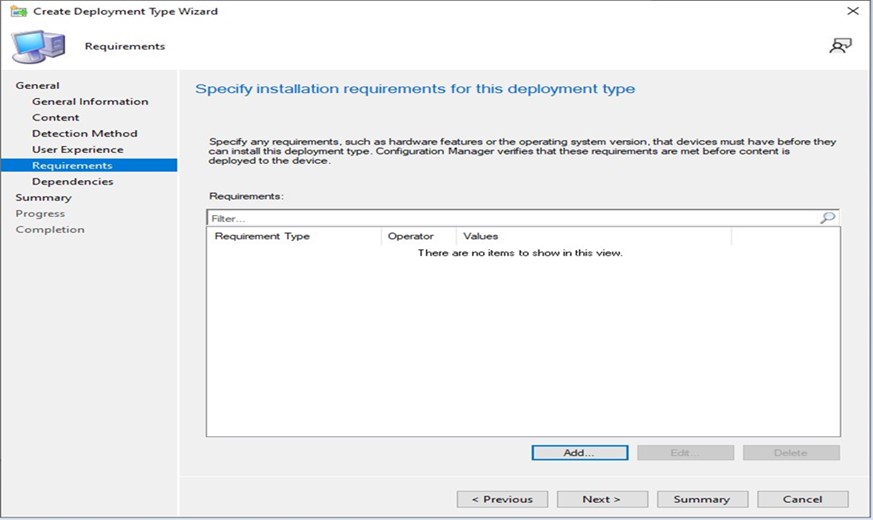
- Specify software dependencies for this deployment type click NEXT.
Note: Dell Client Device Manager requires Microsoft .NET 8 Desktop Runtime and ASP.Net Core as a dependency.

- The summary window reads all the data and clicks NEXT.
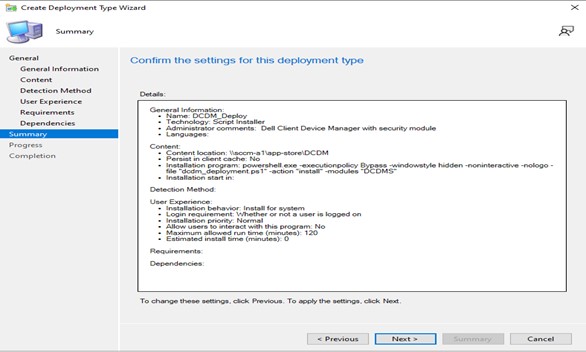
- The package has been created, and closes the window below by clicking the CLOSE Button.

- Click NEXT.
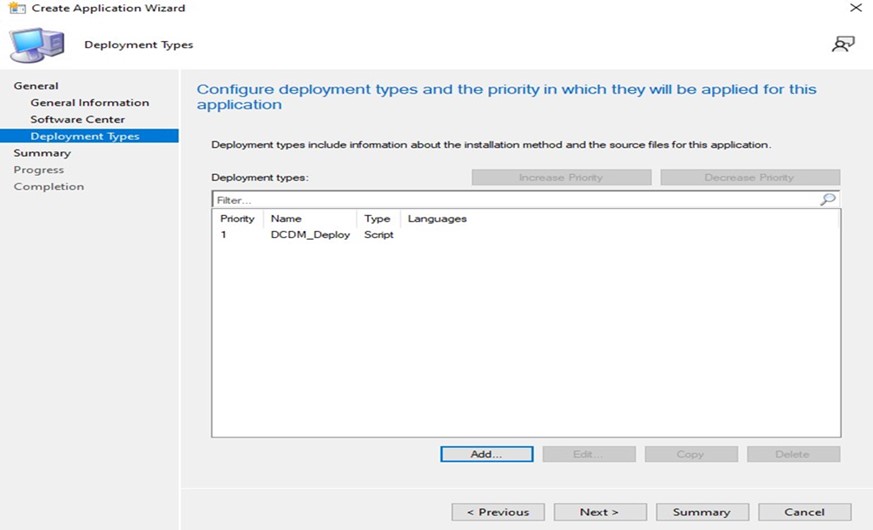
- Click NEXT on the summary screen.
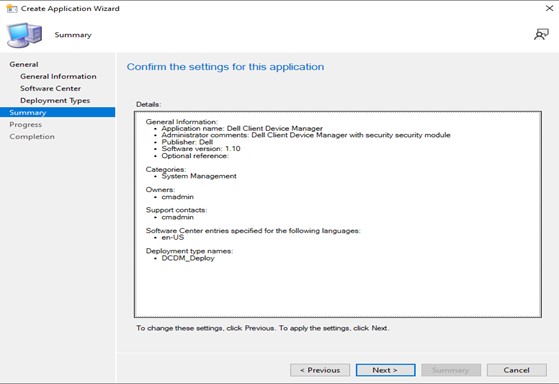
- Click Close to exit the create application wizard.

- Ensure that the application is listed in the console.
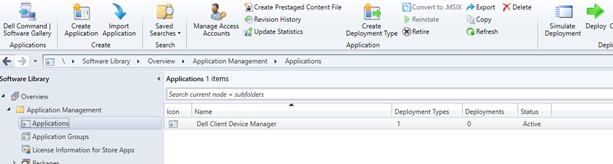
- Click the Deploy button in the top ribbon to deploy to the appropriate endpoints.
受影響的產品
Dell Client Device Manager文章屬性
文章編號: 000299534
文章類型: How To
上次修改時間: 26 3月 2025
版本: 1
向其他 Dell 使用者尋求您問題的答案
支援服務
檢查您的裝置是否在支援服務的涵蓋範圍內。