Live Optics | Upload an SIOKIT File using the Live Optics Collector
摘要: How to upload an SIOKIT file using the Live Optics collector.
本文章適用於
本文章不適用於
本文無關於任何特定產品。
本文未識別所有產品版本。
說明
The Live Optics collector sends data to the Live Optics web portal for analysis in two ways:
- Automatically, while a Live Optics collector run is in progress
- Manually, by uploading an encrypted SIOKIT file which is created and saved locally to the machine on which it is run.
This article describes how to manually upload an SIOKIT file using the Live Optics collector.
- Open the Live Optics collector and select Upload SIOKIT.
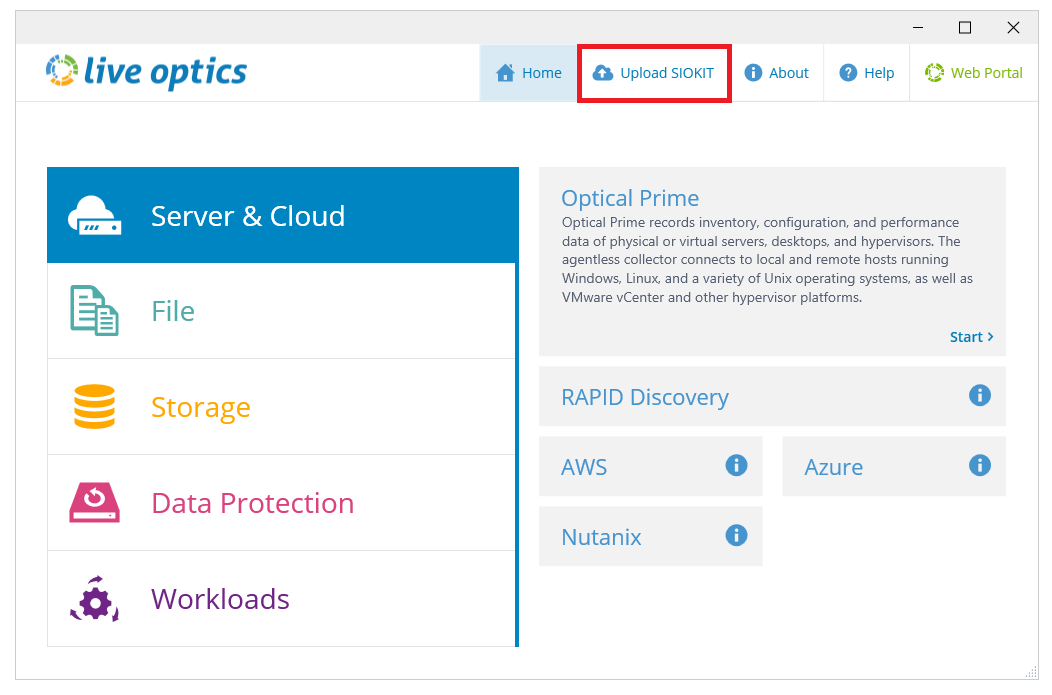
- Click Browse for File and choose the SIOKIT file you want to upload. Enter a project name and click Upload to continue.
- The file is uploaded to the Live Optics web portal. During the upload, a status bar indicates the progress. The upload may take some time to complete depending on the speed of your Internet connection and size of the file. When the upload is complete, the following screen displays. A confirmation email follows, when your project is ready to view on the Live Optics web portal.
- Click Quit to close the Collector.
其他資訊
If you have any questions, reach out to Live Optics Support at liveoptics.support@dell.com.
受影響的產品
Analytics文章屬性
文章編號: 000228710
文章類型: How To
上次修改時間: 21 10月 2025
版本: 3
向其他 Dell 使用者尋求您問題的答案
支援服務
檢查您的裝置是否在支援服務的涵蓋範圍內。