

Unsolved
This post is more than 5 years old
2 Posts
0
28296
September 20th, 2012 08:00
I disabled my function keys
In an effort to stop all the programs that were running at startup & slowing my computer, I inadvertantly disabled my function keys on my Inspiron 1564. How do I turn these back on?
Also, I am also deperately trying to disable the touchpad since I use an external mouse & the touch pad is driving me crazy every time I type.
HELP!!


0 events found
No Events found!
DELL-Saurabh A
4 Apprentice
•
710 Posts
0
September 20th, 2012 09:00
Hi rbziets71,
1. Follow the steps listed below to Enable/Disable the function keys on the laptop:


- Power off the laptop
- Power it back on
- As Dell logo appears, repeatedly tap key. If 'Windows logo appears, please restart the laptop and try again.
- BIOS screen appears. (Mouse is not operable on this screen. Use the arrow keys on the keyboard to navigate to various options)
- Following screen appears:
- Navigate to 'Advanced'
- Navigate to 'Function key Behavior' and select 'Function key first' (Refer to image below)
- Tap key to save the settings and exit.
2. If that does not work, please check the status of function key behavior in 'Windows mobility center'. Follow the steps listed below:

- Click 'Pearl' icon
- Type 'Windows mobility Center' (Without quotation) in 'Search programs and files' text box and tap (Following screen appears)
- You may change the 'function key behavior' from this utility
3. Please follow the steps below to disable the touchpad when you have the mouse plugged in:


- Click 'Pearl' icon
- Type 'mouse' in 'Search programs and files' text box and hit (Following screen appears)
- Click 'Device Select' option (Following screen appears):
- Place a tick mark in the check box that says 'Disable Touchpad/Pointing Stick when external USB mouse is present'
- Tap OK to save the settings
4. Alternatively, if you want to disable the touchpad permanently, please use the 'Touchpad disable key' on the keyboard (Refer to the image below)
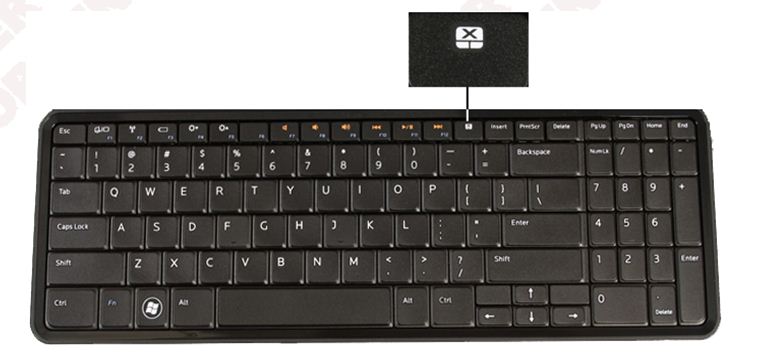
Hope this helps. Do reply if you have any further questions. I would be glad to assist.