

Unsolved
1 Rookie
•
4 Posts
0
5497
July 26th, 2023 14:00
XPS 8930, BIOS install, Secure Flash check failure
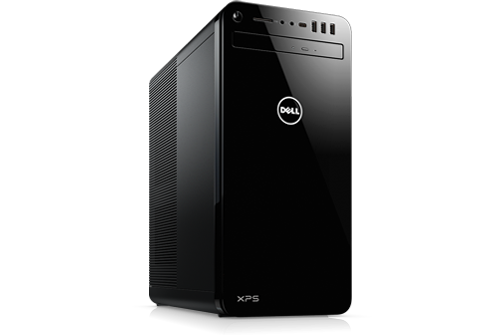
XPS 8930
SupportAssist recommended the latest BIOS update for my XPS 8930, but it failed when it tried to install it. I looked up the latest BIOS installer and downloaded it, but when I try to install it manually I get the error "Secure Flash check failure (0x1)". I have tried rebooting and running the installer as administrator, and neither worked.
Curiously, when I run SupportAssist again and asked it to check for updates, it doesn't recommend the new BIOS.
I am currently running BIOS version 1.1.26. The one I am trying to install is 1.1.30.
Should I install this new BIOS? If so, how do I get around this problem?
Thanks.
No Events found!
RoHe
12 Elder
•
45.2K Posts
•
172.6K Points
2
July 26th, 2023 16:00
You need to install all these BIOS updates completely outside of Windows...
Manually download the BIOS 1.1.30 file and save on (non-bootable) 2-GB USB stick (FAT32 formatted). With PC completely off, plug the USB in and then power on. Start tapping F12 when you see the Dell splash screen.
When the F12 menu opens, select the Flash Update option. Use tab key to move between the boxes on the update screen. You shouldn't have to change any of the fields, but when you see a box with the file name for the BIOS update press Enter. If that doesn't automatically move you to the next box, use the tab key.
When you get to the bottom, the start button should be highlighted. Just press Enter. PC will reboot itself ~2-3 times during the update. Just leave it entirely alone, even if it looks like it shut down and isn't doing anything. When the update is finished, PC will automatically boot to your desktop.
RoHe
12 Elder
•
45.2K Posts
•
172.6K Points
0
July 27th, 2023 10:00
Is the DP on the add-in video card or are you using the onboard Intel DP port? With a video card installed, you should always use the ports on that card. Are you powering monitor on a few secs before powering PC on? FWIW, I use DP on add-in NVidia GPU in my XPS 8930 and on monitor, and I see the splash screen at every boot.
You could try tapping F12 as soon as PC is powered on, even if you don't see the splash screen...
There both single and dual link DVI-D ports, so I hope you ordered the right cable.
RoHe
12 Elder
•
45.2K Posts
•
172.6K Points
0
July 27th, 2023 13:00
No DP on the video card?
You could physically remove the add-in video card and try using the onboard DP that way. If you see the splash screen, power off, plug in the USB and do the BIOS update. Then reinstall the video card...
RoHe
12 Elder
•
45.2K Posts
•
172.6K Points
1
July 27th, 2023 16:00
Glad you finally found the add-in video card and got the BIOS update installed! Guess you can -hopefully- return the DVI cable...
So now that the update is installed, open BIOS setup by tapping F2 when you see the splash screen. You want these settings:
BIOS Recovery from Hard Drive = enabled (should be enabled by default)
BIOS Auto-Recovery = enabled (disabled by default)
Always Perform Integrity Check = enabled (disabled by default)
UEFI Capsule Updates = disabled (enabled by default) - disabling this prevents Windows Update from messing around with BIOS updates when you're not looking.
Don't change anything else in BIOS setup, but save the changes you do make when exiting setup. PC will boot automatically to the desktop. NOTE: Every time there's a new BIOS update you will have to change these same settings again.
Swazoo
1 Rookie
•
4 Posts
0
July 26th, 2023 19:00
The splash screen doesn't show up when I boot. I think it's because I'm using the DisplayPort output to my monitor, and the BIOS doesn't see it. I have ordered a DVI-D cable, and when that arrives I'll switch (temporarily) to the DVI port (which the BIOS should see because it's on the video card). Then I'll try your suggested fix.
Many thanks!
Swazoo
1 Rookie
•
4 Posts
0
July 27th, 2023 12:00
I'm using the onboard Intel DisplayPort. The DVI-D port is on a separate video card.
I have tried tapping F12 (and F2) immediately after power on. When I do that, the screen stays blank indefinitely. I suspect the BIOS is talking to the video card, not the DisplayPort.
I'll see whether the cable works when I get it.
Thanks for your help.
Swazoo
1 Rookie
•
4 Posts
0
July 27th, 2023 13:00
Well, of course. I looked again, and there's a second video card with four DisplayPorts. I've been plugged into the wrong place for years. When I plugged my monitor into that video card I got the splash screen, and was able to follow your directions for updating the BIOS.
Thanks for all your help!
Pjgfi
2 Posts
0
August 29th, 2023 12:14
I have the EXACT same problem (XPS 8930, Bios 1.1.26 installed, trying to update to 1.1.30).
I have done many BIOS updates from Windows in the past without any problem.
Maybe this particular BIOS update is faulty?
Chino de Oro
11 Legend
•
8.4K Posts
•
46.2K Points
0
August 29th, 2023 12:40
@Pjgfi , yes, the latest BIOS firmware is faulty. Most advises on here were to flash the firmware using USB drive but there is no one addressing the issue with executing within Windows environment as the given instructions. Although it's still work according to some users reports on here.
My suggestion is, if your system is running fine, there is no urgent need to update from 1.1.26
Pjgfi
2 Posts
0
August 29th, 2023 13:17
@Chino de Oro Yes, I will wait for the next BIOS update.
RoHe
12 Elder
•
45.2K Posts
•
172.6K Points
1
August 29th, 2023 18:01
@Pjgfi - XPS 8930 BIOS 1.1.30 is not faulty. I've been running it for months on my XPS 8930 without a single problem.
You have to install the update completely outside Windows. Download the BIOS 1.1.30 .exe file and save it on an empty (non-bootable) 2-GB USB stick (FAT32 format). Plug that USB into PC when power is fully off. Then power on and tap F12 to open the menu.
When the menu opens, select the option to Flash Update BIOS. Use Tab key to navigate around the screen. You shouldn't have to change anything, but in the box(es) where you see the BIOS 1.1.30 update file name, be sure it's highlighted and press Enter. Then tab to next box.
When you tab to the start button, check top left and top right boxes to make sure the old and new BIOS info is correct, then launch the update. Leave PC entirely alone while the update is running. PC will restart itself ~3-4 times during the process. Even if PC looks like it shut off completely, just leave it alone until you're safely back at the desktop.
Chino de Oro
11 Legend
•
8.4K Posts
•
46.2K Points
0
August 29th, 2023 18:15
@RoHe said You have to install the update completely outside Windows, that is the faulty part.
RoHe
12 Elder
•
45.2K Posts
•
172.6K Points
0
August 29th, 2023 18:25
Call it whatever you want, but it's the safest way to install a BIOS update. I have installed every single BIOS update on my XPS 8930 since BIOS 1.1.8 (22 BIOS updates) entirely outside Windows and never had a single problem.
Besides, the fault is in SupportAssist, not with the BIOS update.
Chino de Oro
11 Legend
•
8.4K Posts
•
46.2K Points
0
August 29th, 2023 18:47
@RoHe , this is the current BIOS firmware 1.1.30 on Dell site. The installation instruction for Windows environment is not working, as indicated on my earlier post. See below. My post was simply a confirmation to poster @Pjgfi whom is having trouble with executing the update in Windows.
I had already indicated the alternative to flash firmware using a USB drive. You can repeat the information if you want. Poster already responded and understood the issue was with the firmware, not at users end.
We are not debating which is a safest method here. Unlike the previous BIOS firmware, if users follow firmware update instruction from Dell BIOS page and run it in Windows, they are likely running into issue. I don't know what you prefer to call it, but that is the faulty part to me.