


Unsolved
1 Rookie
•
17 Posts
0
185
November 30th, 2023 03:18
Updating BIOS to 1.12.1 on my Alienware M18R1
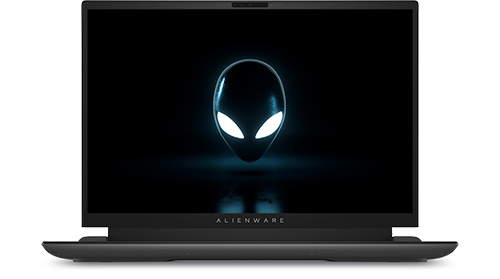
Alienware m18 R1
As the title says, I cannot properly update the BIOS. It keeps telling me I need to reboot to complete configuring DBUtilDrv2, and rebooting does not work.


No Events found!
Chino de Oro
9 Legend
•
8.1K Posts
0
November 30th, 2023 04:03
You may consider to update the BIOS directly in Windows or update from BIOS boot menu using a USB key.
Updating the BIOS from Windows
Note 1: Before updating the BIOS, ensure that you suspend BitLocker encryption on a BitLocker-enabled system. If BitLocker is not enabled on your system, you can ignore this step. For information about how to disable BitLocker, see How to Enable or Disable BitLocker with TPM in Windows at support.dell.com.
Note 2: Do not turn off power or interrupt the BIOS update process during the update.
Note 3: Your system requires a restart after installing the BIOS. The restart can be deferred but must be completed to ensure that the update is installed.
Download and Installation
1. Click Download File.
2. Click Save to save the file to your hard drive.
3. Browse to the location where you downloaded the file.
4. Double-click the new file.
The system restarts automatically and updates the BIOS at the system startup screen. After the BIOS update is complete, system restarts again.
Updating the BIOS from BIOS Boot Menu (independent of operating system)
Note 1: Before updating the BIOS, ensure that you suspend BitLocker encryption on a BitLocker-enabled system. If BitLocker is not enabled on your system, you can ignore this step. For information about how to disable BitLocker, see How to Enable or Disable BitLocker with TPM in Windows at support.dell.com.
Note 2: Do not turn off the power or interrupt the BIOS update process during the update.
Note 3: Your system requires a restart after installing the BIOS. The restart can be deferred but must be completed to ensure that the update is installed.
Installation
1. Copy the downloaded file to a USB drive. The USB drive does not need to be bootable device.
2. Insert the USB drive into any USB port.
3. Power on the system.
4. At the DELL logo screen, press F12 to access the one-time boot menu.
5. Select BIOS Flash Update in the Other Options section.
6. Click the ... button to browse the USB drive to locate the downloaded file.
7. Select the file and click Ok.
8. Verify the existing system BIOS information and the BIOS update information.
9. Click Begin Flash Update.
10. Review the Warning message and click Yes to proceed with the update.
The system restarts and displays a progress bar at the Dell logo screen. The system restarts again when the update is complete.
crimsom
7 Technologist
•
6.1K Posts
0
November 30th, 2023 05:35
Hi @ThisisANickname welcome to this free user-to-user Alienware laptop discussion forum. DBUtil Removal Utility | Driver Details | Dell US will detect and uninstall the dbutil_2_3.sys driver and versions 2.5 and 2.6 of the DBUtilDrv2.sys driver from the system.
ThisisANickname
1 Rookie
•
17 Posts
0
November 30th, 2023 05:50
@crimsom I checked mine version, it is 2.7. Are you sure I should remove this?
KevinLaptopDell
1 Rookie
•
15 Posts
0
November 30th, 2023 07:25
https://www.dell.com/support/home/en-us/product-support/product/alienware-m18-r1-laptop/drivers try the 2.7.1 version.
ThisisANickname
1 Rookie
•
17 Posts
0
November 30th, 2023 20:52
@KevinLaptopDell Could you give me the keyword? I entered 'DBUtil' and nothing pops up. Thank you.