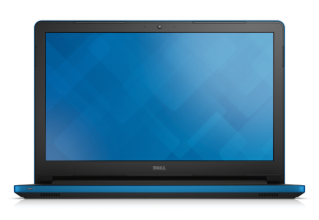
If your mouse pointer is behaving erratically or jumping around while using both the touchpad and a USB mouse on your Dell Inspiron 5558 laptop, there are several potential causes and solutions you can try:
Update Mouse Drivers:
Ensure that your touchpad and USB mouse drivers are up to date. Outdated drivers can cause issues with pointer movement.
Go to the Dell Support website, enter your laptop's service tag or model number, and download the latest touchpad and USB mouse drivers for your operating system.
Mouse Settings:
Adjust the mouse settings in your operating system. For Windows:
Go to "Control Panel" > "Mouse" > "Pointer Options."
Try adjusting the pointer speed and acceleration settings to see if that improves the behavior.
Disable Palm Check:
Some laptops have a feature called "Palm Check" or "Palm Rejection" that prevents accidental touchpad input when typing. You can adjust or disable this feature in your touchpad settings.
Clean the Touchpad and Mouse Surface:
Dust and dirt on the touchpad or mouse surface can cause erratic behavior. Clean the touchpad and the area where you use your USB mouse.
USB Port Issues:
Test your USB mouse on different USB ports to rule out issues with a particular port. Sometimes, USB ports may have connectivity problems.
Interference:
External factors like electromagnetic interference can affect mouse behavior. Try using the mouse in a different location to see if the issue persists.
Check for Software Conflicts:
Sometimes, third-party software or background processes can interfere with mouse functionality. Try booting your laptop into Safe Mode to see if the problem still occurs. If it doesn't, a software conflict may be the issue.
Check for Malware:
Malware can sometimes affect system behavior. Run a malware scan using a reputable antivirus program to rule out any infections.
BIOS Update:
Occasionally, a BIOS update can address hardware-related issues. Check the Dell Support website for any BIOS updates for your laptop model.
Hardware Issues:
If none of the above solutions work, there may be an underlying hardware problem with the touchpad or USB port. In this case, you may need to contact Dell support or a technician for further diagnosis and repair.
Try these steps one by one, and hopefully, one of them will resolve the issue with the jumpy mouse pointer on your Dell Inspiron 5558.
i found out that the problem is the page up button on the laptop keyboard which keeps pressing automatically relentlessly. any solution for this? is it a software glitch or a hardware issue with the keyboard. there has been no signs on any external physical damage whatsoever. thank you for helping
AdrianG001
4 Operator
•
4K Posts
0
September 19th, 2023 10:46
If your mouse pointer is behaving erratically or jumping around while using both the touchpad and a USB mouse on your Dell Inspiron 5558 laptop, there are several potential causes and solutions you can try:
Update Mouse Drivers:
Mouse Settings:
Disable Palm Check:
Clean the Touchpad and Mouse Surface:
USB Port Issues:
Interference:
Check for Software Conflicts:
Check for Malware:
BIOS Update:
Hardware Issues:
Try these steps one by one, and hopefully, one of them will resolve the issue with the jumpy mouse pointer on your Dell Inspiron 5558.
Abhishekgollapalli
1 Rookie
•
2 Posts
0
September 20th, 2023 03:17
i found out that the problem is the page up button on the laptop keyboard which keeps pressing automatically relentlessly. any solution for this? is it a software glitch or a hardware issue with the keyboard. there has been no signs on any external physical damage whatsoever. thank you for helping