

1 Rookie
•
1 Message
1
5380
December 11th, 2022 12:00
"Invalid memory installed" with factory memory
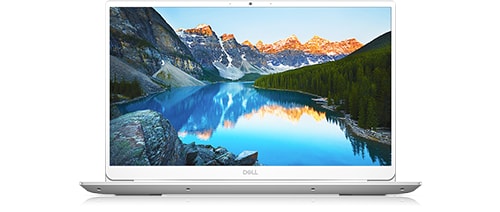
Inspiron 5590
We spilt some water on our Inspiron 5590 yesterday. It would have entered the keyboard. We powered off and left it an hour but later found that when we tried to boot it, it showed led fault code 2,5 which is "Invalid memory installed".
The laptop has only Dell factory installed memory.
The system won't boot at all and the screen is blank. The keyboard lights up.
I've remove the motherboard and it is dry, with no sign of damage.
Any suggestions how to fix this please?


No Events found!
filbert
6 Operator
•
1.8K Posts
1
December 11th, 2022 12:00
One hour was not long enough to allow it to dry. When you tried to boot it, the water may have caused a short. Even longer drying time may not have made a difference, as power from the battery + water could have already caused a short, but longer drying time is prudent. Any remaining moisture is bad news.
Let it dry for another day or so, to be certain it is entirely dry.
All disassembly and reassembly instructions are in the Service Manual.
Whenever touching components or working inside a computer, wear a grounded wrist strap, also called anti-static wrist strap, ESD wrist strap, or ground bracelet. It's a cheap and sensible precaution. Rest the laptop on an anti-static mat or at least a reasonable alternative such as corrugated cardboard.
EDIT: I see @RoHe posted as I was typing.
RoHe
12 Elder
•
45.2K Posts
•
172.6K Points
0
December 11th, 2022 12:00
If you're up for it: