

Unsolved
1 Rookie
•
1 Message
•
4 Points
0
13
August 16th, 2026 12:57
NO AUDIO DEVICE IS INSTALLED ISSUE
Device- Dell G15 5530
Whenever i boot my laptop after a while it faces audio issues and shows no audio device is installed. In device manager, realtek audio driver shows in the hidden list and in its properties is describe as code 45 error. The event viewer shows a warning related to WHEA Logger event 17 referring to component pcie root port. Please help me its been a month.
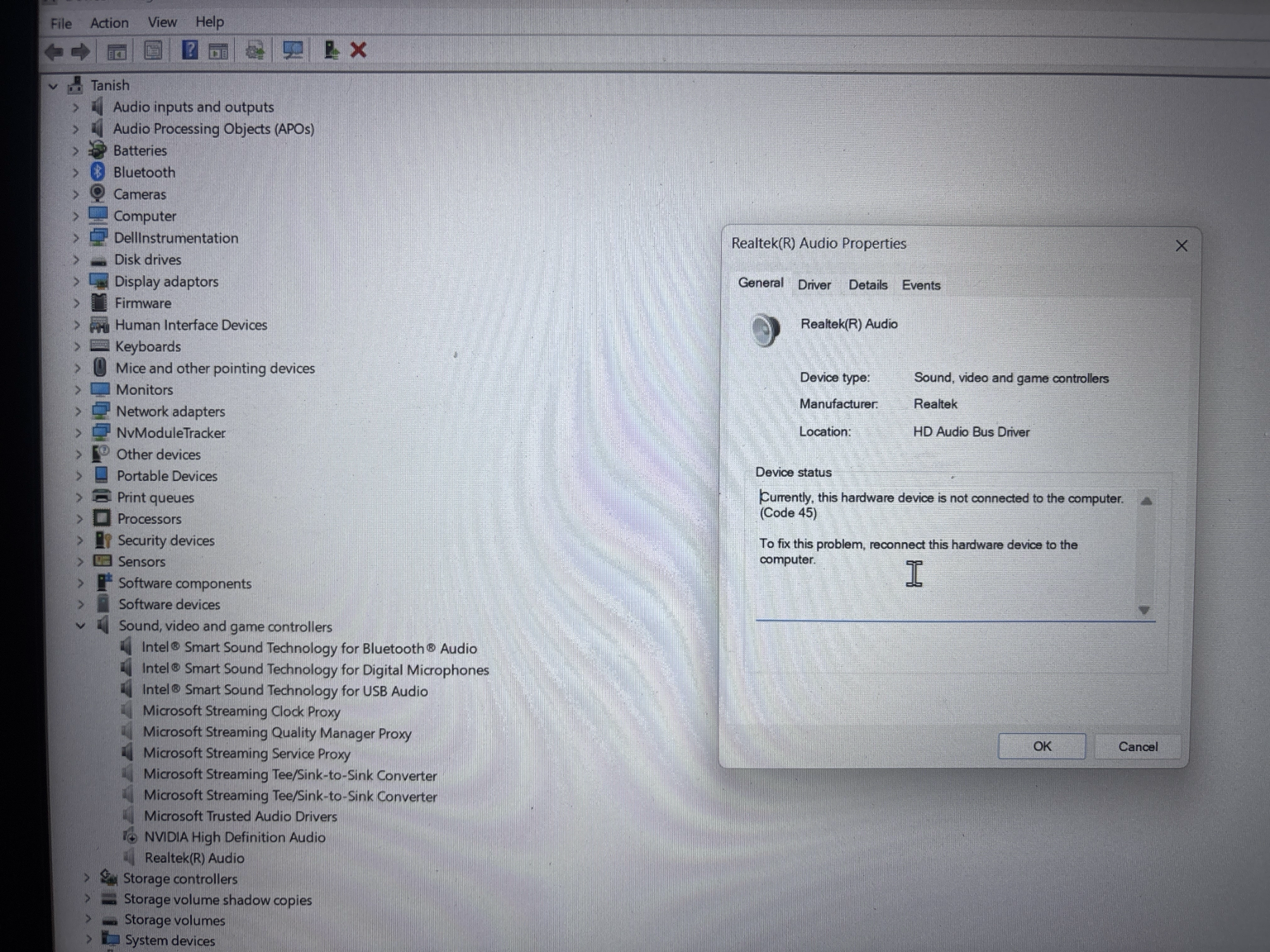

No Events found!
anne_droid
5 Journeyman
•
2K Posts
•
7.5K Points
0
August 16th, 2026 21:28
Hi
Can you achieve any sound output using a Live Linux on a USB?
Linux Mint is pretty good. https://www.linuxmint.com/edition.php?id=326
Obviously the internet is more betterer than me............
This is a known, recurring issue on the Dell G15 5530 (especially after Windows/BIOS updates) where the Realtek audio device disappears or shows “No audio device is installed”. The most reliable fix is a clean driver reinstall plus, in many cases, increasing Windows’ driver-install timeout. dell+2
Quick fix sequence (works for most G15 5530 cases)
Do these steps in order. If audio comes back at any step, you can stop; otherwise continue.
1) Fully remove existing audio drivers
Open Device Manager (
devmgmt.msc).Enable View → Show hidden devices.
Under Sound, video and game controllers:
Right‑click each of these (if present) → Uninstall device:
Realtek Audio / Realtek(R) Audio
Realtek Audio Effects Component
Realtek Audio Universal Service
Intel Smart Sound Technology (Intel SST) Audio Controller
Tick Delete the driver software for this device when prompted. dell+2
Also check System devices for:
Intel(R) Smart Sound Technology (Intel(R) SST) Audio Controller
If present, right‑click → Update driver → Browse my computer → Let me pick → choose High Definition Audio Controller and install. dell
2) Disable automatic driver reinstall (optional but helpful)
To stop Windows from immediately reinstalling a broken driver:
Win + R→sysdm.cpl→ Hardware tab → Device Installation Settings.Choose No (your device might not work as expected) → Save Changes.reddit
3) Increase device installation timeout (key for Realtek 0xE000020B / missing device)
This is frequently required on G15 5530 when the Realtek driver fails to install or the device vanishes. dell
If you have Windows Pro/Enterprise (Group Policy):
Win + R→gpedit.msc.Navigate to:
Computer Configuration → Administrative Templates → System → Device InstallationOpen Configure device installation time-out.
Set to Enabled, timeout = 1800 seconds → OK.
Reboot.
If you have Windows Home (Registry):
Win + R→regedit.Go to:
HKEY_LOCAL_MACHINE\SOFTWARE\Microsoft\Windows\CurrentVersion\DeviceInstallIf
DeviceInstalldoesn’t exist, create it underCurrentVersion.Create a new DWORD (32‑bit) value:
InstallationTimeout.Set value to 1800 (decimal).
Reboot. dell
4) Install the correct Dell Realtek driver
Use the official Dell driver for G15 5530, not generic Realtek packages. dell+2
Go to Dell support:
https://www.dell.com/support/home/en-us/drivers/driversdetails?driverid=f0wdr
(Realtek ALC3254/ALC3204 HD Audio driver – lists G15 5520/5530 as compatible). dell+1
Or from the G15 5530 support page:
https://www.dell.com/support/product-details/en-eg/product/g-series-15-5530-laptop/resources/articles dell
Download the Realtek High Definition Audio Driver for your exact Windows version.
Run the installer as Administrator.
Follow prompts, then reboot. dell+2
5) Verify and test
After reboot:
Open Device Manager → Sound, video and game controllers:
You should see Realtek Audio (or similar) with no warning icons.
Right‑click speaker icon → Sound settings:
Ensure the correct output device (Realtek/Speakers) is selected and not muted.
Test audio with a simple sound (e.g., YouTube, system sounds).
If it still says “No audio device is installed”, continue.
If the device still disappears or fails intermittently
These are common on the G15 5530 and worth trying if the above doesn’t fully resolve it.reddit+2
6) Update BIOS and chipset
On the G15 5530 support page, download and install:
Latest BIOS (e.g., 1.28.x or newer).
Latest Chipset drivers.
Reboot after each. dell+1
Some users report audio stability improved after BIOS updates, though a few saw issues appear right after; if audio broke immediately after a BIOS update, try rolling back BIOS if you have a previous version and Dell allows it. dell+1
7) Disable audio enhancements / spatial sound
Settings → System → Sound.
Select your active speaker device.
Turn off:
Audio enhancements
Spatial sound
Any Sound effects options.reddit
8) Check Windows Audio services
Win + R→services.msc.Ensure these are Running and set to Automatic:
Windows Audio
Windows Audio Endpoint Builder
If needed, right‑click → Restart each.reddit
9) If it keeps coming back after updates
If audio works after reinstall but breaks again after Windows Update:
Keep the Device Installation Settings set to No (step 2).
After major updates, re-run the clean reinstall (steps 1 + 4).
Optionally, create a System Restore point once audio is working, so you can roll back if an update breaks it again. learn.microsoft