


Unsolved
1 Rookie
•
6 Posts
0
20
January 19th, 2026 07:50
Inspiron 7306 2-in-1, Dell OS recovery support problem/question
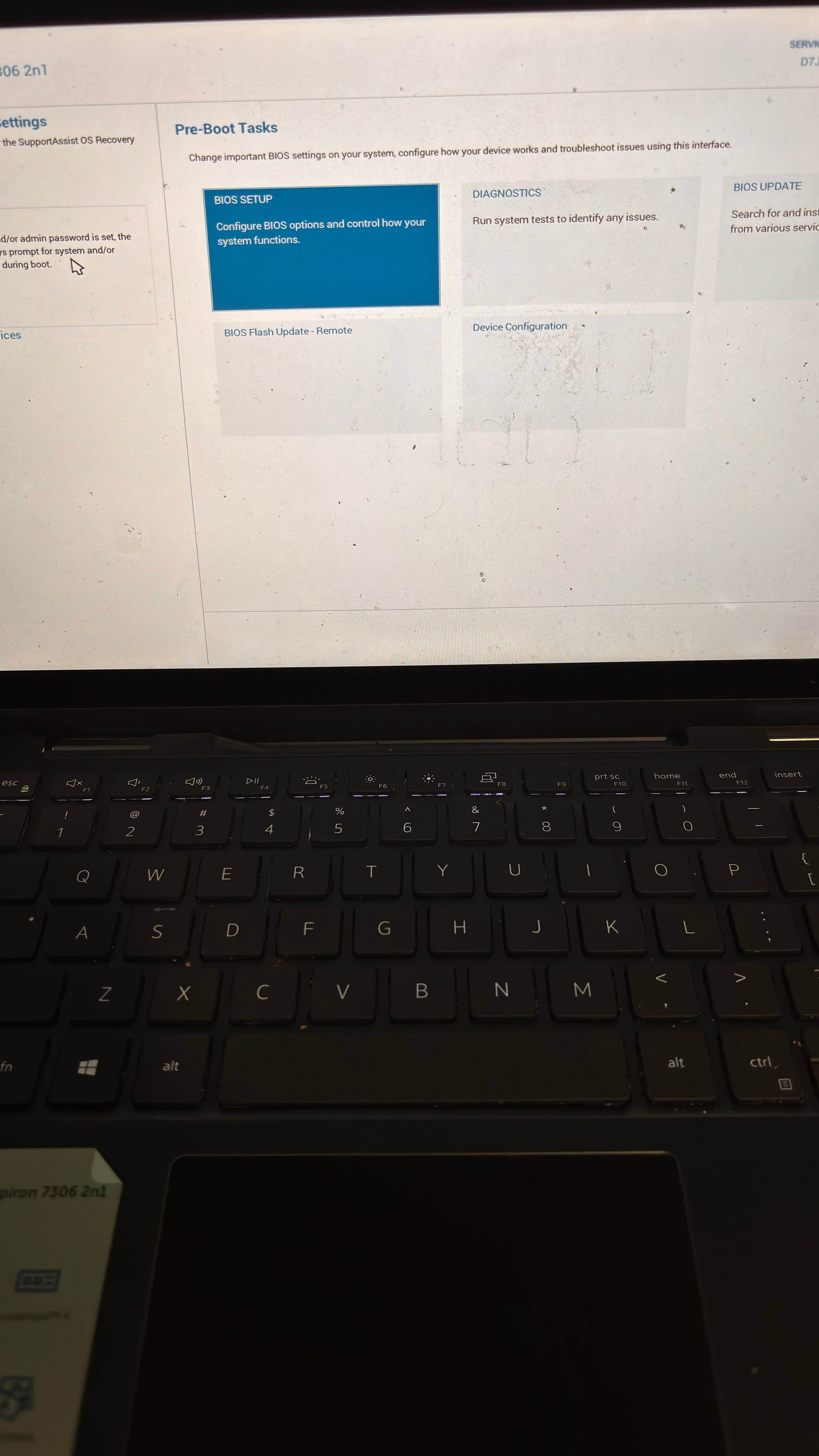
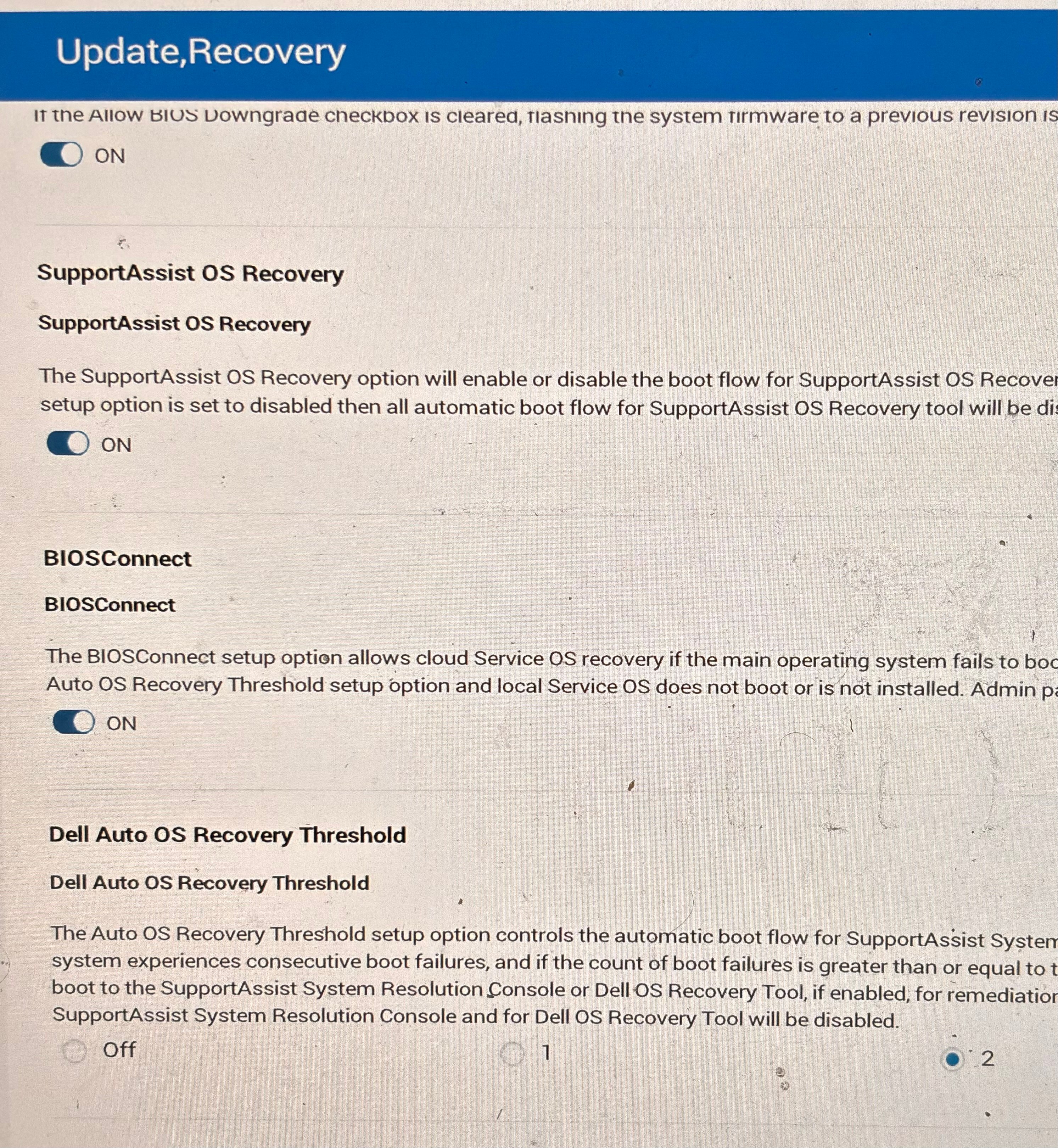 Hello and good evening. I have another problem/question regarding my Dell laptop. Earlier I had a battery health problem and a problem, when dell would usually boot into the windows log in screen after showing the dell logo, but instead it showed an error screen where it says “no bootable device found”. As advised by a community member by the user name of @ejn63 , they told me to replace my battery with a new and to reinstall windows (with the hope of keeping my files). So I bought a new battery online and removed the old battery and put in the battery (I did a diagnostic scan in the one-time boot menu, and everything came out good), after I put in the new battery and I followed the service manual for my model to put everything back together, I turned on my dell laptop and pressed f12 multiple times to access the one-time boot menu. When I tried to access the Dell OS recovery support image to reset my laptop, the option to do so is not present in the one-time boot menu, and cannot be seen as shown in the attached screenshot. Also I have the recovery support option enabled as seen in the second screenshot in the bios menu settings, but it still won’t show the recovery image in the one-time boot menu. What I should do to fix this and what are the steps? Or should I go to the Windows recovery environment and if so, how do I access it with my laptop?
Any help would be greatly appreciated.
Also the name of my model is called: Dell Inspiron 13 7306 2n1 (Black).
anne_droid
3 Apprentice
•
1.3K Posts
0
January 19th, 2026 11:47
Hi
I assume you have access to some resources....
"" reinstall windows (with the hope of keeping my files)""
You would need a BitLocker Key, from your Microsoft Account I believe, and attempt an "Over the Top"
In-Place Upgrade re-install, to keep/backup your current file system.
https://www.elevenforum.com/tutorials/?prefix_id=7
Then when all is stable, you could try an actual DELL recovery to correctly rebuild your system.
If in doubt please ask.
RoRo124
1 Rookie
•
6 Posts
0
January 19th, 2026 19:36
ejn63
10 Elder
•
30.3K Posts
0
January 19th, 2026 19:47
No, you don't - and it appears the recovery partition that was on the system at purchase is unavailable.
You need a blank 16 G or larger flash drive and to make Windows installation media. Use that to reload Windows. And while you may be able to preserve your data, if it's the only copy you have, you'd be better off backing up the data to an external drive first, even if that means removing the SSD from the system and installing it in an external case to allow it to be connected to a working system. Things can go wrong and it's a low-cost data preservation strategy.
MS Media Creation Tool is here
https://support.microsoft.com/en-us/windows/create-installation-media-for-windows-99a58364-8c02-206f-aa6f-40c3b507420d
RoRo124
1 Rookie
•
6 Posts
0
January 19th, 2026 20:36
@ejn63 Hello again and good afternoon. I had managed to make the Dell Support assist OS recovery option was available for me to use, (I think I achieved this by changing some settings in the BIOS setup), then I clicked it, and then it tried to establish a internet connection, but it then gave me and a error message saying it can not connect wirelessly and that I have to buy/get a usb to Ethernet adapter and I have to connect to the internet via a wired connection (as seen in attached screenshot). Now, I am going to relay the same question I asked a community user named @anne_droid : Is there an option to bypass this anywhere, or that fix it to where I can connect wirelessly? Or do I HAVE to buy a usb to Ethernet adapter to establish a wired connection with my laptop?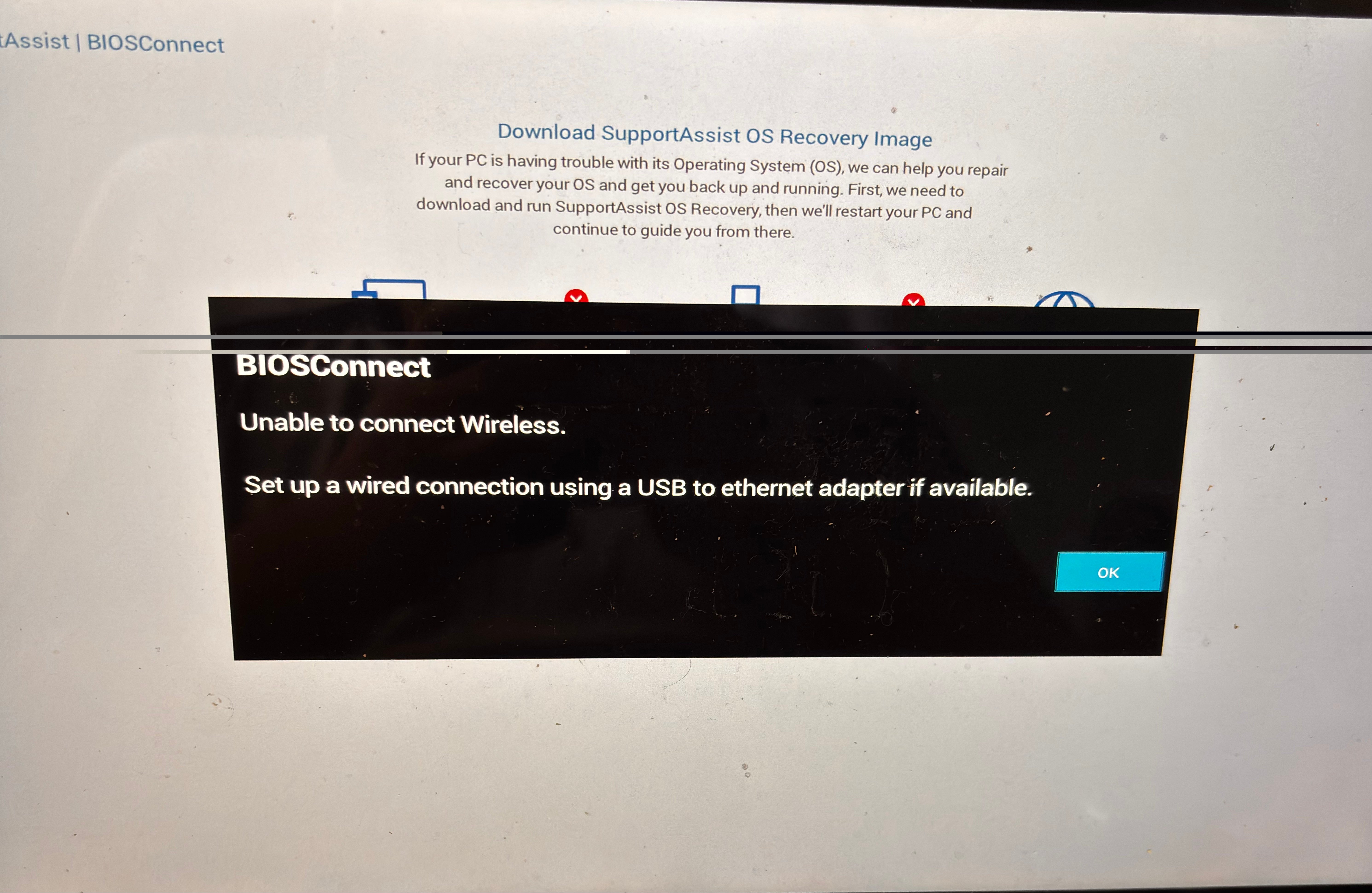
anne_droid
3 Apprentice
•
1.3K Posts
0
January 20th, 2026 11:28
Hi
Dunno.
The internet reports ......
BIOSConnect only supports 2.4 GHz and 5 GHz, not Wi‑Fi 6 GHz/6E (the “6G/6E” band). If your router is using only a 6 GHz SSID, BIOSConnect will never connect.
Ensure your router is broadcasting a 2.4 GHz or 5 GHz SSID (may require enabling “legacy” or “mixed” modes in the router settings).
If you have a dedicated 6 GHz SSID, create an additional 2.4/5 GHz SSID with a simple name and WPA2/WPA3‑Personal security and use that only for the recovery.
Avoid very long SSIDs or passwords and special characters during troubleshooting, as the pre‑boot stack is more limited than Windows/Linux.
Certain BIOS settings or outdated firmware can interfere with pre‑boot networking.
Enter BIOS setup (F2 at boot) and check any Wireless, Wireless Radio Control, or similar options to ensure Wi‑Fi is not disabled in pre‑boot.
Update the system BIOS to the latest version from Dell’s support site for the Inspiron 7306; do this from within Windows or a bootable USB if possible, not via BIOSConnect.
If SupportAssist OS Recovery is present locally, you can boot it (F12 → SupportAssist OS Recovery) and use its network reset or repair tools, which may refresh how the adapter is detected.
ELSE as @ejn63 says use an adapter or USB install, after making backups etc.
RoRo124
1 Rookie
•
6 Posts
0
January 21st, 2026 04:52
@anne_droid So would I able to try to do the method of using a usb to Ethernet adapter for a wired connection? Then If, for whatever odd reason, that might not work, should I then try the method you suggested of changing the GHz SSID setting in my router? Also if I do so, what would be steps in order to change the setting in my router (for reference, I have a Verizon router and it looks like the photo in this reply, also it might not be the exact model in the picture, since my family had the router for many years, but I'm not too sure)? Also, the reason why I asked for steps is because, since I’m in my 20s, I’m having kind of hard time understanding all of the advanced WiFi information that you provided me and I’m not really a professional/expert tech savvy person, also this is the first time I’m having a problem like this so I never had to change any WiFi settings in my router or in general. Hopefully you can understand, if not, that’s completely okay.
anne_droid
3 Apprentice
•
1.3K Posts
0
January 21st, 2026 10:46
Hi
First off, the router you quoted is 2.4 Ghz only, so that needs no changes.
The other part is that the Wi-Fi password may be too long or too complicated for BIOS-CONNECT to manage. That is a tad tricky, because if you change the password all the devices will require their passwords modifying.
Manual
https://www.verizon.com/content/dam/verizon/support/consumer/documents/vzmi424wrusermanualv4.pdf
##################
Using Rufus it should be possible to create a W11 repair USB.
Maybe the Microsoft way..... https://www.microsoft.com/en-us/software-download/windows11
Otherwise try the ethernet option.