

Unsolved
2 Intern
•
161 Posts
•
25 Points
0
1108
January 10th, 2025 06:03
How do I STOP MICROSOFT AUTOMATICALLY INSTALLING DRIVER!!!
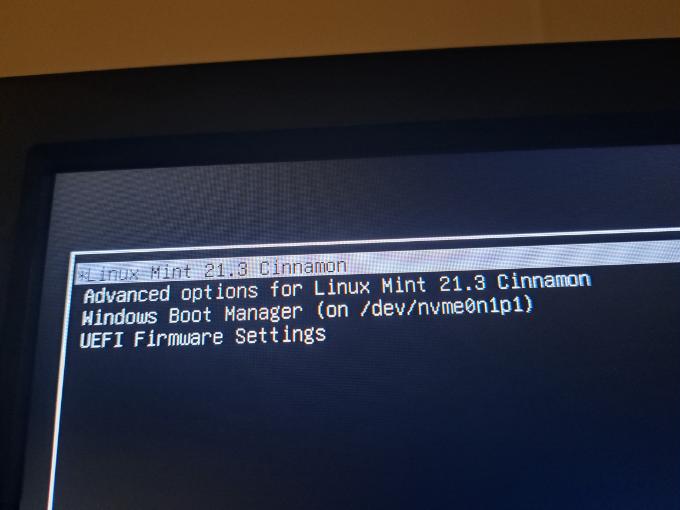
How do I STOP MICROSOFT AUTOMATICALLY INSTALLING DRIVER!!! This is my computer!! I'm using Linux Mint dual boot. I'm using optiplex 5080 mini tower 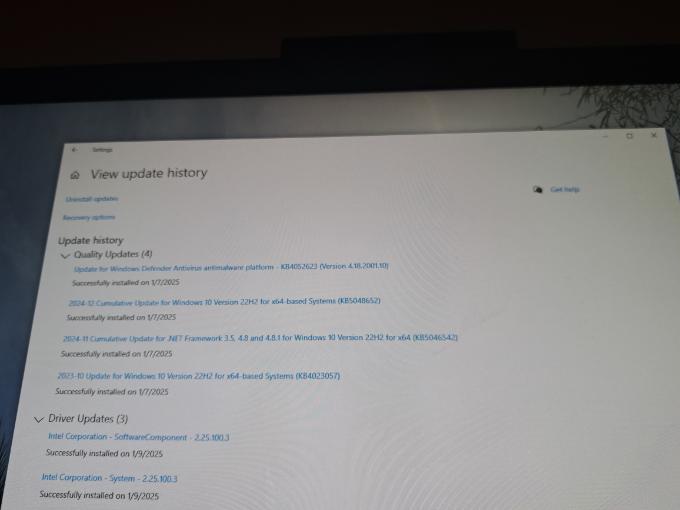



No Events found!
ann_droid
2 Intern
•
508 Posts
0
January 10th, 2025 12:52
Hi
Lots of ways....
https://woshub.com/how-to-turn-off-automatic-driver-updates-in-windows-10/
ann_droid
2 Intern
•
508 Posts
0
January 10th, 2025 13:05
Hi
https://www.tenforums.com/tutorials/146562-prevent-windows-update-updating-specific-device-driver.html
Hope that helps.
ann_droid
2 Intern
•
508 Posts
0
January 10th, 2025 13:07
Hi
Try this method ......
https://www.tenforums.com/tutorials/146562-prevent-windows-update-updating-specific-device-driver.html
OR
Disable Automatic Driver Updates in Windows via PowerShell
You can use a simple PowerShell script to disable automatic driver updates in Windows. This PowerShell script changes the same registry settings as the above GPO options. This method is convenient to use on computers with the Home edition of Windows (without a local GPO editor) and in tasks of automating the disabling of auto-update of drivers.
In order to disable automatic driver update in Windows, you need to change the values of the following registry parameters:
SearchOrderConfig= 3 (3 — do not install drivers via Windows Update)PreventDeviceMetadataFromNetwork= 1ExcludeWUDriversInQualityUpdate= 1Open the elevated PowerShell console and run the following code:
Set-ItemProperty -Path HKLM:\SOFTWARE\Microsoft\Windows\CurrentVersion\DriverSearching\ -Name SearchOrderConfig -Value 3Set-ItemProperty -Path 'HKLM:\SOFTWARE\Microsoft\Windows\CurrentVersion\Device Metadata\' -Name PreventDeviceMetadataFromNetwork -Value 1
# Check that the registry key exists and create it if necessary
$regKey3 = 'HKLM:\SOFTWARE\Microsoft\Windows\WindowsUpdate'
$test = test-path -path $regKey3
if(-not($test)){
New-Item -Path $regKey3
}
Set-ItemProperty -Path $regKey3 -Name ExcludeWUDriversInQualityUpdate -Value 1
petermuss
2 Intern
•
261 Posts
•
6 Points
0
January 10th, 2025 13:20
@f23948
Result from ChatGPT (use method 3!)
To stop Microsoft from automatically installing drivers, you can adjust the settings in Windows to prevent it from automatically updating or installing drivers. Here's how to do it:
Method 1: Using Device Installation Settings
Open the Control Panel:
Win + R, typecontrol, and press Enter.Navigate to the System Settings:
System and Security>System.Open Advanced System Settings:
Advanced system settings.Device Installation Settings:
System Propertieswindow, go to theHardwaretab and click onDevice Installation Settings.Prevent Automatic Driver Updates:
Save the Changes:
Save Changesto apply.Method 2: Using Group Policy (for Windows Pro or Enterprise versions)
If you're using a version of Windows that includes Group Policy Editor (like Windows Pro or Enterprise), you can disable automatic driver updates through the Group Policy Editor.
Open the Local Group Policy Editor:
Win + R, typegpedit.msc, and press Enter.Navigate to the Driver Installation Policy:
Computer Configuration>Administrative Templates>Windows Components>Windows Update>Do not include drivers with Windows Updates.Configure the Setting:
Do not include drivers with Windows Updates.Enabled, then clickOK.Close Group Policy Editor.
Method 3: Using the Registry Editor (for advanced users)
If you don’t have access to Group Policy Editor (Home versions of Windows), you can use the Registry Editor.
Open the Registry Editor:
Win + R, typeregedit, and press Enter.Navigate to the Registry Key:
HKEY_LOCAL_MACHINE\SOFTWARE\Policies\Microsoft\Windows\WindowsUpdate.Create a New Value:
WindowsUpdatekey and chooseNew>DWORD (32-bit) Value.ExcludeWUDriversInQualityUpdate.Set the Value:
1to disable driver updates.Restart the PC for the changes to take effect.
redxps630
11 Legend
•
16.2K Posts
•
82.6K Points
0
January 10th, 2025 14:33
seems lot of suggestions already made.
(edited)
ann_droid
2 Intern
•
508 Posts
0
January 10th, 2025 17:44
@redxps630
Yes indeed.
I click post and NADA.
So a few minutes later I post/repost an answer.
Eventually all the posts appear, and I cannot delete them.
It makes me look rather stupid and I don't like that.
Why some answers append immediately and others take half an hour I know not.
f23948
2 Intern
•
161 Posts
•
25 Points
0
January 10th, 2025 20:35
Disabling automatic windows update driver is not working!! Is there a way to download manufacturer driver and install manufacturer driver to avoid automatic windows update driver?? I don't trust Microsoft drivers
petermuss
2 Intern
•
261 Posts
•
6 Points
0
January 10th, 2025 20:47
@f23948
follow the instructions here:
Method 3: Using the Registry Editor (for advanced users)
If you don’t have access to Group Policy Editor (Home versions of Windows), you can use the Registry Editor.
Open the Registry Editor:
Win + R, typeregedit, and press Enter.Navigate to the Registry Key:
HKEY_LOCAL_MACHINE\SOFTWARE\Policies\Microsoft\Windows\WindowsUpdate.Create a New Value:
WindowsUpdatekey and chooseNew>DWORD (32-bit) Value.ExcludeWUDriversInQualityUpdate.Set the Value:
1to disable driver updates.Restart the PC for the changes to take effect.
f23948
2 Intern
•
161 Posts
•
25 Points
0
January 11th, 2025 04:30
@petermuss i did your suggestion still windows update automatically download driver and install driver
petermuss
2 Intern
•
261 Posts
•
6 Points
0
January 11th, 2025 11:27
@f23948
Windows version pls! From your pic it looks like W10 or W11 21H2.
Upgrade to W11 24H2 and check again.
To update your Optiplex 5080 with DELL driver use the DELL Command Update util from here:
https://dl.dell.com/FOLDER11914128M/1/Dell-Command-Update-Windows-Universal-Application_9M35M_WIN_5.4.0_A00.EXE
Run the installer and let the util detect your PC and it will check for driver and BIOS updates for your PC