


1 Rookie
•
39 Posts
1
1789
February 26th, 2023 14:00
XPS 8930, won't start after Windows 11 update
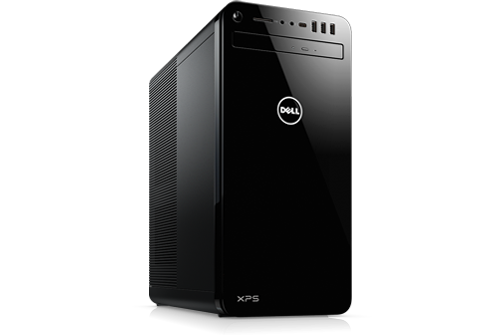
XPS 8930
My Dell XPS 8930, which is running Windows 11, will no longer start. I performed a routine Windows update, but now when I go to start the computer, nothing appears on my monitor.
The computer turns on, the fans operate, the caps and numbers lock keys light up, and there is a steady green LED glowing on the back of the computer.
But nothing appears on the screen ... no Dell logo, nothing. I think I can hear the hard drives active in the comuter, and the DVD drive seems to work. I put a Windows ISO disk in it, but nothing appeared on the screen.
I removed and re-seated the RAM and the video card, and confirmed that the CMOS battery has plenty of power. There's nothing wrong with my monitor because I plugged another computer into it and it works fine.
Anybody have any ideas? Thanks.
RoHe
10 Elder
•
45.2K Posts
1
February 27th, 2023 17:00
Since you have an add-in video card, make sure the monitor is correctly connected to the card, not to Intel Graphics. What video port are you using on video card and on monitor?
Is the video card a Dell OEM card or did you install a "retail" card?
Can you test this monitor on a different PC or different monitor on this PC, just to rule it out?
You could try clearing BIOS:
If that doesn't help, physically remove the add-in video card and try using an onboard Intel Graphics port.
BTW: Are all your personal files backed up on external media?
RoHe
10 Elder
•
45.2K Posts
1
February 26th, 2023 18:00
Do you know what update got installed? Was it a BIOS update installed via Windows Update?
What color is the power button and is it steady or blinking? Blinking power button is an error code so count the blinks and look it up here.
Confirm that your monitor is connected to the add-in video card, not to either of the onboard Intel UHD Graphics ports on the XPS 8930.
Have you tried removing the add-in video card and connecting the monitor to one of the onboard Intel ports? (The onboard Intel ports won't work unless at least one monitor is connected to the add-in video card.)
What's your boot (C:) drive, an SSD or HDD, and do you have a second (HDD) for data?
If you removed the motherboard battery to test it, you may have reset BIOS to its default settings which might not be correct for your hardware.
Is the video card a Dell OEM (factory-installed) card or did you purchase it separately and install it after you got this PC?
Did you ever reconfigure Windows and change SATA Mode in BIOS from RAID to AHCI? Dell typically ships the PC with BIOS set to RAID, but the default setting is AHCI. So if BIOS got reset but Windows is configured for RAID, it won't boot. Do NOT change that setting in BIOS setup, at least not right now...
cameraz99
1 Rookie
•
39 Posts
0
February 26th, 2023 20:00
Thank you very much for your quick reply!
After spending several hours this afternoon trying to get my computer to operate, just now after reading your response I went and turned my computer on once more. Much to my surprise, I was greeted with this message:
"Something didn't go as planned. No need to worry -- undoing changes. Please keep your computer turned on."
Well, lo and behold, within a few minutes I was back on my desktop. To answer your question as to what update was installed, I went into Settings / Windows Update, and saw this:
The question is, what do I do now? Dare I retry to install these updates again? Is there something I can do in advance to recover my computer if disaster strikes again?
Thanks again for your response!
Chino de Oro
9 Legend
•
8.2K Posts
1
February 26th, 2023 23:00
There are several options, on of prefer method is creating a disk image using Macrium tool. It may require an overview of your setup, usage, and available storage, to determine which option will work best for you. Windows does have built-in tool for creating a recovery drive. You can start with that
As long as you are using Windows, it will update the system whenever internet connection is detected. So eventually, those KB updates will run again. Having your data backup to external source and a recovery drive prepared in advance, it's a standard safeguard you can do.
RoHe
10 Elder
•
45.2K Posts
1
February 27th, 2023 12:00
@cameraz99 - Before you create a backup image of your boot drive and/or try to install the update(s) again, I'd do this:
cameraz99
1 Rookie
•
39 Posts
0
February 27th, 2023 17:00
My video card is the one that came installed with my computer. I did not add a retail one. It is a GTX-1060, I believe. My monitor is correctly connected to the card. If it wasn't, I wouldn't have gotten to my desktop as I did previously.
I did plug this monitor into a different PC and it works fine.
I will try rebooting the BIOS, but somehow I don't think that will work. And I do have another monitor I can connect the PC to, but it will be a big hassle because of the amount of junk on desks. But I'll give it a shot.
Thanks again.
cameraz99
1 Rookie
•
39 Posts
0
February 27th, 2023 17:00
UPDATE: I tried the steps you suggested, RoHe, and my computer will not even run chkdsk. In fact, nothing appears on the screen, although I can hear the computer running. But a few seconds after turning the computer on, the blue LED on my monitor starts flashing, indicating it is not getting a signal.
I force-turned my computer off, and restarted it 3 or 4 times, but it no longer shows anything on the screen. So I'm back to square one.
RoHe
10 Elder
•
45.2K Posts
1
February 27th, 2023 17:00
@cameraz99 -
Did your all the commands I posted? Was everything "successful"?
Did you use your Service Tag to find updates that are specific your hardware? Otherwise, not everything listed may be appropriate for your PC.
Do you have an add-in video card or only onboard Intel UHD Graphics? Sometimes, depending on whether using an add-in GPU or Intel Graphics, and the type of video port used on PC, the Dell splash screen may -or not- be visible, and it boots directly to the desktop.
What version of BIOS is running now, and what version are you trying to install?
How did you try to install the BIOS update, from Inside Windows or outside Windows via the F12 menu? Always safer to do BIOS updates outside Windows.
Download the BIOS update .exe (not the .rcv file) onto an empty 2-GB USB stick that's formatted FAT32. With PC fully off (not a Restart from inside Windows), plug the USB in and power PC on. Start tapping F12 and assuming the menu opens, select the Flash Update option and follow the prompts. The PC will power off and reboot ~2-3 times during the Flash update, and may even look like it's totally off and not doing anything. Just leave it alone, until it's safely back at the desktop.
If the F12 menu doesn't open, you may have to try a different video port, or possibly remove the add-in video card and use either the onboard HDMI or DP port to run the BIOS update.
cameraz99
1 Rookie
•
39 Posts
0
February 27th, 2023 17:00
Hi. Thank you for your detailed response. Here's the latest:
I turned on my computer and went to the Dell support page, where it showed that I needed 7 software updates, 4 of them critical. So I downloaded and installed the updates. However, one of them, probably the most important one -- the BIOS -- failed to update. I re-tried to install the BIOS several times, but it would not work.
Note: When I boot my computer, it doesn't show me the Dell logo on the screen. I just get a blank screen until it finally shows me a screen with my name on it, and then the desktop.
RoHe
10 Elder
•
45.2K Posts
0
February 27th, 2023 18:00
I'd try clearing BIOS next, since you know this monitor works on a different PC...
cameraz99
1 Rookie
•
39 Posts
0
February 27th, 2023 19:00
OK, it was a struggle, but I think I have things fixed! Going with your suggestion, I removed my video card, cleared the BIOS, and hooked my computer up to a different monitor via the onboard graphics port.
I was able to boot to my desktop, and then rebooted, hit F12, and was able to perform a BIOS Flash Update from a thumb drive. When I rebooted, the DELL logo appeared, and I was soon at my desktop. The computer appeared to be working perfectly.
However, when I put my video card back in and hooked up my old monitor, the computer booted up but never showed the Dell logo ... it went straight to the Welcome screen with my name on it. Other than that, the computer worked fine.
Since this is a secondary computer of mine, I will not go though the expense of buying a new video card and/or monitor.
Thank you to everybody who responded with help.
Chino de Oro
9 Legend
•
8.2K Posts
0
February 28th, 2023 00:00
In some culture, people say third times a charm, but not so sure if you want to fix it again a third time. One thing for certain, you want to proceed with the safeguard (backup) NOW.
RoHe
10 Elder
•
45.2K Posts
0
February 28th, 2023 13:00
@cameraz99 You've made progress...well done!
Not sure I totally understand... Is the only issue now that with the OEM GTX 1060 installed and connected to your old monitor, you don't see the Dell splash screen? It just goes directly to Welcome screen and then PC runs normally?
If that's correct, this issue is known, but with no obvious cause or fix, but:
I suggest you also check a couple of settings in BIOS setup, which may help you avert future issues. This means you'll have to connect the other monitor to onboard Intel port, having both connected, or possibly having to pull the NVidia card and using only onboard Intel Graphics so you can open BIOS setup.
Save the changes and exit setup. NOTE: These settings have to be re-checked and changed every single time you run a BIOS update.
cameraz99
1 Rookie
•
39 Posts
0
February 28th, 2023 19:00
I answered this but I don't see my reply here. I'll have to do it again tomorrow.
cameraz99
1 Rookie
•
39 Posts
0
March 2nd, 2023 19:00
Sorry. I have tried to answer you twice. I hit Reply and my reply appears, but when I refresh the page, my reply disappears. Anyway, I will do the suggestions you made. Thank you very much.