


Unsolved
1 Rookie
•
2 Posts
0
283
July 8th, 2023 07:00
XPS 9320, U3818DW, USB-C not working
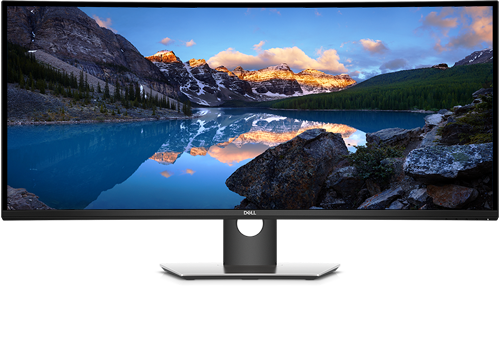
Dell U3818DW
Basically, it doesn't work. Windows 11 Pro doesn't recognize the display in Device Manager. When I plug in the display, I get a message from Dell Assistant that the DisplayPort monitor I just plugged in may not be supported by the OS. I tried loading the Dell drivers for the display, but the install program doesn't see the display and won't continue the install. I right clicked the inf file and did a manual install of the drivers. The XPS resolution is set to 3456x2160 which is the native resolution for the XPS and the U3818.
Any help you can offer is most appreciated.
DELL-Chris M
Community Manager
•
56.9K Posts
0
July 17th, 2023 07:00
To receive assistance from Dell chat support, they need to verify the warranty status and ownership. Then you must troubleshoot with them. Click the "Get help now" icon on the right to start a live chat session. Provide to them the private XPS 9320 Service Tag and U3818DW Service Tag and all of your troubleshooting.
Let's back up...
* Turn the XPS 9320 off
* Turn the U3818DW off
- Disconnect EVERY cable and device from the U3818DW
- Press the U3818DW power button for 8 seconds
* Connect the provided AC power adapter to the XPS 9320 right side TB4/USB-C port
* Turn the XPS 9320 on
* Connect the power cable to the U3818DW

* Connect the U3818DW USB-C to USB-C cable to the U3818DW #5 USB-C port
* Connect the other end of that cable to the XPS 9320 left side TB4/USB-C port
* Turn the U3818DW on
* Open the U3818DW Menu OSD--> Input Source
* Add a check to USB-C