

Unsolved
1 Message
0
274
January 5th, 2023 11:00
S3219D, speakers stopped working
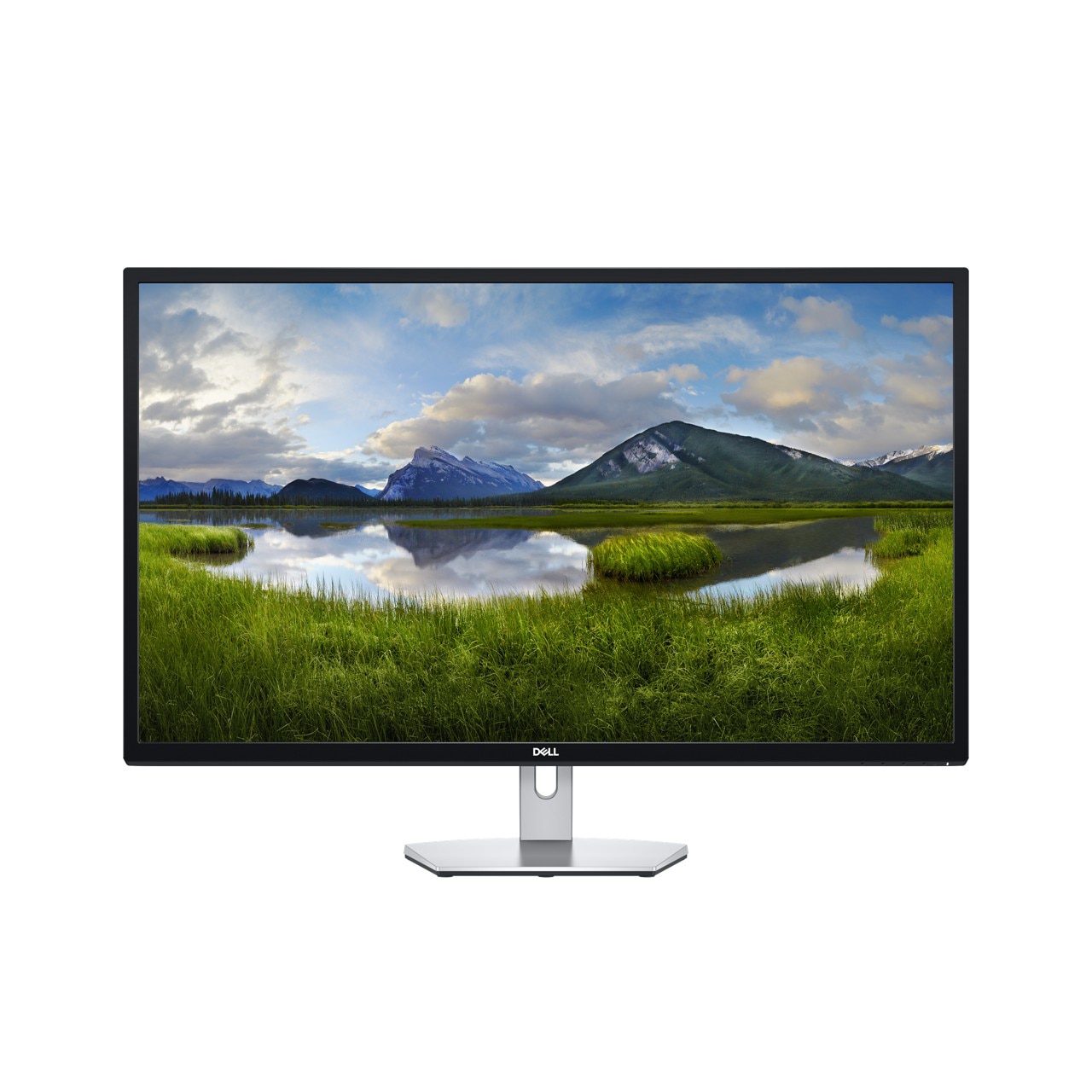
Dell S3219D
I was surprised today when I tried to play a video on my PC and there was no sound. I think the speakers on my Dell S3219D stopped working.
My output device is set to Dell S3219D High Definition Audio Device and when I test it, I hear nothing or occasionally I might hear a soft tick. I have tried Windows troubleshooting, Windows is up to date, I have tried SupportAssist. I am running Windows 10 on a Dell Optiplex 3050.
Today I installed Critical updates: DBUtil Removal Utility and Dell OptiPlex 3050 System Bios. I also installed a recommended update: Intel Management Engine Components Installer. I installed Feature update to Windows 10, version 22H2 today as well, but neither helped.
About my PC:
OS Windows 10 Pro 64-bit Version 22H2, OS build 19045.2364
Processor Intel(R) Core(TM) i5-7500 CPU @ 3.40GHz 3.41 GHz 43 degrees C, Kaby Lake 14nm Technology
RAM 16.0GB Dual-Channel DDR4 @ 1196MHz (17-17-17-39)
Motherboard Dell Inc. 08NPPY (U3E1)
Graphics DELL S3219D (2560x1440@59Hz), Intel HD Graphics 630 (Dell)
Audio High Definition Audio Device
Audio
Sound Cards
USB Audio Device
VB-Audio Virtual Cable
Realtek Audio
High Definition Audio Device
Playback Devices
DELL S3219D (High Definition Audio Device) (default)
CABLE Input (VB-Audio Virtual Cable)
Speakers / Headphones (Realtek Audio)
Recording Devices
Microphone (USB 2.0 Camera) (default)
CABLE Output (VB-Audio Virtual Cable)
I am at my wits end, can someone help?
0 events found
DELL-Chris M
Community Manager
•
56.9K Posts
•
232.1K Points
0
January 5th, 2023 13:00
For both of these out of warranty devices, try this troubleshooting =
* Turn the S3219D and Optiplex 3050 off
* Disconnect every cable (including power) from the S3219D
* Press and hold in the S3219D power button for 8 seconds
* Reconnect the power cable and the single video cable to the S3219D
* Connect the other end of the single video cable to the Optiplex 3050
* Turn both on
* Enter the S3219D Menu OSD- Audio
- Volume = 50
- Speaker = Enable
- MaxxAudio = On
* Exit the S3219D Menu OSD
* Retest the S3219D built-in speakers. If still not working, you will need to connect powered external speakers to the S3219D bottom/rear Audio line out port