
Intel® Core™ Ultra Processors
Learn More about Intel

Streamlining your purchasing experience
We are continuing to streamline the shopping journey on your Premier page and are introducing ‘Shop Profile’ to optimize your shopping experience including automated end-user data collection.
To enjoy the streamlined shopping experience of capturing your end-user, please ensure that:
To enjoy the streamlined shopping experience of capturing your end-user, please ensure that:
· your Dell Premier email address is setup within your Partner Portal;
· you have been assigned to the Partner Track(s) you are allowed to work with, by your Partner Portal Administrator.
Watch the video for more details. Duration: 00:02:11 (hh:mm:ss). Subtitles (language settings) can be chosen using the Settings or CC icon on this video player.
Partner Experience at a glance

When you enter your Premier page to start your shopping, you will be prompted to check your profile. Review and/or select your Partner Program Track, tell us your Sales motion type and Account name so that the correct context is set for your shopping experience. Your Partner Program Track and Sales motion type will be defaulted to your last used profile in Partner Portal.

Once you are done with your Shop Profile, you will need to select the end-user information.
1. Using “Search” tab within Shop Profile you can quickly find the desired end-user by customer name, address, city, country, or last 4 digits of the Dell customer number.
2. Select the right account.
3. For greater convenience and faster access, bookmark your favorite end-users by clicking the star icon.
4. Review your profile before you start shopping. End-user information will be pre-populated during checkout, making your experience easier and faster.
Note: you can access and edit your shop profile located at the top-right of the Premier top page navigation at any time. Learn More

Experience with Deal ID (Rollout currently in progress)
If you have transitioned to the experience asking you to enter your Deal ID, instead of manually searching for end-user information, you will be able to seamlessly access the deal details, including information about the end-user tied to your deal. Review your selection. You are now ready to start shopping. Note: you first need to select your Partner Track and Sales motion type in your shop profile. You can update the Deal ID or Shop profile at any time.
As part of the new experience (with Deal ID) you will be able to filter your Standard Configs by Deal ID. On your standard configuration page, you can easily differentiate the configurations linked to this Deal ID, located at the top of the page, followed by those without a Deal ID.
As part of the new experience (with Deal ID) you will be able to filter your Standard Configs by Deal ID. On your standard configuration page, you can easily differentiate the configurations linked to this Deal ID, located at the top of the page, followed by those without a Deal ID.
Distributor Experience at a glance

When you enter your Premier page to start your shopping, you will be prompted to check your profile. Review and/or select your Partner Program Track, tell us your Sales motion type and Account name so that the correct context is set for your shopping experience.
Your Partner Program Track and Sales motion type will be defaulted to your last used profile in Partner Portal.
Your Partner Program Track and Sales motion type will be defaulted to your last used profile in Partner Portal.

Once you are done with your Shop Profile, you will need to select the reseller and end-user information.
1. Using “Search” tab within Shop Profile you can quickly find first the desired reseller by name, program track or country.
2. Then search for end-user by customer name, address, city, country, or last 4 digits of the Dell customer number.
3. Select the right account and end-user, and, for greater convenience and faster access, bookmark your favorite resellers and end-users by clicking the star icon.
4. Review your profile before you start shopping. Reseller and end-user information will be pre-populated during checkout, making your experience easier and faster. Learn More.
Note: you can access and edit your shop profile located at the top-right of the Premier top page navigation at any time.
1. Using “Search” tab within Shop Profile you can quickly find first the desired reseller by name, program track or country.
2. Then search for end-user by customer name, address, city, country, or last 4 digits of the Dell customer number.
3. Select the right account and end-user, and, for greater convenience and faster access, bookmark your favorite resellers and end-users by clicking the star icon.
4. Review your profile before you start shopping. Reseller and end-user information will be pre-populated during checkout, making your experience easier and faster. Learn More.
Note: you can access and edit your shop profile located at the top-right of the Premier top page navigation at any time.

Experience with Deal ID (Rollout currently in progress)
If you have transitioned to the experience asking you to enter your Deal ID, instead of manually searching for end-user information, you will be able to seamlessly access the deal details, including information about the end-user/reseller tied to your deal. Review your selection. You are now ready to start shopping. Note: you first need to select your Partner Track and Sales motion type in your shop profile. You can update the Deal ID or Shop profile at any time.
As part of the new experience (with Deal ID) you will be able to filter your Standard Configs by Deal ID. On your standard configuration page, you can easily differentiate the configurations linked to this Deal ID, located at the top of the page, followed by those without a Deal ID.
As part of the new experience (with Deal ID) you will be able to filter your Standard Configs by Deal ID. On your standard configuration page, you can easily differentiate the configurations linked to this Deal ID, located at the top of the page, followed by those without a Deal ID.
How to step-by-step guidance
To enjoy the streamlined shopping experience of capturing your end-user, please ensure that:
• your Dell Premier email address is setup within your Partner Portal;
• you have been assigned to the Partner Track(s) you are allowed to work with, by your Partner Portal Administrator.
If you don’t see the new Shop Profile (which asks for your Partner program track, sales motion type, and account name) or if you get an error message, apply for access to your company’s Partner Portal. Your request will be sent to your organization’s Partner Portal Administrator for approval. Learn more

• your Dell Premier email address is setup within your Partner Portal;
• you have been assigned to the Partner Track(s) you are allowed to work with, by your Partner Portal Administrator.
If you don’t see the new Shop Profile (which asks for your Partner program track, sales motion type, and account name) or if you get an error message, apply for access to your company’s Partner Portal. Your request will be sent to your organization’s Partner Portal Administrator for approval. Learn more
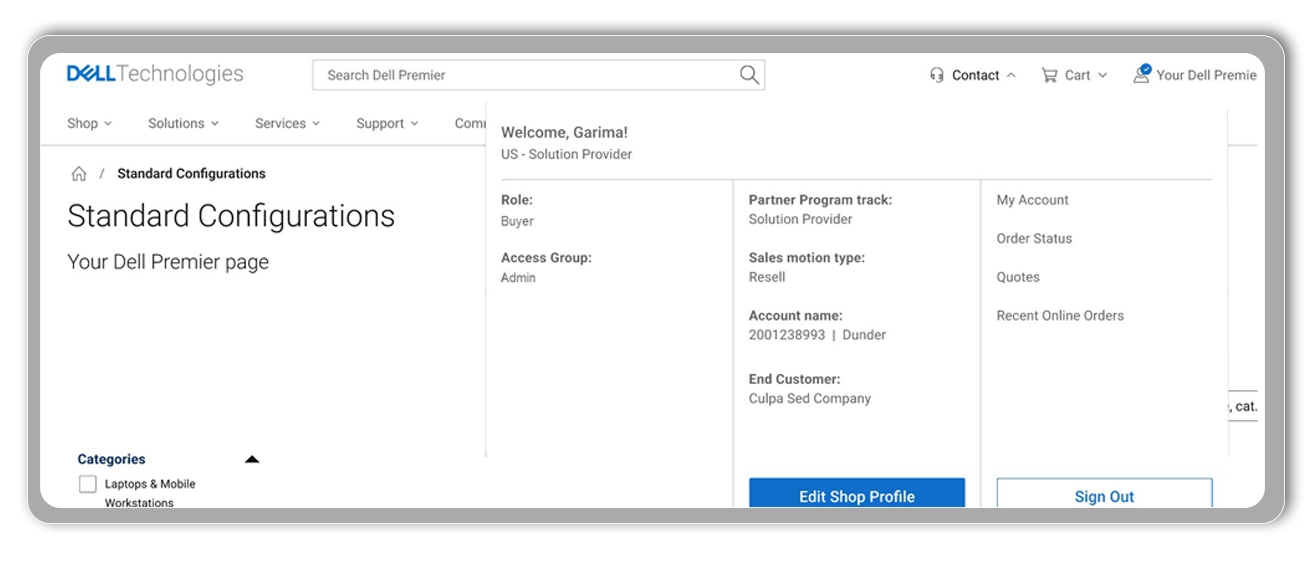
On the top-right of the Premier page, select the drop-down menu on the right of the account name. This opens the account information including your shop profile. Selecting ‘edit’ allows you to make any required changes at any time.
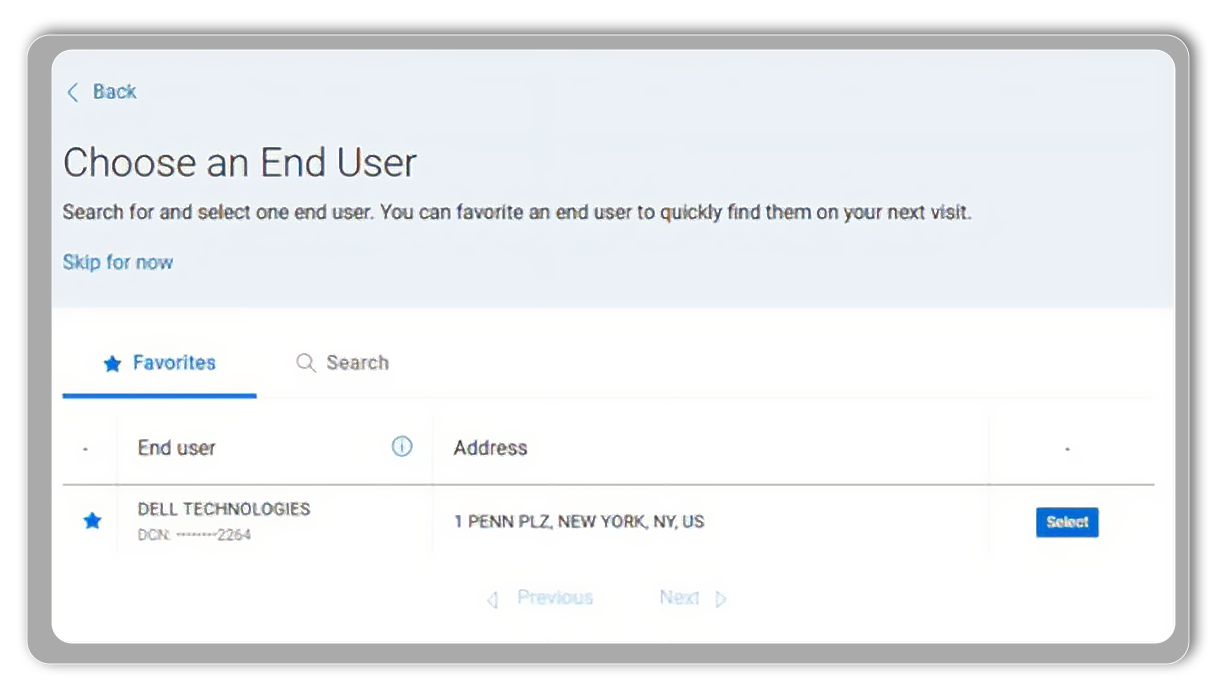
After selecting your Partner program track, sales motion type, and account name, you will be prompted to choose an end-user (resellers/end-users for distributors). If the end-user is in your list of favorites, simply select it. Otherwise, click on the "Search" tab to find the end-user company using criteria such as full company name, city, country, address, state, or the last four digits of their customer number.
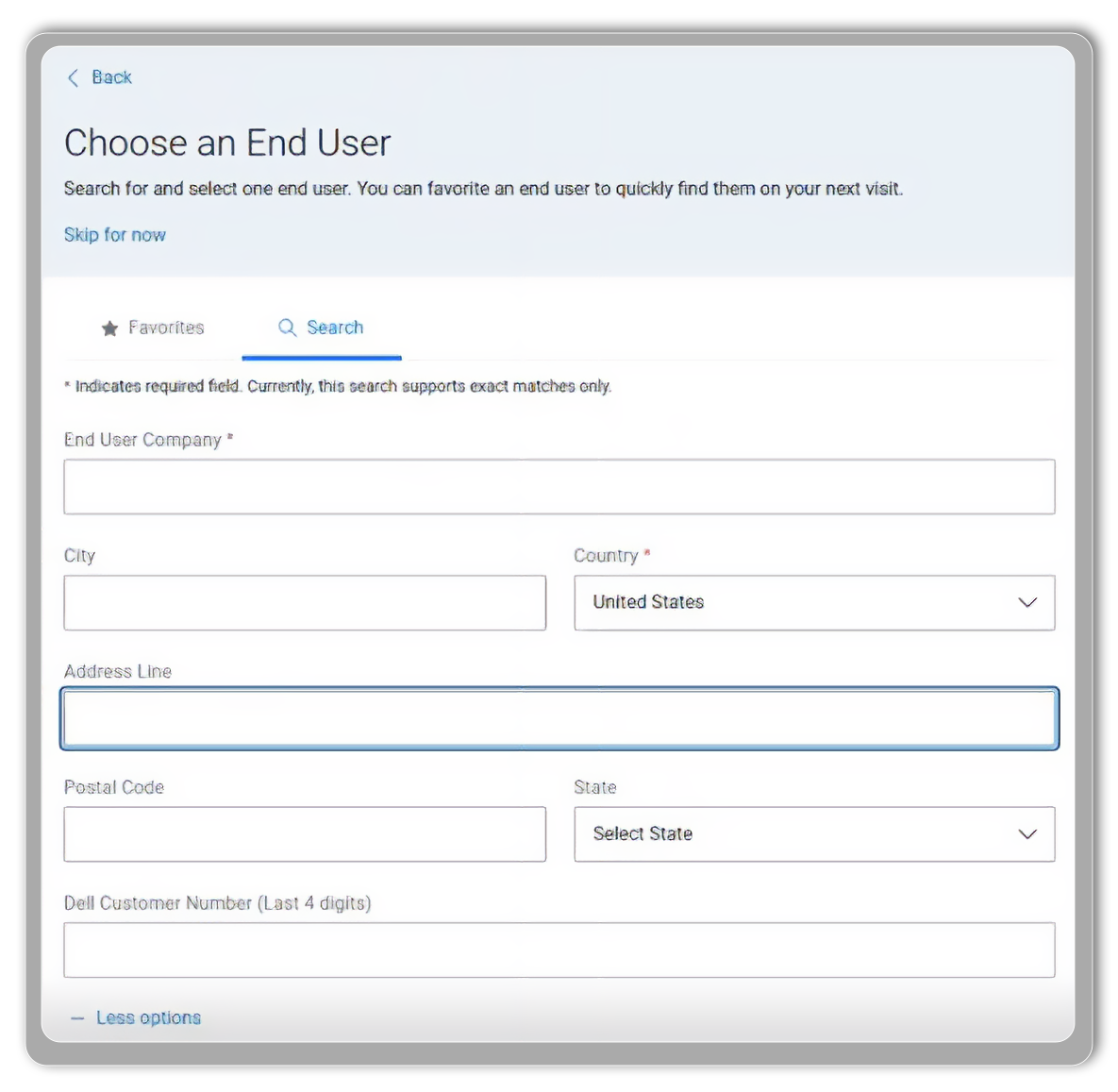
If you know the last 4 digits of the Dell Customer Number, ensure it matches the company name and the city. If you don't have the customer number, search by the company name, address, city and postal code. You can also look up the end user company name and 4 digits of the end-user’s Dell Customer Number on previous quotes sent from Dell.
Note: we recommend you enter the headquarters' company information rather than a shipping address and to refrain from using acronyms to ensure accurate search results.
Note: we recommend you enter the headquarters' company information rather than a shipping address and to refrain from using acronyms to ensure accurate search results.
If you are unable to find the end-user you are looking for, we recommend starting a new search and modifying your search criteria.
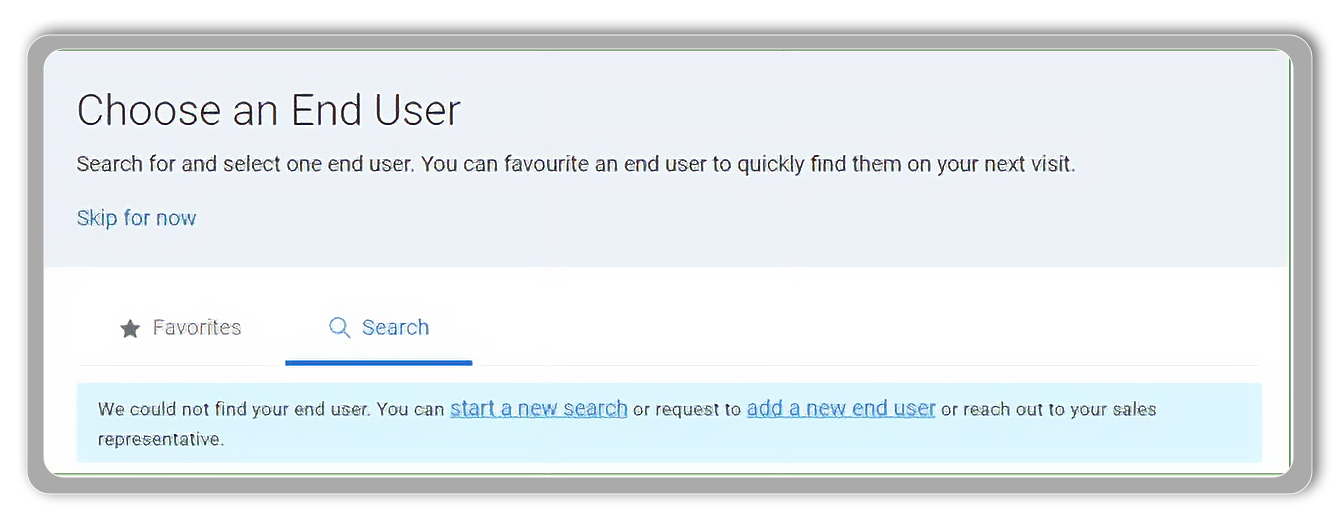
If you still cannot find the end-user, click the "Add a new end-user" link and use the request form to get a new end-user added.
Within the “Description” field, please include: a) end-user’s company name; b) contact name; c) email address; d) address; e) city postcode; f) phone number; g) Tax number.
Once submitted, the Dell Technologies team will promptly create the desired end-user profile. You will receive an email notification when the new account is ready. You can then easily find it in Premier by entering the company name and the last four digits provided in the email.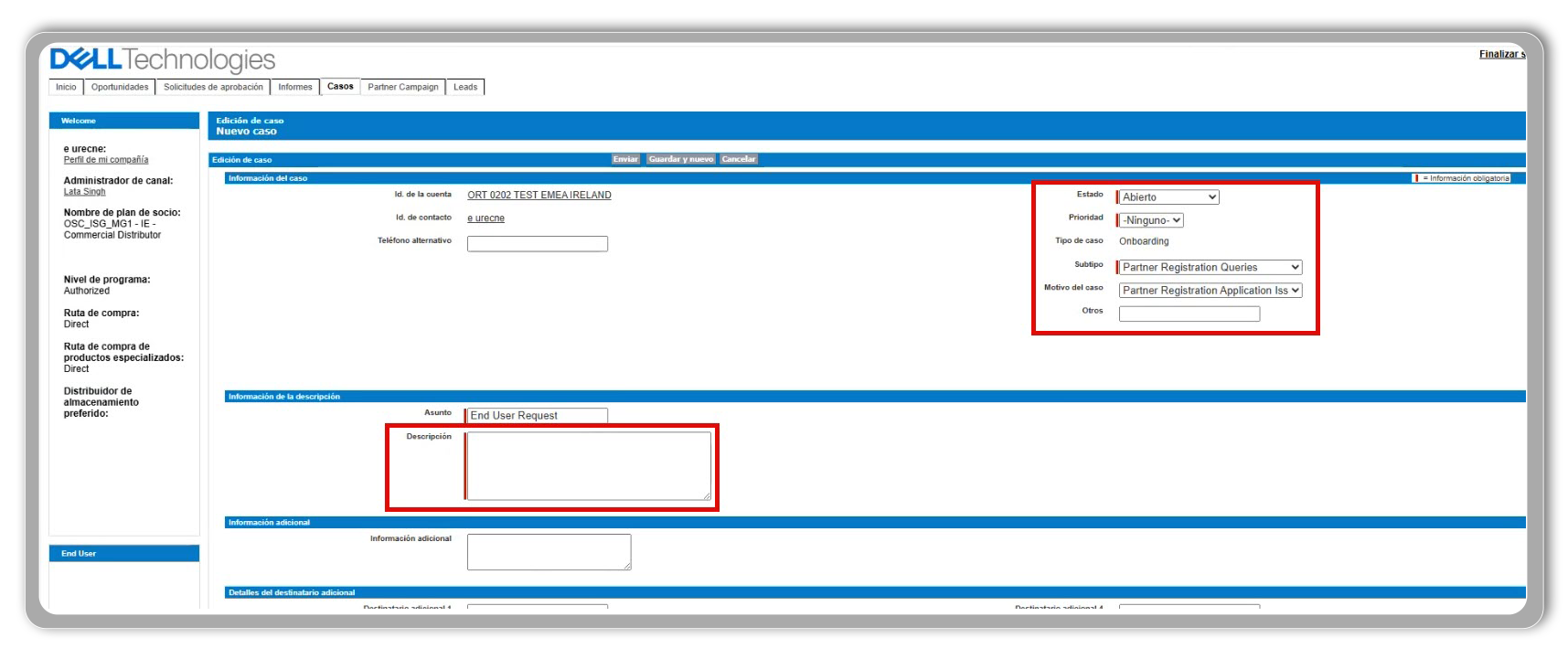
Simply click the star icon next to the end-user's name to add them to your favorites. These favorites will automatically appear in your list for easy access later. Note that this list of favorites is only visible to your profile.
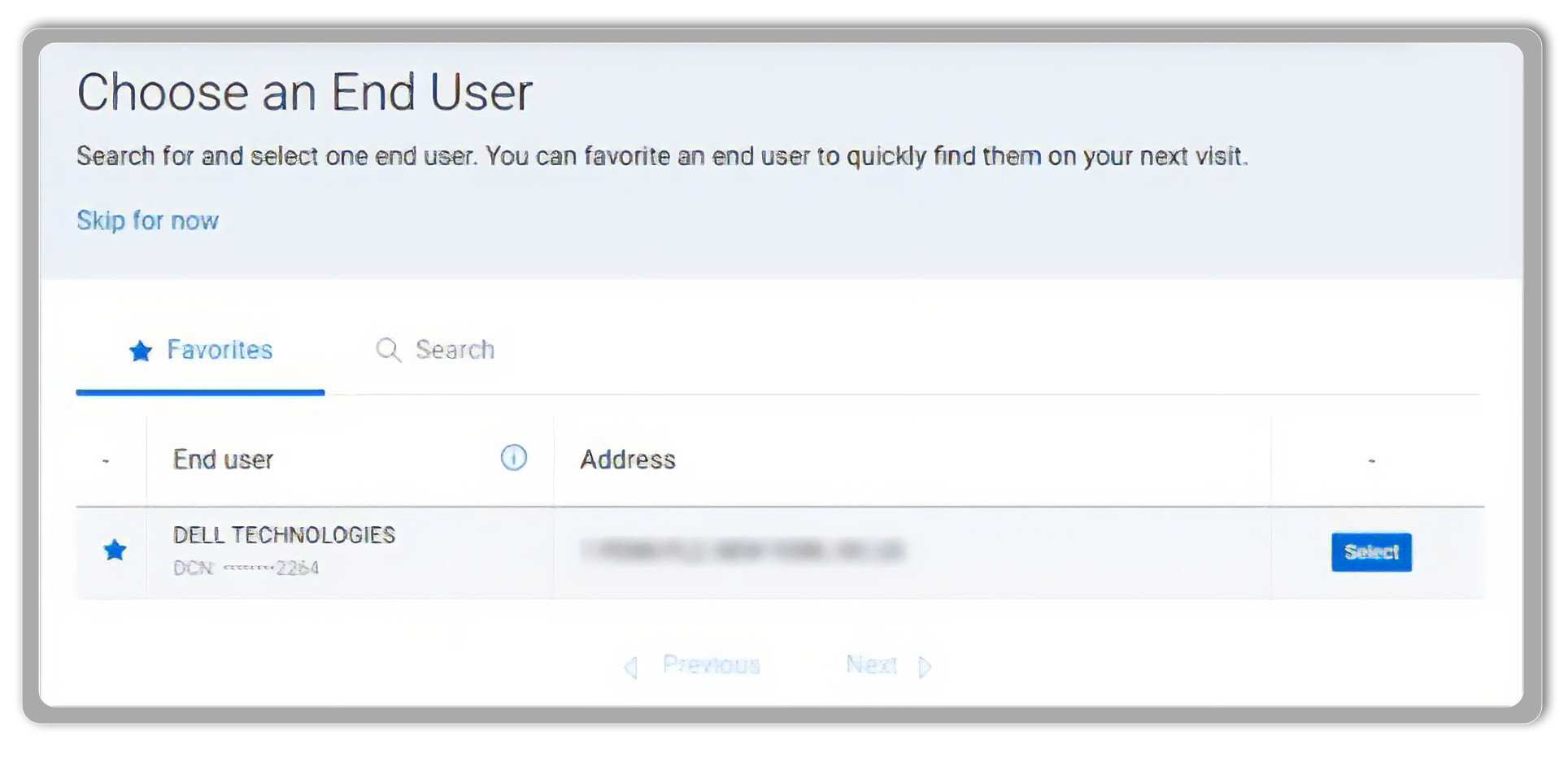
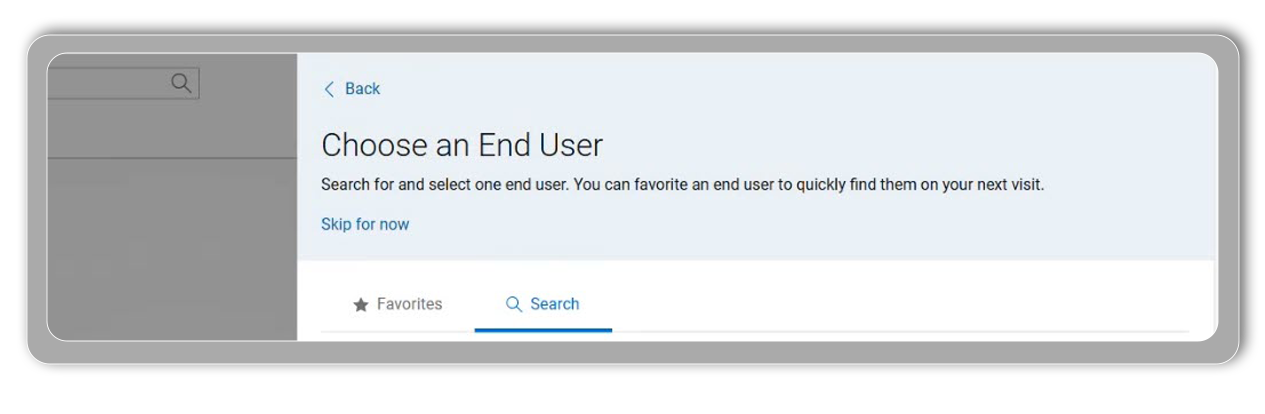
If you want to create an eQuote, and you can't find the company information or don't have it, click on "Skip for now." Tell us why by selecting one of the proposed options and continue through the steps to create the eQuote. Note that you will not be able to complete the purchase until you add the end-user information.
Click on the link provided at the top of the page to add your end-user (and reseller for distributors) information. This action will open your Shop profile, select “Edit Shop Profile”, choose your end-user (and reseller for distributors) and click “Start Shopping”. Note that adding the end-user information will automatically generate a new eQuote number.
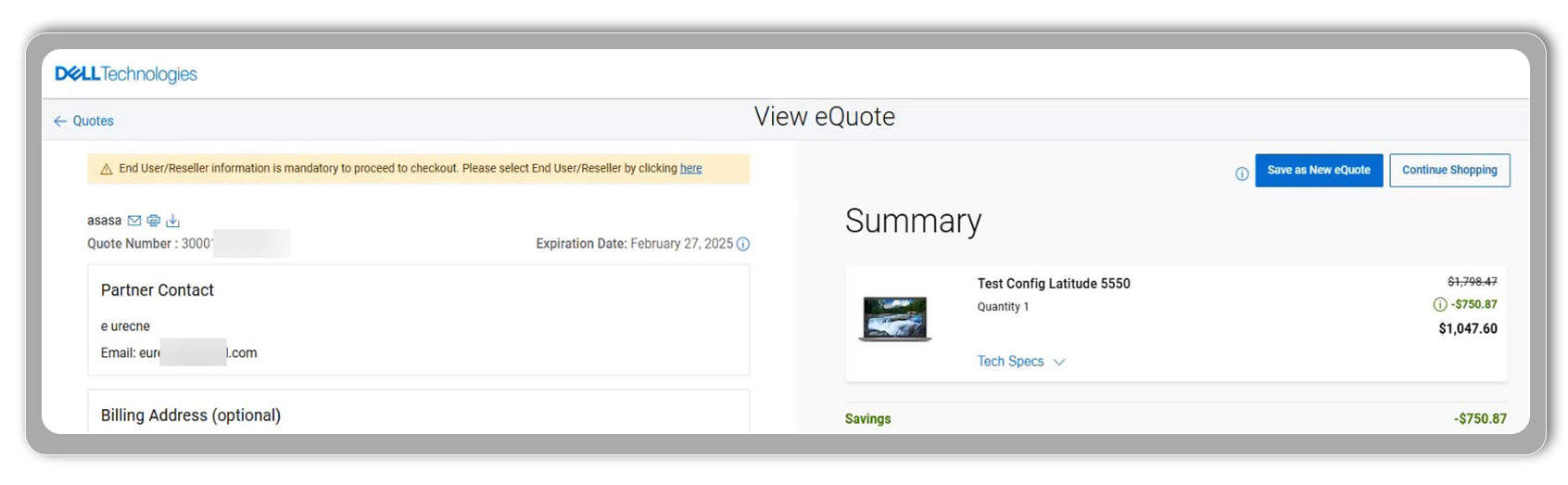
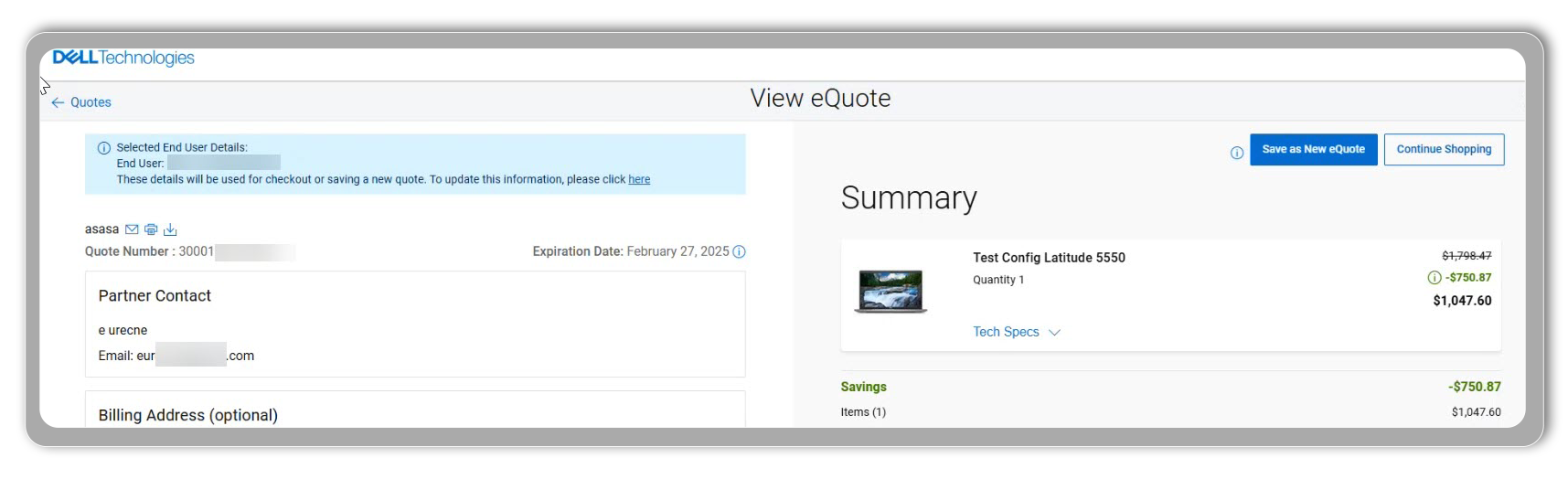
For B2B account, ensure that the end-user information is visible on the eQuote before importing them into your system for purchase.
Select the drop-down arrow beside the page name (at the top-right of your page), to access your shop profile and check who your end-user is before proceeding. If you build one eQuote and then need to create another for a different end-user, make sure to update the end-user information. Open your profile from the top page navigation’ to verify and ‘Edit’ the end-user details. This step is crucial to ensure the correct end-user information is associated with each quote or each standard configuration.
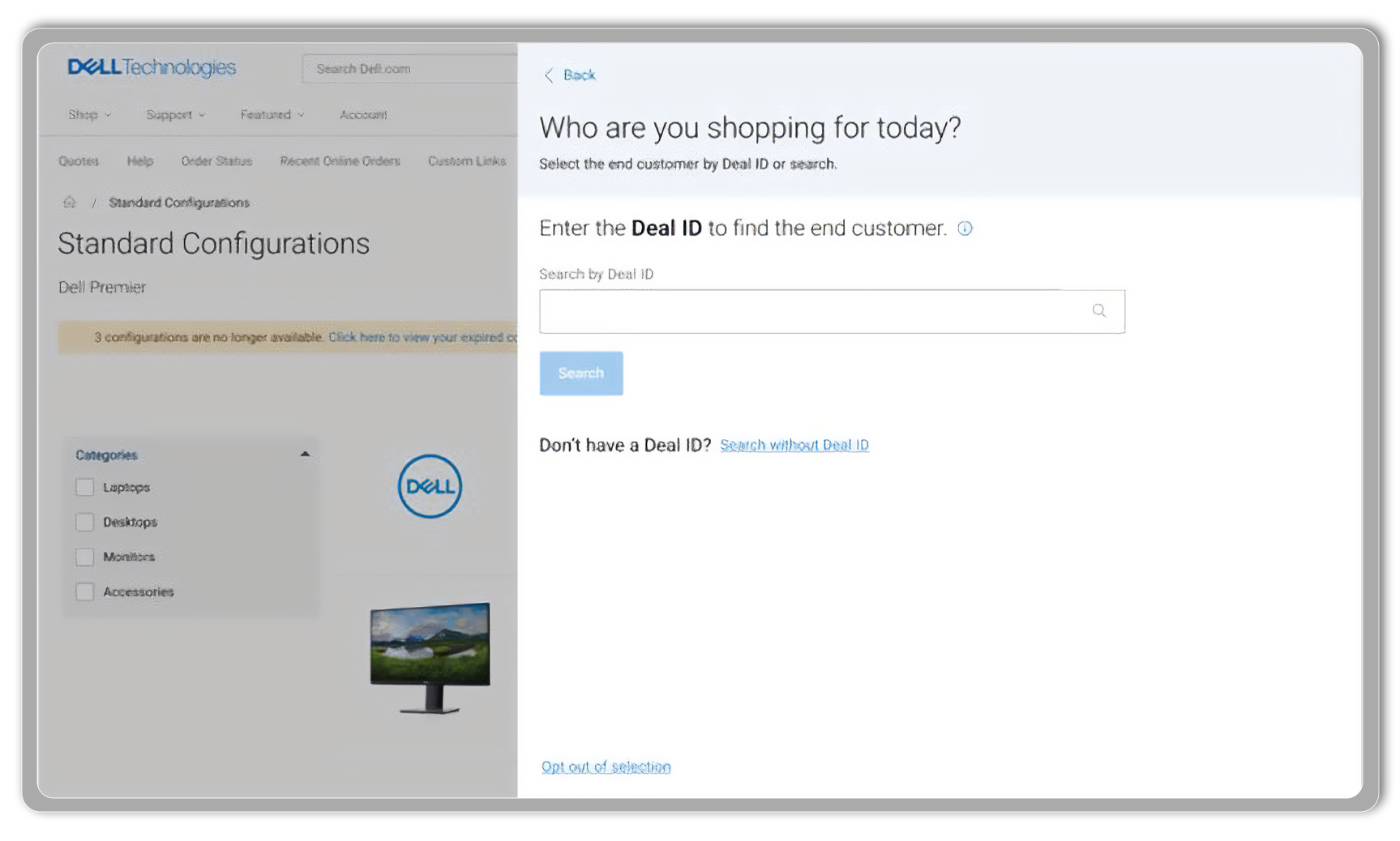
Enter the Deal ID and click “Search” to access the deal details, including information about the end-user tied to your deal. This new experience will be progressively deployed throughout 2025.
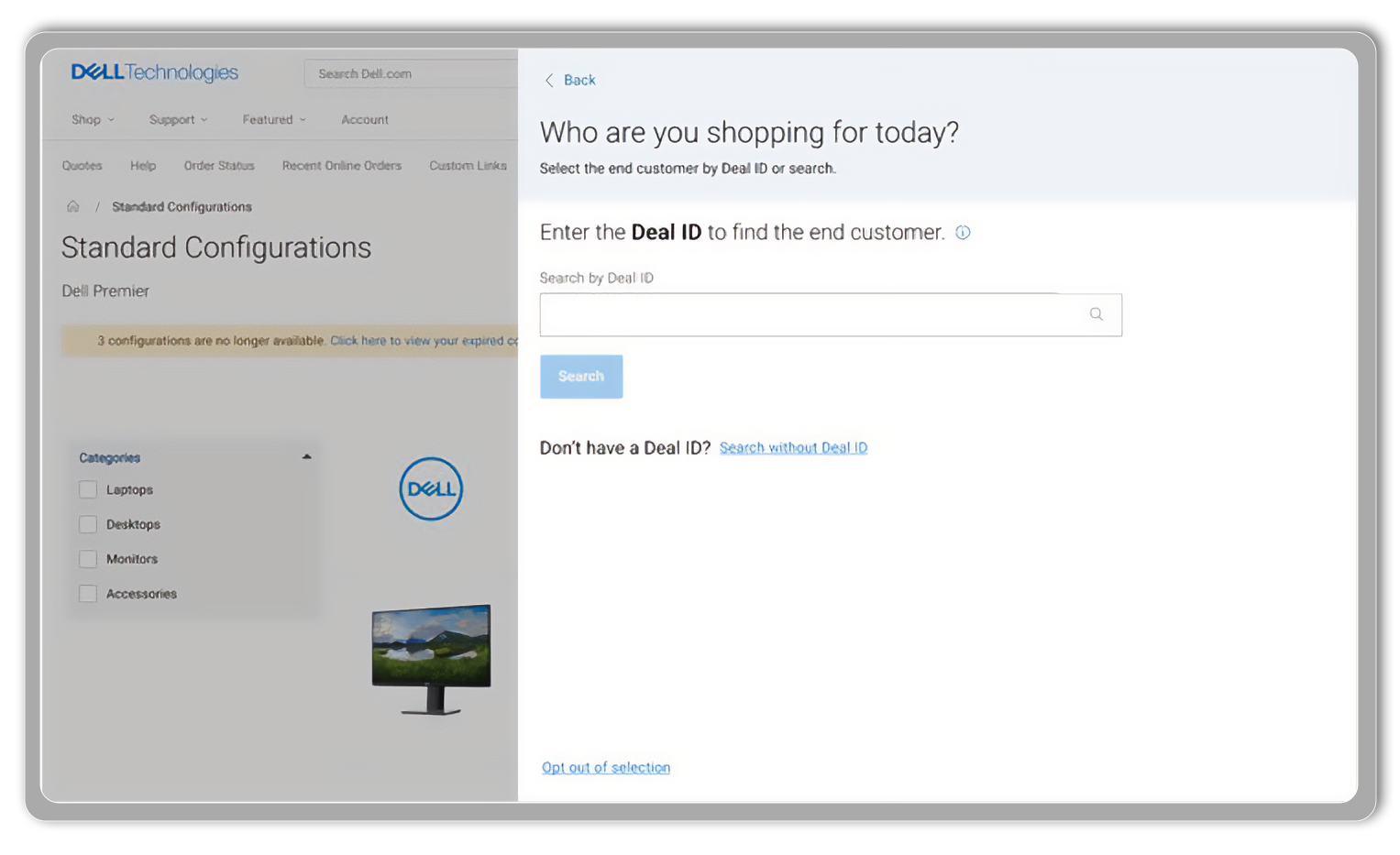
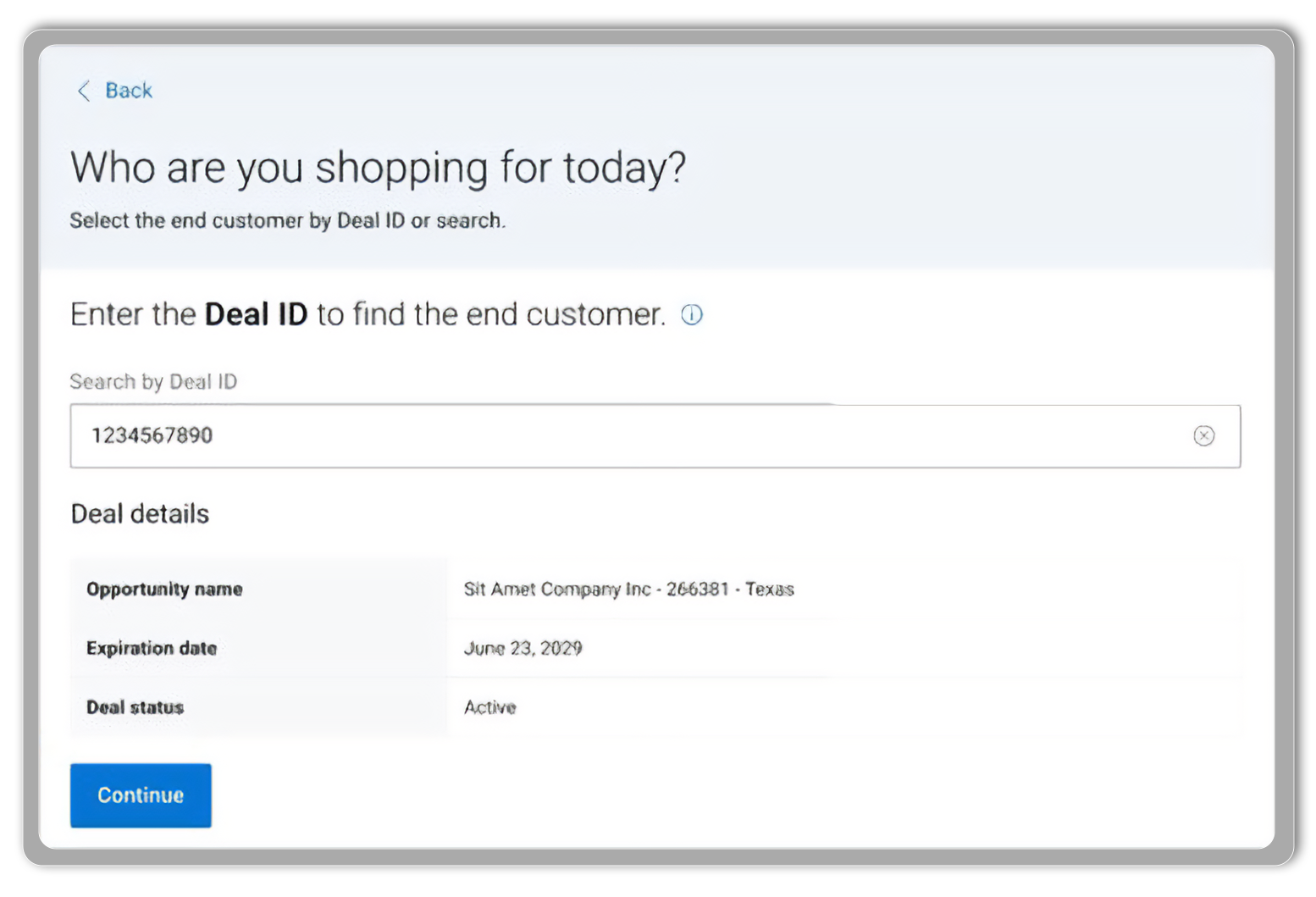
After selecting your Partner program track, sales motion type, and account name, you will be asked to enter the Deal ID. If you don’t have any Deal ID, you will select the “Search without Deal ID” link (this new experience will be progressively deployed throughout 2025).
If the end-user is in your list of favorites, simply select it. Otherwise, click on the "Search" tab to find the end-user company using criteria such as city, country, address, state, or the last four digits of their customer number.
The easiest way to make changes is to access your profile from the Standard Configurations page. Click on ‘Change’ at the top of the page to open your profile and make any necessary edits, including updating the Deal ID.
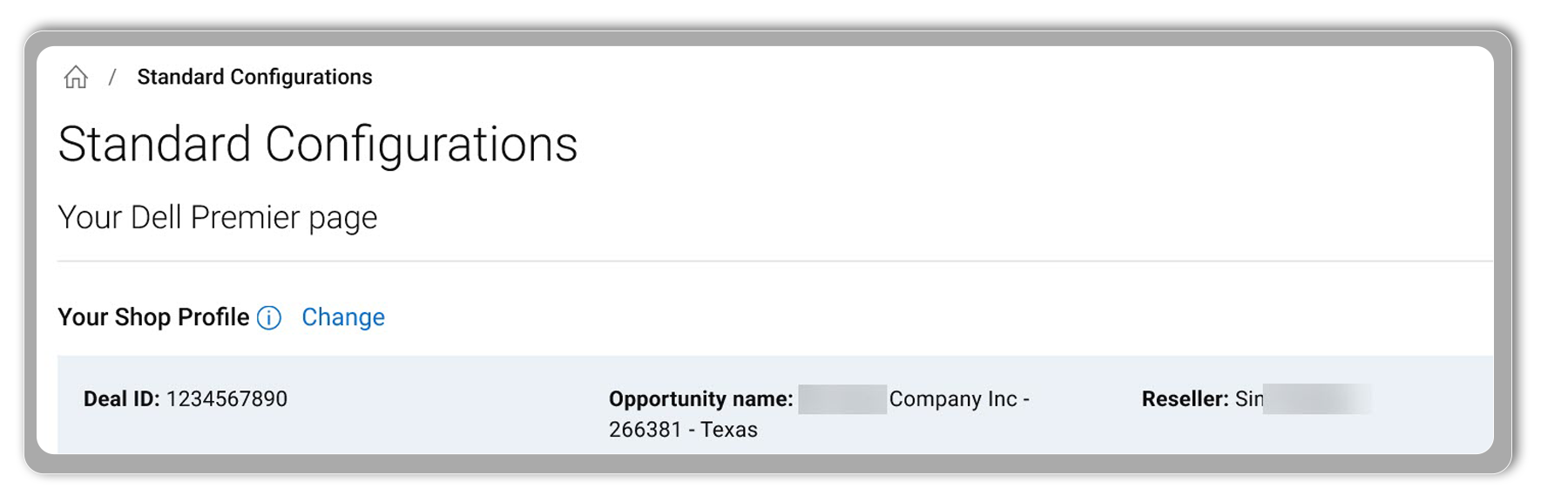

Alternatively, you can access your shop profile from the top-right corner of the Premier top page navigation’ and make edits at any time.
Alternatively, you can access your shop profile from the top-right corner of the Premier top page navigation’ and make edits at any time.
Intel® Core™ Ultra Processors
Learn More about Intel