How to Enable Boot from CD or DVD Option with UEFI Boot Mode Enabled
Summary: Learn how to enable boot from CD or DVD option in the Unified Extensible Firmware Interface (UEFI) BIOS with UEFI boot mode enabled.
This article applies to
This article does not apply to
This article is not tied to any specific product.
Not all product versions are identified in this article.
Instructions
NOTE: Unified Extensible Firmware Interface (UEFI) replaces the legacy BIOS firmware interface. For more information, reference the Unified Extensible Firmware Interface Wiki .
.
.
This information applies to computers with the below specifications and settings:
- Windows 11 or Windows 10 computer with boot mode set to UEFI
- Computers with an Optical drive such as CD, DVD or Blu-ray
Adding CD/DVD boot option manually in BIOS
Follow the instructions below to add the optical drive to the boot list when your UEFI BIOS computer is unable to boot to DVD or CD.
NOTES:
- Reference the Dell knowledge-base article Access UEFI (BIOS) System Setup from Windows on your Dell Computer for another way to access the BIOS from within Windows.
- The BIOS on your computer may not appear same as images shown in this article. Every Dell computer has a BIOS specific to its needs, and they are all updated regularly.
Expand the sections below according to the BIOS type of your computer.
UEFI BIOS
Follow the steps provided below:
NOTE: In the File System List field, select the option that has "CD" at the end.
Example: "PciRoot (0x0)/Pci (0x1F, 0x2)/Sata(0x3, 0x0, 0x0)/CD"
Example: "PciRoot (0x0)/Pci (0x1F, 0x2)/Sata(0x3, 0x0, 0x0)/CD"
- Tap the F2 key at the Dell logo screen to enter System Setup or BIOS.
- On the left pane, click Boot Configuration.
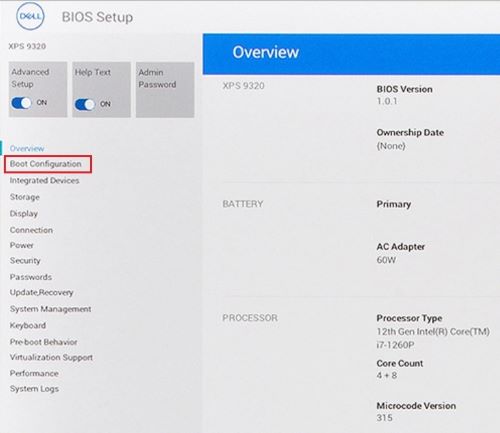
Figure 1: (English Only) Boot Configuration on UEFI BIOS left pane
- Scroll down to view the Secure Boot setting.
- Ensure that Secure boot is set to OFF.
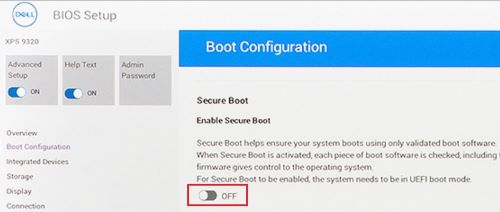
Figure 2: (English Only) Secure Boot Off
- Scroll up to the Boot Sequence section, and click Add Boot Option.
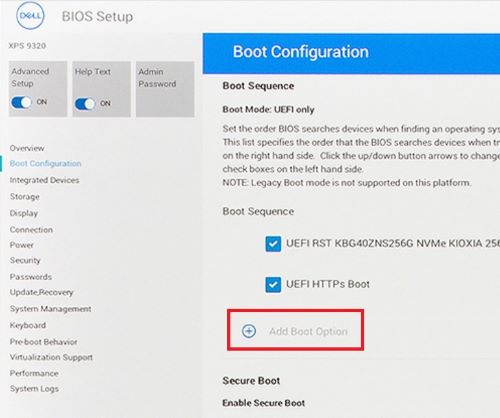
Figure 3: (English Only) Add Boot Option
- A new window appears with blank boot options.
- Click Browse for file.
- Select device > folder > file from the list.
- PciRoot..ESP (for example, EFI\Boot\bootx64.efi)
- Click OK.
- Type CD/DVD/CD-RW Drive in the Boot Option Name field.
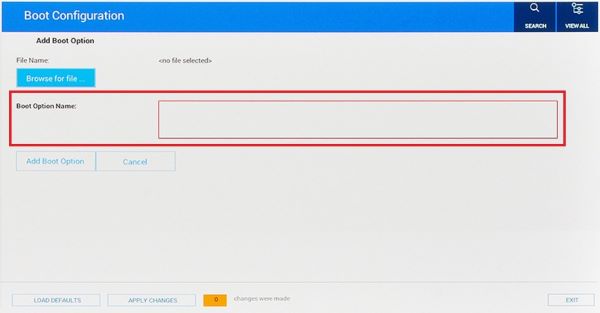
Figure 4: (English Only) Add boot option name
- Add wanted boot option.
NOTE: If the option for CD/DVD/CD-RW Drive is not present, then the computer hardware is not detecting the drive. Try physically reseating the drive where possible or swap with the drive of another computer to rule out the drive as the cause of any failure.
- Click Exit.
- The computer restarts.
NOTE: Alternatively, if you see an on-screen message to Press any key to boot from CD/DVD, press any key to proceed.
- Tap the F12 key on startup for boot menu, the DVD option is there under UEFI.
Dell Phoenix BIOS
To add the DVD Boot option manually in the Dell Phoenix BIOS setup.
Follow the steps provided below:
- Boot mode should be selected as UEFI (Not Legacy).
- Secure Boot set to Off
NOTE: If the computer is not set to boot to UEFI, change it from the BIOS (F2) during startup or from the One-Time Boot (F12) menu.
- Go to the Boot tab in the BIOS and select Add Boot option.
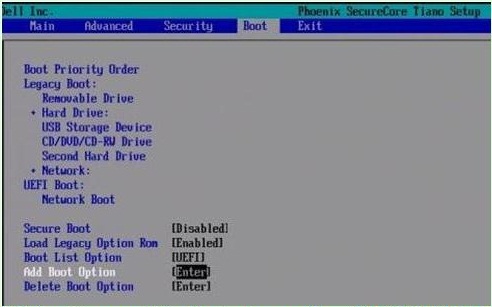
Figure 5: (English Only) Add Boot Option
- A new window appears with blank boot option name.
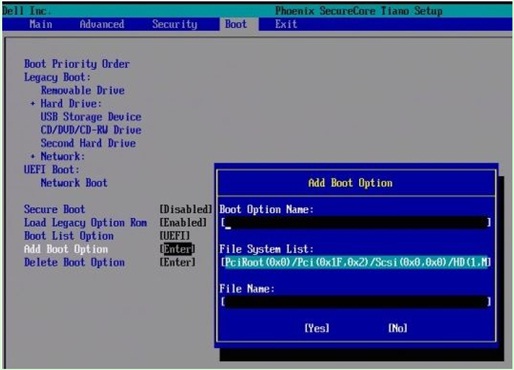
Figure 6: (English Only) Add boot option fields
- Name it CD/DVD/CD-RW Drive
NOTE: In the File System List field, select the option with CD at the end.
Example: PciRoot (0x0)/Pci (0x1F, 0x2)/Sata(0x3, 0x0, 0x0)/CD
Example: PciRoot (0x0)/Pci (0x1F, 0x2)/Sata(0x3, 0x0, 0x0)/CD
- Leave the File Name entry blank.
- Now using Tab key, select YES, and press Enter.
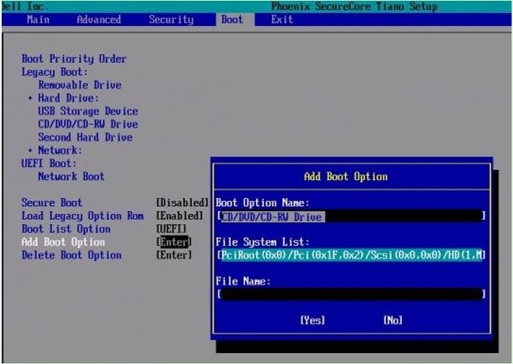
Figure 7: (English Only) Add boot option fields
NOTE: If the option for CD/DVD/CD-RW Drive is not present, then the computer hardware is not detecting the drive. Try physically reseating the drive where possible or swap with another computer drive to rule out the drive as the cause of any failure.
- Press the F10 key to save settings and restart.
- The computer restarts.
- Press the F12 key on startup for boot menu, the DVD option is there under UEFI.
NOTE:
- Alternatively, if you see an on-screen message to Press any key to boot from CD/DVD, press any key to proceed.
- If you are still unable to boot from the Windows reinstallation CD or DVD or if the CD or DVD is corrupt. Go to the Dell OS Recovery Tool page to download and create a Windows recovery or reinstallation disc for your computer.
See these Dell Knowledge Base articles for related information:
Affected Products
Alienware, Dell Pro Max Micro, Dell Pro Max Slim, Dell Pro Max Tower, Dell Pro Micro, Dell Pro Slim, Dell Pro Tower, Dell Slim, Dell Tower, Inspiron, OptiPlex, Vostro, XPS, G Series, G Series, Alienware, Dell Plus, Dell Pro, Dell Pro Max
, Dell Pro Plus, Dell Pro Premium, Inspiron, Latitude, Dell Pro Rugged, Vostro, XPS, Fixed Workstations, Mobile Workstations, Dell Pro Max Micro XE FCM2250, Dell Pro Max Slim XE FCS1250, Dell Pro Max Tower T2 XE FCT2250, Dell Pro Max 16 XE MC16250, Dell Pro Micro Plus XE QBM1250, Dell Pro Slim Plus XE5 QBS1250, Dell Pro Tower Plus XE5 QBT1250
...
Article Properties
Article Number: 000124391
Article Type: How To
Last Modified: 19 Apr 2026
Version: 24
Find answers to your questions from other Dell users
Support Services
Check if your device is covered by Support Services.