Locate Your Tablet's Service Tag
Dell uses unique product identifiers like Service Tag, Express Service Code, or Serial Number to access important details about your Tablet, such as technical specs, documentation, and warranty information. By identifying your tablet with these codes on Dell Support website, you can get personalized support options.
- Service Tag (ST or SVC Tag) is a seven-character alphanumeric code.
- Express Service Code is a 10 to 11 digit, numeric version of the Service Tag.
If you have Dell peripherals like keyboards, mice, external drives, or headsets, you might notice they don't have a Service Tag or Express Service Code. Just use the model to get support, access documentation, and download drivers. Learn how to find the Service Tag, Express Service Code, or Serial Number for a Dell monitor or docking station.
Locate Your Tablet's Service Tag or Express Service Code
Let's explore the different ways to find your tablet's Service Tag or Express Service Code.
Using the Sticker on the Tablet
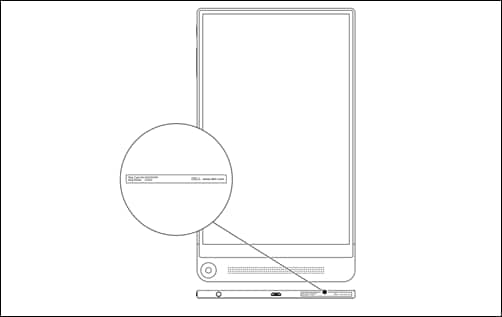
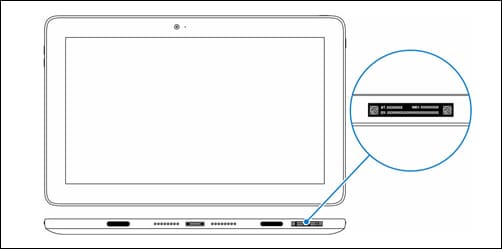
On Dell tablets, you'll find the Service Tag or Express Service Code sticker on the bottom panel. On some devices, it's located on the bottom-right of the back cover or just on the back cover.
Example 1 - Service Tag label located on the bottom panel of Dell Venue 8 tablet
Example 2 - Service Tag label located on the bottom panel of Latitude 5179 tablet
Example 3 - Service Tag label located on the bottom-right of the back cover on XPS 10 tablet

Using the SupportAssist App
For compatible Windows-based tablets, you can use the SupportAssist app to automatically scan your Dell tablet and identify the Service Tag.
- Tap Start.
- Search for and open the SupportAssist app.
- The Service Tag is located at the top-right of the SupportAssist app.

Using the BIOS or UEFI Settings
You can also find the Service Tag and/or Express Service Code in the BIOS of your Dell tablet. The System Setup or BIOS/UEFI is accessible with or without a keyboard.
- Turn on or restart the tablet.
- At the Dell logo screen, press the F2 key several times to access the BIOS or UEFI interface.
- The Service Tag is available under the System Information or Overview section.
NOTE: The BIOS or UEFI interface may vary on your Dell tablet. Check the user manual for navigation tips or accessing the BIOS without a keyboard.
Using Settings on Android Tablets
You can identify the Service Tag using the Settings app on Android devices.
- Open the application drawer and go to Settings
- In the Settings menu, open About Tablet.
Why is the Service Tag or Express Service Code Important?
Your Dell tablet's Service Tag or Express Service Code helps you:
- Access Documentation: Quickly find user manuals and setup guides.
- Download Drivers: Get the latest driver updates for optimal performance.
- Contact Support: Easily get in touch with Dell Technical Support for assistance with troubleshooting, warranty services, and more. When contacting Dell Technical Support via phone, you can use the Express Service Code on the IVR for faster service.