Touchscreen Not Working on Laptop: Common Touch Issues
Touchscreens have become an integral part of our daily computing experience. If you're using a Dell laptop with a touchscreen and facing unresponsive or erratic touchscreen behavior, this article provides step-by-step instructions to diagnose and fix these issues effectively.
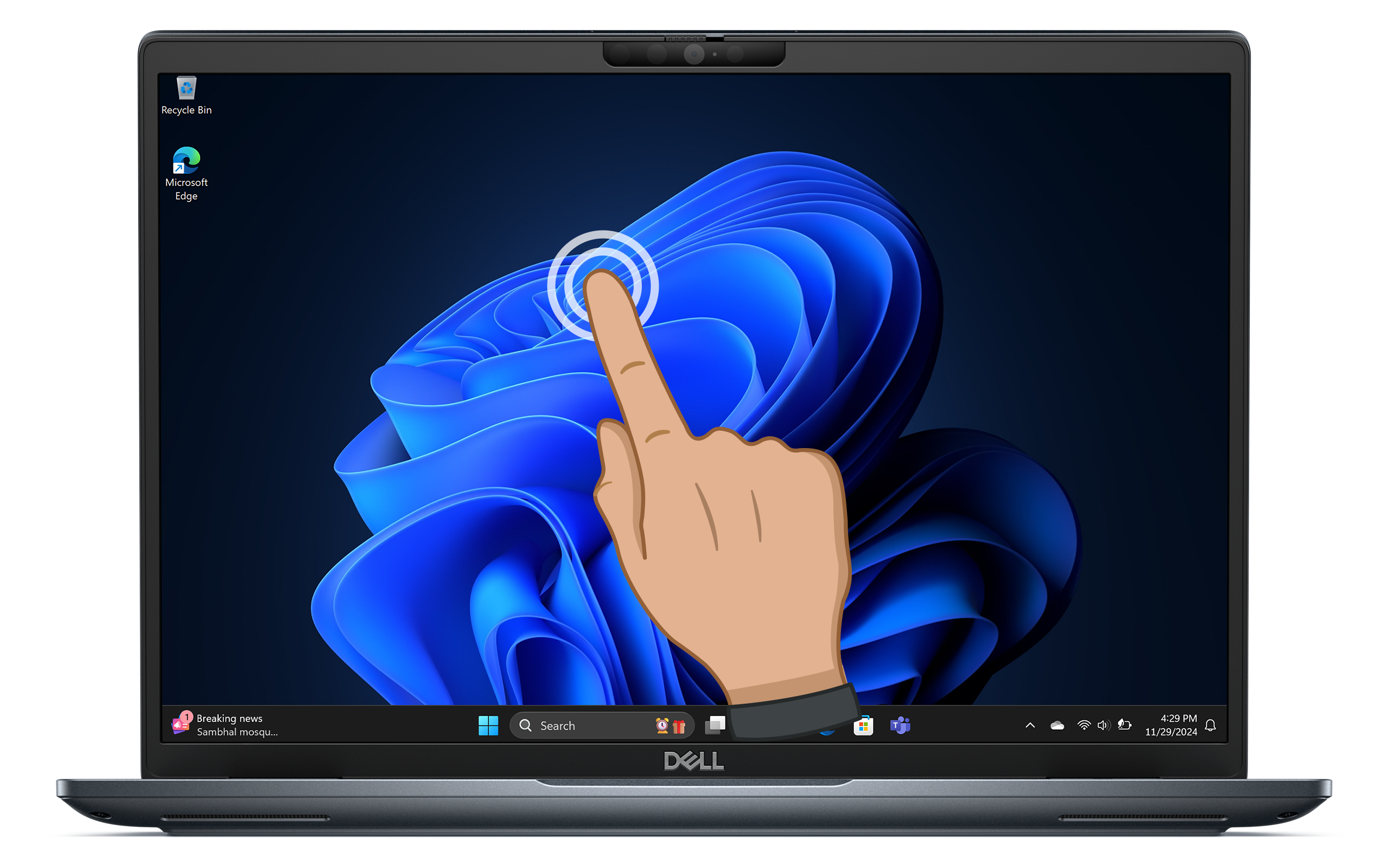
Common Symptoms of Touchscreen Problems
Let's understand the different signs that indicate your touchscreen may be malfunctioning. Here are the most common symptoms:
- Unresponsive Touchscreen: The screen does not respond to taps or gestures.
- Erratic Behavior: The touchscreen registers random touches or movements without any input.
- Ghost Touches: The screen appears to be touched in areas where there is no physical contact.
- Inaccurate Touch Input: Taps do not correspond to the intended locations on the screen.
- Delayed Response: There is a lag between touch input and the screen's reaction.
- Calibration Issues: The touchscreen does not align correctly with your finger movements.
If you notice any of these symptoms, follow the steps outlined below to troubleshoot the issue.
How to Resolve Touchscreen Problems
Restart Your Laptop
Sometimes, a simple restart can fix minor glitches. Restart your laptop to reset the touchscreen and Windows processes that may be causing the problem. After the restart, check if the touchscreen works as expected.
Cleaning the Touchscreen
A dirty screen can significantly affect touch sensitivity. Start by cleaning your touchscreen.
- Use a soft microfiber cloth, slightly dampened with water or a screen-safe cleaner.
- Wipe the screen gently in one direction.
- Avoid using abrasive materials or harsh chemicals that could damage the display.
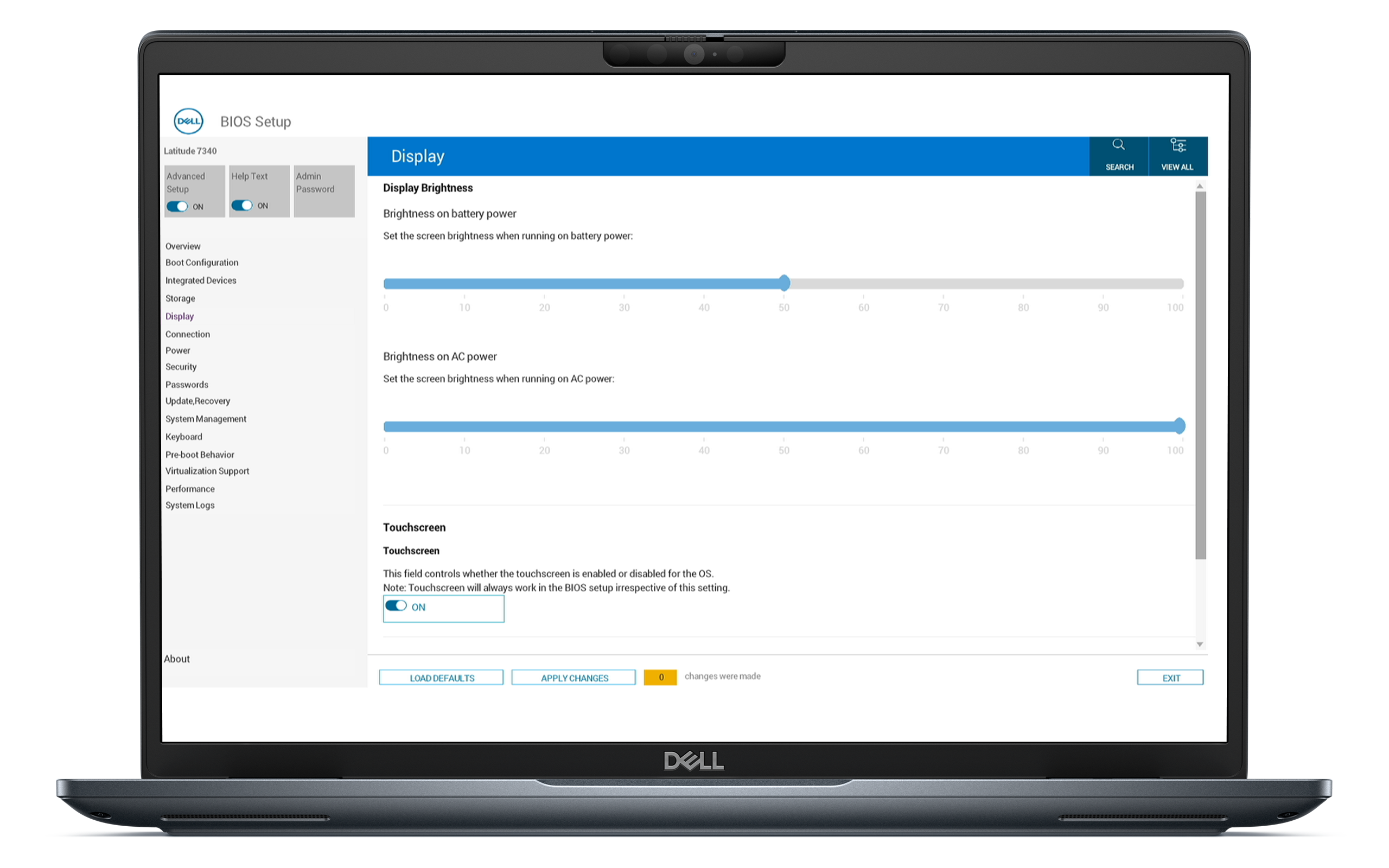
Enabling the Touchscreen in BIOS
It's important to ensure that the touchscreen is enabled in the BIOS settings. If it's not, it may prevent the operating system from recognizing the hardware.
- Restart your computer.
- Press the F2 key repeatedly until the BIOS setup screen appears.
- Locate the Touchscreen option under the Display section.
- Make sure the touchscreen is enabled.
- Save changes and exit the BIOS.
If the touchscreen is enabled and the issue persists, proceed to the next step.
Enabling the Touchscreen in Device Manager
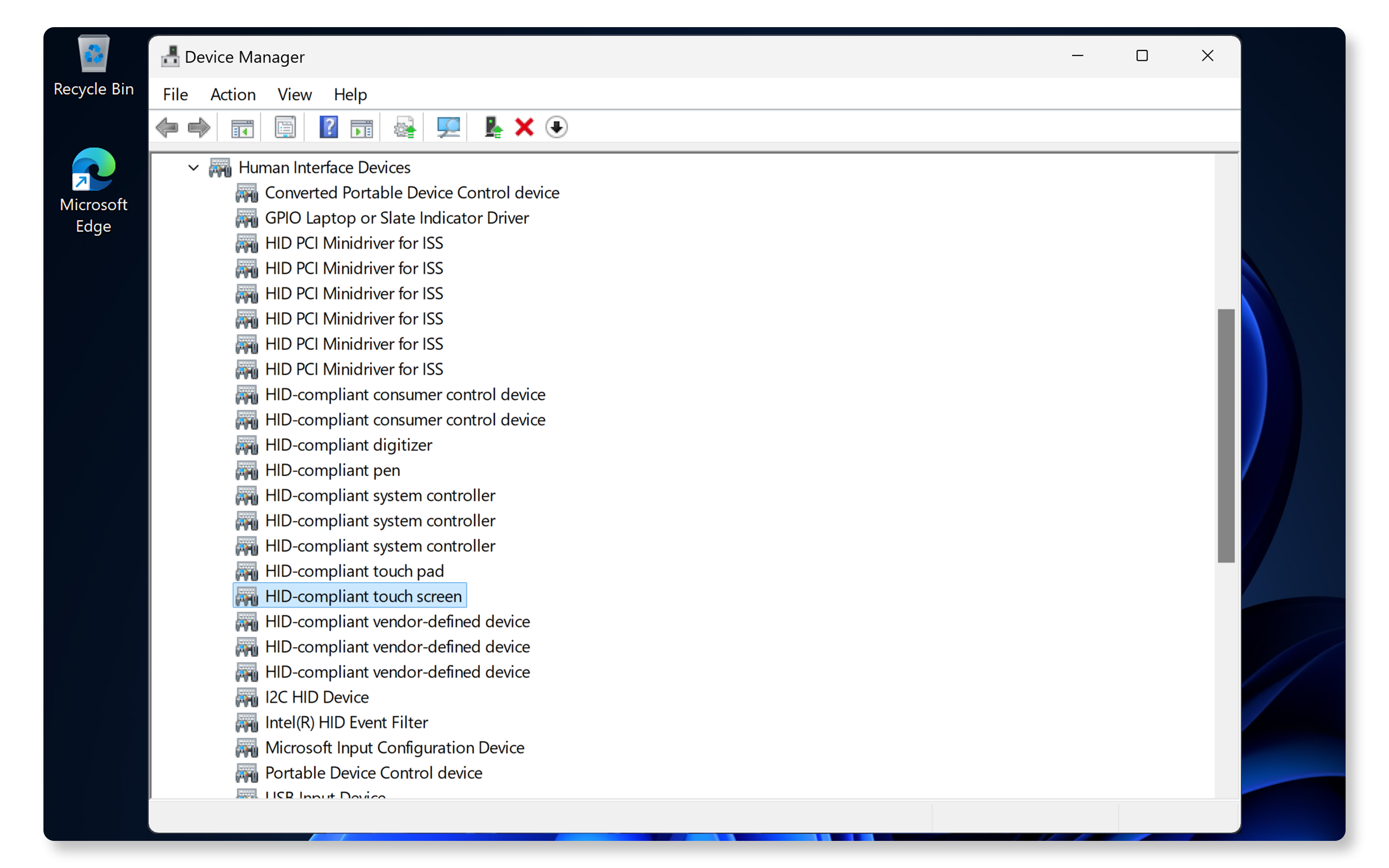
Sometimes, the touchscreen may be disabled accidentally in Device Manager. To check its status:
- Right-click on the Start button and select Device Manager.
- Expand Human Interface Devices.
- Look for HID-compliant touch screen.
- If it's disabled (indicated by a downward arrow), right-click it and select Enable device.
Update Drivers and BIOS
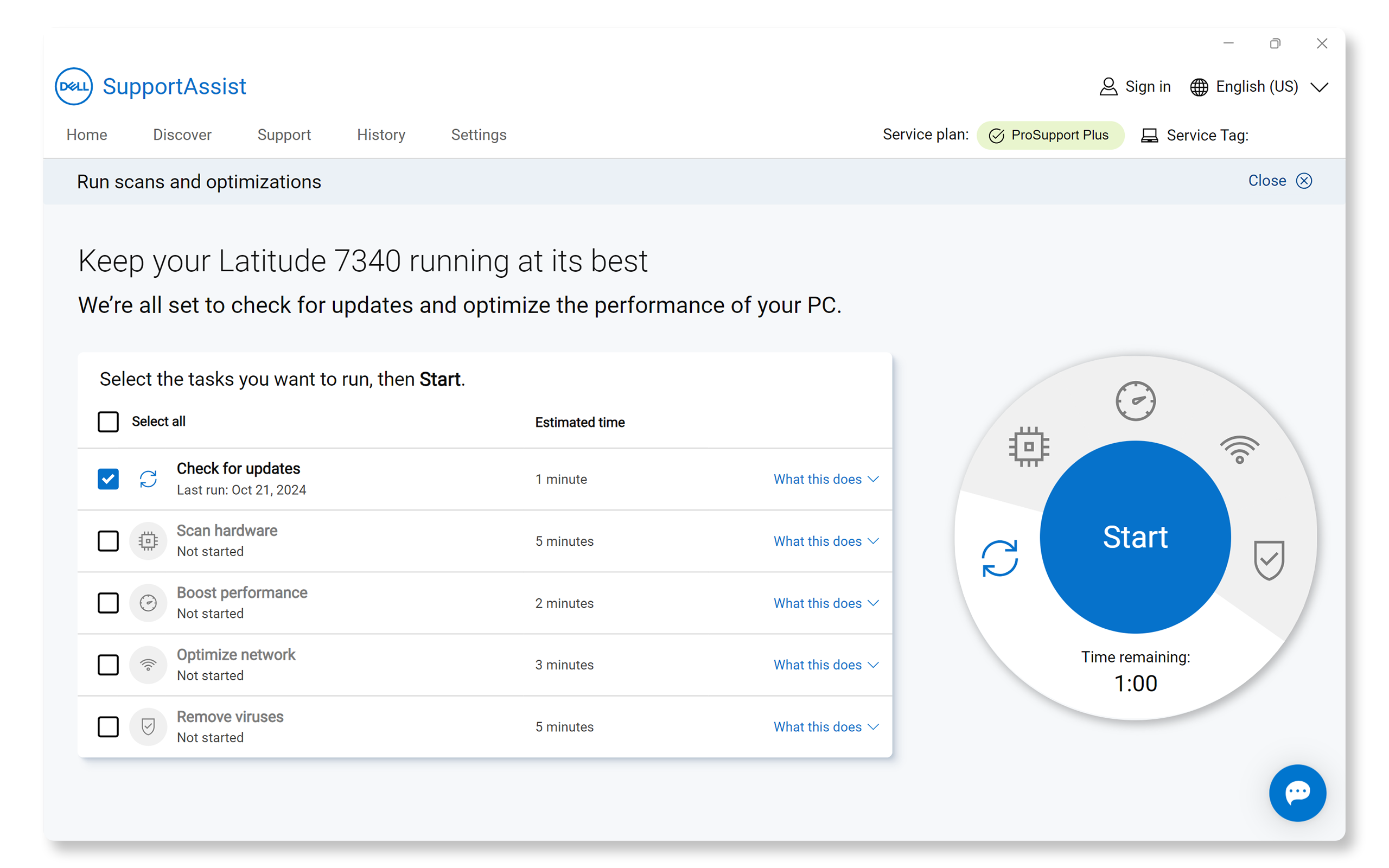
Outdated drivers and BIOS can often lead to functionality issues with hardware components like fingerprint readers. SupportAssist is Dell's automated tool that scans your Windows computer for driver and firmware updates, downloads, and installs them.
Using SupportAssist
- Search for SupportAssist in the Start menu and open the app.
- On the Home tab, select Update Software.
- Click Start to check for driver and BIOS updates.
- Follow the on-screen instructions to complete the installation and restart your computer if prompted.
If you don't have SupportAssist, refer to our driver update guide for alternative methods to download and install Dell drivers.
If the issue isn't resolved, proceed to the next step.
Checking for Windows Updates
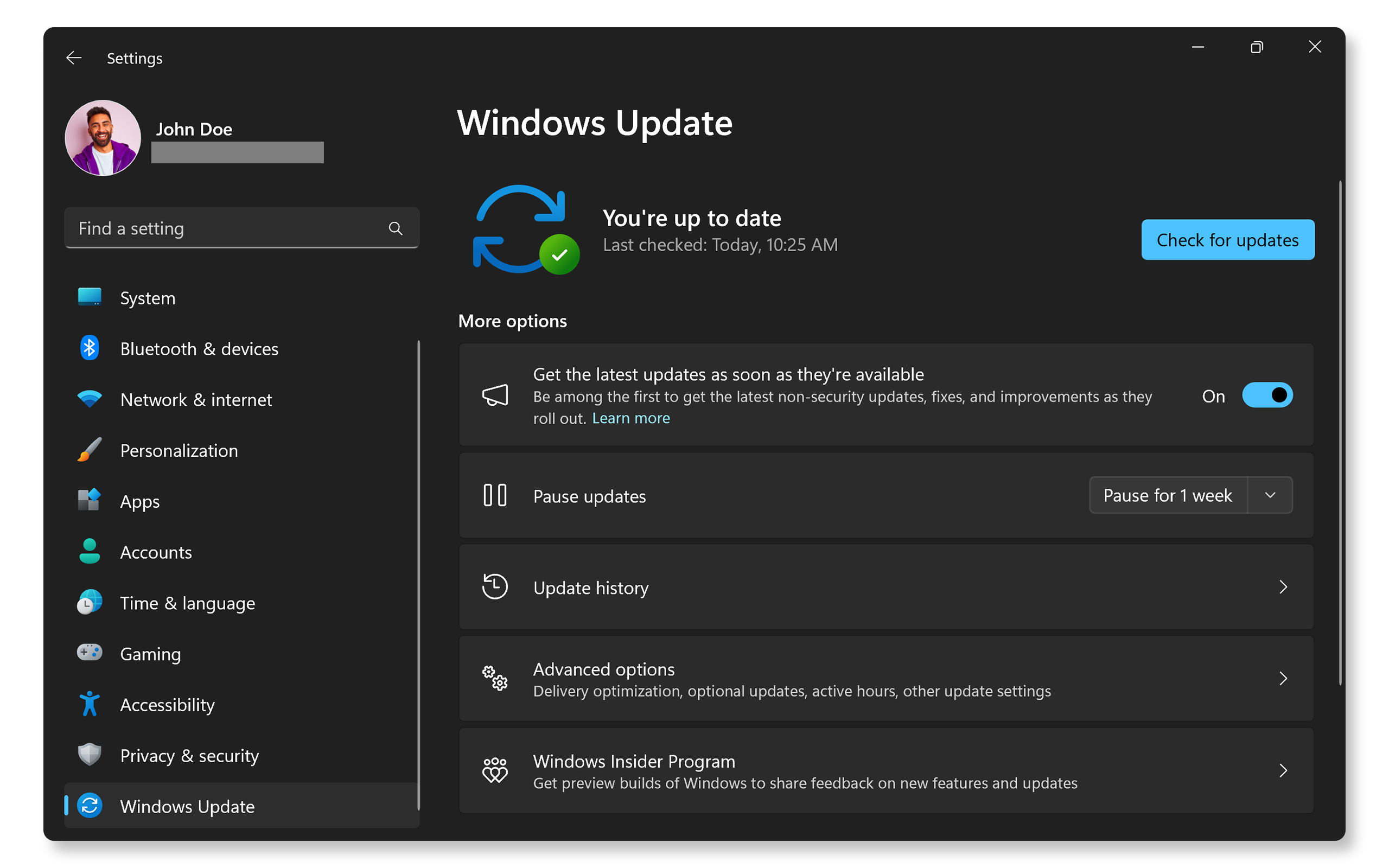
Keeping your operating system updated ensures you have the latest features and fixes. To check for Windows updates:
- Go to Start > Settings > Windows Update. Open Windows Update settings.
- Select Check for updates and install the available updates.
Check your touchscreen after the update. If it doesn't work, proceed to the next step.
Reinstall Touchscreen Driver
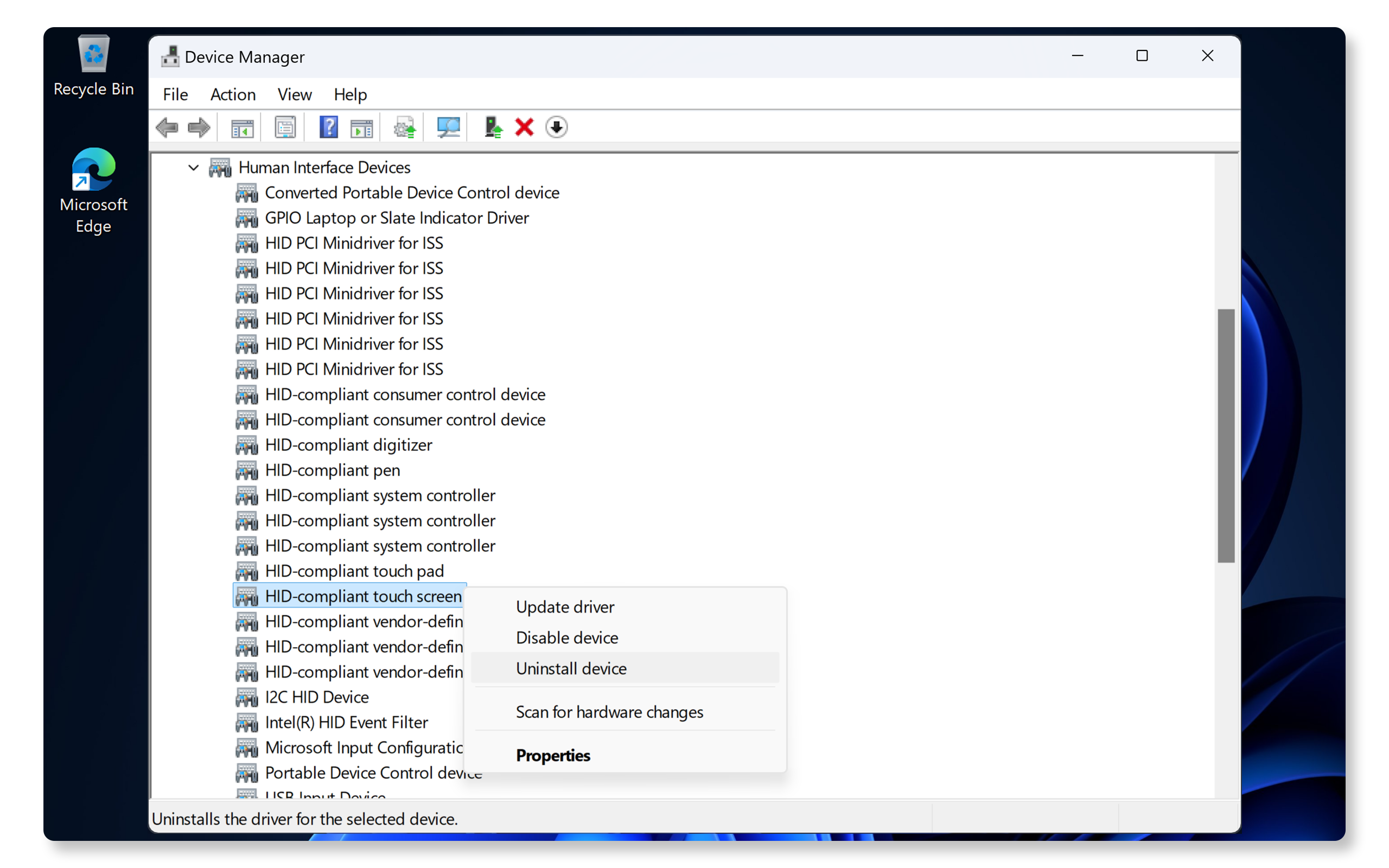
Sometimes a corrupted driver can cause the touchscreen to stop working. Touchscreens use plug-and-play technology, they don't require any additional drivers to be installed. The oeprating system automatically installs the necessary drivers. To reinstall the driver:
- Right-click the Start button and select Device Manager.
- Expand Human Interface Devices.
- Right-click on HID-compliant touch screen and select Uninstall device.
- Restart your computer. Windows automatically reinstalls the necessary drivers.
If reinstalling the drivers didn't resolve the issue, proceed to the next step.
Calibrating the Touchscreen
If your touchscreen is still unresponsive or inaccurate, calibrating it may help. To calibrate your touchscreen:
- Search for Control Panel in the Start menu and open the app.
- Go to Hardware and Sound, then click on Tablet PC Settings.
- Click on Setup and then choose Touch input.
- Follow the on-screen instructions to complete the calibration process.

Running Dell Diagnostics
Dell laptops come with SupportAssist to scan your computer for hardware-related problems, including touchscreen issues.
- Go to SupportAssist touchscreen test. If SupportAssist isn't installed, follow the prompts to install the app if needed.
- Once the diagnostic is complete, SupportAssist displays the results.
- If a hardware issue is detected, you may be guided to update drivers or contact Dell Technical Support for repair options.
If the touchscreen still doesn't work, try some additional steps to resolve touchscreen problems.
Frequently Asked Questions (FAQs)
Here are some answers to common questions that users often ask about touchscreens.
1. How can I tell if my Dell laptop has a touchscreen?
- Not all Dell laptops come with a touchscreen, it's an optional feature. To check if your laptop has a touchscreen, you can:
- Review your purchase invoice for details about the touchscreen feature.
- Check the BIOS for Touchscreen option in the settings.
- Check in Device Manager, if HID-compliant touch screen is listed, your laptop has a touchscreen.
2. What if my touchscreen option is missing in Device Manager?
- If it's missing, ensure your laptop supports touchscreen functionality or check if it's disabled in BIOS settings.
3. Will factory resetting my laptop fix touchscreen problems?
- Factory resetting should be a last resort as it erases all data; ensure you back up important files first.
4. Can external devices interfere with my touchscreen?
- Yes, external USB devices may cause interference; try disconnecting them to check if it resolves the issue.
- If it does, try connecting one device at a time to isolate which device is causing your touchscreen to stop working.
5. What if my laptop doesn't have a touchscreen option in settings?
- Confirm that your laptop supports touchscreen; not all Dell laptops come equipped with a touchscreen.
6. Is it safe to disable HID-compliant touch screen in Device Manager?
- Disabling it temporarily can help troubleshoot but should be re-enabled afterward for the touchscreen to work.
- If you wish to permanently disable the touchscreen, disable it in the BIOS settings.
7. Can I fix a cracked touchscreen myself?
- If your laptop's touchscreen is cracked, contact Dell Technical Support to check for repair options based on your laptop's warranty status.
8. How do I check if my touchscreen has a hardware issue?
- Run the SupportAssist touchscreen test to check for hardware faults with your laptop's touchscreen.
9. How do I download and install touchscreen drivers?
- Touchscreens are plug-and-play devices, they don't require any additional drivers to be installed manually. The operating system automatically detects and installs the necessary drivers as soon as you start your laptop.
10. What if none of these troubleshooting steps work?
- Additional Troubleshooting: Try these additional steps to resolve touchscreen issues.
- Use Dell Community Forums: Join the Dell Community Forums to get help from other users.