PowerEdge: CPU Machine Check Errors
Summary: This article provides information about CPU Machine Check errors and common causes and proper handling when errors are seen.
This article applies to
This article does not apply to
This article is not tied to any specific product.
Not all product versions are identified in this article.
Symptoms
What are CPU Machine Check Errors?
On PowerEdge servers and leveraging solutions that use standard BIOS and iDRAC firmware, machine checks are captured into the system event log (SEL).
These entries are also reflected in the Lifecycle Controller log (LCL) under various Enhanced Error Message Initiative (EEMI) event codes.
| Event code | Event message |
|---|---|
CPU0011 |
Uncorrectable machine check exception detected on CPU # |
CPU0012 |
Correctable machine check exception detected on CPU # |
CPU0704 |
CPU # machine check detected |
UEFI0076 |
One or more corrected machine check errors have occurred |
UEFI0078 |
One or more machine check errors occurred in the previous boot |
Note: Beginning with iDRAC 7.10.70.00 in September of 2024, iDRAC added new messages into the Lifecycle Log of Intel-based PowerEdge 15G & 16G platforms when certain machine check errors occur.
These messages, CPU4001 through CPU4005, work together to:
- Steer towards whether it is or is not the processor's fault.
- Identify which device is at fault, whether because of configuration, firmware/drivers, hardware failure, or any other reason.
These three are diagnostically equivalent; they all highlight a machine check that is unlikely to be the processor and steer focus elsewhere.
CPU4001:The machine check system address reported by the processor is <registerReading>.CPU4002:A processor machine check event occurred because the CPU detected an error in an external device (<component_name>, <register reading>).CPU4003:A machine check event error occurred because the CPU received invalid data (<component_name>, <register reading>).CPU4004:A Machine Check event error occurred because of a timeout while the CPU accessed an external device or component: (<component_name>, <register reading>).CPU4005:A machine check error was reported by the CPU: (<component_name>, <register reading>).
For additional information see: PowerEdge Servers Error and Event Messages Reference Guide
Log Examples:
2026-02-24 05:59:06	45773	CPU4003	A Machine Check event error occurred because the CPU received invalid data (DCU, 0xFB80000000110134).
2026-02-24 05:59:01	45764	CPU0704	CPU 2 machine check error detected.
2026-02-24 05:59:01	45763	CPU4003	A Machine Check event error occurred because the CPU received invalid data (DCU, 0xFB80000000110134).
2026-02-24 05:58:56	45754	CPU0704	CPU 1 machine check error detected.
2026-02-24 05:58:44	45741	CPU0704	CPU 2 machine check error detected.
2022-10-22 22:12:35    506    CPU9000    An OEM diagnostic event occurred.
2022-10-22 22:12:34    505    CPU9000    An OEM diagnostic event occurred.
2022-10-22 22:12:33    504    CPU9000    An OEM diagnostic event occurred.
2022-10-22 22:12:31    503    CPU0704    CPU 2 machine check error detected.
2022-10-22 22:12:31    502    UEFI0078   One or more Machine Check errors occurred in the previous boot.
2025-05-21 03:42:32    320    CPU9000    An OEM diagnostic event occurred.
2025-05-21 03:42:30    319    CPU0704    CPU 1 machine check error detected.
2025-05-21 03:42:29    318    PST0090    A problem was detected related to the previous server boot.
2025-05-21 03:42:29    317    UEFI0078   One or more Machine Check errors occurred in the previous boot.
2021-09-02 16:02:18    712    UEFI0078   One or more Machine Check errors occurred in the previous boot.
2021-09-02 16:02:18    711    CPU0000    Internal error has occurred check for additional logs.
2026-02-17 22:12:12	16725	CPU4001	 The Machine Check system address reported by the processor is 0x0000000075A2747B.
2026-02-17 22:12:12	16724	CPU4004	 A Machine Check event error occurred because of a timeout while the CPU accessed an external device or component: (MLC, 0xBE00000000800400).
2026-02-17 22:11:59	16715	CPU0704	 CPU 1 machine check error detected.
2026-02-17 22:11:56	16713	UEFI0078 One or more Machine Check errors occurred in the previous boot.
Cause
Understanding Causes of CPU Machine Check Errors
CPU Machine Check Errors (MCEs) have multiple possible causes, ranging from hardware to software triggers. These errors can be attributed to various factors, including:
- BIOS Firmware or CPU Microcode
- Motherboard CPLD Firmware
- Memory Errors
- PCIE Fatal Bus Errors
- OS Crash or Software and Driver Faults (BSOD, PSOD, or Kernel Panics)
- CPU Faults
The hardware logs can be used to help identify possible causes by checking if other component errors accompany the CPU Machine Check Errors.
Example CPU MCEs triggered from a Memory Error:


Example CPU MCE triggered from a Fatal Bus Error:

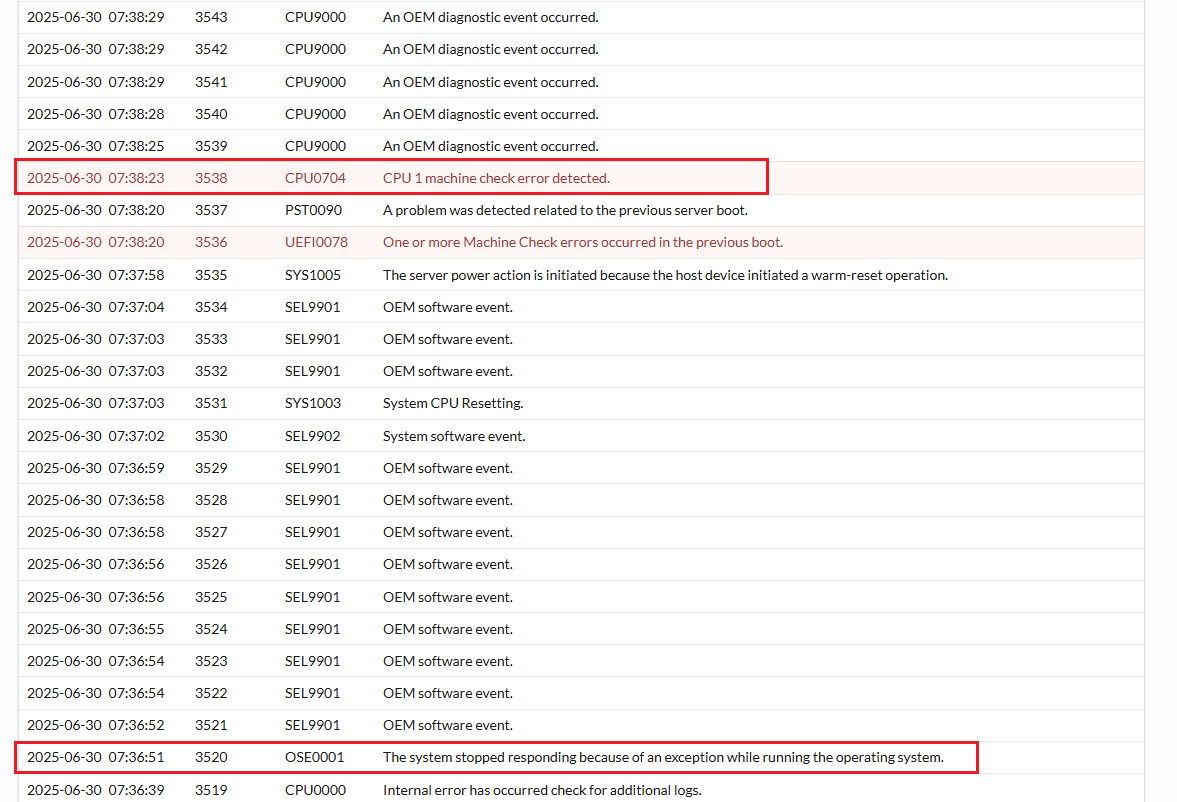
Example CPU MCE triggered from an OS crash:
Resolution
General guidance
It is always helpful to ask these questions:
- Have there been recent changes to the system, like updates or changes to hardware or configuration?
- Are there other errors in the logs nearby that may be more informative than the machine check itself?
- How frequently does the machine check happen? Was it a one-off? Can it be readily reproduced?
- Are there environmental factors involved, such as specific workloads or power and thermal scenarios?
Firmware and drivers
Outdated or incompatible firmware and drivers are among the most common machine check culprits, as they work together to implement and control device behavior. So it is essential to review the versions being used as part of assessing any machine check investigation.
Among firmware, BIOS updates are critical:
- Most BIOS releases incorporate updates provided by the respective processor vendor, many of which include explicit fixes for machine checks.
- These UEFI updates for servers include microcode, reference code, and other module updates that control functionality including all reliability, availability, and serviceability (RAS) features among others.
- Simultaneously, do not overlook other firmware in the system.
- Virtually any device in the system may be the culprit, including on rare occasion the iDRAC.
Identifying and Resolving CPU Machine Check Errors
To identify CPU Machine Check Errors, start by checking the hardware logs Lifecycle (LC) or System Event Log (SEL) from the IDRAC directly or gather a TSR or SupportAssist Collection to review the logs.
- PowerEdge: Export a SupportAssist Collection Using an iDRAC
- PowerEdge: How to View or Clear the System event log
- IDRAC9 User's Guide - Viewing Lifecycle Log from the Web Interface
Look to see if the CPU MCE errors are preceded by any other errors and if they are focus troubleshooting on those components.
Troubleshooting Steps
- Update all available firmware and monitor the results for any changes in error behavior.
- If the MCE is triggered from another components error, focus the troubleshooting on that component.
- Check what components are controlled by the CPU with the MCE.
- For example: If it is a CPU1 MCE, check all risers and PCIE slots that are controlled by CPU1 and any devices installed in those slots, as well as memory on CPU1 side, check all A-DIMMs for errors.
- To verify which CPU controls each riser or slot see the Servers Installation and Service Manual and look under Installing and removing system components > Expansion cards and expansion card risers > Expansion card installation guidelines.
- For more information about identifying which CPU controls the risers or slots see: PowerEdge: Troubleshooting PCIe device detection issues
- To rule out OS-related MCE triggers, test outside of the OS to see if the errors are still triggered outside of the OS.
- Run ePSA diagnostics to see if any errors are triggered during the tests.
- Boot the Support Live Image (SLI) media to test if errors are generated in that OS environment.
Run Stress Tests In Support Live Image
Duration: 00:02:38 (hh:mm:ss)
When available, closed caption (subtitles) language settings can be chosen using the CC icon on this video player.
Additional Information
CPU4002 through CPU4004
These three are diagnostically equivalent; they all highlight a machine check that is unlikely to be the processor and steer focus elsewhere.
- CPU4002:
A processor machine check event occurred because the CPU detected an error in an external device (<component_name>, <register reading>). - CPU4003:
A machine check event error occurred because the CPU received invalid data (<component_name>, <register reading>). - CPU4004:
A Machine Check event error occurred because of a timeout while the CPU accessed an external device or component: (<component_name>, <register reading>).
CPU4005
CPU4005: A machine check error was reported by the CPU: (<component_name>, <register reading>).
This message is logged for machine checks that are more likely to be a true processor failure than most machine checks are.
However, it is still important to follow the Recommended Response Action that is included with CPU4005 of updating the BIOS. Microcode updates, which are included with PowerEdge BIOS releases, sometimes include fixes for this class of machine check.
Machine checks that result in a CPU4005 event do not also log a CPU4001 event.
CPU4001
CPU4001: The machine check system address reported by the processor is <registerReading>.
The Recommended Response Action for CPU4001 suggests mapping the address register to a system device. See Resolving machine checks on PowerEdge & leveraging platforms - CPU0011, CPU0012, CPU0704, UEFI0076, UEFI0078 for two approaches to mapping PCIe devices.
Affected Products
PowerFlex rack, C Series, HS Series, Modular Infrastructure, Rack Servers, Tower Servers, XE Servers, XR Servers, OEM Server Solutions, PowerFlex appliance R650, PowerFlex appliance R6525, PowerFlex appliance R660, PowerFlex appliance R6625
, Powerflex appliance R750, PowerFlex appliance R760, PowerFlex appliance R7625, PowerFlex appliance R860, PowerFlex appliance R640, PowerFlex appliance R740XD, PowerFlex appliance R7525, PowerFlex appliance R840
...
Article Properties
Article Number: 000349127
Article Type: Solution
Last Modified: 23 May 2026
Version: 8
Find answers to your questions from other Dell users
Support Services
Check if your device is covered by Support Services.