Create and Manage My Groups
Summary: Set up My Groups to customize which locations and assets you see in your online experience and swap between the views you have created.
Instructions
Overview
My Groups allow you to customize your online support experience by creating a unique filter of products and/or locations to personalize your view in many areas of our online support site.
You can create custom groupings by individual products or by locations and/or product families.
Customizing your view with My Groups
My Groups can be built in several variations including:
- Specific locations
- Combination of specific locations and specific product families
- Specific assets
My Group structure
There are 3 main areas of a My Group build:
- Selection Tile Cards – focus the data for search and selection
- Left-pane search and selection – locations, product families, or assets depending on the selected Tile Card)
- Right-pane asset preview – resulting from items you’ve selected in the Left-pane
The build of a My Group is driven by 3 distinct tile cards:
- Selected Locations
- Selected Categories [Product Families]
- Selected Assets
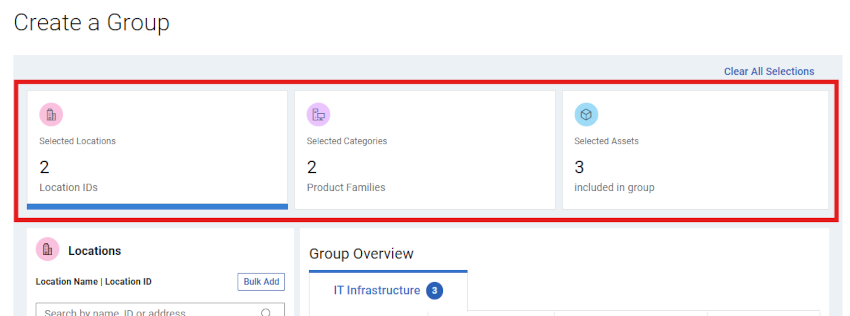
Figure 1: Create My Group - Tile Cards - Framed
Clicking on a particular tile will allow you to search for and select data related to each tile (locations, product families, or individual assets).
The cards will update impacted counts as items are selected during the My Group build.
When creating a My Group, it is important to consider what type of My Group you wish to build:
- Dynamic – The My Group is created using either locations, product families, or a combination of the two. Any additional products appearing in the ecosystem in the future matching the locations and/or product families, would automatically be included in the group.
OR
- Static / Manual – The My Group is a static list of assets from the ecosystem. The asset list and visibility will remain the same unless manually changed.
Creating And Managing My Groups
- Sign in to Dell.com/support.
- Select Manage Company Information from the person icon menu
 in the upper-right corner.
- Select the My Groups module.
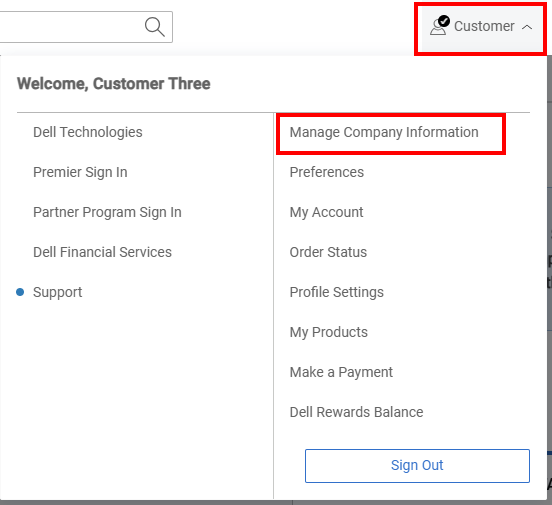
Figure 2: Person Icon Manage Company
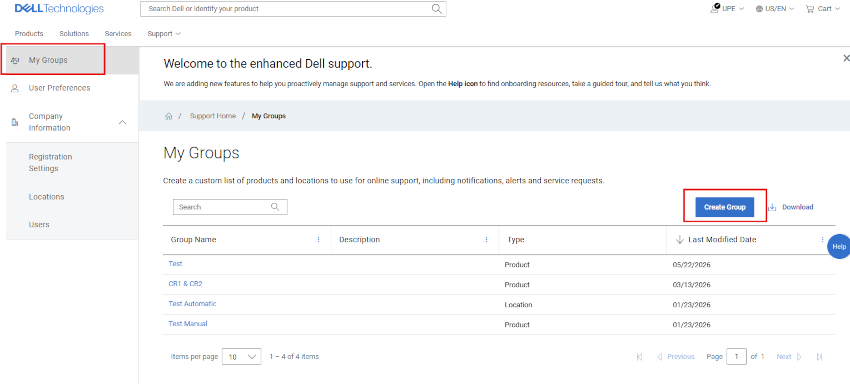
Figure 3: My Group module highlighted
Create a Dynamic My Group with Locations
- Select the My Groups module.
- Select Create Group.
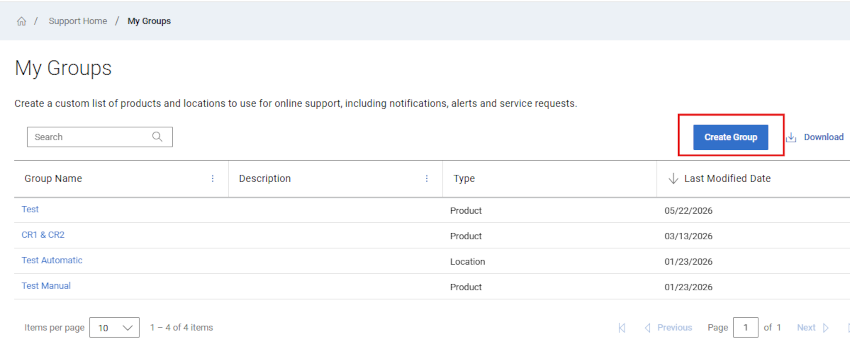
Figure 4: Create My Group
- Remain on the Selected Locations tile card.
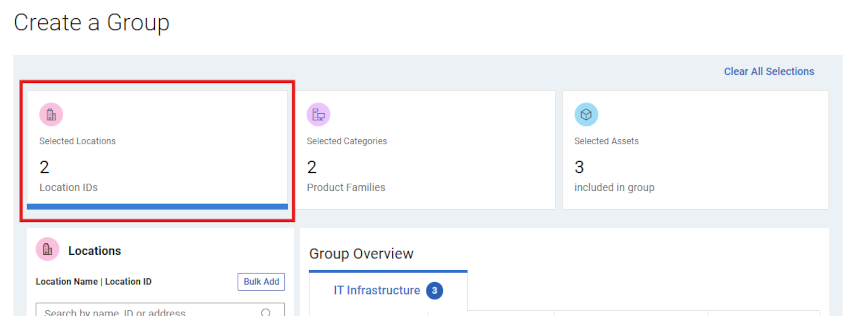
Figure 5: Create My Group - Dynamic Location Tile"
- Search for and select locations in the Left-pane Locations area of the group build.
You can search by Location ID, Location Name, or Address.
The resulting asset list will be presented in the Overview area as selections are made.
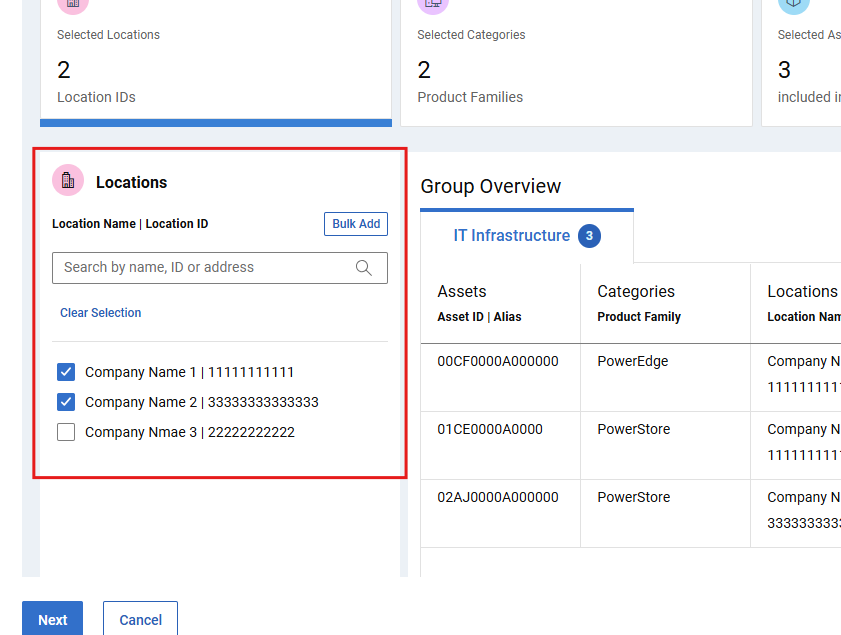
Figure 6: Create My Group - Dynamic Location Search
- Alternatively, locations can be added in “bulk” by selecting the Bulk Add button found to the right of Search field in the Left-pane Locations area of the group build.
The user can then add a comma delimited list of Location IDs, and select Add to Group. There is a 200 maximum per upload attempt, and you will see result messaging after submission.
Location IDs that are found from the batch submission, will be displayed and selected in the Left-pane Locations area with a checkmark and added to the group build which will then need to be saved or edited further.
You will be informed of Location IDs that are not found.
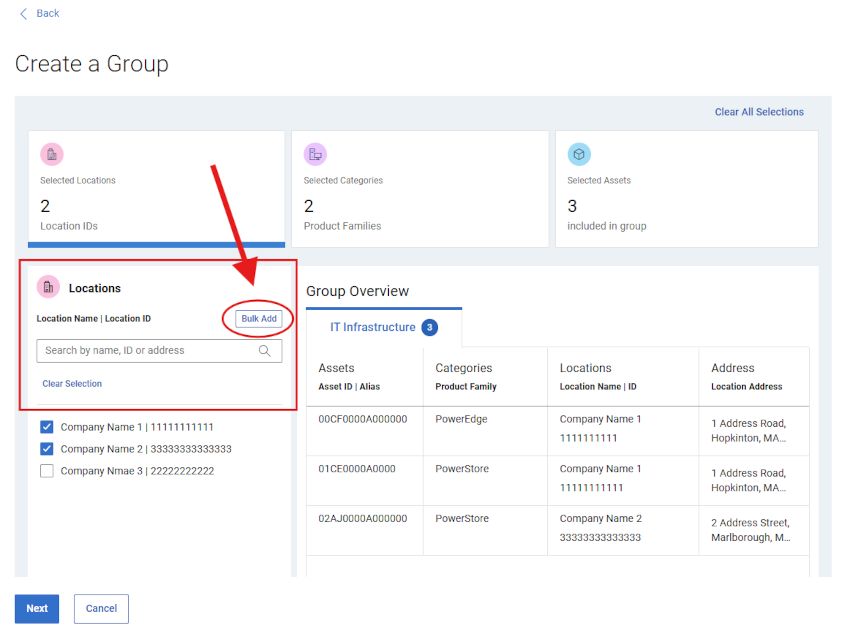
Figure 7: Create Location Group Drawer Batch
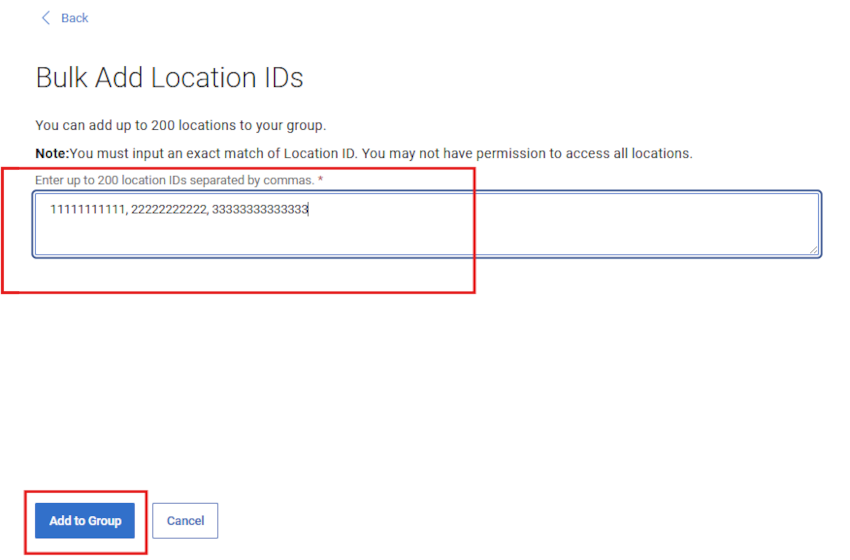
Figure 8: Create Location Group Drawer Batch - Add to Group
- When you are comfortable with the group build and resulting asset list, select NEXT, then enter a Name (required) and a Description (optional).
The preview pane will also be available to review the content of the group.
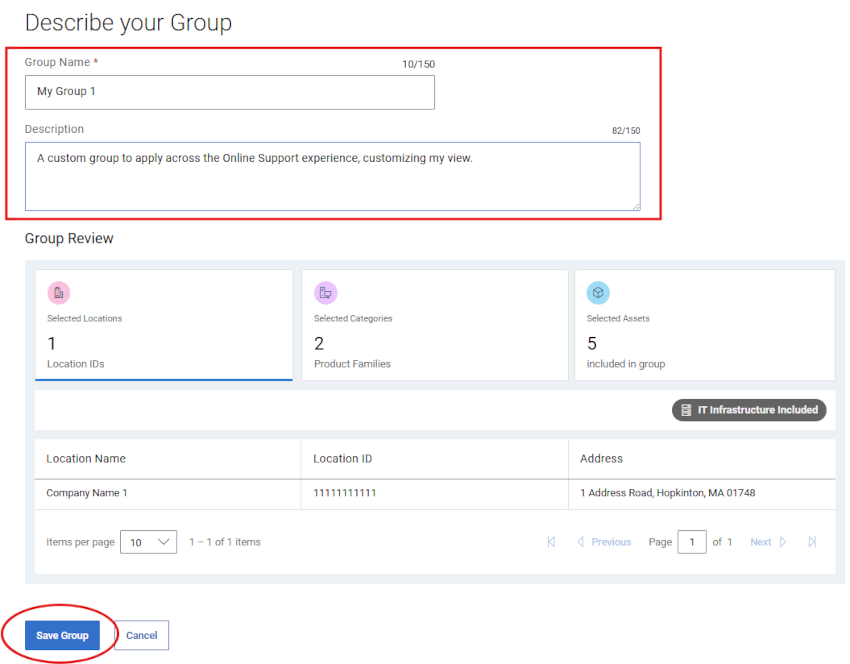
Figure 9: Create My Group - Dynamic _ 2nd Page Name and Save
- Select Save Group. After confirmation, the My Group is created, and the My Groups page is displayed.
Create a Dynamic My Group with Locations and Product Families
- Select the My Groups module.
- Select Create Group.
- Click the Selected Locations tile card.
- Search for and select locations in the Left-pane Locations area of the group build.
You can search by Location ID, Location Name, or Address.
The resulting asset list will be presented in the Overview area as selections are made.
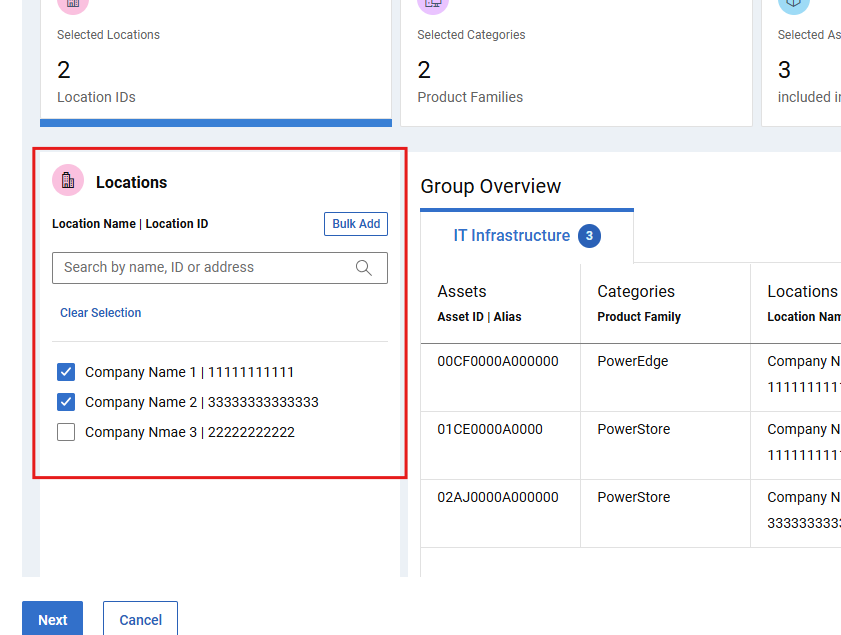
Figure 10: Create My Group - Dynamic Location Search
- Search for and select product families in the Left-pane Categories area of the group build. If necessary, Toggle off the ‘All from selected locations’ toggle.
The resulting asset list will be presented in the Overview area as selections are made.
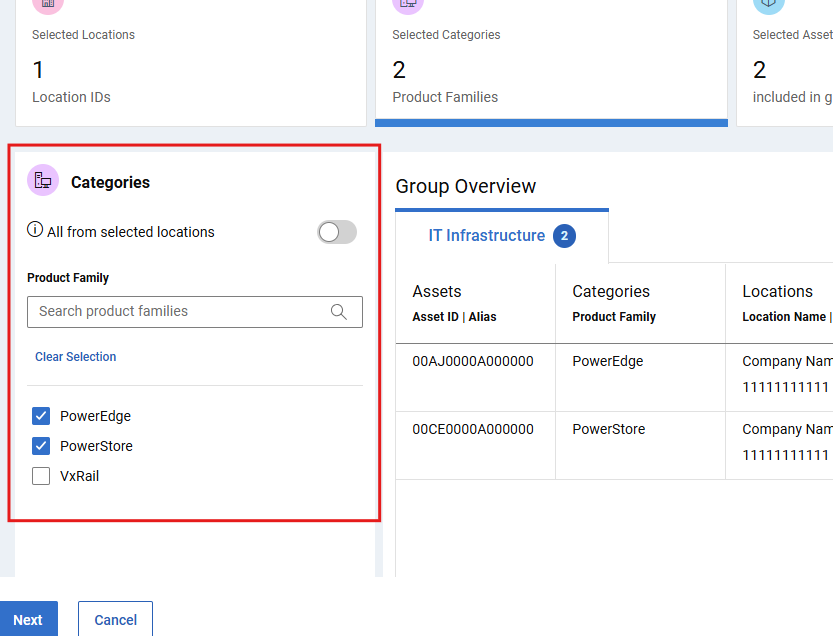
Figure 11: Create My Group - Dynamic Product Family selected
NOTE: If you select the Select Locations tile and make changes, your current Product Families selections will be cleared, and you will need to reselect any required families.
- When you are comfortable with the group build and resulting asset list, select NEXT, then enter a Name (required) and a Description (optional).
The preview pane will also be available to review the content of the group.
- Select Save Group. After confirmation, the My Group is created, and the My Groups page is displayed.
Create a Static / Manual My Group
- Select the My Groups module.
- Select Create Group.
- Select the Selected Assets tile card.
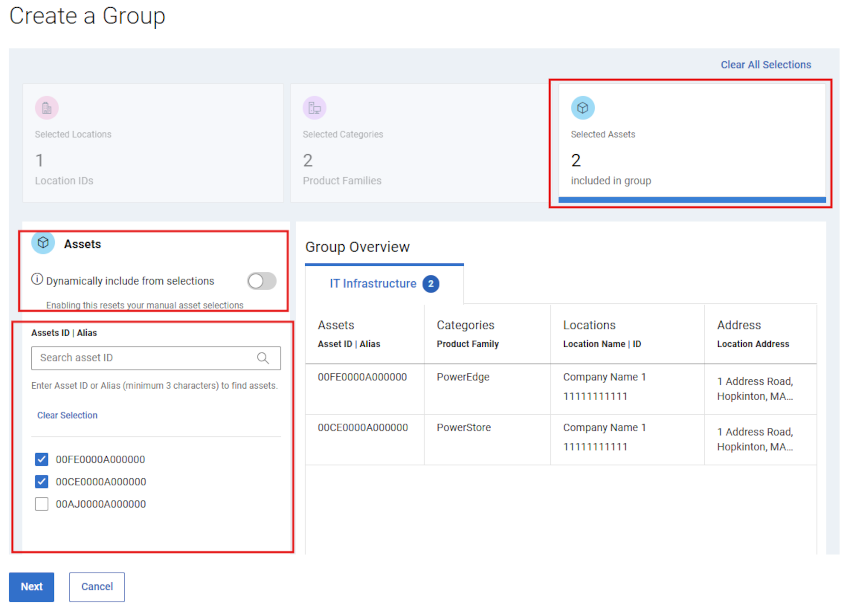
Figure 12: Create My Group - initial drawer Manual _ assets selected
- Search for and select granular assets in the Left-pane Assets area of the group build.
The resulting asset list will be presented in the Overview area as selections are made
- Alternatively, you could start building the My Group in a “Dynamic” way via the Selected Locations and/or Selected Categories (Product Families) tile cards.
Then click the Selected Assets tile card, and turn the “Dynamic” toggle off in the Left-pane Assets area.
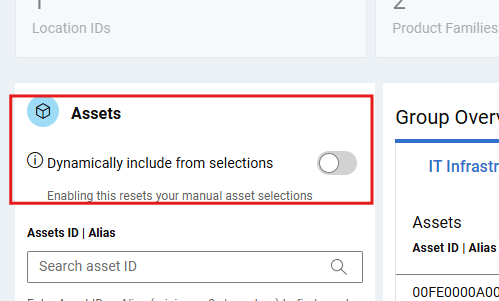
Figure 13: Create My Group - TOGGLE Dynamic v Manual
This will preserve the asset list from the previous choices, but enable the ability to add or remove individual assets to/from the now static list.
- When you are comfortable with the asset list, select NEXT, then enter a Name (required) and a Description (optional).
The preview pane will also be available to review the content of the group.
- Select Save Group. After confirmation, the My Group is created, and the My Groups page is displayed.
Edit My Groups
- Select the My Groups module.
- Select a group name from the Group Name column.
- If desired, select the Edit Description to update the Name (required) or Description (optional) of the group.
Select Edit Selections above the preview of the group to make changes to the build of the group.
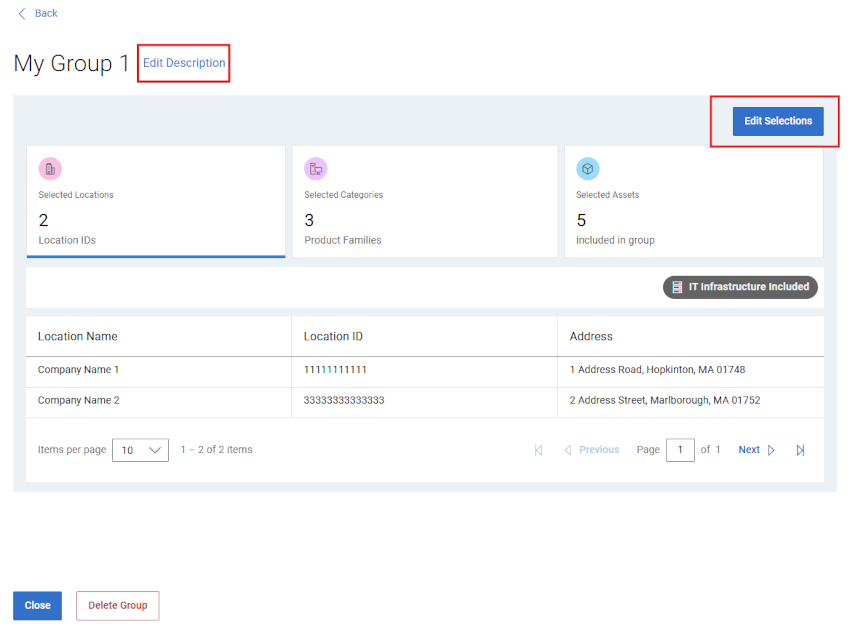
Figure 14: Edit My Group - Edits
- Use any of the three Selection Tile Cards to adjust the group as desired.
NOTE: Any changes made could alter the behavior of the group (ex. from Dynamic to Static), or the build structure of the group.
- Select Cancel before saving to discard any changes made during the edit.
- Select Save Group to save the changes. After confirmation, the My Group is saved, and the My Groups page is displayed.
Download My Group Data
- Select the My Groups module.
- To download information about all the My Groups in your account, perform the following:
- Select Download.
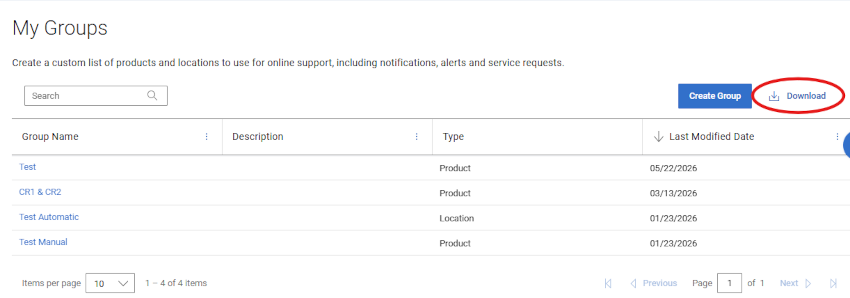
Figure 15: My Group - Download
- Name the .csv file and select Save. The following information is downloaded:
- Group Name
- Description
- Type (Products, Locations, Product Families, or Locations , Product Families)
- Modified Date
Delete My Group
- Select the My Groups module.
- Select a group name from the Group Name column.
- Select Delete Group.
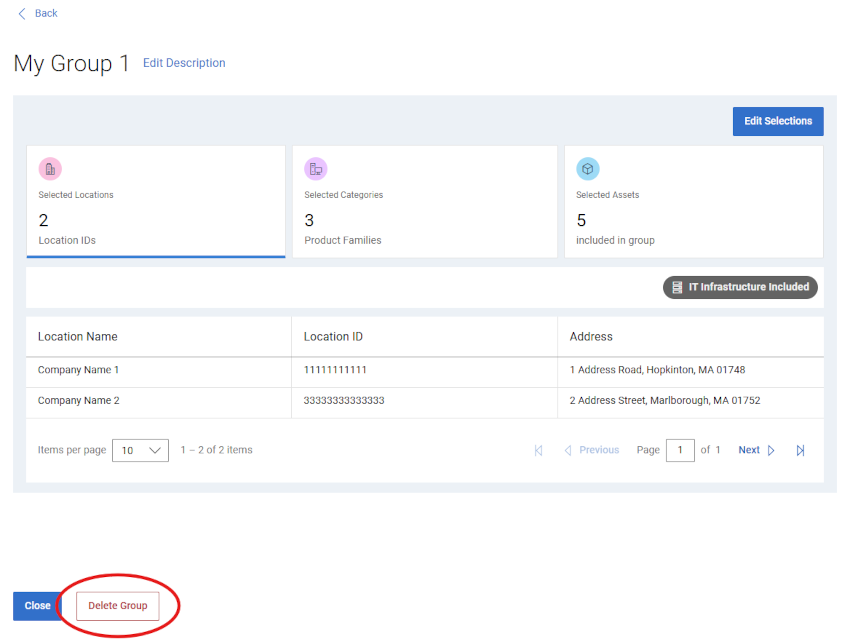
Figure 16: Edit My Group - Delete Group
- You will be able to review and confirm that you wish to delete the group.
- Select Delete to continue with the group deletion.
- The My Group is deleted and you are taken to the My Groups page which should reflect the group removal.
Online Support help options
Need help? Get started from the Online Support links below. If applicable, please contact your Service Account Manager or Customer Success Manager.
|
Topics |
Help Links Tip: Be sure to sign in to the Online Support site to view all available support options. |
|---|---|
|
Get Technical Support for your products.
|
|
|
Enterprise Online Account assistance View and manage company information, contacts, and service requests.
|
Administrative Support
|
|
Asset / Install Base management. Product registrations
|
|