PowerScale: OneFS: How To: Disable Thumbs.db on Network Folders for Citrix User Profiles stored on Isilon
Summary: This document explains how to disable caching of thumbnails in hidden thumbs.db files. These files can cause data unavailability if a shared Citrix User profile is stored on the cluster. Using a single user profile on multiple computers by multiple users is not the best security practice but is used with some workflows. Thumbs.db on Network Folders should be disabled on the clients accessing the shared user profile for these workflows. ...
Instructions
The thumbs.db file is created in the user profile folder under C:\Users\<user>\AppData\Local\Microsoft\Windows\Explorer to cache thumbnail information for image files on the client.
If a client browses a network share where they have write access, Windows clients store the thumbnail cache in a thumbs.db. This file resides in the remote share directory instead of local to the host.
There are issues with the thumbcache.dll and the thumbs.db in Windows 7 and later. Windows clients can cause the file to become locked, preventing further access from any other process. Multiple clients with the same user profile on the cluster can cause several requests for a file lock on the same thumbs.db stored on the cluster. If the client holding the file lock does not release it, no other client can get a lock on the file until it is released. Several clients all sending lock requests for the same file can cause LWIO to queue up the lock requests and become unresponsive. This prevents any further SMB sessions from being created on the node until the LWIO process has been restarted.
Disabling the use of thumbs.db on network folders can be performed by enabling a User Group Policy setting or a registry change on the Windows client. This prevents clients from creating a thumbs.db file on the cluster, preventing any file lock issues from occurring with the thumbs.db.
To set for all clients in a domain using Group Policy Editor:
- Open Group Policy Management on a domain controller in the Active Directory Domain.
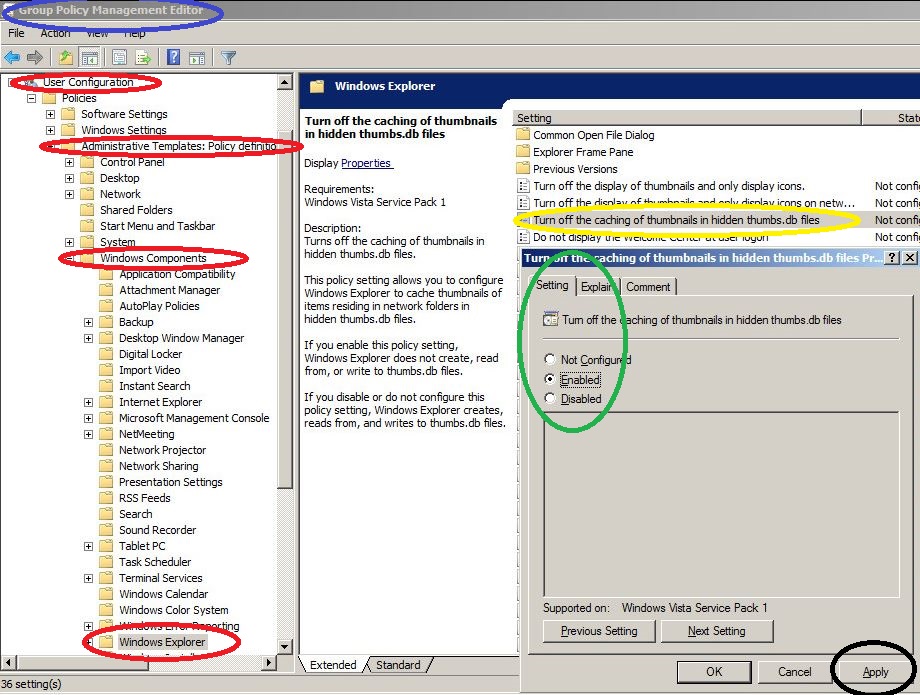
- Create or Edit a new policy to open the Group Policy Management Editor as shown below in the blue circle.
- Navigate to User Configuration > Administrative Templates > Windows Components\Windows Explorer in the left pane as shown below in the red circles.
- Select Turn off the caching of thumbnails in hidden thumbs.db files entry in the right pane as shown below in the yellow circle.
- On the Setting tab, click Enabled as shown below in the green circle
- Click Apply as shown below in the black circle.
Note: Editing the Microsoft Windows Registry incorrectly can result in serious problems with the windows operating system.
Please backup the registry before modifying any settings. See http://support.microsoft.com/kb/322756 for instructions on backing up and restoring the windows registry.
This key may not exist and may need to be manually created.
- Click Start and type regedit.exe in the text box and press Enter.
- Select Yes if prompted for Run As Administrator by User Account Control.
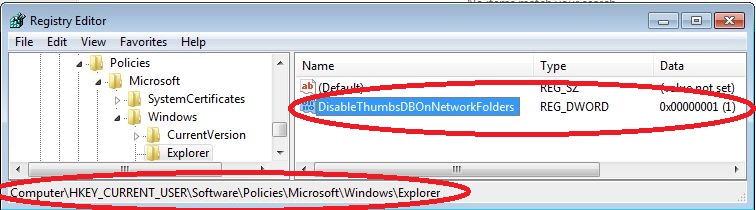
- Navigate to HKEY_CURRENT_USER\Software\Policies\Microsoft\Windows\Explorer as shown below.
- If the Explorer folder does not exist, right-click the Windows folder and create a new key and name it Explorer.
- Modify the DisableThumbsDBOnNetworkFolders value to a value of 1.
- If the value does not exist, create a new REG_DWORD value named DisableThumbsDBOnNetworkFolders with a value of 1.
- Close the Registry Editor.
Additional Information
https://en.wikipedia.org/wiki/Windows_thumbnail_cache
Microsoft References:
MS KB2025703 - Renaming a network folder in Windows 7 fails with "the action cannot be completed..."