View and Manage Locations and Sub-Locations
Summary: Learn how to manage your individual and company preferences so you can get the most out of your support experience with Dell Technologies.
Instructions
This guide covers how to view and manage company registration settings, locations, and your organization’s userbase via two distinct user types: Company Administrators and Business Users.
Keeping your information up to date helps maintain security and ensures Dell Technologies can provide you with fast, accurate support.
Recommended administrative actions include:
-
Setting your location and asset preferences so we can deliver the right onsite service, replacement parts, and case management support to the appropriate contacts.
-
Managing your userbase by assigning who can access specific assets and locations, and by removing anyone who is no longer part of your organization.
-
Adjusting key security settings, such as default employee access and specifying overall location and asset visibility.
This article provides information about:
- View and Manage Locations and Sub-Locations
Related Resources:
Location and Sub-Location introduction
What are Locations / Location IDs and why do I see them? Is Site ID still in use?
Dell Technologies has introduced a consolidated view of your account assets and, with that, a new approach to representing where your datacenters and Dell infrastructure assets are located.
Location ID became a new identifier for additional physical location details and used when consolidating information about the assets located at a specific address.
Dell Technologies has now fully implemented the new address representation. As a result, Online Support and MyService360 have now:
-
Adopted a single address-based identifier – Location ID
-
Retired Site ID and removed it from online view
Dell displays the company's legally registered name from public records as the site name associated with a ‘parent’, or base, location. Currently, the site name for a ‘parent’ location in your Online Support and MyService360 views cannot be customized.
Dell Technologies provides the initial ‘parent’ Location ID (which is address based) for an installed asset that you see in the Online Support and MyService360 views. Thus, several installed assets can share the same Location ID .
Subsequently, at the Online Support site, the new self-service sub-location feature only allows Company Administrators to select & group the Dell assets located at the same address as the ‘parent’ Location ID.
The Location ID for the new sub-location will be a new & unique numeric identifier with no tie to the ‘parent’ Location ID. However, the sub-location connections to the ‘parent’ location are apparent in the sub-location name (which includes the ‘parent’ location name) and via the Install Base address (which remains unchanged).
To review the full release documentation related to the Online Support / MS360 enhancements introducing the Location and Sub-Location experiences, see the Dell Online Support and MyService360 Enhancements PDF.
Sub-Location Management (Manage Company Information > Locations module > Selected Location ID > Preferences tab)
What is the sub-location feature and how will it help me manage my Dell environment?
Dell Technologies provides a consolidated view of your account assets and, with that, a new approach to representing where your datacenters and Dell infrastructure products are located. With Location ID as our standard address-based identifier, we’re pleased to offer enhanced self-service with the Create sub-location feature.
Diagram 1 below provides a detailed introduction.
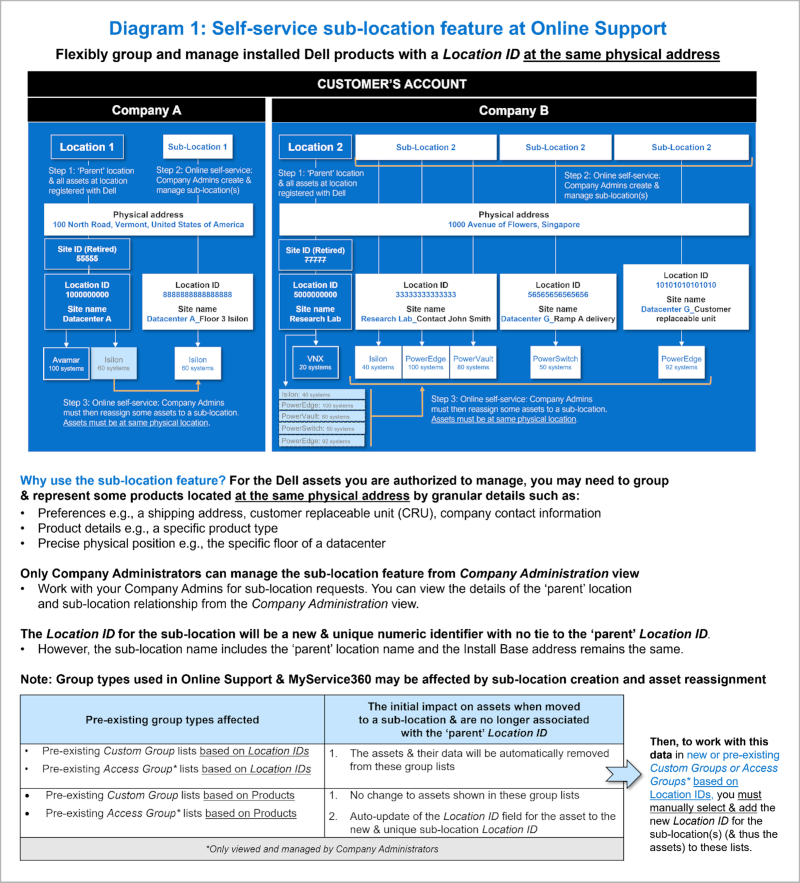
Figure 1: Sub‐Location Diagram
Why use the sub-location feature?
For the Dell assets you are authorized to manage, you may need to group and represent some products located at the same physical address by granular details such as:
-
Preferences e.g., a shipping address, customer replaceable unit (CRU), company contact information
-
Product details e.g., a specific product type / family
-
Precise physical position e.g., the specific floor of a datacenter
Where can I manage or view the details of the ‘parent’ location and sub-location relationship?
Sub-Location Management (Manage Company Information > Locations module)
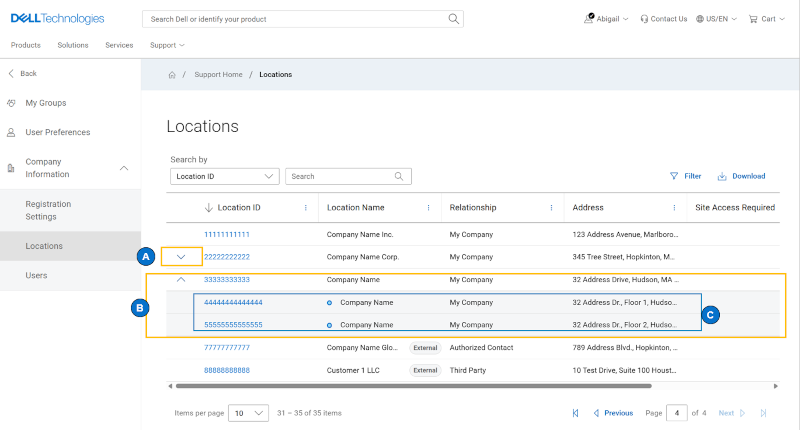
Figure 2: Manage Sites Sub Loc in Grid
Company Administrator and Business users can manage and/or view the ‘parent’ location and any sub-location relationships from the Manage Company Information view in the Online Support site. The view can be seen via the Locations module found in the left pane Company Information drop-down.
-
A blue arrow indicates sub-locations are in use at the physical address. Clicking the arrow will expand/collapse the related sub-location records.
-
Click on the blue arrow to open the dropdown and view the sub-location detail(s) nested under the ‘parent’ Location ID.
-
The sub-location is given a new unique numeric Location ID even though it as at the same physical address. It has its own icon and is indented for easy recognition. Click the Sub-Location ID to view the reassigned asset details and preferences.
Downloading the location grid information will also now include both ‘parent’ and any sub-location records clearly defining their type, with the sub-locations showing which ‘parent’ it belongs to.
Over time, an asset can be flexibly reassigned back to the ‘parent’ location and then aligned to newly created sub-locations. Existing My Groups and Access Groups will be impacted by asset movements (potentially appearing or being removed as related to the group build).
Create / Edit a sub-location
From the Online Support view for Manage Company Information > Locations module, Company Administrators can create a sub-location by:
-
Clicking the Location ID where the desired assets for grouping reside.
-
Clicking Create Sub-Location button.
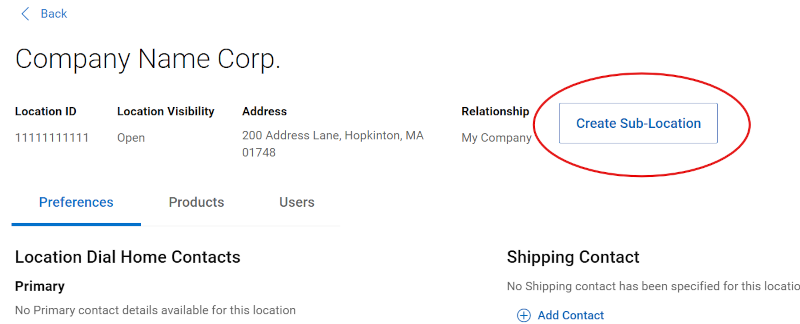
Figure 3: Create Sub-Location -
Fill in the 2nd half of the Sub-Location name (1st half is from the “parent” Location ID) and click Next.
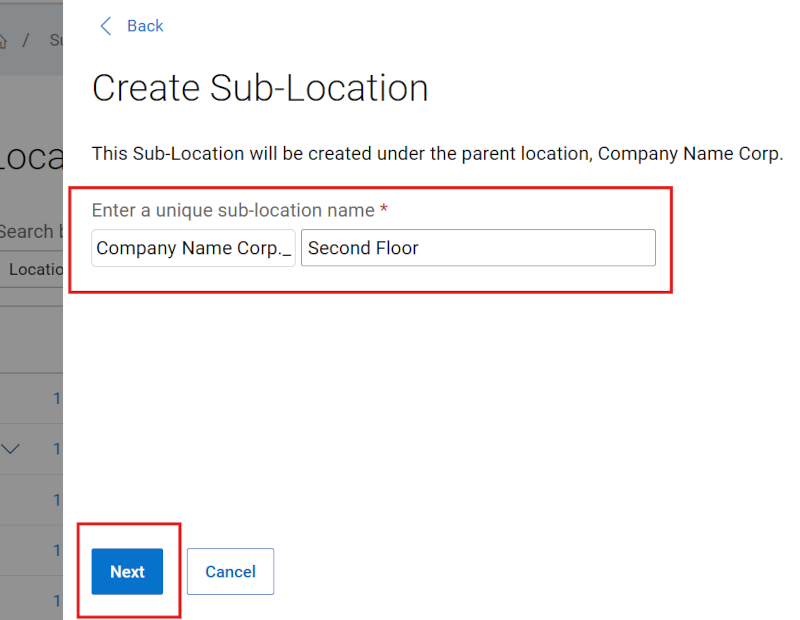
Figure 4: Sub-Location Name
-
Choose whether or not to copy Preference Settings from the ‘parent’ Location ID.

Figure 5: Sub-Location Preferences
-
This will bring you to the Products sub-tab of the newly created sub-location record with its new unique Location ID and name showing in the details area.
You can now click Add Products to begin assigning products from the ‘parent’ location to the newly created sub-location, or Close to leave the newly created sub-location “empty” at this time and return later to add products.
After clicking Add Products, you can search for and select any assets you want represented at the new sub-location under the Parent Location product area, click Add. Click Done when finished to save the product alignments.
TIP: The products build flow has 2 areas, the Sub-Location products and ‘Parent Location’ products. The Sub-Location area can be collapsed to focus on the pool of assets in the ‘Parent Location’ area when creating a sub-location.
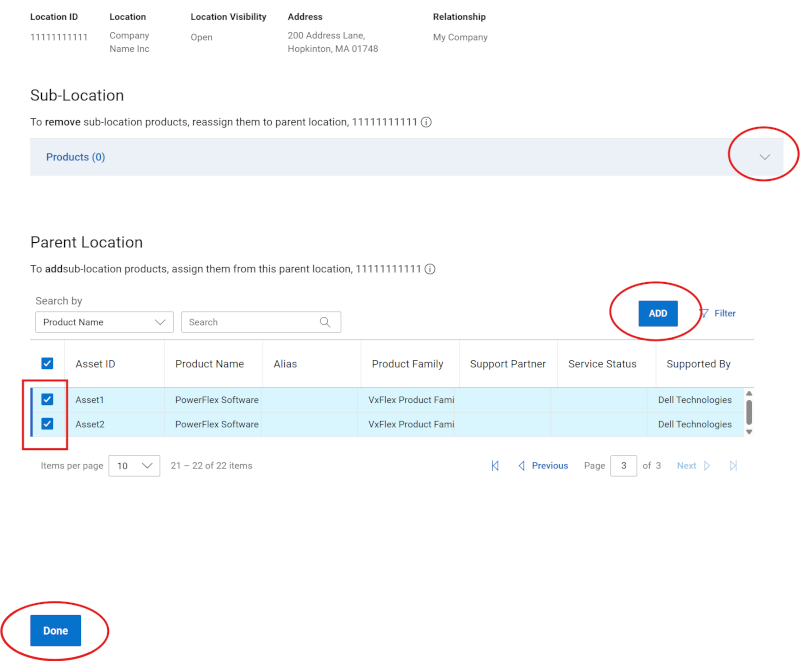
Figure 6: Sub-Location Product add
-
You will be brought back to the Products subtab of the newly created Location ID record (the sub-location of the ‘parent’). You can now manage the sub-location as you would any other location, or click Add Products to continue adjusting the product assignment with the ‘parent’ location.
-
When navigating back to the Locations module grid, the sub-location will exist under the initial “parent” Location ID it was created from, via a blue arrow to the left of the Location ID.
-
Clicking on an existing Sub-Location (its Location ID), and clicking the Products sub-tab, will provide an opportunity to adjust its product associations via the Edit Products button which will allow moving products between the sub-location and ‘parent’.
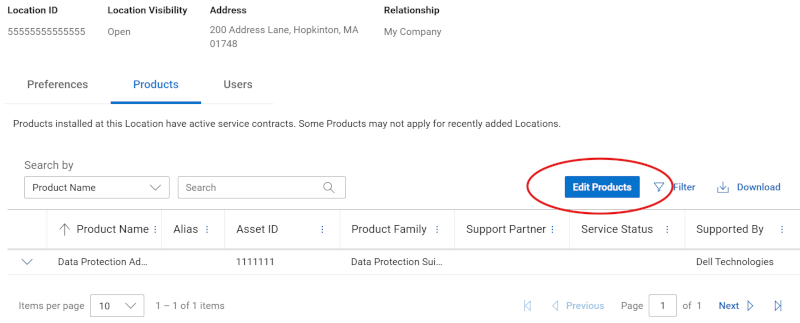
Figure 7: Sub-Location EditNOTE: The new self-service sub-location feature only allows Company Administrators to select & group the Dell assets located at the same address as its ‘parent’ Location ID.
Deleting a sub-location
From the Online Support view for Manage Company Information > Locations module, Company Administrators can delete a sub-location via the Delete button flow after getting a warning that the products will return back to the ‘parent’ location during the deletion process.
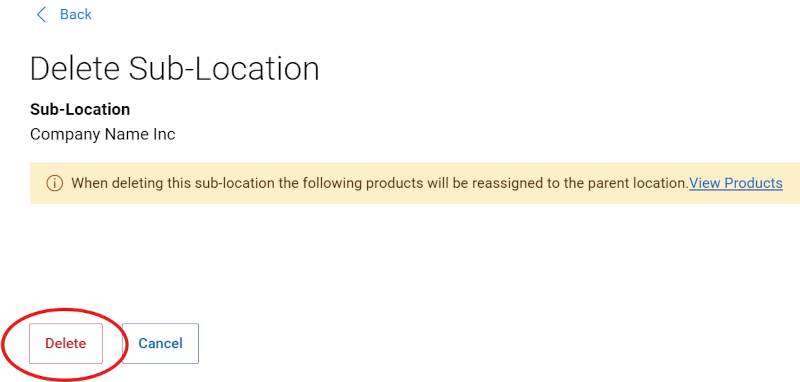
Figure 8: Sub-Location Delete
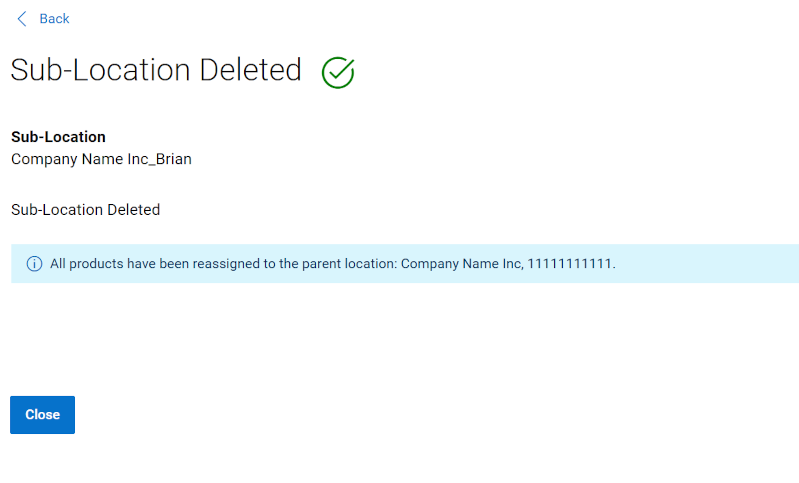
Figure 9: Sub-Location Deleted
Removing the products from the sub-location will trigger the following realignments:
-
The initial ‘parent’ Location ID and related Preferences / contact data will be automatically realigned to the Dell assets & shown in your Online Support and MyService360 views.
-
In addition, the asset data will be returned to any pre-existing My Group and Access Group lists that use the initial ‘parent’ Location ID.
Online Support help options:
Need help? Get started from the Online Support links below. If applicable, please contact your Service Account Manager or Customer Success Manager.
|
Topics |
Help Links Tip: Be sure to sign in to the Online Support site to view all available support options. |
|---|---|
|
Get Technical Support for your products.
|
|
|
Enterprise Online Account assistance View and manage company information, contacts, and service requests.
|
Administrative Support
|
|
Asset / Install Base management. Product registrations
|
|