View and Manage Users
Summary: Learn how to manage your individual and company preferences so you can get the most out of your support experience with Dell Technologies.
Instructions
This guide covers how to view and manage company registration settings, locations, and your organization’s userbase via two distinct user types: Company Administrators and Business Users.
Keeping your information up to date helps maintain security and ensures Dell Technologies can provide you with fast, accurate support.
Recommended administrative actions include:
-
Setting your location and asset preferences so we can deliver the right onsite service, replacement parts, and case management support to the appropriate contacts.
-
Managing your userbase by assigning who can access specific assets and locations, and by removing anyone who is no longer part of your organization.
-
Adjusting key security settings, such as default employee access and specifying overall location and asset visibility.
This article provides information about:
-
View and Manage Users
Related Resources:
How to View or Manage Users
This section provides guidance on how Administrators can view and manage all user accounts and relationships associated to their company ecosystem, grant or remove administrator rights, remove obsolete users, and assign users to Access Groups.
View or Manage Users
The Users section within Company Administration displays all users within your organization that automatically inherit visibility to all sites for the organization set to the Open Location Visibility.
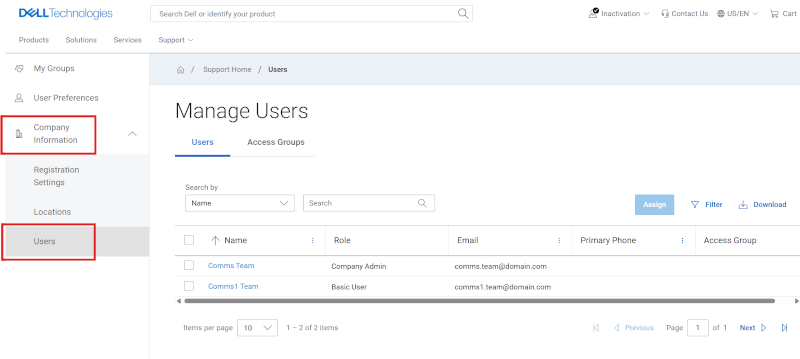
Figure 1: Users Sub Tab
Administrators will see two sub-tabs within the Users area:
-
Users - Manage/View all internal users within your organization that initially inherit locations with Open Location Visibility.
-
Administrators can remove users that have left the organization and manage administrative rights here.
-
Business Users will see the user grid and be able to determine which of the users are Company Administrators via the Role column, should the need arise to reach out to one.
-
-
Access Groups - Applying an access group defines a business user’s access to your company’s locations and products. Users not assigned to an access group can access all locations with visibility set to open. Learn more Company Administration - Create and Manage Access Groups
-
Only Administrators see this sub-tab, Business Users will only see the Users area.
-
Promote, Demote, or Remove users with Administrator Attributes
(Manage Company information > Company Information drop-down > Users)
To promote a particular user with the Company Administrator role, the Administrator should:
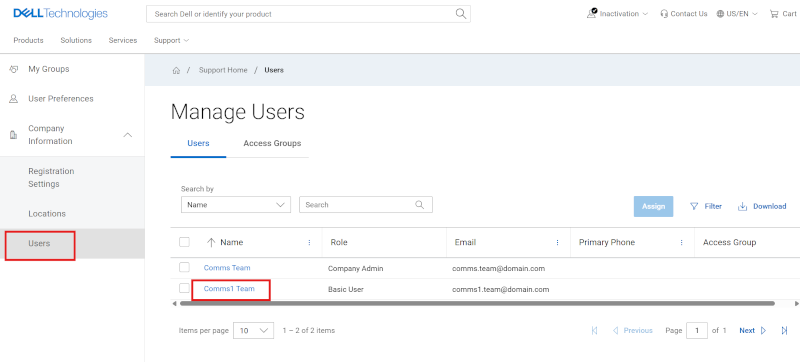
Figure 2: Users Promote Admin
-
Navigate to the Users area of Company Administration.
-
Within the Users sub-tab, click the Name hyperlink of the user. Doing so will present the Administrator with the User Details drawer.
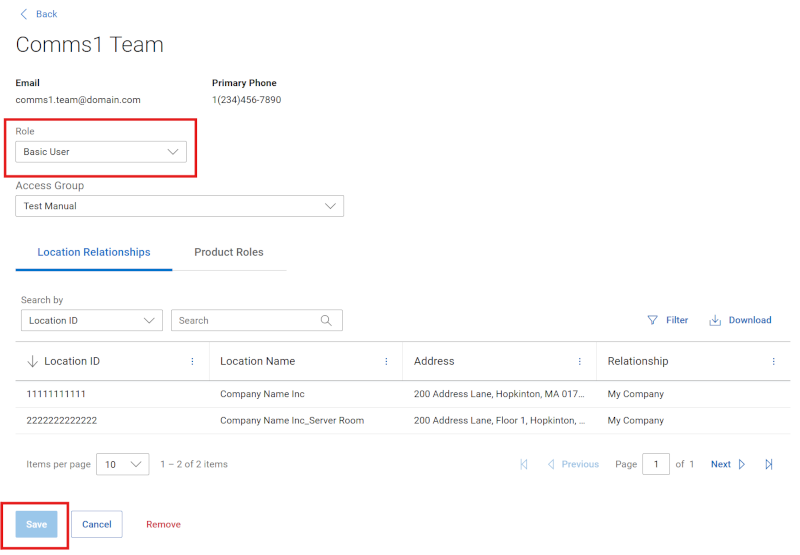
Figure 3: Users Promote Admin Drawer Company Admin
-
Select Company Admin from the Role drop-down.
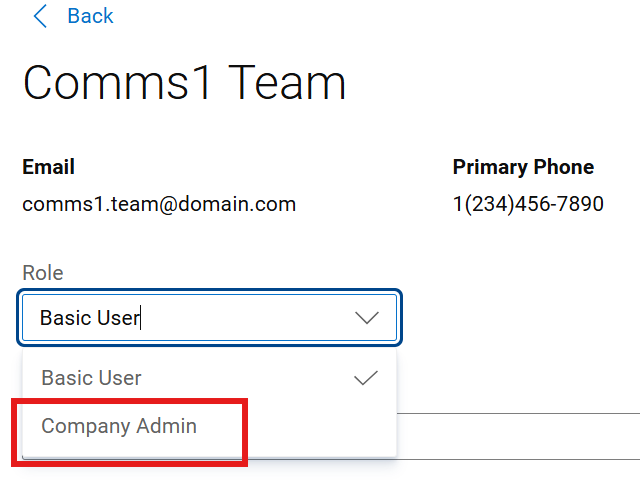
Figure 4: Users Promote Admin Drawer Basic User
-
The Save button will become enabled. Click Save to complete the promotion. A success message will be seen, and the user record should reflect the change.
To remove the Company Administrator role for a particular user, the Administrator should:
-
Navigate to the Users area of Company Administration.
-
Within the Users sub-tab, click the Name hyperlink of the user. Doing so will present the Administrator with the User Details drawer.
-
Select Basic User from the Role drop-down.
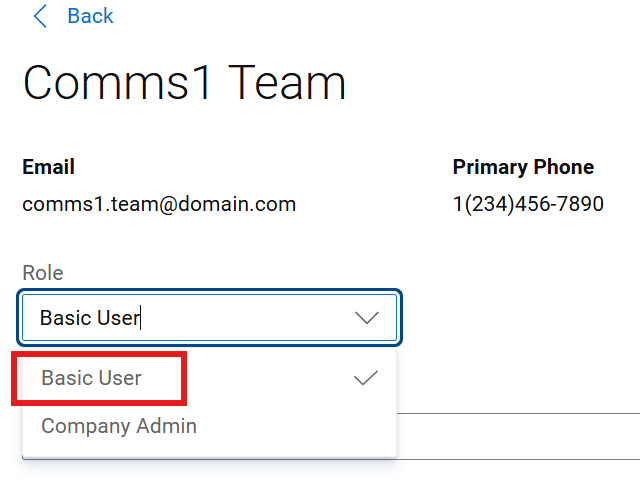
Figure 5: Users Demote Admin Drawer
-
The Save button will become enabled. Click Save to complete the demotion. A success message will be seen, and the user record should reflect the change.
To remove a particular user from the ecosystem (ex. no longer with the company):
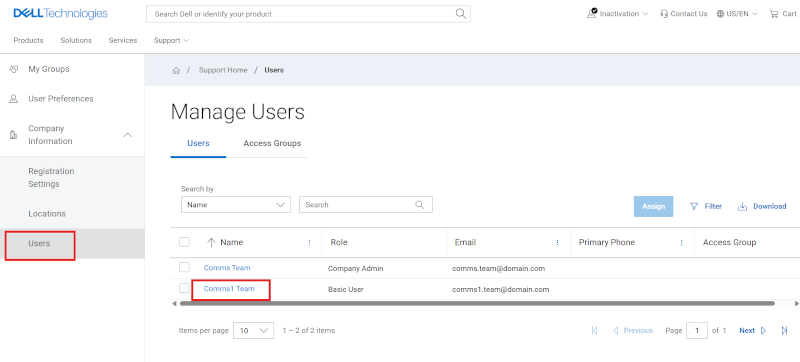
Figure 6: Users Remove
Company Administrators can remove users within their own organization should they no longer require access. Doing so removes access across ALL Dell Technologies secured websites and applications (not just https:///www.dell.com/support), so this should be done only when the contact no longer needs such access, typically when they have permanently left the company.
To remove a user that has left your organization (and no longer requires access to any Dell Technologies online applications including support, Partner Portal, Education, Licensing, so forth), a Company Administrator should:
-
Navigate to the Users area of Company Administration.
-
Within the Users sub-tab, click the Name hyperlink of the user. Doing so will present the Administrator with the User Details drawer.
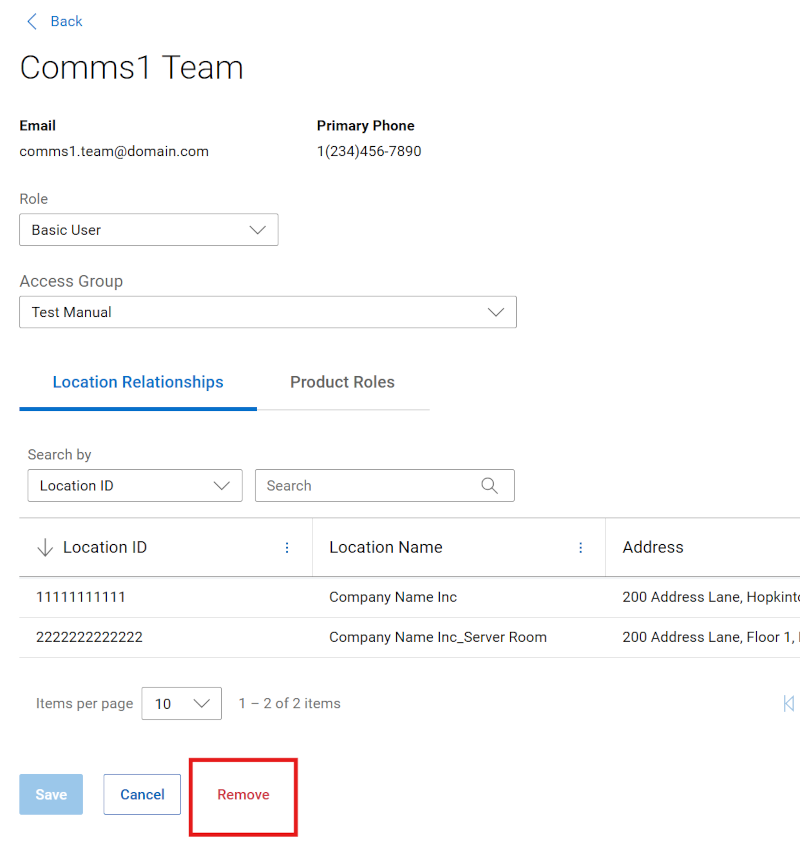
Figure 7: Users Remove Button
-
Click the Remove button found at the bottom of the drawer.
-
The Administrator will see the following WARNING: This will permanently deactivate the user's email, blocking all access to online resources. Only remove users when they have left the organization.
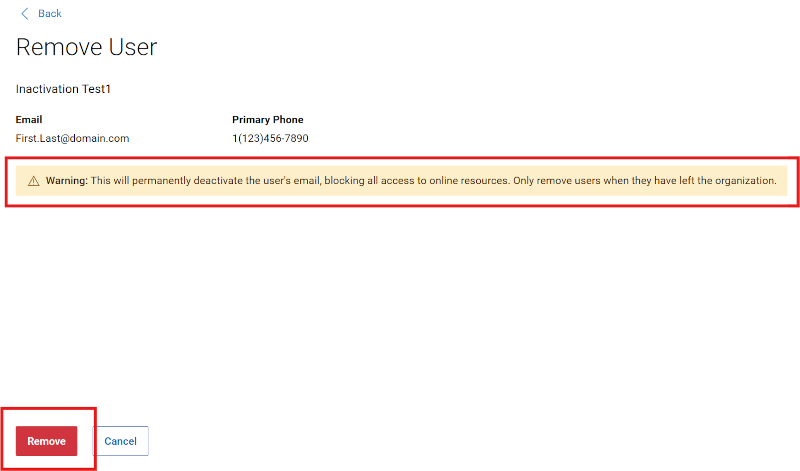
Figure 8: Users Remove Warning
-
Clicking the Remove button a second time will process the transaction. Clicking Cancel will cancel out of the transaction.
View Location Relationships and Product Roles
(Manage Company information > Company Information drop-down > Users)
From the Users area within Company Information, Administrators can view the details of each internal user within their organization by clicking the Name hyperlink of the user. Doing so will present the Administrator with the following drawer:
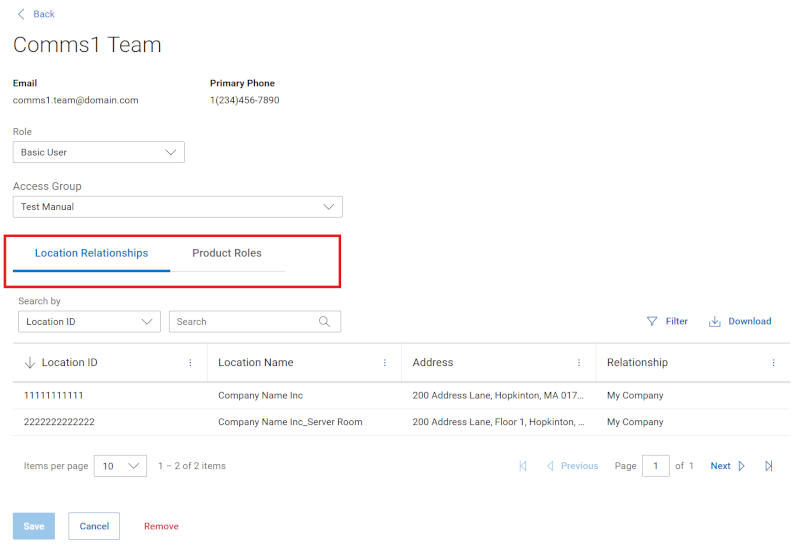
Figure 9: Users Relationships
-
Location Relationships sub-tab: Displays locations that the selected user has access to by inheritance, approved secured location access, or support partner defined access. Third party or any manually applied relationships may not be visible to the Administrator. Below are the different location relationship types.
-
My Company - A location you inherit upon registering for a Dell Technologies online account and are determined from your company affiliated email domain alignment. Company Administrator capabilities pertain to locations of this relationship type.
-
Authorized Contact - Access to a location that is not yet properly associated within the user’s company ecosystem. Only seen if the Company Administrator also has visibility to the same location.
-
Secured Site Access - Access to a location within the user’s company ecosystem that has controlled visibility of some kind (ex. Site Visibility) and has been granted by a Company Administrator.
-
Third Party - A location granted and approved from outside of the user’s company as a Third Party consultant. Only seen if the Company Administrator also has third party visibility to the same location.
-
Support Partner - Access to a customer location the Partner company is supporting. This is defined contractually to at least one product at the location (and will only see those contractually specified products related to the location).
-
-
Product Roles sub-tab: Displays asset-specific dial home relationships for the selected user.
View or Manage Site Access Groups (Manage Contacts > Access Groups)
Access Group functionality provides a powerful and flexible approach for Company Administrators to manage location visibility and security. To learn more, go to Company Administration - Create and Manage Access Groups
Online Support help options
Need help? Get started from the Online Support links below. If applicable, please contact your Service Account Manager or Customer Success Manager.
|
Topics |
Help Links Tip: Be sure to sign in to the Online Support site to view all available support options. |
|---|---|
|
Get Technical Support for your products.
|
|
|
Enterprise Online Account assistance View and manage company information, contacts, and service requests.
|
Administrative Support
|
|
Asset / Install Base management. Product registrations
|
|