Data Domain - 將 Data Domain 系統加入 Windows 網域
Zusammenfassung: 本文提供有關以下內容的說明: 驗證模式 = Active Directory 將 Data Domain 系統加入 Windows 網域 驗證 DNS 配置是否正確。
Dieser Artikel gilt für
Dieser Artikel gilt nicht für
Dieser Artikel ist nicht an ein bestimmtes Produkt gebunden.
In diesem Artikel werden nicht alle Produktversionen aufgeführt.
Symptome
將 Data Domain 系統加入 Windows 網域
摘要
本文提供有關以下內容的說明:
- 驗證模式 = Active Directory
- 將 Data Domain 系統加入 Windows 網域
- 確認 DNS 是否正確設定。
適用於
-
所有 Data Domain 系統
- 所有版本
Ursache
無
Lösung
指示:
驗證 DNS 是否已正確設定(正向和反向查詢)
注意: 您也可以使用以下命令,從 Data Domain 系統執行此功能:
net lookup {<ipaddr> | <hostname>}
- 從屬於 AD 的任何 Windows 用戶端發出下列命令:
-
C:\nslookup <IP address of DC> IP address to name resolution and will show FQDN of the host.
C:\nslookup <realm> will provide all the domain controller hostname assigned to IP addresses.
C:\nslookup <Data Domain systemFQDNhostname> will provide IP of the Data Domain system.
C:\nslookup <IP of Data Domain system> provides IP to name address.
-
對於 DD OS 版本 4.8 及更新版本:
cifs troubleshooting domaininfo
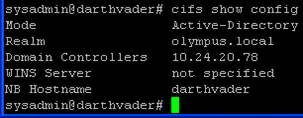
- 透過在命令提示符處輸入來驗證還原器處於哪種身份驗證模式:
cifs show config
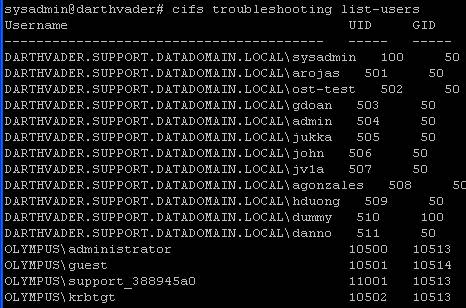
- 網域中的使用者將按其網域\使用者名稱和 UID 列出,以及 (GID: 應為 10000 或更大。
- 確認狀態為啟用後:
範例:
cifs set authentication active-directory <realm> (I.P. address of KDC server)
cifs set authentication active-directory Olympus.local 10.24.20.78
- 進入集合後 驗證 Active Directory 命令中,系統會提示您輸入管理員使用者名稱和密碼。 注意:僅需要使用者名稱,請勿在 前面加上 domain\。
- 上述命令的輸出將表示 Data Domain 系統已成功加入 Active Directory
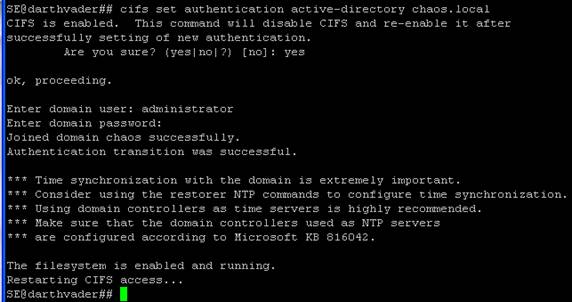
- 如果 Data Domain 系統已處於 Active Directory 驗證模式,且您想要重新加入 AD,將修復程式設為工作群組模式會有所幫助。 在命令提示字元中輸入更新命令
cifs set authentication workgroup workgroup
- 然後執行下列命令:
cifs disable
cifs enable
- 輸入以下內容以檢查 CIFS 的狀態:
cifs status
Weitere Informationen
Betroffene Produkte
Data DomainProdukte
Data DomainArtikeleigenschaften
Artikelnummer: 000043696
Artikeltyp: Solution
Zuletzt geändert: 28 Juli 2026
Version: 8
Antworten auf Ihre Fragen erhalten Sie von anderen Dell NutzerInnen
Support Services
Prüfen Sie, ob Ihr Gerät durch Support Services abgedeckt ist.