Data Domain — 将 Data Domain 系统加入 Windows 域
Zusammenfassung: 本文提供有关以下内容的说明: Verifying Mode=Active Directory 将 Data Domain 系统加入 Windows 域 正在验证 DNS 配置正确。
Dieser Artikel gilt für
Dieser Artikel gilt nicht für
Dieser Artikel ist nicht an ein bestimmtes Produkt gebunden.
In diesem Artikel werden nicht alle Produktversionen aufgeführt.
Symptome
将 Data Domain 系统加入 Windows 域
摘要
本文提供有关以下内容的说明:
- Verifying Mode=Active Directory
- 将 Data Domain 系统加入 Windows 域
- 验证 DNS 正确配置。
适用对象
-
所有 Data Domain 系统
- 所有版本
Ursache
无
Lösung
INSTRUCTION
验证 DNS 是否配置正确(正向和反向查找)
注意: 您还可以使用以下命令从 Data Domain 系统中执行此功能:
net lookup {<ipaddr> | <hostname>}
- 从属于 AD 的任何 Windows 客户端发出以下命令:
-
C:\nslookup <IP address of DC> IP address to name resolution and will show FQDN of the host.
C:\nslookup <realm> will provide all the domain controller hostname assigned to IP addresses.
C:\nslookup <Data Domain systemFQDNhostname> will provide IP of the Data Domain system.
C:\nslookup <IP of Data Domain system> provides IP to name address.
-
对于 DD 操作系统版本 4.8 及更高版本:
cifs troubleshooting domaininfo
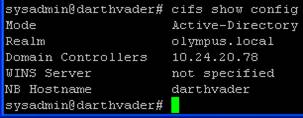
- 通过在命令提示符处输入以下命令,验证恢复设备所处的身份验证模式:
cifs show config
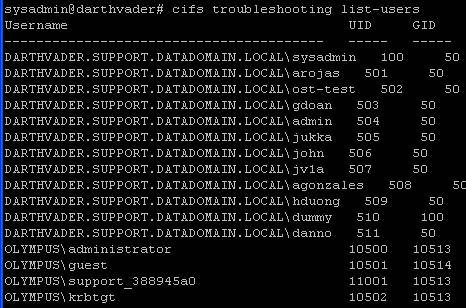
- 域中的用户将按其域\用户名和 UID 列出,并且 (GID: 应为 10000 或更高。
- 确认状态为已启用后:
示例:
cifs set authentication active-directory <realm> (I.P. address of KDC server)
cifs set authentication active-directory Olympus.local 10.24.20.78
- 进入套装后 身份验证 active-directory 命令,系统将提示您输入管理员用户名和密码。 提醒:只需要用户名,不要使用 domain\ 作为前缀。
- 上述命令的输出将表明 Data Domain 系统已成功加入 Active Directory
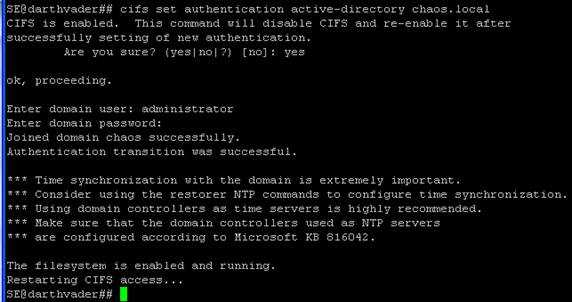
- 如果 Data Domain 系统已处于 Active-Directory 身份验证模式,并且您想要重新加入 AD,则将恢复设备置于工作组模式会很有帮助。 在命令提示符处,通过以下方法进入工作组模式:
cifs set authentication workgroup workgroup
- 然后运行以下命令:
cifs disable
cifs enable
- 通过输入以下命令检查 CIFS 的状态:
cifs status
Weitere Informationen
Betroffene Produkte
Data DomainProdukte
Data DomainArtikeleigenschaften
Artikelnummer: 000043696
Artikeltyp: Solution
Zuletzt geändert: 28 Juli 2026
Version: 8
Antworten auf Ihre Fragen erhalten Sie von anderen Dell NutzerInnen
Support Services
Prüfen Sie, ob Ihr Gerät durch Support Services abgedeckt ist.