How to Find the Windows 11 or Windows 10 Version Number Using the ISO File
Zusammenfassung: Learn how to check what version of Windows 11 or Windows 10 is installed from a Windows ISO file.
Dieser Artikel gilt für
Dieser Artikel gilt nicht für
Dieser Artikel ist nicht an ein bestimmtes Produkt gebunden.
In diesem Artikel werden nicht alle Produktversionen aufgeführt.
Weisungen
Follow these steps to find the specific version of Windows 11 or Windows 10 that is installed by using a Windows ISO (.iso) file. Windows ISO files are commonly used to install the Windows operating system.
Affected Operating Systems:
- Windows 11
- Windows 10
Follow the steps below to determine the specific version of Windows 10 installed by using a Windows 10 ISO file:
- Once the Windows 11 or Windows 10 .iso is downloaded, double-click the location of the file to mount it to the drive.
- Browse to the location of the iso file and open the
Sourcesfolder, then sort the files in the folder by size with the largest file size on top. - Find the
Install.***file. Take note if the file name is either aninstall.wim,install.swm, orinstall.esd.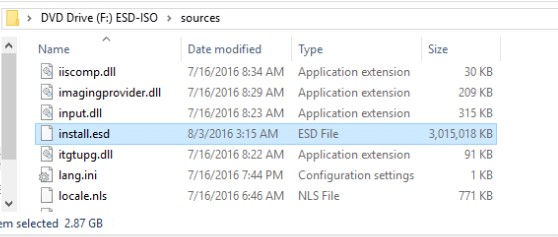
- Take note of the drive letter assigned to the ISO file (for example, the drive letter
F:as shown in the example image). - Launch an Admin Command Prompt.
- Type the following command that corresponds to the install file type. Replace [X] with the appropriate drive letter where the ISO file is mounted, then press Enter.
- If
install.wim, then typedism /Get-WimInfo /WimFile:[X]:\sources\install.wim /index:1 - If
install.swm, then typedism /Get-WimInfo /WimFile:[X]:\sources\install.swm /index:1 - If
install.esd, then typedism /Get-WimInfo /WimFile:[X]:\sources\install.esd /index:1
- If
- The command output identifies a Version number. Document the Version number.
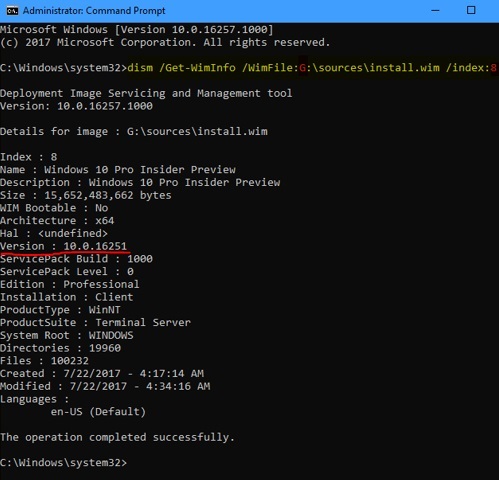
- Go to Windows 11 version history
or Windows 10 version history
Get-WimInfooutput (for example, Version 10.0.16251 in the example image output above).
Note: If using the Dell OS Recovery Tool, only complete up to the end of the operating system phase. The ISO file can be found in the
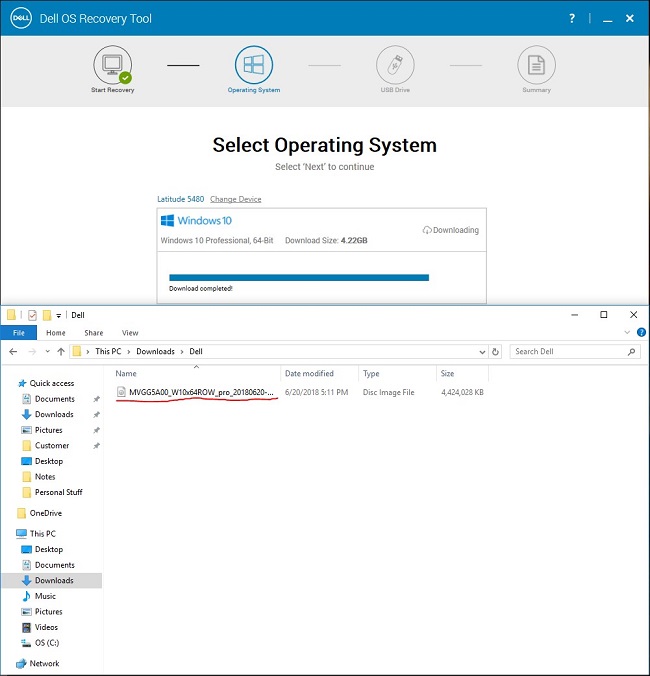
Downloads directory under Dell:
Betroffene Produkte
Alienware, Dell All-in-One, Dell Pro All-in-One, Dell Pro Max Micro, Dell Pro Max Slim, Dell Pro Max Tower, Dell Pro Micro, Dell Pro Slim, Dell Pro Tower, Dell Slim, Dell Tower, Inspiron, OptiPlex, Vostro, XPS, G Series, G Series, Alienware
, Dell Plus, Dell Pro, Dell Pro Max, Dell Pro Plus, Dell Pro Premium, Inspiron, Latitude, Dell Pro Rugged, Vostro, XPS, Fixed Workstations, Mobile Workstations, Dell Pro Max Micro XE FCM2250, Dell Pro Max Slim XE FCS1250, Dell Pro Max Tower T2 XE FCT2250, Dell Pro Max 16 XE MC16250, Dell Pro Micro Plus XE QBM1250, Dell Pro Slim Plus XE5 QBS1250, Dell Pro Tower Plus XE5 QBT1250
...
Artikeleigenschaften
Artikelnummer: 000113418
Artikeltyp: How To
Zuletzt geändert: 17 Juli 2025
Version: 7
Antworten auf Ihre Fragen erhalten Sie von anderen Dell NutzerInnen
Support Services
Prüfen Sie, ob Ihr Gerät durch Support Services abgedeckt ist.