How to Uninstall Dell Data Protection Secure Lifecycle
Zusammenfassung: Learn how to uninstall Dell Data Protection Secure Lifecycle from either a Windows or Mac computer by following these step-by-step instructions.
Dieser Artikel gilt für
Dieser Artikel gilt nicht für
Dieser Artikel ist nicht an ein bestimmtes Produkt gebunden.
In diesem Artikel werden nicht alle Produktversionen aufgeführt.
Weisungen
Note:
- As of November 2018, Dell Data Protection Secure Lifecycle has reached End of Life. This product and its articles are no longer updated by Dell. For more information, reference the Product Life Cycle (End of Support and End of Life) Policy for Dell Data Security. If you have any questions on alternative articles, either reach out to your sales team or contact endpointsecurity@dell.com.
- Reference Endpoint Security for additional information about current products.
Dell Data Protection Secure Lifecycle may be uninstalled from an endpoint to:
- Fix licensing discrepancies
- Troubleshoot the product
- Address operating system incompatibility
Affected Products:
- Dell Data Protection Secure Lifecycle
Affected Versions:
- 1.0
Affected Operating Systems:
- Windows
- Mac
The uninstallation process differs between Windows and Mac. Click the appropriate operating system for the steps to uninstall Dell Data Protection Secure Lifecycle.
Windows
Note: The Dell Data Protection Secure Lifecycle installer must be downloaded prior to performing these steps.
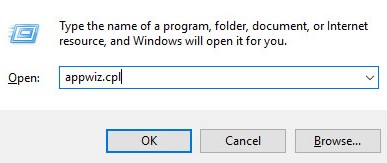
- Right-click the Windows start menu and then click Run
 .
. - In the Run UI, type
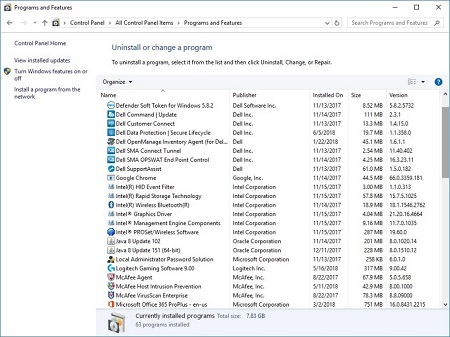
appwiz.cpland then press OK. This opens Programs and Features.
- Double-click Dell Data Protection | Secure Lifecycle.
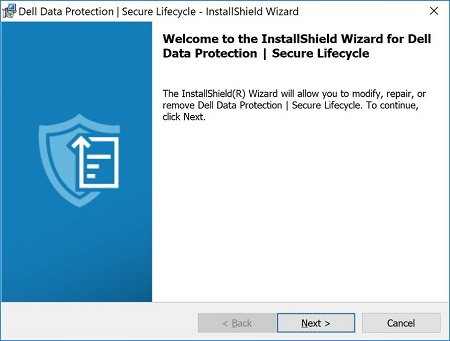
- Click Next to proceed.
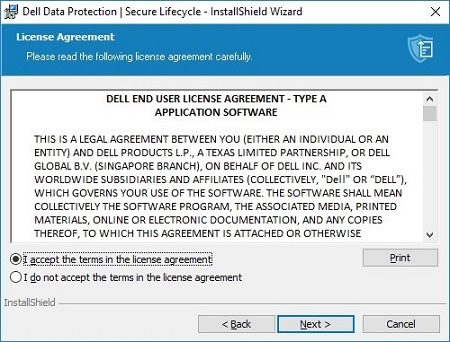
- Accept the terms in the license agreement and then click Next.
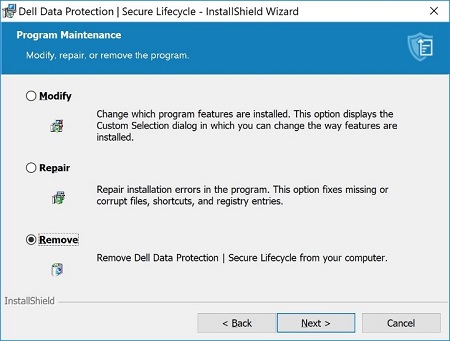
- Select Remove and then click Next.
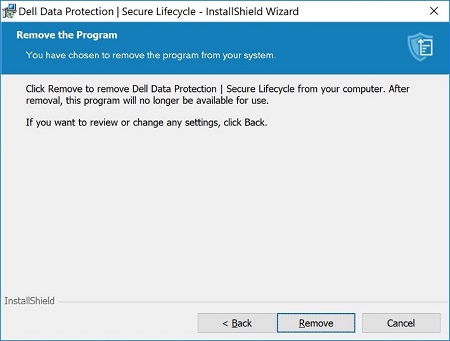
- Click Remove.
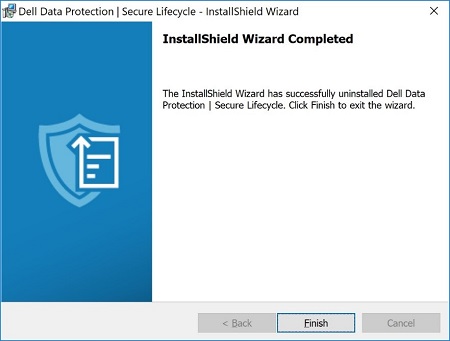
- Upon removal, click Finish to close the UI.
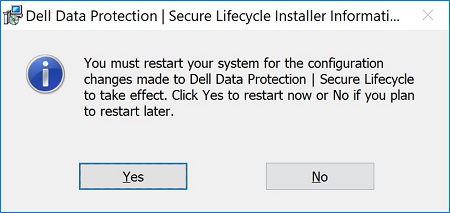
- Click Yes to reboot the machine.
Mac
- From the Apple menu, click Go and then select Applications.
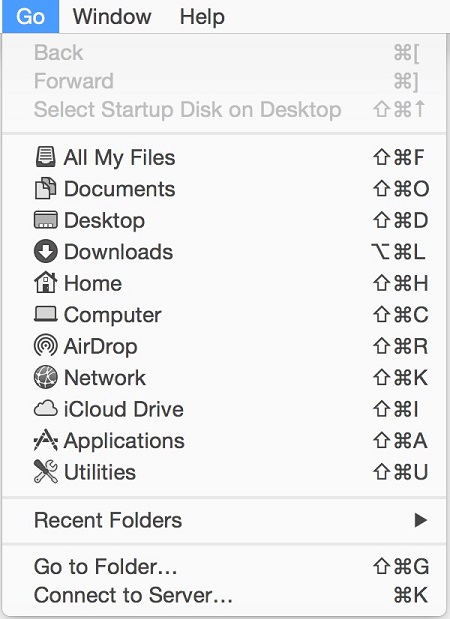
- Locate the Secure Lifecycle icon in your Applications list.

- Drag the Secure Lifecycle icon to the Trash icon.

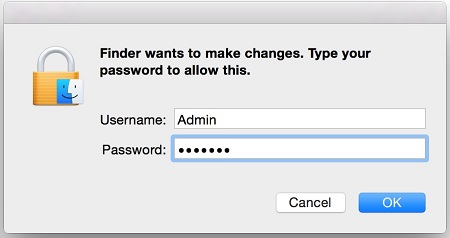
- Enter the credentials for an administrative account and then press OK.
Betroffene Produkte
Dell Data GuardianArtikeleigenschaften
Artikelnummer: 000123295
Artikeltyp: How To
Zuletzt geändert: 05 Aug. 2026
Version: 17
Antworten auf Ihre Fragen erhalten Sie von anderen Dell NutzerInnen
Support Services
Prüfen Sie, ob Ihr Gerät durch Support Services abgedeckt ist.