如何解除安裝 Dell Data Protection Secure Lifecycle
Zusammenfassung: 瞭解如何依照這些逐步指示,從 Windows 或 Mac 電腦解除安裝 Dell Data Protection Secure Lifecycle。
Dieser Artikel gilt für
Dieser Artikel gilt nicht für
Dieser Artikel ist nicht an ein bestimmtes Produkt gebunden.
In diesem Artikel werden nicht alle Produktversionen aufgeführt.
Weisungen
註:
- 截至 2018 年 11 月,Dell Data Protection | Secure Lifecycle 的支援壽命已結束。Dell 已不再更新此產品及其文章。如需更多資訊,請參閱 Dell Data Security 的產品生命週期 (支援結束及壽命結束) 政策。如果您對其他文章有任何問題,請聯絡您的銷售團隊或聯絡 endpointsecurity@dell.com。
- 請參考端點安全性,以取得有關目前產品的其他資訊。
在下列情況,可能需要從端點解除安裝 Dell Data Protection | Secure Lifecycle:
- 修正授權差異
- 故障診斷產品
- 解決作業系統不相容的問題
受影響的產品:
- Dell Data Protection | Secure Lifecycle
受影響的版本:
- 1.0
受影響的作業系統:
- Windows
- Mac
Windows 和 Mac 之間的解除安裝程序有所不同。按一下合適的作業系統,以取得解除安裝 Dell Data Protection | Secure Lifecycle 的所需步驟。
Windows
在執行這些步驟前,必須先下載 Dell Data Protection | Secure Lifecycle 安裝程式。
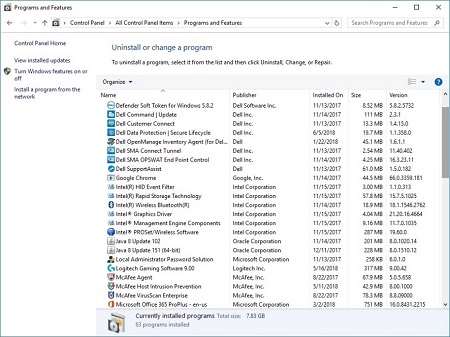
- 以滑鼠右鍵按一下 Windows 開始功能表,然後按一下執行。
- 在執行 UI 中輸入
appwiz.cpl然後按下確認。這會開啟「程式與功能」。

- 按兩下 Dell Data Protection | Secure Lifecycle。
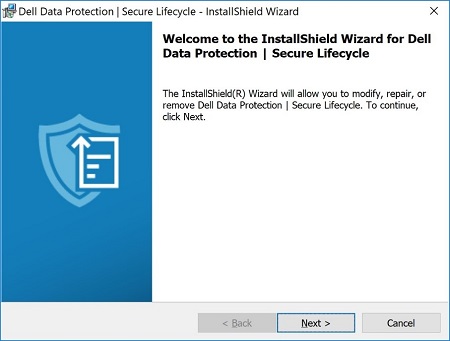
- 按一下下一步以繼續。
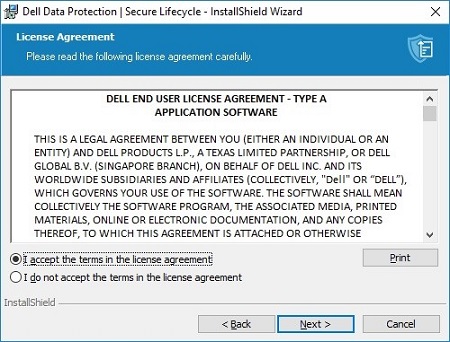
- 接受授權合約中的條款,然後按一下下一步。
- 選取移除,然後按一下下一步。
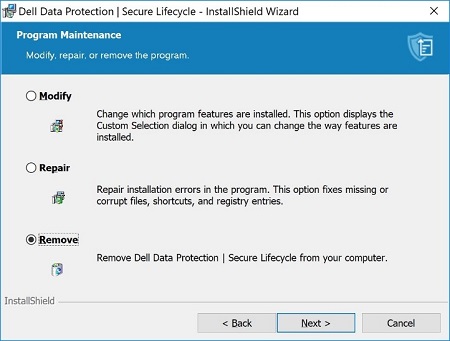
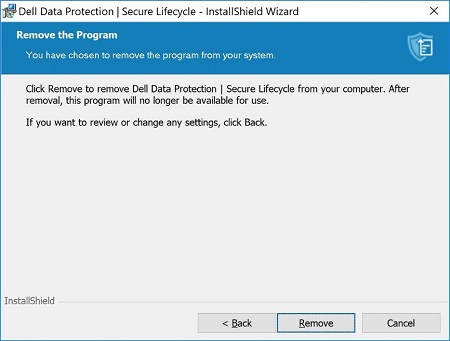
- 按一下移除。
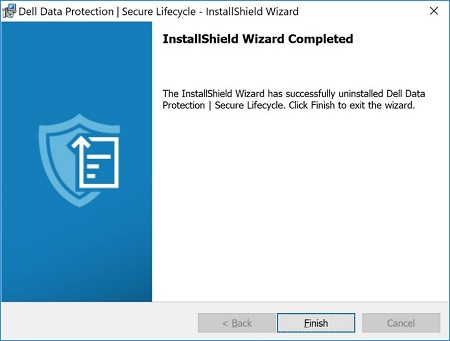
- 移除後,按一下完成以關閉 UI。
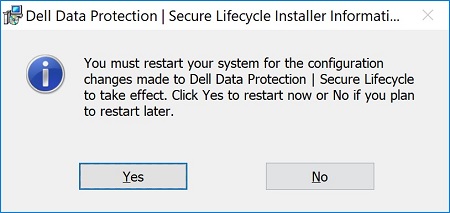
- 按一下是以重新開機機器。
Mac
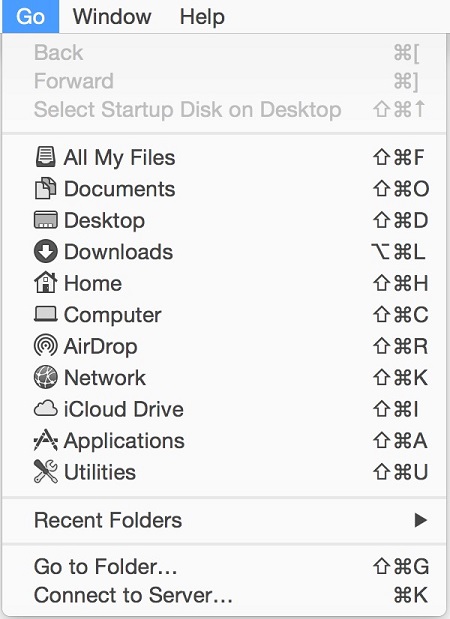
- 從 Apple 選單中,按一下前往,然後選取應用程式。
- 在應用程式清單中找到 Secure Lifecycle 圖示。

- 將 Secure Lifecycle 圖示拖曳至垃圾桶圖示。

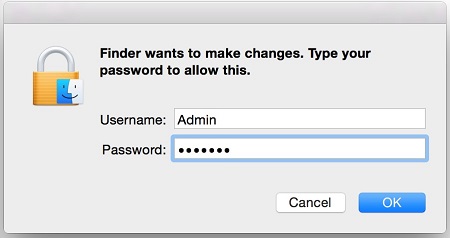
- 輸入系統管理員帳戶的登入資料,然後按下確定。
Weitere Informationen
Videos
Betroffene Produkte
Dell Data GuardianArtikeleigenschaften
Artikelnummer: 000123295
Artikeltyp: How To
Zuletzt geändert: 05 Aug. 2026
Version: 17
Antworten auf Ihre Fragen erhalten Sie von anderen Dell NutzerInnen
Support Services
Prüfen Sie, ob Ihr Gerät durch Support Services abgedeckt ist.